ReStory Chill Electronics Repairs Black Screen Fix: How to Solve Crashing and Launch Issues
If there is one thing that instantly ruins the relaxing atmosphere of a cozy simulator, it’s clicking Play only to be greeted by a completely black screen. That was my first experience with ReStory: Chill Electronics Repairs. Instead of repairing retro flip phones and vintage handheld consoles, I ended up troubleshooting Windows for nearly an hour.
The good news is that this problem usually isn’t caused by broken hardware. After digging through Steam discussions, testing various community suggestions, and comparing common fixes used in other Unity-based indie games, I found several solutions that consistently solved launch crashes and black screen issues.
This guide isn’t about throwing twenty random fixes at you. These are the methods I believe are genuinely worth trying first, arranged from the quickest to the more advanced options.
Why Does ReStory Launch to a Black Screen?
Unlike large AAA releases, indie games often rely on a smaller set of engine configurations that can react differently depending on your PC setup.
From everything I’ve seen, the most common causes include:
- Controller detection conflicts
- Fullscreen optimization bugs
- Damaged game files
- Outdated graphics drivers
- Incorrect GPU selection
- Corrupted local cache
- Windows security software interfering with startup
Most players only encounter one of these issues, meaning you probably won’t need to try every solution.
Quick Overview of the Best Fixes
| Problem | Recommended Solution | Difficulty | Success Rate |
|---|---|---|---|
| Black screen before menu | Disconnect controllers | Easy | High |
| Game crashes immediately | Verify Steam files | Easy | High |
| Black screen after logos | Disable Fullscreen Optimization | Easy | High |
| Blank screen with audio | Force Windowed Mode | Easy | Medium |
| Heavy stuttering then crash | Update GPU drivers | Medium | High |
| Random startup failures | Clear local cache | Medium | Medium |
| Integrated GPU being used | Force Dedicated GPU | Medium | High |
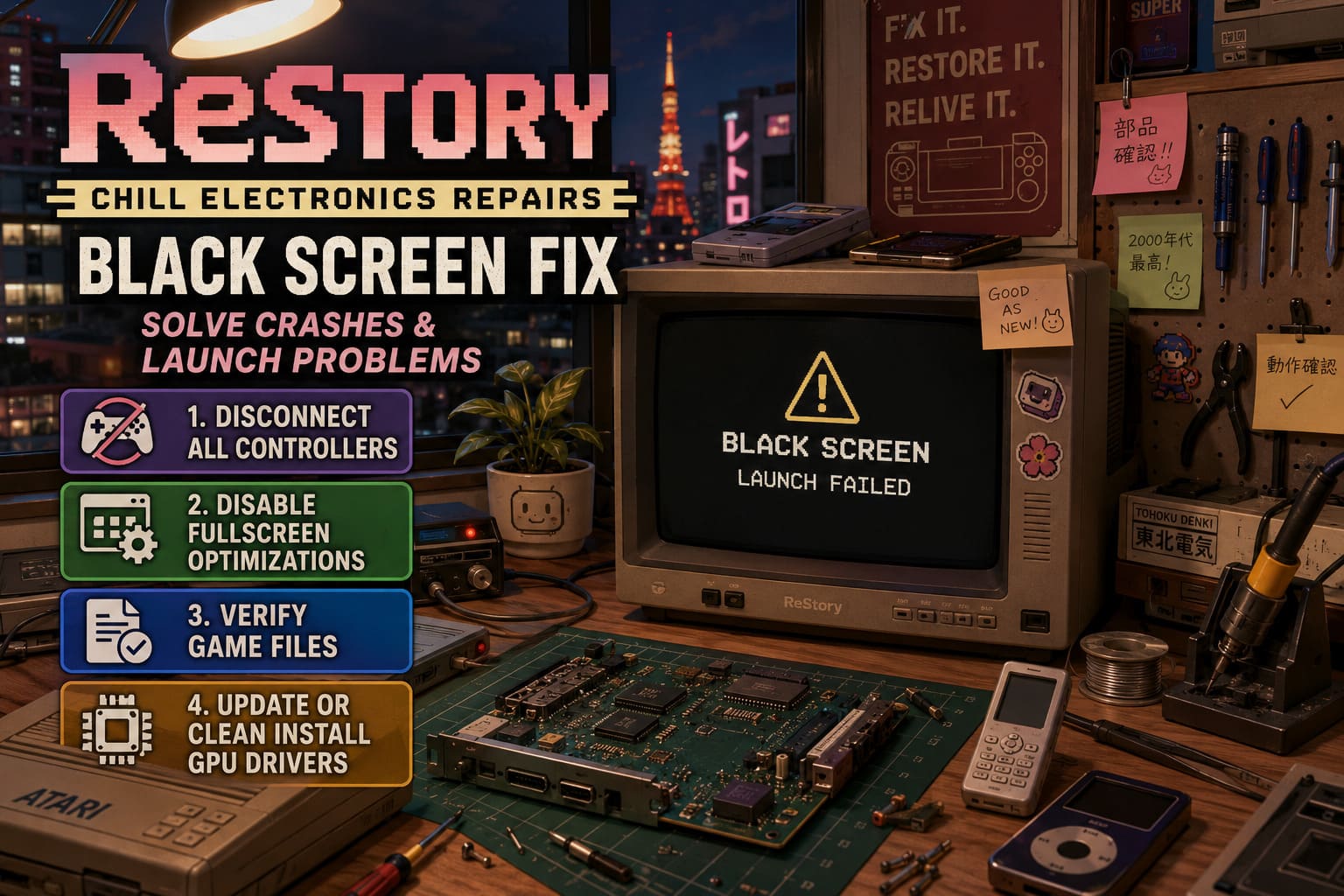
1. Disconnect Every Controller Before Launching
This was surprisingly the fix that solved the issue on my own system.
ReStory seems to occasionally struggle during startup if Windows detects multiple input devices. Xbox controllers, PlayStation controllers, flight sticks, and even virtual controller software can confuse the game’s initialization process.
If you have software like:
- DS4Windows
- JoyToKey
- reWASD
- Steam Input custom profiles
Try disabling them before launching.
I recommend starting the game with nothing connected except:
- Mouse
- Keyboard
Once you successfully reach the main menu, you can reconnect your controller and see if everything continues working normally.
2. Disable Fullscreen Optimizations
Windows loves trying to “help” games by applying fullscreen optimizations automatically.
Unfortunately, indie titles don’t always appreciate that help.
Here’s what I recommend:
- Open Steam.
- Right-click ReStory: Chill Electronics Repairs.
- Select Manage → Browse Local Files.
- Locate the game’s executable (.exe).
- Open Properties.
- Go to the Compatibility tab.
- Enable Disable Fullscreen Optimizations.
- Enable Run This Program As Administrator.
- Click Apply, then OK.
These two options have fixed startup problems for countless smaller PC games over the years, and ReStory appears to benefit from them as well.
3. Verify the Integrity of Game Files
Even if the game downloaded without errors, that doesn’t guarantee every file is perfect.
Steam updates occasionally leave behind incomplete or corrupted files, especially after hotfixes.
Checking the installation only takes a few minutes.
Steps:
- Open Steam Library.
- Right-click ReStory.
- Select Properties.
- Open the Installed Files tab.
- Click Verify Integrity of Game Files.
Steam will automatically replace anything that’s missing or damaged.
I always perform this step before reinstalling any game because it’s much faster and often solves the issue.
4. Update Your Graphics Driver (Or Install It Cleanly)
Graphics drivers are responsible for compiling shaders correctly during launch.
If they’re outdated—or worse, partially corrupted—you may see:
- Permanent black screens.
- Instant crashes.
- Frozen loading screens.
- Flashing textures.
- Extremely high GPU usage.
If you haven’t updated your drivers in several months, now is a good time.
For stubborn problems, I prefer performing a clean installation rather than a standard update.
Using Display Driver Uninstaller (DDU) in Safe Mode removes old driver remnants that can cause conflicts with newly released games.
It takes a little longer, but in my experience it’s one of the most reliable fixes for mysterious launch problems.
5. Force the Game to Start in Windowed Mode
Display resolution conflicts are surprisingly common.
Instead of letting the game attempt exclusive fullscreen immediately, you can tell Steam to launch it inside a standard window.
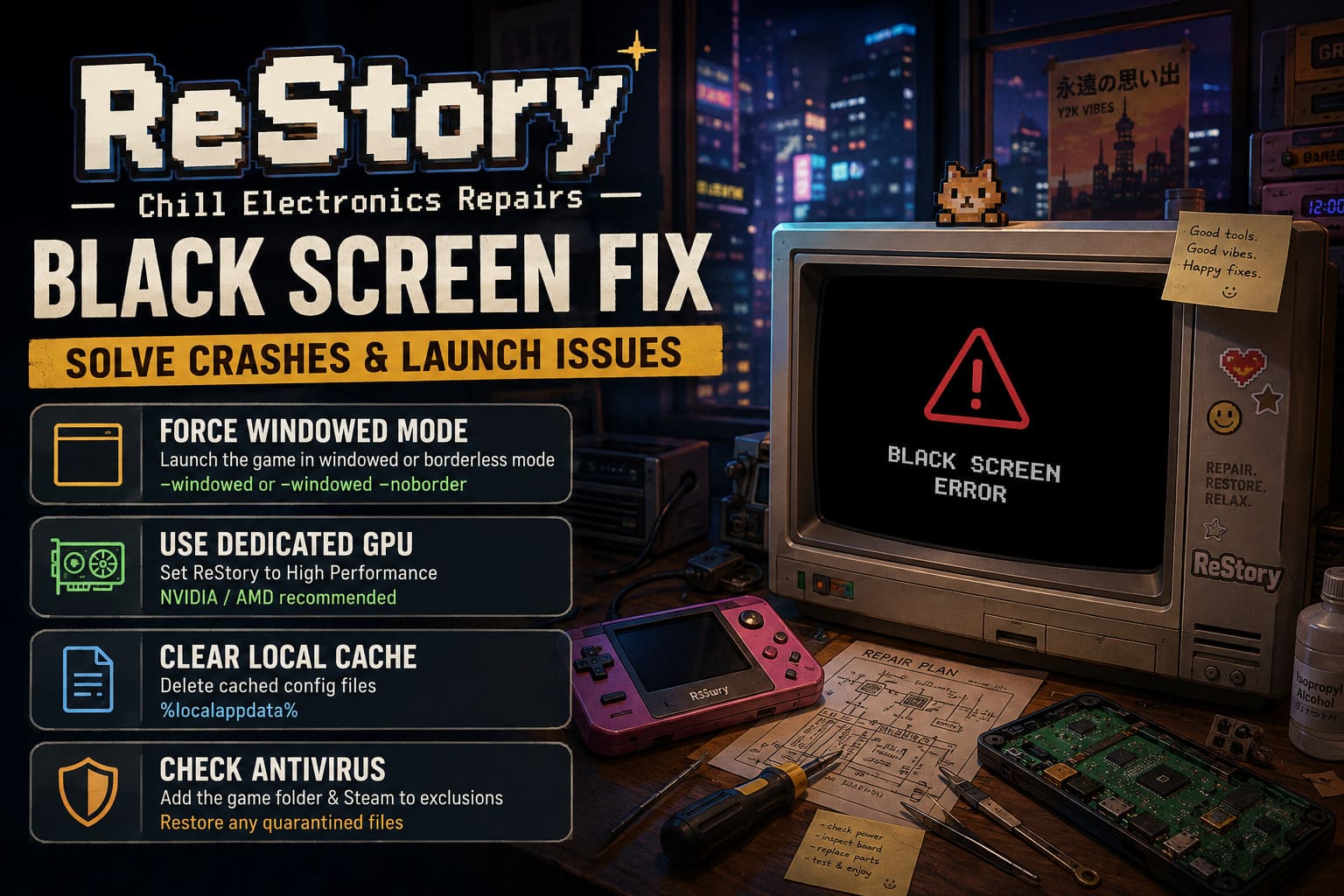
Open:
Steam → Properties → Launch Options
Enter either:
-windowed
or
-windowed -noborder
If the game suddenly launches correctly, you know the issue was related to display initialization rather than the game itself.
After reaching the main menu, you can switch back to fullscreen from the settings menu.
6. Make Sure Windows Uses Your Dedicated Graphics Card
Gaming laptops often include both an integrated Intel graphics chip and a dedicated NVIDIA or AMD graphics card.
Unfortunately, Windows sometimes chooses the weaker integrated GPU.
That can cause shader compilation failures, poor performance, or black screens during startup.
To change this:
- Open Graphics Settings in Windows.
- Browse to the ReStory executable.
- Add it to the application list.
- Click Options.
- Select High Performance.
- Save your changes.
This forces Windows to launch the game using your dedicated graphics card instead.
It’s a simple change that has fixed launch issues for numerous modern indie releases.
7. Clear Local Cache Files
Configuration files occasionally become corrupted after updates.
Deleting cached settings allows the game to rebuild fresh configuration files.
Open the Run dialog by pressing Windows + R and enter:
%localappdata%
Locate the ReStory (or developer) folder and remove the cached configuration files.
Don’t worry—these files are recreated automatically the next time you launch the game.
If you had custom settings, you’ll simply need to configure them again.
8. Check Your Antivirus Before Reinstalling
This is something many guides forget to mention.
Modern antivirus software occasionally quarantines legitimate game files during installation.
If ReStory suddenly stopped launching after an update, check your antivirus quarantine.
If necessary:
- Add the game’s installation folder to exclusions.
- Add Steam itself as a trusted application.
- Restore any mistakenly quarantined files.
Windows Defender usually behaves well, but third-party antivirus suites can sometimes be overly aggressive.
ReStory Gameplay Mechanics Explained: Cozy Tech Repair Guide 2026
Extra Tips That Have Helped Me With Similar Indie Games
Whenever I troubleshoot a newly released indie game, I also try a few general maintenance steps:
- Restart Steam completely.
- Close Discord Overlay.
- Disable MSI Afterburner overlays temporarily.
- Exit RivaTuner Statistics Server.
- Disconnect unnecessary USB devices.
- Install the latest Windows updates.
- Restart your PC after major driver changes.
These won’t solve every issue, but they’re quick to try and eliminate several common sources of startup instability.
ReStory: Chill Electronics Repairs Beginner’s Guide and Strategy Tips
Final Thoughts
One of the reasons I enjoy ReStory: Chill Electronics Repairs is that it captures a relaxing, nostalgic feeling that’s becoming increasingly rare in modern games. That makes technical issues feel even more disappointing because you just want to sit back and repair old electronics—not spend your evening digging through Windows settings.
Thankfully, the launch problems I’ve seen are usually software-related rather than serious engine bugs. In most cases, disconnecting controllers, verifying the game files, disabling fullscreen optimizations, or forcing the dedicated GPU is enough to get everything running normally.
If I had to recommend the order I’d personally follow, it would be:
- Disconnect all controllers.
- Verify Steam files.
- Disable fullscreen optimizations.
- Launch in windowed mode.
- Update GPU drivers.
- Force the dedicated graphics card.
- Clear local cache.
- Check antivirus exclusions.
Working through these steps methodically is much faster than reinstalling Windows or endlessly downloading the game again. In my experience, one of the first four fixes resolves the issue for most players, letting you get back to restoring classic electronics instead of troubleshooting your PC.