Echoes of Aincrad Denuvo Bypass & Low FPS Fix: How to Stop Stuttering
When I first jumped into Echoes of Aincrad, I expected the kind of smooth anime-inspired RPG experience that fans of virtual worlds and action adventures have been waiting for. The atmosphere, combat system, and nostalgic Aincrad setting immediately caught my attention, but like many PC players, I quickly noticed something was wrong. The game that looked impressive during the demo suddenly felt unstable in the full release, with random frame drops, heavy stuttering, and strange performance issues that did not match the hardware requirements.
After testing plenty of PC games built on Unreal Engine 5, from demanding open-world RPGs to poorly optimized early-access titles, I have learned one thing: bad optimization can ruin an otherwise enjoyable experience. Echoes of Aincrad is a perfect example of a game where the gameplay itself is not the problem — the technical side is. Many players reported that the demo could easily run above 100 FPS, while the final version struggled to maintain 50 FPS, sometimes dropping into single digits during intense battles or crowded areas.
A lot of the discussion around the game has focused on Denuvo Anti-Tamper DRM, with many players searching for an Echoes of Aincrad Denuvo bypass to restore performance. However, the real situation is more complicated. While DRM can sometimes affect CPU performance, the biggest problems appear to come from CPU thread management, Unreal Engine 5 settings, and poor resource distribution.
Echoes of Aincrad PC Performance Guide: How to Fix Low FPS, Stuttering, and Lag
This guide covers the most effective legitimate fixes to reduce stuttering, improve FPS, and make Echoes of Aincrad run closer to its original demo performance.
Why Echoes of Aincrad Has FPS Drops and Stuttering Issues
The biggest frustration for players is the huge performance difference between the beta/demo version and the retail release. Many users with the same graphics cards and processors noticed that their systems suddenly struggled after launch. A PC that previously delivered smooth 100+ FPS gameplay could now experience constant drops to 40–50 FPS with noticeable frame-time spikes.
From my own experience with PC gaming, these problems usually point toward CPU bottlenecks rather than pure GPU limitations. In Echoes of Aincrad, the issue seems especially noticeable in areas like the Town of Beginnings, crowded hubs, and locations filled with NPCs and combat effects.
One of the strangest symptoms players discovered is that GPU usage can suddenly fall extremely low during heavy scenes. Instead of the graphics card working at full capacity, utilization may drop closer to 20–30%, causing the entire game to feel sluggish. This usually means the processor is failing to feed information to the GPU quickly enough.
| Problem | Possible Cause | Common Result |
|---|---|---|
| Sudden FPS drops | CPU thread management issues | Massive frame-time spikes |
| Low GPU usage | Processor bottleneck | GPU sitting at 20–40% usage |
| Stuttering in cities | Too many NPC calculations | Short freezes and lag |
| Foggy visuals | Unreal Engine upscaling settings | Lower FPS and blurry image |
The Reality Behind the Echoes of Aincrad Denuvo Bypass Search
The search for an Echoes of Aincrad Denuvo bypass became one of the biggest topics in gaming communities after launch. Some groups claimed to have discovered methods that could avoid the anti-tamper system, creating discussions across different forums.
However, downloading unofficial bypass files or modified executables is not something I would recommend. Besides possible account issues, unknown files from random sources can contain malware or other security risks. After years of testing games and mods, I have seen plenty of players fix performance problems only to create bigger problems by installing questionable software.
The good news is that you do not need a bypass tool to improve performance. Several community-tested adjustments can significantly stabilize the game while keeping your installation completely intact.
The Best Echoes of Aincrad Low FPS Fixes
Fix 1: Change CPU Affinity and Disable Performance Cores
The most effective solution discovered by many players targets modern Intel hybrid CPUs. Processors with P-Cores and E-Cores sometimes handle certain games poorly, especially Unreal Engine titles that are not optimized for hybrid architectures.
Echoes of Aincrad appears to struggle when using Performance Cores, causing unstable CPU behavior and sudden FPS drops. Restricting the game to Efficient Cores has helped many players achieve smoother gameplay.
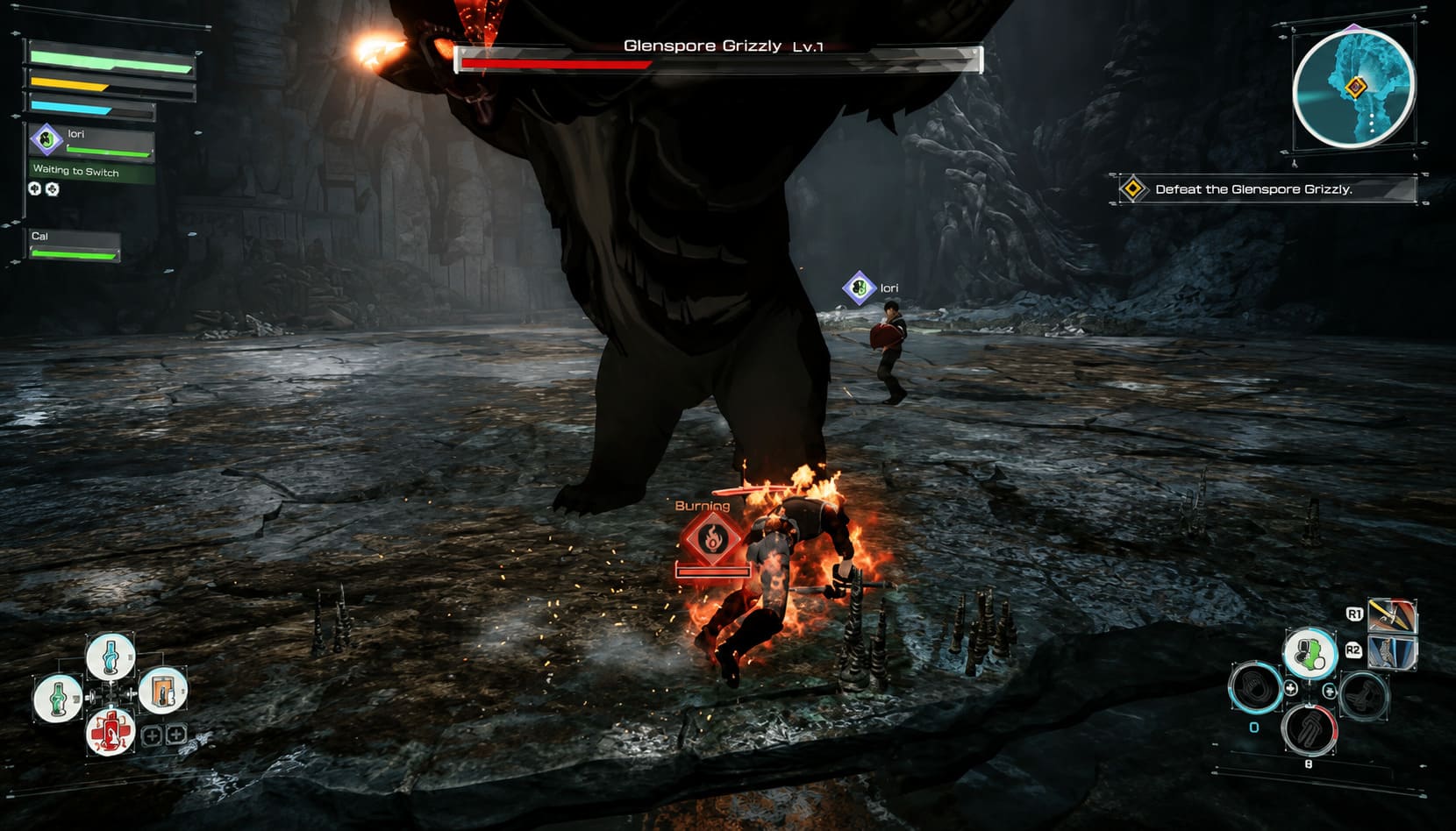
Follow these steps:
- Launch Echoes of Aincrad and enter your save file.
- Press Ctrl + Shift + Esc to open Task Manager.
- Select the Details tab.
- Find EchoesofAincrad-Win64-Shipping.exe.
- Right-click the process and choose Set Affinity.
- Disable all processors.
- Enable only the E-Cores.
- Apply the changes and return to the game.
For a permanent fix, tools like Process Lasso can automatically apply CPU affinity settings every time you launch the game.
Many players reported that after this change, GPU usage returned closer to normal levels and frame rates became much more stable. Instead of dropping from triple-digit FPS to single digits, the game could maintain a much smoother experience.
Fix 2: Adjust Unreal Engine 5 Engine.ini Settings
Like many modern releases, Echoes of Aincrad uses Unreal Engine 5 features that can sometimes be too aggressive. The default configuration relies heavily on upscaling technologies such as Temporal Super Resolution (TSR), which may create blurry visuals and unnecessary performance costs.
Changing the Engine.ini configuration can help remove unwanted upscaling behavior.
To modify the file:
- Press Windows Key + R.
- Enter %localappdata%.
- Find the Echoes of Aincrad configuration folder.
- Open Engine.ini with Notepad.
- Add performance-focused settings at the bottom of the file.
- Save the changes.
- Set the file to Read-Only to prevent automatic replacement.
This adjustment can improve image clarity and reduce inconsistent frame times, especially on powerful GPUs that should not struggle with the game.
Fix 3: Best Echoes of Aincrad Graphics Settings for Higher FPS
Not every performance issue comes from the engine. Some settings are simply too demanding, especially for handheld gaming devices and older graphics cards.
After testing many games with similar performance problems, I always recommend lowering the settings that affect CPU and GPU workload the most rather than reducing everything blindly.
Recommended settings:
- Model Detail: Low — One of the biggest performance improvements in crowded areas.
- Anti-Aliasing: Off — Use GPU-level solutions like FXAA if needed.
- FPS Limit: 60 FPS — Prevents unstable frame pacing.
- Frame Generation: Enabled — Helpful for compatible GPUs and handheld devices.
Players using systems like the ROG Ally X, Legion Go, or Steam Deck may especially benefit from these changes. A stable 60 FPS experience is usually much better than chasing unstable higher numbers.

Fix 4: Set Echoes of Aincrad to High Performance Mode in Windows
Windows sometimes does not correctly prioritize demanding games, especially when multiple background applications are running.
To force higher priority:
- Open Windows Search.
- Type Graphics Settings.
- Choose Browse under custom app settings.
- Add EchoesofAincrad-Win64-Shipping.exe.
- Select Options.
- Choose High Performance.
- Save the changes.
This simple adjustment can help Windows allocate resources more efficiently.
Final Thoughts: Is Echoes of Aincrad Performance Fixable?
After playing many RPGs and following countless PC optimization issues, I think Echoes of Aincrad is a case where the core game deserves more attention than the technical problems currently allow. The world, combat, and anime-inspired presentation have potential, but unstable performance can quickly destroy immersion.
The best current solutions are not unofficial bypasses or risky downloads. The most reliable improvements come from CPU affinity adjustments, Unreal Engine configuration changes, optimized graphics settings, and Windows performance settings.
Until the developers release a proper optimization patch, these tweaks remain the easiest way to reduce stuttering and bring Echoes of Aincrad closer to the smooth experience players expected at launch.