Echoes of Aincrad PC Performance Guide: How to Fix Low FPS, Stuttering, and Lag
If there’s one thing I’ve learned after spending years jumping between MMOs, action RPGs, and Unreal Engine releases, it’s that a great game can still leave a frustrating first impression if performance isn’t where it should be. Echoes of Aincrad captures the atmosphere of Sword Art Online surprisingly well, especially during exploration and boss encounters, but it also launches with a handful of optimization issues that can make even powerful PCs struggle.
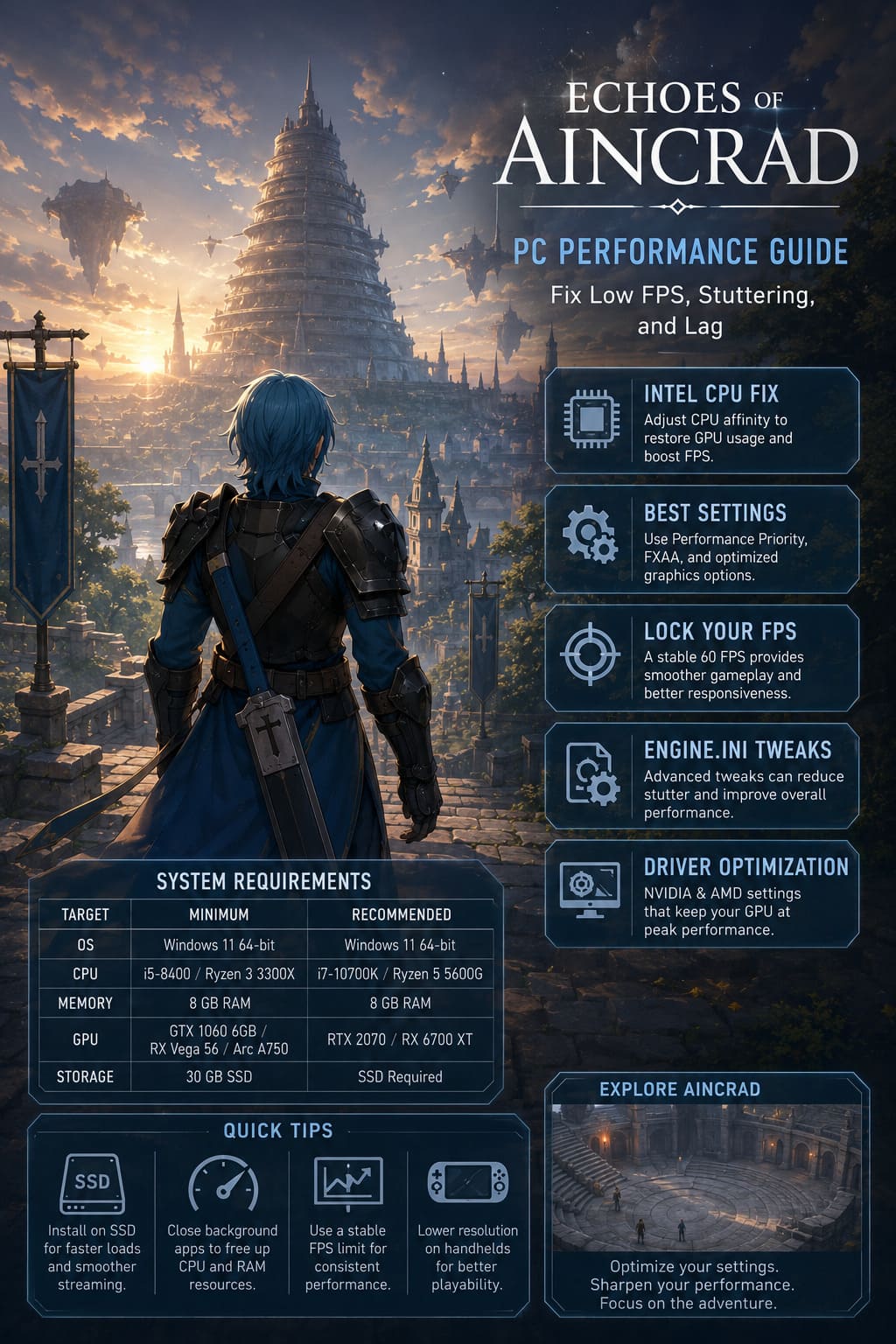
I’ve tested enough PC games to know the difference between hardware limitations and engine-related problems. In Echoes of Aincrad, many of the biggest issues aren’t caused by weak hardware at all. Players with RTX 40-series graphics cards and modern CPUs are reporting inconsistent frame rates, random stuttering, and strange GPU usage that never reaches its full potential. Fortunately, most of these problems can be reduced—or even eliminated—with a few adjustments.
How to Fix Blurry Text and Graphics in Echoes of Aincrad: Ultimate PC Optimization Guide
This guide covers the tweaks that actually make a difference without sacrificing too much visual quality.
Check Your Hardware Before Tweaking Anything
Before changing Windows settings or editing configuration files, make sure your PC is actually capable of running the game comfortably. Echoes of Aincrad relies heavily on fast storage, and installing it on a traditional HDD is one of the quickest ways to create texture streaming problems, long loading times, and occasional freezes.
Even if your PC exceeds the recommended specifications, don’t expect perfect performance immediately. Like many modern Unreal Engine games, Echoes of Aincrad can experience optimization problems that are unrelated to raw hardware power.
| Target | Minimum | Recommended |
|---|---|---|
| Operating System | Windows 11 64-bit | Windows 11 64-bit |
| CPU | Intel Core i5-8400 / Ryzen 3 3300X | Intel Core i7-10700K / Ryzen 5 5600G |
| Memory | 8 GB RAM | 8 GB RAM |
| GPU | GTX 1060 6GB / RX Vega 56 / Intel Arc A750 | RTX 2070 / RX 6700 XT |
| Storage | 30 GB SSD | SSD Required |
The Intel CPU Problem Is Real
One of the biggest surprises while looking into Echoes of Aincrad performance issues is how many Intel users are affected by poor CPU scheduling. Normally, a modern processor paired with a powerful graphics card should handle this game without trouble, but some players with hardware like an RTX 4060 Ti and Intel Core i7-13700F have reported massive FPS drops in open areas.
The strange part is that GPU usage often drops at the same time. Instead of the graphics card running close to full capacity, some systems see GPU utilization fall below 30%, causing frame rates to collapse into the 10–20 FPS range. This appears to be related to how the game engine handles Intel hybrid CPUs with Performance and Efficiency cores.
The most effective workaround is adjusting CPU affinity manually through Windows Task Manager:
- Launch Echoes of Aincrad and enter the main game world.
- Press Ctrl + Shift + Esc to open Task Manager.
- Open the Details tab.
- Find EchoesofAincrad-Win64-Shipping.exe.
- Right-click the process and select Set Affinity.
- Experiment with disabling or isolating specific CPU cores.
This workaround may sound unusual, but many players have reported that changing core assignments immediately restores GPU utilization and makes frame pacing much smoother. Until an official optimization patch arrives, this remains one of the strongest solutions for Intel-based systems.
Best Echoes of Aincrad Graphics Settings for Stable FPS
Echoes of Aincrad doesn’t include an enormous number of graphics options, which is actually helpful. Instead of spending hours adjusting dozens of sliders, players only need to focus on a few settings that have a real impact on performance.
| Setting | Recommended Value |
|---|---|
| Performance Mode | Performance Priority |
| Anti-Aliasing | FXAA |
| Anti-Aliasing Level | 0 |
| V-Sync | Off |
| Texture Quality | High with 6GB+ VRAM / Medium for lower GPUs |
| Model Detail | Medium |
Performance Priority is the first setting I recommend changing. It reduces some of the heavier visual effects and improves overall consistency, especially in crowded locations where many characters and objects are being rendered at once.
Anti-aliasing is another important choice. TSR can make the image look sharper, but it also increases GPU load significantly. For mid-range cards like the GTX 1060, RTX 2060, or RX 6600, FXAA usually provides a much better balance between image quality and smooth gameplay.
Personally, I prefer a stable 60 FPS over slightly cleaner edges. In an action RPG where timing attacks, dodges, and boss mechanics matters, responsiveness is much more important than tiny visual improvements.
Why You Should Lock Your FPS
A lot of PC players make the mistake of leaving their frame rate completely unlimited. While seeing your FPS counter jump above 100 can feel impressive, unstable frame pacing often creates a worse experience.
A consistent 60 FPS usually feels much smoother than a fluctuating 50–120 FPS range. Stable performance improves combat timing, reduces input delay, and makes exploration feel more comfortable.
If your hardware can maintain higher refresh rates consistently, using a 90 FPS or 120 FPS limit can also work well. The important thing is avoiding constant frame spikes and drops.
Engine.ini Tweaks for Advanced Players
Players who enjoy fine-tuning Unreal Engine games can also modify the local configuration files. Echoes of Aincrad stores its Engine.ini file inside the following location:
%localappdata%\EchoesofAincrad\Saved\Config\WindowsClient\
Before editing anything, always create a backup copy. Once you open the file with a text editor, additional commands can be added to improve texture streaming, reduce unnecessary effects, and adjust rendering behavior.
After saving your changes, right-click the Engine.ini file, open Properties, and enable the Read Only option. This prevents the game from automatically replacing your custom settings during startup.
Engine.ini adjustments are not guaranteed to improve performance on every system, but experienced Unreal Engine users often use these methods to remove small stutters and improve frame consistency.
NVIDIA and AMD Driver Optimizations
Graphics card control panels can make a noticeable difference, especially when a game has inconsistent power management or frame pacing problems.
NVIDIA Settings
- Open NVIDIA Control Panel.
- Go to Manage 3D Settings.
- Create a profile for Echoes of Aincrad.
- Set Power Management Mode to Prefer Maximum Performance.
- Set Texture Filtering Quality to High Performance.
- Create a stable FPS limit.
These changes help prevent your GPU from lowering clock speeds during gameplay, keeping performance more consistent during large fights and busy areas.
AMD Settings
- Open AMD Adrenalin software.
- Select the Echoes of Aincrad profile.
- Enable Radeon Super Resolution if using a lower resolution.
- Disable AMD Fluid Motion Frames if you notice stuttering.
- Turn off extra frame generation features while troubleshooting.
Frame generation technologies can be useful, but when a game already struggles with frame pacing, they can sometimes create additional visual issues. A cleaner native frame rate is often the better choice.
Portable Gaming Performance Tweaks
Handheld devices continue becoming more powerful, but Echoes of Aincrad can still be demanding on portable hardware. Systems like Steam Deck, ROG Ally X, and Legion Go may require additional adjustments.
- Lower resolution to 1280×720 or 800p.
- Allocate around 6GB VRAM on 16GB handheld systems.
- Keep enough system memory available.
- Use Proton Experimental on Steam Deck if launch problems appear.
Reducing resolution may slightly affect image sharpness, but the improvement in responsiveness is usually worth it. Large battles and crowded zones benefit the most from these changes.
Close Background Applications Before Playing
Sometimes the biggest performance problems are caused by things running outside the game. Browser tabs, RGB programs, hardware monitoring software, launchers, and recording applications can all compete for CPU resources.
Closing unnecessary applications before starting Echoes of Aincrad is a simple habit that helps many demanding PC games run better. It will not magically fix every issue, but it can reduce random stutters and improve consistency.
Final Thoughts
Echoes of Aincrad has a lot of potential, but its technical problems can make the first hours more frustrating than they should be. The good news is that most performance issues have practical solutions.
The biggest improvements usually come from fixing Intel CPU affinity problems, choosing smarter graphics settings, locking your FPS, and adjusting GPU driver options. Advanced users can go even further with Engine.ini modifications and deeper system tuning.
After playing countless PC games with rough launches, I’ve learned that early optimization problems don’t always define the final experience. Developers often improve performance through patches, and graphics drivers continue getting better over time.
Until then, these adjustments should help remove the worst FPS drops, stuttering, and lag spikes, allowing you to focus on exploring Aincrad instead of fighting your own hardware.