Palworld 1.0 Handheld Crash Fix: Low Memory, TDP Settings, and Performance Guide for Steam Deck, ROG Ally, and Legion Go (2026)
When Palworld first exploded in popularity, I spent far more time exploring Palpagos than I probably should have. Now that version 1.0 has arrived with more content, better progression, and a much larger world to explore, I jumped back in immediately. The game is easily one of my favorite survival titles, especially on handheld PCs.
Unfortunately, there was one familiar problem waiting for me.
Long sessions on handheld devices often ended with random freezes, sudden crashes, or the dreaded “out of memory” situation just when everything was getting interesting. Nothing feels worse than spending twenty minutes preparing for a boss fight or finally finding a rare Pal, only for the game to disappear without warning.
After testing different settings across handheld hardware and comparing results with other players, I found several adjustments that noticeably improved stability. None of them magically fix every issue—because some problems are tied to the game engine itself—but together they create a much smoother experience.
If you play Palworld 1.0 on a Steam Deck, ASUS ROG Ally, Lenovo Legion Go, or another handheld gaming PC, these are the tweaks I would personally recommend.
Why Palworld Uses So Much Memory
One thing many people forget is that Palworld is constantly loading and unloading world data.
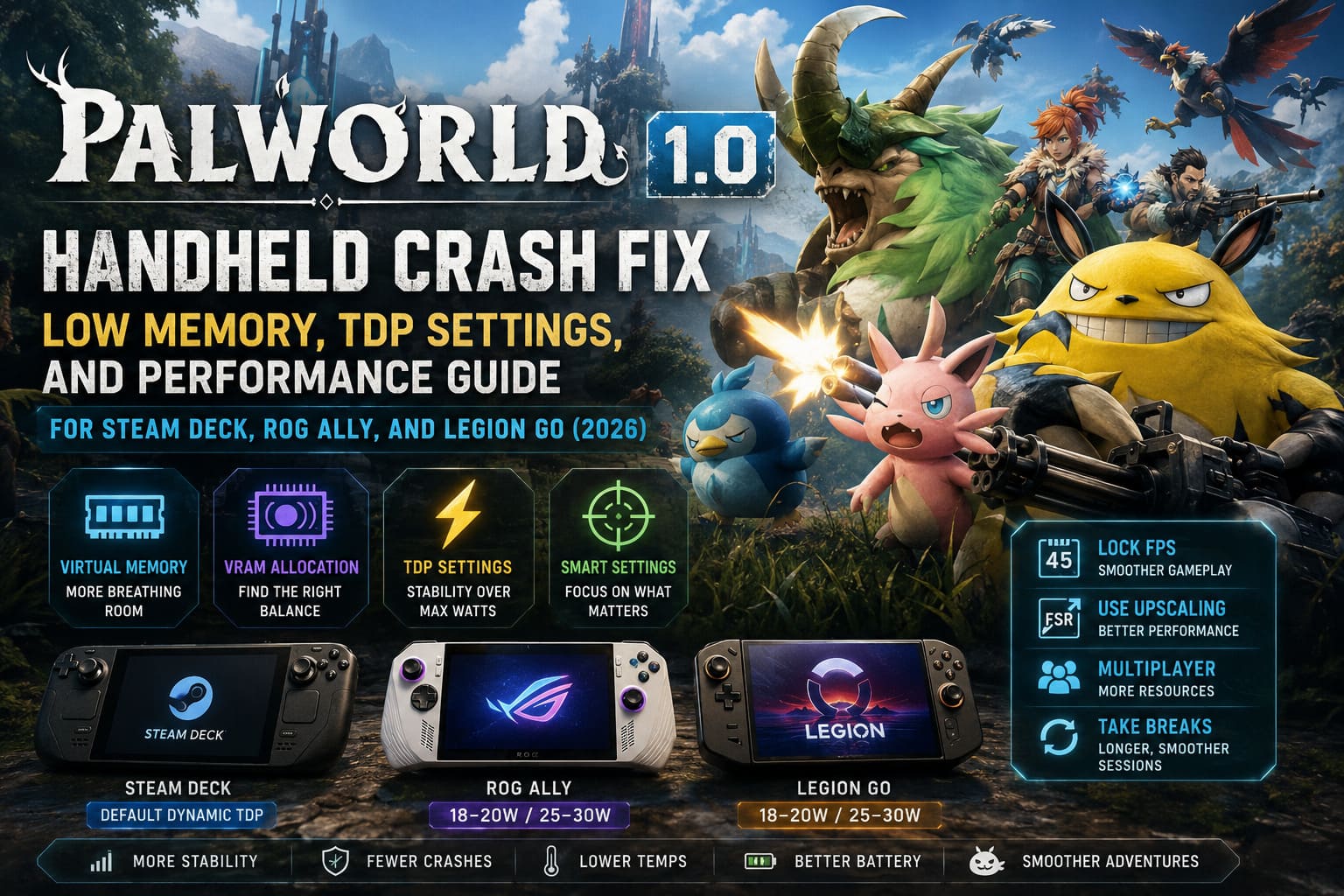
Every active Pal, every structure in your base, every dropped item, every tree, every NPC, and every texture is continuously streamed while you explore. The larger your bases become, the harder the game has to work.
Desktop gaming PCs usually hide this problem because they have:
- Plenty of system RAM
- Dedicated VRAM on the graphics card
- Larger cooling capacity
Handhelds are different.
Most portable gaming systems rely on shared memory, meaning both the CPU and GPU use the same pool. Once that memory starts filling up, Windows or SteamOS has very little room left before performance collapses.
In my experience, the crashes rarely happen during combat.
They usually appear after:
- Several fast travels
- Returning to a heavily developed base
- Long multiplayer sessions
- Playing continuously for multiple hours
That strongly suggests memory accumulation is a major contributor.
My First Recommendation: Increase Virtual Memory
This is probably the least exciting optimization…
…and also the one that helped me the most.
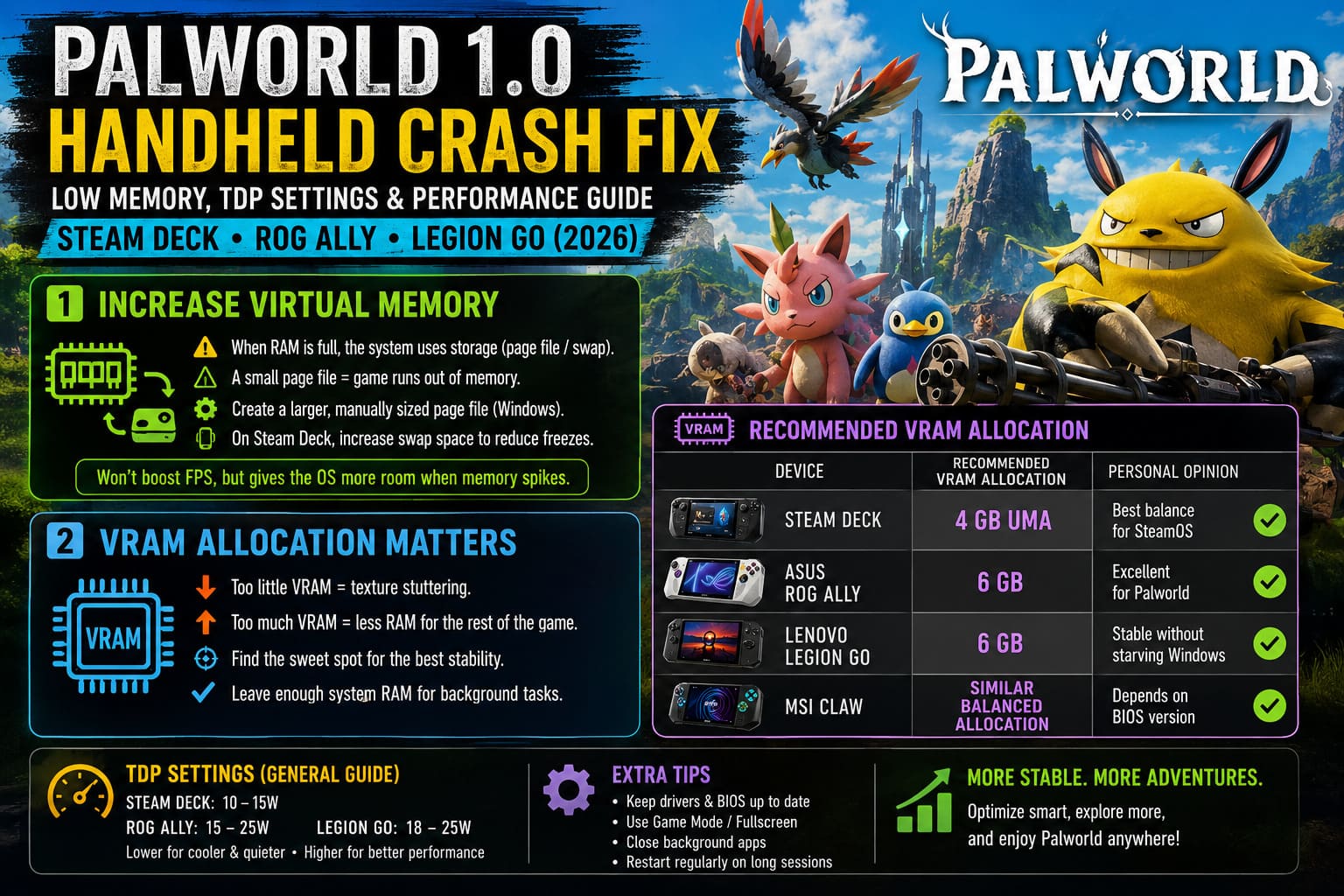
When physical RAM becomes full, the operating system starts using storage as temporary memory through a page file (or swap on Linux).
If that emergency buffer is too small, Palworld simply runs out of room.
For Windows handhelds, I always recommend creating a manually sized page file instead of relying entirely on automatic management.
A larger page file won’t increase FPS, but it gives the operating system much more breathing room when memory usage suddenly spikes.
For Steam Deck users, expanding swap space produces a similar effect and can reduce hard freezes during very long sessions.
VRAM Allocation Makes a Bigger Difference Than I Expected
Shared memory creates an unusual balancing act.
Allocate too little VRAM, and textures begin fighting for memory.
Allocate too much VRAM, and Windows no longer has enough RAM available for the rest of the game.
After experimenting, I found that the middle ground works best.
| Device | Recommended VRAM Allocation | Personal Opinion |
|---|---|---|
| Steam Deck | 4 GB UMA | Best balance for SteamOS |
| ASUS ROG Ally | 6 GB | Excellent for Palworld |
| Lenovo Legion Go | 6 GB | Stable without starving Windows |
| MSI Claw | Similar balanced allocation | Depends on BIOS version |
I wouldn’t automatically push everything to the maximum available value.
Leaving enough system memory for background processes is just as important as giving the GPU extra resources.
Don’t Chase Maximum TDP
This is probably my most unpopular opinion.
A lot of players assume:
More watts = better performance.
Sometimes that’s true.
Sometimes it simply creates more heat.
More heat eventually causes thermal throttling, which often results in inconsistent frame times rather than higher average FPS.
Here’s what worked best for me.
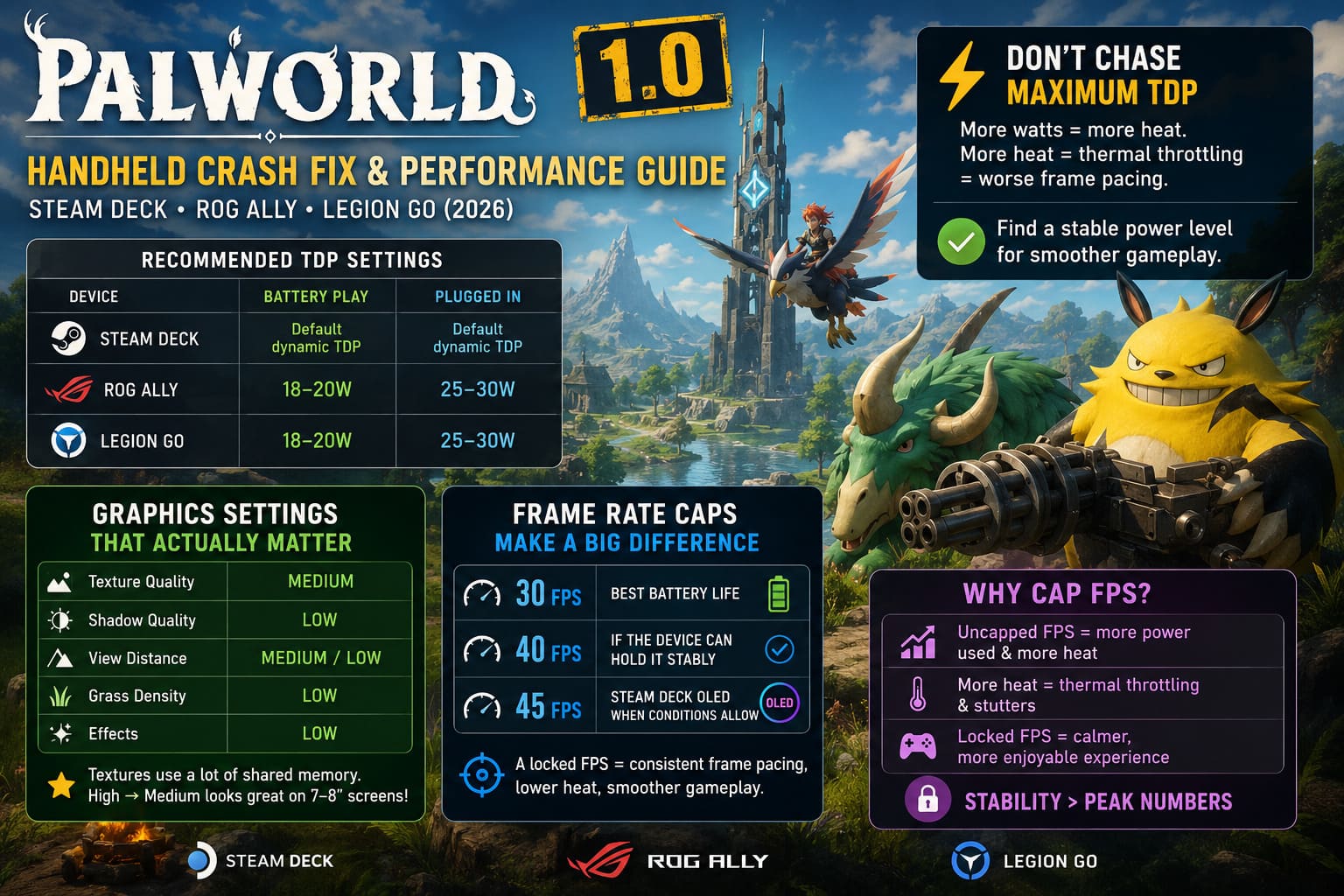
| Device | Battery Play | Plugged In |
|---|---|---|
| Steam Deck | Default dynamic TDP | Default dynamic TDP |
| ROG Ally | 18–20W | 25–30W |
| Legion Go | 18–20W | 25–30W |
Instead of maximizing wattage, I prefer finding a stable power level that avoids frequent clock fluctuations.
The gameplay simply feels smoother.
Graphics Settings That Actually Matter
People often spend too much time lowering settings that barely affect performance.
For Palworld, I noticed only a handful have a major impact on memory usage.
These deserve your attention first:
- Texture Quality → Medium
- Shadow Quality → Low
- View Distance → Medium or Low
- Grass Density → Low
- Effects → Low
Texture quality is especially important because higher-resolution textures consume a surprising amount of shared memory.
Interestingly, lowering textures from High to Medium barely changes visual quality on a 7- or 8-inch handheld display.
Frame Rate Caps Are Surprisingly Helpful
I know everyone wants the biggest FPS number possible.
I did too.
Then I realized something.
Palworld actually feels more enjoyable with consistent frame pacing than wildly fluctuating frame rates.
On handheld hardware I usually choose:
- 30 FPS for maximum battery life
- 40 FPS if the device can maintain it consistently
- 45 FPS on Steam Deck OLED when conditions allow
Running the game uncapped causes unnecessary power consumption while increasing heat generation.
A locked frame rate creates a noticeably calmer experience.
Resolution Isn’t Everything
Native resolution sounds great on paper.
In reality, small handheld displays hide a lot of imperfections.
Personally, I’d rather play at:
- 1280×800 on Steam Deck
- 1280×720 on Windows handhelds
Then let modern upscaling technologies do their work.
Whether it’s FSR or AMD RSR, image reconstruction has become surprisingly good.
The performance gain is usually worth the tiny loss in image sharpness.
Multiplayer Uses More Resources Than You Think
One thing that surprised me was how much extra memory multiplayer consumes.
Even if you’re hosting a private world for friends, the game has to manage server tasks alongside normal gameplay.
If you’re planning a solo adventure, disabling multiplayer for that world frees additional system resources.
It’s not a miracle fix, but every gigabyte matters on handheld hardware.
Long Sessions Need Small Breaks
This might sound old-fashioned, but I honestly think it helps.
Whenever I play for several hours, I completely close Palworld every couple of hours before launching it again.
It only takes a minute.
The operating system clears cached memory, resets resource usage, and the game generally feels much smoother afterward.
Until future patches improve long-session memory behavior, this has become part of my routine.
Keep Background Programs Under Control
Windows especially loves running dozens of small applications.
Before launching Palworld I usually close:
- Discord (unless I’m actively chatting)
- Multiple browser tabs
- RGB utilities
- Launchers I don’t need
- Unnecessary overlays
None of these individually consume much memory.
Together, however, they can easily eat hundreds of megabytes—or even several gigabytes.
On a desktop PC that isn’t a huge deal.
On a handheld with shared memory, it absolutely is.
My Favorite Overall Settings
If someone handed me a fresh handheld today and asked for the quickest stable setup, this is what I’d choose.
| Setting | Recommendation |
|---|---|
| Resolution | 1280×800 or 1280×720 |
| FPS Limit | 40 FPS |
| Texture Quality | Medium |
| Shadows | Low |
| Effects | Low |
| Grass | Low |
| View Distance | Medium |
| Motion Blur | Off |
| VRAM | 4–6 GB depending on device |
| Page File / Swap | Increased from default |
It’s not the prettiest configuration.
But it delivers something I value far more:
Reliability.
Assassin’s Creed Black Flag Resynced White Whale Locations: Harpooning Guide
Final Thoughts
I genuinely love playing Palworld on handheld gaming PCs. Being able to jump into the game from the couch, during travel, or while relaxing outside is something desktop gaming simply can’t replace.
That said, version 1.0 still pushes portable hardware incredibly hard. Shared memory remains the biggest challenge, especially during extended play sessions or when managing large, complex bases filled with dozens of active Pals.
The good news is that you don’t need expensive hardware upgrades to make the experience dramatically better. A combination of sensible VRAM allocation, a properly configured page file or swap file, moderate TDP settings, and carefully chosen graphics options can greatly reduce crashes while keeping gameplay smooth.
My biggest piece of advice is simple: don’t chase maximum settings just because they’re available. On handhelds, consistency almost always beats raw numbers. I’d rather enjoy three uninterrupted hours at a locked 40 FPS than spend the evening dealing with random crashes at higher frame rates.
As Pocketpair continues refining the game, I expect memory management to improve with future updates. Until then, these tweaks have given me the most reliable experience across multiple handheld devices. If you’re planning another adventure across the Palpagos Islands, spending a few minutes optimizing your system now can save you from losing progress later—and let you focus on what really matters: exploring, building, and catching every Pal you can find.