How to Play WARDOGS with a Controller: Ultimate Setup Guide, Aim Assist Settings, and Steam Input Fixes
If you are planning to jump into WARDOGS Early Access on September 10, 2026, but the thought of playing a huge tactical FPS with a mouse and keyboard does not exactly excite you, there is good news: you can play WARDOGS with a controller. The less exciting part is that you probably should not expect the same effortless experience you get from games designed around a gamepad from day one.
WARDOGS is clearly built with PC players in mind. This is a massive tactical shooter where infantry combat is only one piece of the puzzle. You have vehicles, aircraft, base construction, supply management, long-range engagements and a persistent economy to worry about. After playing plenty of tactical shooters over the years, I actually like that the developers are not trying to turn WARDOGS into another arcade FPS. At the same time, that philosophy makes controller configuration surprisingly important.
The biggest question is not simply whether your Xbox or PlayStation controller works. It does. The real question is whether you can configure it well enough to compete against experienced mouse-and-keyboard players.
My answer is yes, but you need to put some work into it.
Best Flight Stick for WARDOGS Helicopters: Ultimate Pilot’s Guide (2026)
Does WARDOGS Support Controllers?
WARDOGS offers controller support, although it is better described as partial controller support rather than a completely controller-first experience. Basic movement, aiming, shooting and several vehicle controls work normally, but some of the game’s more complicated interfaces are clearly designed around a mouse.
This becomes especially noticeable when you start interacting with the tactical map, inventory screens, building systems and other menus. Moving a cursor around with an analog stick simply cannot match the speed and precision of grabbing a mouse and clicking exactly where you want.
That does not bother me too much during actual combat. In fact, I prefer a controller for driving in many games because analog triggers make acceleration and braking feel more natural. The problem appears when WARDOGS asks you to do ten different things in the middle of a chaotic battle.
And then there is aim assist.
WARDOGS Aim Assist Is Not Going to Save You
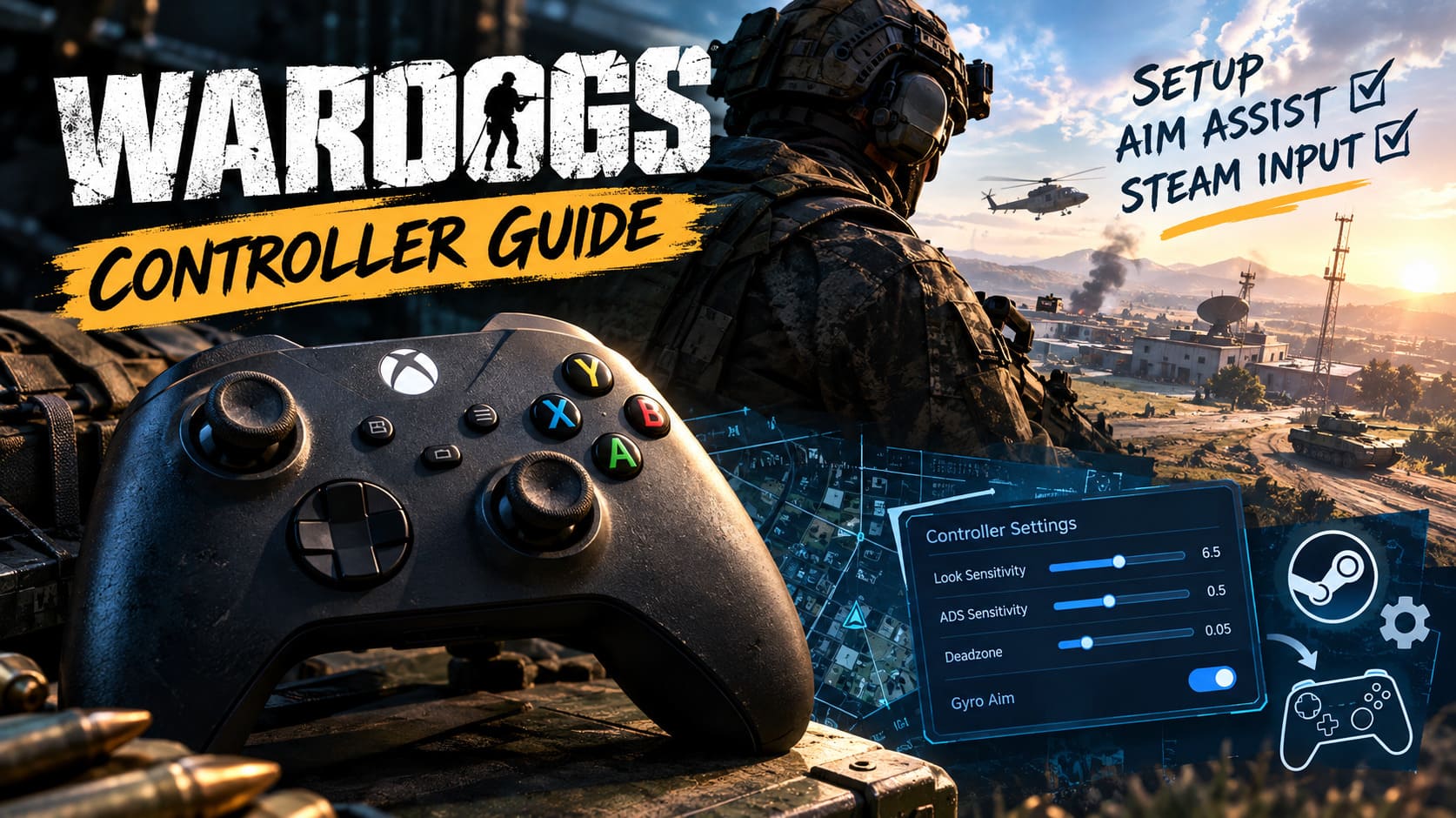
One thing controller players should understand immediately is that WARDOGS does not appear to be built around aggressive aim assist.
The developers have explained that controller aim assistance exists, but it is intentionally limited. That makes sense for a tactical shooter where positioning and accuracy are supposed to matter more than simply moving your crosshair near an enemy and letting the game do the rest.
If you are coming from Call of Duty or another fast arcade shooter, the difference can be pretty brutal at first. You cannot expect the reticle to stick to targets, especially during longer firefights.
Personally, I think this is the correct approach for WARDOGS. Strong aim assist might make controllers more comfortable, but it could also undermine the game’s slower and more deliberate gunplay. If you use a controller, your settings and your own aim have to do most of the work.
That is why Steam Input becomes so useful.
How to Set Up Steam Input for WARDOGS
If the default controller configuration feels awkward, Steam Input is the first thing I would try. It gives you considerably more freedom when assigning buttons and can also help with controllers that do not behave perfectly with the game’s native implementation.
Step 1: Open Steam’s Controller Interface
Launch Steam and open your WARDOGS library page. You can use Steam’s controller-oriented interface if you prefer navigating everything with your gamepad.
Make sure Steam recognizes your controller before launching the game. If Steam cannot see the device correctly, changing WARDOGS settings inside the game probably will not fix the underlying problem.
Step 2: Check WARDOGS Controller Configuration
Open the controller configuration associated with WARDOGS and check whether Steam Input is active for your particular device.
Xbox controllers, PlayStation controllers and generic gamepads can have different Steam Input behavior, so do not assume that a setting working for one device will automatically work for another.
Step 3: Start With a Community Layout
WARDOGS has far more controls than a typical shooter. You are dealing with infantry movement, leaning, equipment, vehicles, building and tactical interfaces, so the standard controller layout can become crowded very quickly.
Steam’s community layouts can be useful here. Instead of blindly downloading the first configuration you see, look for layouts with strong ratings and recent activity. A good community profile can save a surprising amount of time.
Step 4: Customize It Yourself
This is the part I would not skip.
Even a highly rated layout might feel completely wrong for you. I have learned this the hard way with other PC games that support controllers. One player’s perfect sprint button can be another player’s accidental grenade launcher.
Spend a few minutes testing the controls in a safe environment and make sure the commands you use constantly are positioned where your fingers naturally rest.
Recommended Controller Layout for WARDOGS
The default layout is a reasonable starting point for Xbox and PlayStation controllers, although I would personally change a few things once I had some matches under my belt.
| Action | Xbox Controller | PlayStation Controller |
|---|---|---|
| Movement | Left Stick | Left Stick |
| Aim / Camera | Right Stick | Right Stick |
| Sprint | L3 | L3 |
| Ping | R3 | R3 |
| Jump / Vault | A | Cross |
| Interact / Revive | X | Square |
| Reload / Fire Mode | B | Circle |
| Weapon / Equipment | Y | Triangle |
| ADS | LT | L2 |
| Fire | RT | R2 |
| Lean Left | LB | L1 |
| Lean Right | RB | R1 |
| Tactical Map / Inventory | View | Create / Share |
| Pause | Menu | Options |
For infantry combat, this arrangement makes sense because the most important actions remain close to the thumbsticks and triggers. ADS and firing should absolutely stay on the triggers; moving either action elsewhere would make the controls feel unnecessarily awkward.
The bigger challenge starts when you enter a vehicle.
Vehicle Controls Are Actually One of the Controller’s Strengths
This is where I think controller players have a legitimate advantage.
Driving tanks, trucks and armored vehicles with a gamepad feels much more natural than using a keyboard. Analog triggers let you control acceleration and braking gradually rather than relying on simple digital inputs.
| Vehicle Action | Controller Input |
|---|---|
| Steering | Left Stick |
| Accelerate | RT / R2 |
| Brake / Reverse | LT / L2 |
| Handbrake | A / Cross |
| Change Seat | B / Circle |
| Free Look | D-Pad Left |
| Camera Mode | D-Pad Right |
| Voice Chat Toggle | D-Pad Down |
| Horn | L3 |
I would not underestimate this advantage. WARDOGS is not a game where vehicles are just disposable toys you jump into for thirty seconds. They can be a major part of a team’s strategy, and having smooth analog control is genuinely useful.
Helicopters are another story.
Helicopters May Require Extra Tuning
Flying rotary aircraft with a controller can feel strange until you find settings that match your style. The more simulation-oriented flight behavior in WARDOGS means that players accustomed to arcade helicopter controls may initially find the aircraft too slow or overly sensitive.
Before installing any third-party software, I would first push the native vehicle sensitivity upward and test the different camera options. You might discover that the default values are simply too conservative for your preferences.
For dedicated pilots, more advanced remapping tools may eventually be worth experimenting with, particularly if you are trying to replicate a HOTAS-style control scheme. But honestly, I would not complicate things on day one. Learn the native controls first. There is little point in creating an elaborate setup before you even know what needs fixing.
Best WARDOGS Controller Settings for Better Aim
This is where controller players should spend most of their time.
Lower Your Stick Deadzones
Deadzone settings determine how far you have to move an analog stick before the game registers the movement.
A controller with perfectly healthy sticks can usually tolerate a fairly low deadzone. Something around 3% to 7% is a reasonable starting range, but there is no universal magic number.
Lower it until your aim feels responsive, then increase it slightly if you notice unwanted camera movement.
Do not blindly choose the lowest possible value. A deadzone of 0% might look fantastic on paper, but if your controller has even minor stick drift, your character could slowly start staring at the sky while you are trying to watch a doorway.
Increase General Look Sensitivity
WARDOGS can throw you into completely different combat situations within seconds. You might be clearing a building one moment and trying to track an enemy several hundred meters away the next.
I would start with medium-high horizontal and vertical sensitivity, somewhere around 6 or 7 on a ten-point scale if the game uses that type of slider.
The goal is not to make your camera ridiculously fast. You simply want enough speed to turn around without feeling like your right stick is dragging through mud.
Reduce ADS Sensitivity
This is probably the most important adjustment.
High general sensitivity helps with turning and close-range fights, but high ADS sensitivity can make precision shooting miserable. Try an ADS multiplier around 0.4x to 0.5x as a starting point.
From there, adjust it gradually.
If your crosshair constantly flies past targets, lower it. If tracking feels painfully slow, raise it. After a few matches, you should find a value that lets you make small corrections without sacrificing your ability to turn quickly.
Gyro Aiming Could Be a Huge Advantage
If you are using a DualSense, DualShock 4 or another controller with a gyroscope, gyro aiming is absolutely worth testing.
Through Steam Input, you can configure the gyro to behave similarly to mouse movement. I especially like the idea of activating gyro aiming only while ADS is held.
The concept is simple: use the right stick for large camera movements and the physical movement of the controller for tiny corrections.
That combination can feel strange for the first few minutes. Give it time. Once your brain adjusts, gyro aiming can make long-range corrections and recoil control much easier.
For a tactical shooter like WARDOGS, this is arguably one of the best ways to close the precision gap between controller and mouse.
Controller vs. Mouse and Keyboard in WARDOGS
There is no point pretending the two input methods are identical. They are not.
| Controller | Mouse & Keyboard |
|---|---|
| Excellent analog movement | Superior aiming precision |
| Great vehicle control | Faster menu navigation |
| Comfortable for long sessions | More accessible keybinds |
| Gyro can improve precision | Easier inventory management |
| Less physical desk space | Better for complex commands |
| More difficult long-range aiming | Strong advantage in precise firefights |
For infantry combat, I would still give mouse and keyboard the overall advantage. There are simply too many commands and too much precision involved in WARDOGS for a controller to completely eliminate that difference.
But that does not mean the controller experience is bad.
Far from it.
Why I Would Still Play WARDOGS With a Controller
For me, the biggest reason is comfort.
After spending years playing different shooters, I do not always want to sit forward at a desk with my hand locked onto a mouse. Sometimes I want to lean back, pick up a controller and play for a couple of hours.
The analog movement also suits WARDOGS better than you might expect. Sneaking around a position, carefully adjusting your movement speed or driving through rough terrain can feel excellent with a stick.
The trade-off is that you have to accept some disadvantages. Inventory management will probably never be as fast as using a mouse, and competitive long-range gunfights are likely to remain tougher.
There is also the issue of button overload. WARDOGS has enough systems that you may occasionally find yourself wondering which button combination performs a particular action. That is part of the price of fitting a PC-focused tactical game onto a controller.
My Recommended Starting Setup
If I were setting up WARDOGS on a fresh controller today, I would keep things simple:
- General Look Sensitivity: 6–7
- ADS Sensitivity: around 0.4–0.5x
- Stick Deadzone: roughly 3–7%, adjusted for drift
- Aim Assist: leave at the game’s intended level
- Gyro: enabled while ADS if supported
- Steam Input: enabled if native controls feel incomplete
- Vehicle Sensitivity: increase if steering or camera movement feels sluggish
Most importantly, change one setting at a time. If you change ten things simultaneously, you will have no idea which adjustment actually improved your aim.
Final Verdict: Is WARDOGS Worth Playing With a Controller?
Absolutely — with one important warning.
WARDOGS is not going to hold your hand. The controller support is good enough to play, but this is still a tactical PC shooter designed around keyboard and mouse. You will have to work harder than you would in a conventional console FPS, particularly when dealing with menus, inventory systems and precise long-range engagements.
On the other hand, once you configure Steam Input, lower your deadzones, tune ADS sensitivity and experiment with gyro aiming, the experience becomes much more comfortable.
I actually think that is a good thing. WARDOGS feels like it wants players to adapt to its systems instead of handing everyone the same arcade-style shooting experience. If you prefer controllers, there is no reason to sit this one out simply because mouse-and-keyboard is technically the stronger option.
Give yourself a few matches to adjust, resist the temptation to copy someone else’s sensitivity exactly, and build a layout around the way you play.
Because in a 100-player tactical battlefield, perfect settings will not win the war by themselves. Knowing when to push, when to stay hidden, when to use a vehicle and when to let someone else take the shot probably matters a whole lot more.
WARDOGS with a controller is viable. It just rewards players who are willing to tune their setup rather than expecting the default configuration to do everything for them.