The Mound Omen of Cthulhu FPS Fix: How to Stop Stuttering and Low Framerates in Unreal Engine 5
There are games that impress you with their graphics, and then there are games that make your PC question every life decision it has ever made. The Mound: Omen of Cthulhu definitely falls into the second category.
After spending several hours exploring its eerie jungles with friends, I came away with two completely different impressions. The atmosphere is fantastic, the psychological horror works surprisingly well, and the cooperative gameplay creates some genuinely tense moments. On the other hand, the technical side of the experience can be rough, especially if you’re expecting smooth performance simply because your hardware handled previous Unreal Engine 5 games without problems.
Like many recent UE5 releases, this game suffers from familiar issues. Random frame drops appear when entering new areas, shader compilation interrupts gameplay at the worst possible moments, and dense vegetation can suddenly turn a comfortable 90 FPS into something that feels much closer to 40.
The good news is that most of these problems aren’t permanent. After experimenting with settings and comparing notes with other PC players across gaming communities, I found several adjustments that noticeably improved performance without making the game look dramatically worse.
If you’re trying to squeeze every possible frame out of The Mound: Omen of Cthulhu, here’s what actually worked.
Why Does The Mound Run Poorly?
The biggest culprit is Unreal Engine 5 itself.
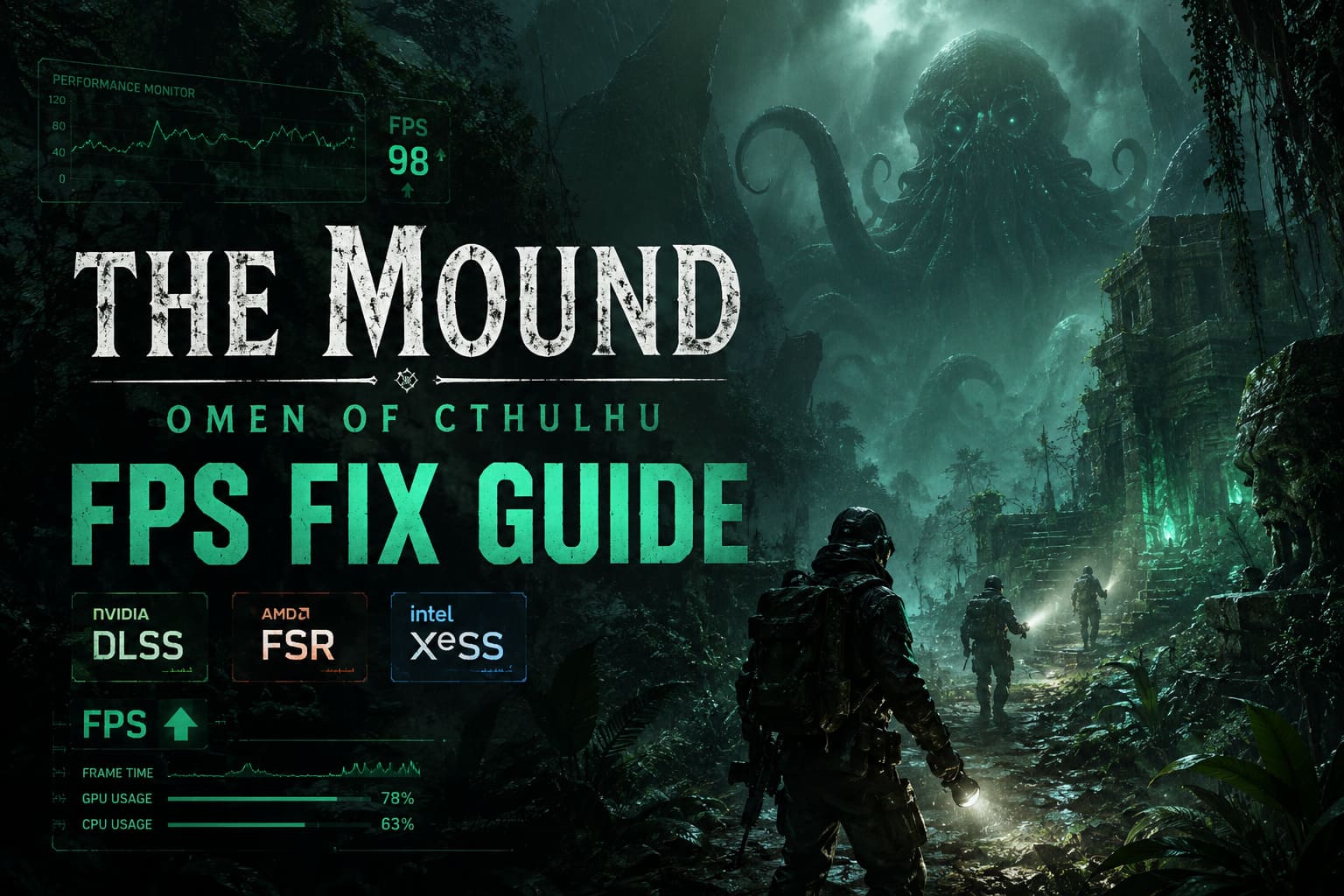
UE5 delivers gorgeous environments, realistic lighting, and incredibly detailed geometry, but all of those visual improvements come at a cost. The jungle maps in particular are packed with dense foliage, dynamic shadows, complex lighting calculations, and constant asset streaming.
Those systems place pressure on both your GPU and CPU simultaneously.
During my testing, performance was generally stable around starting areas. The biggest slowdowns happened after entering heavily forested sections where the game suddenly had to render enormous amounts of vegetation while simultaneously loading new assets and compiling shaders.
The result usually looks something like this:
| Problem | What You’ll Notice |
|---|---|
| Shader Compilation | Short freezes when entering new areas or encountering enemies. |
| CPU Bottleneck | High processor usage with inconsistent frame pacing. |
| GPU Overload | FPS collapsing in dense jungle environments. |
| Camera Smoothing | Mouse movement feels delayed or sluggish. |
| Asset Streaming | Random hitching despite high average FPS. |
Interestingly, average FPS isn’t always the biggest issue.
A game running between 70 and 90 FPS can still feel awful if frame pacing constantly fluctuates. That’s exactly what happens here.
Start With the Graphics Settings That Matter
One mistake many players make is lowering every option to Low.
That usually isn’t necessary.
Several graphics options barely affect performance, while others have an enormous impact. Focusing on the heavy hitters gives much better results while preserving most of the game’s visual quality.
I found this setup to be a great balance.
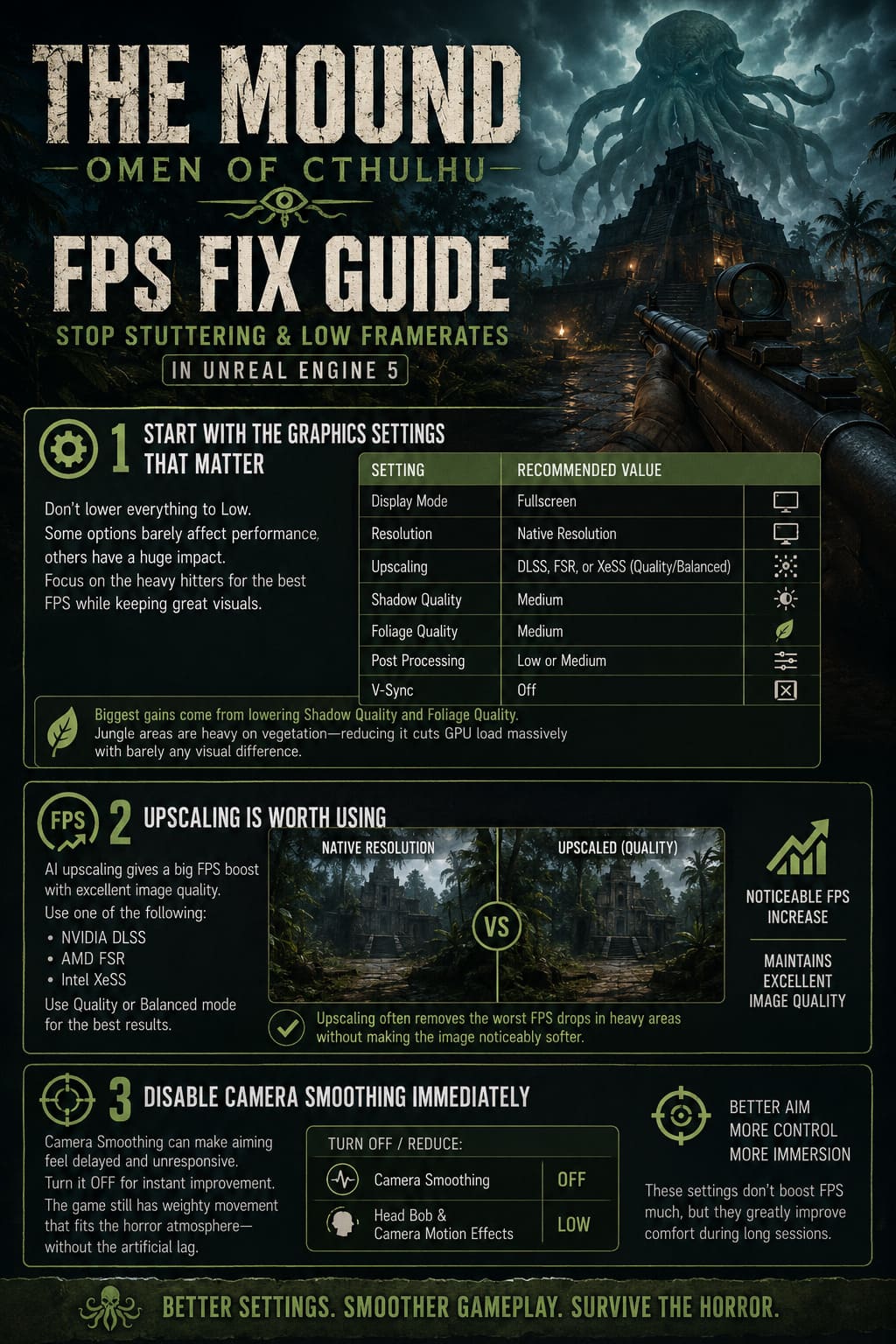
| Setting | Recommended Value |
|---|---|
| Display Mode | Fullscreen |
| Resolution | Native Resolution |
| Upscaling | DLSS, FSR, or XeSS (Quality/Balanced) |
| Shadow Quality | Medium |
| Foliage Quality | Medium |
| Post Processing | Low or Medium |
| V-Sync | Off |
The biggest improvement came from reducing Shadow Quality and Foliage Quality.
Since almost every outdoor area is packed with vegetation, lowering foliage removes a surprising amount of GPU workload while remaining difficult to notice during actual gameplay.
Likewise, medium shadows still look convincing but avoid some of the expensive calculations UE5 performs every frame.
Upscaling Is Worth Using
Normally I prefer native resolution whenever possible.
For this game, however, AI upscaling makes a lot of sense.
Whether you’re using:
- NVIDIA DLSS
- AMD FSR
- Intel XeSS
Running in Quality or Balanced mode delivers a noticeable FPS increase while maintaining excellent image quality.
During heavier jungle sections, upscaling often recovered enough performance to eliminate the worst drops without making the image noticeably softer.
Unless you’re already playing well above your monitor’s refresh rate, I would leave one of these technologies enabled.
Disable Camera Smoothing Immediately
This was probably the biggest surprise.
Before changing anything, aiming felt strangely delayed.
Initially I assumed the problem was poor frame pacing, but after turning off Camera Smoothing, the controls instantly became more responsive.
The game still has deliberate weight to its movement, which fits its horror atmosphere, but removing the extra smoothing gets rid of the artificial feeling that your mouse is dragging behind your hand.
While you’re there, it’s also worth reducing:
- Head Bob
- Camera Motion Effects
These settings don’t improve FPS very much, but they make exploration significantly more comfortable during longer sessions.
Unreal Engine 5 Shader Stutter Is Still a Thing
Anyone who has played several UE5 games already knows this story.
You walk into a new area.
The game freezes.
Everything resumes.
Then it happens again five minutes later.
That’s shader compilation.
Unfortunately, there isn’t a universal fix because much of the work happens during gameplay instead of being completed before reaching the main menu.
However, there are ways to reduce the impact.
- Allow the game several minutes after major updates to finish building shader caches.
- Clear the Windows DirectX Shader Cache if you’ve recently updated GPU drivers or switched graphics hardware.
- Avoid repeatedly restarting the game during the first session while shaders are still compiling.
Check Windows Graphics Settings
Windows itself can also influence performance.
Open the Graphics Settings panel and verify two things:
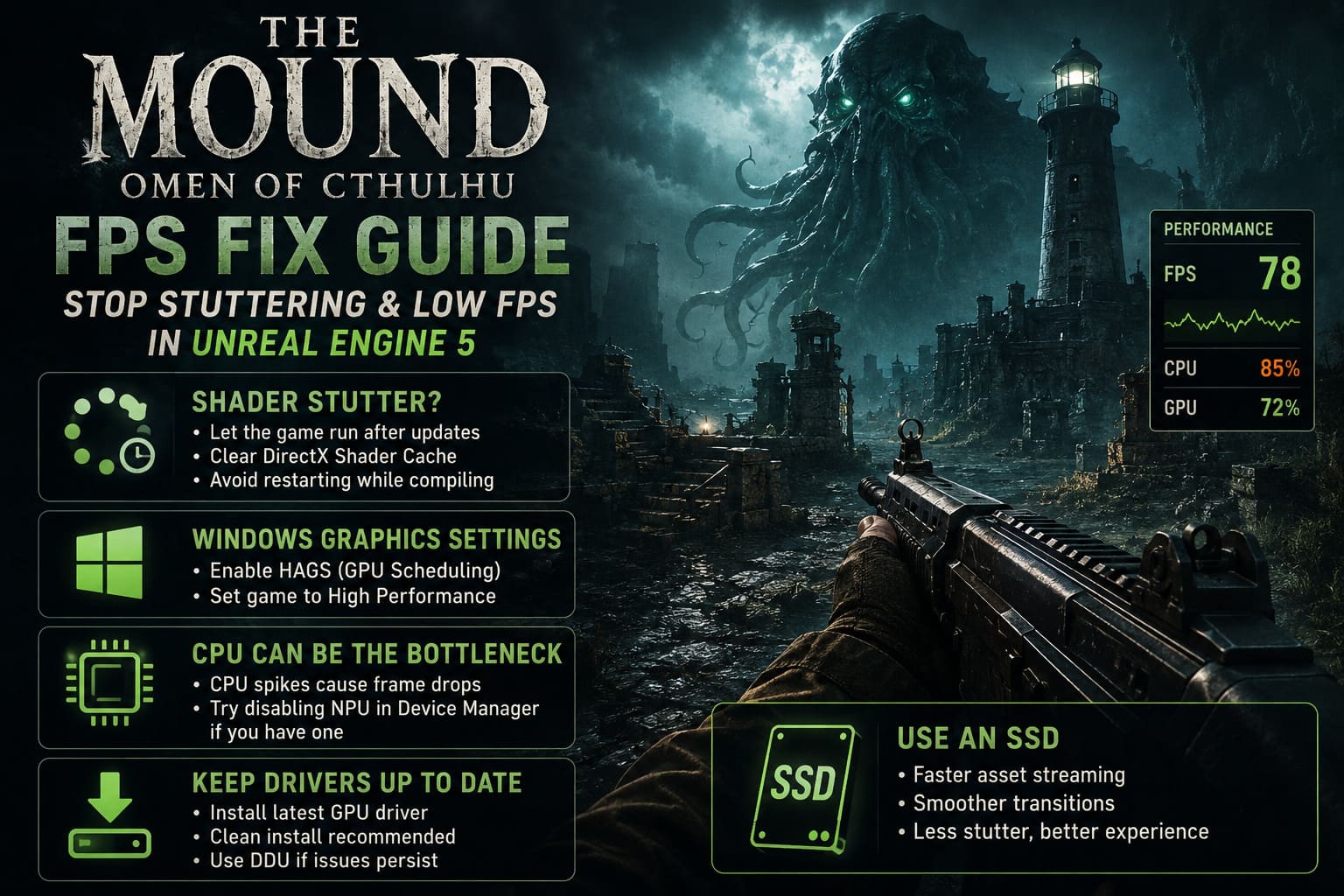
- Hardware-Accelerated GPU Scheduling (HAGS) is enabled.
- The game’s executable is assigned to High Performance mode.
Neither option magically adds dozens of frames, but together they can improve consistency, especially on modern graphics cards.
Stable frame pacing often feels better than simply chasing the highest FPS number.
CPU Usage Can Become the Real Limiting Factor
One thing I noticed is that GPU usage isn’t always maxed out during frame drops.
Instead, CPU utilization frequently spikes.
This happens because the engine is simultaneously handling AI, physics, lighting calculations, streaming, and shader work.
Players with newer processors that include integrated NPUs have also reported unusual compatibility issues ranging from crashes to poor performance.
Some users have temporarily resolved those problems by disabling the NPU device through Windows Device Manager.
This won’t apply to everyone, but if you’re experiencing unexplained instability despite having capable hardware, it’s one troubleshooting step worth testing.
Keep Your Graphics Drivers Clean
Driver updates remain one of the simplest performance improvements.
If you’ve installed multiple graphics driver versions over several months, leftovers from previous installations can occasionally cause unexpected issues.
For persistent stuttering:
- Install the newest driver available for your GPU.
- Consider performing a clean installation.
- If necessary, use Display Driver Uninstaller (DDU) before reinstalling.
While this won’t eliminate Unreal Engine shader compilation, it can resolve driver conflicts that contribute to inconsistent performance.
SSD Performance Matters More Than You Think
Although the game technically lists modest storage requirements, installing it on a traditional hard drive isn’t something I’d recommend.
The jungle constantly streams new assets while you move through the map.
On an SSD, those transitions happen much more smoothly.
On slower drives, asset streaming can introduce additional hitching that looks very similar to shader stutter.
If you have both an HDD and SSD available, this is definitely a game that belongs on solid-state storage.
How to Fix The Mound: Omen of Cthulhu Crash on Launch, Freezes, and Fatal Error on Steam PC
My Personal Recommended Setup
After several rounds of tweaking, this became my preferred configuration.
Graphics
- Native resolution.
- DLSS Quality (or FSR/XeSS equivalent).
- Medium Shadows.
- Medium Foliage.
- Low Post Processing.
- Fullscreen.
- V-Sync Off.
System
- Latest GPU drivers.
- HAGS enabled.
- High Performance graphics profile.
- DirectX Shader Cache cleaned after major driver updates.
- SSD installation.
Gameplay
- Camera Smoothing Off.
- Reduced Head Bob.
- Lower Camera Motion Effects.
This combination kept the visual atmosphere almost identical while noticeably improving responsiveness.
More importantly, the game simply felt smoother, even when average FPS wasn’t dramatically higher.
Support Build in The Mound: Omen of Cthulhu – Best Healing Items and Strategy Guide
Final Thoughts
The Mound: Omen of Cthulhu has the kind of atmosphere that horror fans will appreciate. The oppressive jungle, unsettling sanity mechanics, and cooperative tension create plenty of memorable moments, but Unreal Engine 5 once again reminds us that cutting-edge visuals don’t always translate into polished PC performance on day one.
Fortunately, this doesn’t feel like a fundamentally broken game. Most of the biggest issues are familiar UE5 growing pains: shader compilation, CPU-heavy environments, dense foliage, and aggressive graphical effects. With a handful of smart adjustments, it’s possible to reduce stuttering, improve input responsiveness, and enjoy a much smoother experience without sacrificing the eerie visual style that makes the game stand out.
I’m also optimistic that future patches will continue to improve performance. We’ve seen plenty of Unreal Engine 5 titles launch with rough optimization only to become significantly smoother after several updates. Until then, dialing back a few demanding settings, enabling your preferred upscaling technology, and removing unnecessary camera effects provides the best balance between image quality and frame rate.
If you’re planning to descend into the jungle with friends, spending ten minutes optimizing your settings before starting your expedition is absolutely worth it. In a horror game where every second matters, consistent performance is just as important as good aim—and far less frightening than watching your FPS disappear the moment something terrifying emerges from the trees.