How to Fix The Mound: Omen of Cthulhu Crash on Launch, Freezes, and Fatal Error on Steam PC
I was genuinely excited to jump into The Mound: Omen of Cthulhu. The idea of surviving a Lovecraft-inspired jungle with friends sounded exactly like the kind of cooperative horror experience I’d been waiting for. Unfortunately, instead of fighting terrifying creatures, I spent my first evening fighting crash reports, black screens, and Unreal Engine errors.
The game refused to load properly the first time I pressed Play. One launch ended with an instant crash, another froze during the splash screen, and another displayed the dreaded Unreal Engine Fatal Error. After digging through Steam discussions, Reddit posts, and community troubleshooting threads, I eventually managed to get everything running smoothly.
If you’re experiencing startup crashes, loading freezes, Fatal Errors, or instant returns to the desktop, don’t panic just yet. Below are the fixes that consistently helped both me and many other players across the community.
Why Does The Mound: Omen of Cthulhu Crash on PC?
From everything I’ve tested, the game itself isn’t completely unstable. Instead, it appears to struggle with several common Windows configurations during the initial startup process.
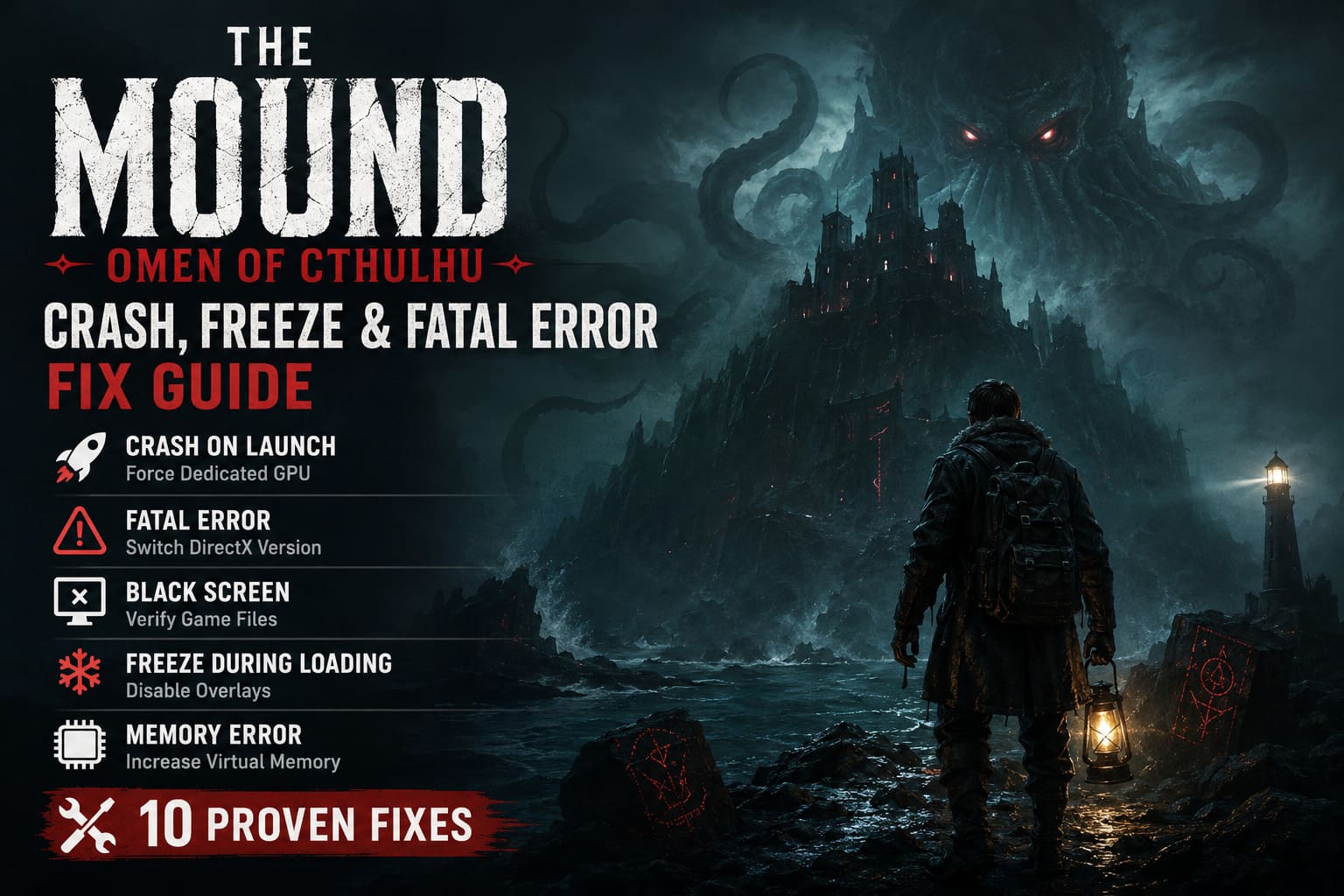
The most common reasons include:
- Incorrect graphics processor selection on laptops.
- DirectX initialization problems.
- Outdated or corrupted graphics drivers.
- Overlay applications conflicting with Unreal Engine.
- Damaged or incomplete Steam installation files.
- Insufficient virtual memory allocation.
The good news is that most players only encounter one of these issues, meaning a single adjustment is often enough to solve the crashes completely.
Quick Troubleshooting Overview
| Problem | Best Fix | Difficulty |
|---|---|---|
| Crash on Launch | Force Dedicated GPU | Easy |
| Unreal Engine Fatal Error | Switch DirectX Version | Easy |
| Black Screen | Verify Game Files | Easy |
| Freeze During Loading | Disable Overlays | Easy |
| Memory Allocation Error | Increase Virtual Memory | Medium |
| Random Startup Crash | Perform Clean GPU Driver Installation | Medium |
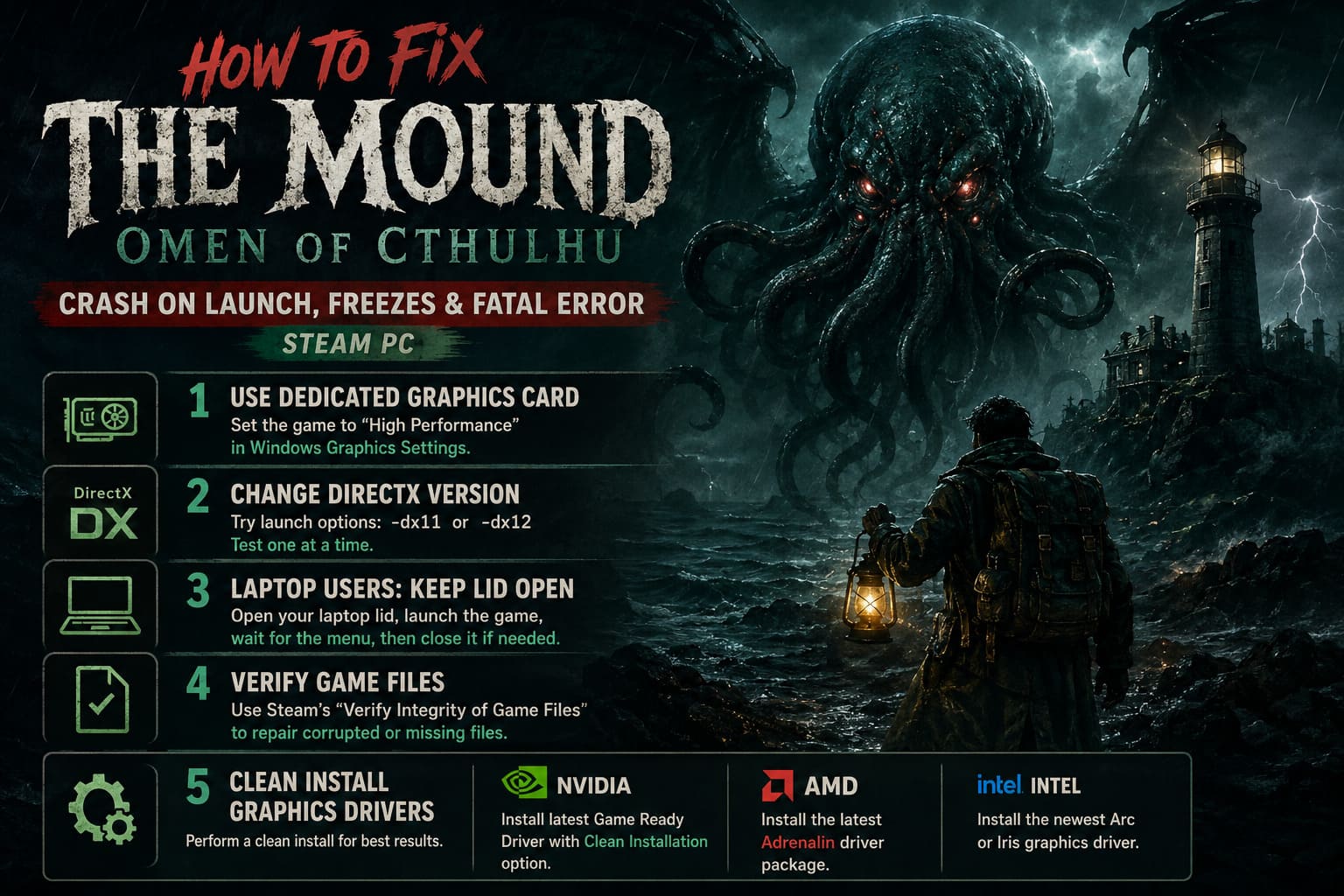
1. Force the Game to Use Your Dedicated Graphics Card
This was ultimately the solution that fixed my own launch problem.
Gaming laptops equipped with Intel or AMD integrated graphics sometimes launch the game using the low-power GPU instead of the dedicated RTX or Radeon graphics card. Unreal Engine often crashes immediately when this happens.
Here’s what I recommend:
- Close Steam completely.
- Open Graphics Settings in Windows.
- Add the game’s executable manually.
- Select High Performance.
- Verify that Windows displays your dedicated graphics card.
- Save the settings.
- Restart Steam and launch the game again.
This simple adjustment has solved launch issues for a surprisingly large number of laptop users.
2. Change the DirectX Launch Option
Modern Unreal Engine games can behave differently depending on which DirectX version they initialize during startup. If the default API fails, manually forcing another version often bypasses the crash entirely.
Open your Steam Library, right-click The Mound: Omen of Cthulhu, select Properties, and locate the Launch Options field.
Test one of these launch commands individually:
- -dx12
- -dx11
- -windowed
Don’t combine multiple commands. Try one, launch the game, and if it still crashes, replace it with another. Many players report that forcing DirectX 11 immediately eliminates the Fatal Error.
3. Laptop Users Should Keep the Lid Open While Launching
This workaround sounds unusual, but plenty of players have confirmed that it actually works.
If you’re gaming on an external monitor while your laptop lid remains closed, the game may crash while attempting to detect the active display.
The temporary workaround is simple:
- Open your laptop lid.
- Launch the game.
- Wait until the main menu appears.
- After reaching the menu, close the lid if you prefer playing only on the external monitor.
It’s not a permanent solution, but it’s surprisingly effective until an official update addresses the problem.
4. Verify the Steam Game Files
Corrupted files after installation or a large launch-day update can easily cause instant crashes.
Steam includes a built-in verification tool that compares every installed file against the official version and automatically replaces anything damaged.
To perform verification:
- Open Steam Library.
- Right-click the game.
- Select Properties.
- Open the Installed Files section.
- Click Verify Integrity of Game Files.
Allow Steam to complete the scan before attempting another launch. I’ve personally seen this fix several newly released games over the years.
5. Perform a Clean Graphics Driver Installation
Simply updating your graphics driver isn’t always enough. Older settings, shader caches, and corrupted profiles can remain behind and continue causing problems.
Whenever I troubleshoot a brand-new Unreal Engine release, I always perform a clean driver installation instead of a regular update.
| GPU Manufacturer | Recommendation |
|---|---|
| NVIDIA | Install the latest Game Ready Driver using the Clean Installation option. |
| AMD | Install the latest Adrenalin driver package. |
| Intel | Install the newest Arc or Iris graphics driver. |
Once installation finishes, restart Windows, allow the shader cache to rebuild naturally, and try launching the game again.
6. Increase Windows Virtual Memory
One thing I noticed during testing is that the game allocates a significant amount of memory while loading its environments. If Windows runs out of available RAM or pagefile space during that process, it may terminate the game instantly.
Increasing the pagefile size can prevent these memory-related crashes.
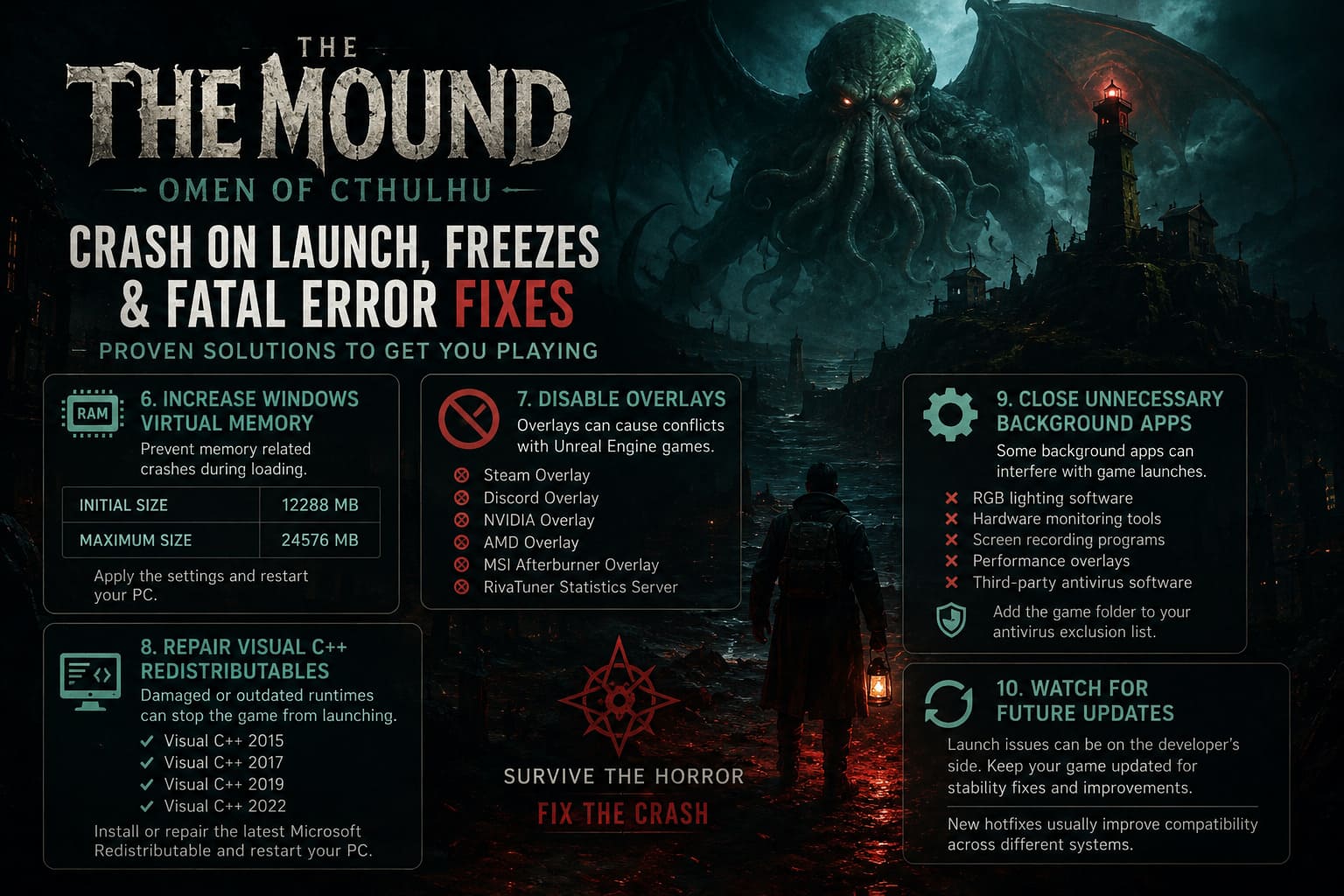
| Setting | Recommended Value |
|---|---|
| Initial Size | 12288 MB |
| Maximum Size | 24576 MB |
After applying the new values, restart your computer so Windows can use the updated virtual memory configuration.
7. Disable Every Overlay Application
Game overlays are useful, but they also inject themselves directly into the rendering pipeline. Unfortunately, newly released Unreal Engine games don’t always handle those extra hooks gracefully.
Temporarily disable the following:
- Steam Overlay
- Discord Overlay
- NVIDIA Overlay
- AMD Overlay
- MSI Afterburner Overlay
- RivaTuner Statistics Server
Once the game launches successfully, you can gradually enable each overlay again to determine which one caused the conflict.
8. Repair Microsoft Visual C++ Redistributables
Visual C++ runtime libraries are essential for nearly every modern Windows game. If these components become damaged or outdated, games may fail long before reaching the main menu.
Instead of reinstalling Windows or Steam, simply repair the existing Visual C++ packages.
I recommend making sure the following versions are properly installed:
- Visual C++ 2015
- Visual C++ 2017
- Visual C++ 2019
- Visual C++ 2022
The latest Microsoft Redistributable package conveniently includes all of these versions. After repairing or installing them, restart your PC before testing the game again.
9. Close Unnecessary Background Applications
Whenever I troubleshoot crashes in a newly released PC game, I try to keep Windows as clean as possible.
Some background applications are known to interfere with game launches more often than others.
- RGB lighting software
- Hardware monitoring utilities
- Screen recording programs
- Performance monitoring overlays
- Third-party antivirus software performing real-time scanning
Windows Defender rarely causes issues, but some external antivirus suites occasionally block newly released executables until updated. Adding the game’s installation folder to the exclusion list can sometimes resolve startup problems immediately.
10. Watch for Future Game Updates
Even if you’ve tried every fix listed above, some hardware combinations may still encounter crashes. That’s fairly common during the launch period of major Unreal Engine releases.
Developers typically release several hotfixes during the first few days after launch, improving compatibility across different processors, graphics cards, and driver versions.
If your PC comfortably meets the recommended hardware requirements and none of these solutions work, the remaining issue is likely on the developer’s side rather than your own system. Keeping the game updated is often the best course of action while waiting for additional stability patches.
Support Build in The Mound: Omen of Cthulhu – Best Healing Items and Strategy Guide
Final Thoughts
Once I finally got The Mound: Omen of Cthulhu running properly, I was genuinely impressed. The atmosphere is fantastic, the environments constantly build tension, and the psychological horror mechanics make cooperative gameplay incredibly memorable.
It’s unfortunate that technical issues have overshadowed the launch for many players, but the core experience is absolutely worth sticking with.
The Mound Omen of Cthulhu Best Starting Gear and Weapons Guide (2026)
If I had to recommend only three fixes to try first, they would be:
- Force the game to use your dedicated graphics card.
- Test both DirectX launch options, especially -dx11.
- Disable every overlay before launching the game.
Based on my own experience and the feedback shared throughout the community, these three solutions solve the majority of startup crashes. Hopefully ACE Team continues improving stability through future updates because beneath these launch issues is a genuinely enjoyable cooperative horror adventure that’s well worth playing once everything is working properly.