How to Fix Palworld 1.0 Crash on Launch on Windows 11 (2026 Guide)
When Palworld 1.0 finally landed, I was ready to disappear into its massive redesigned world for another few hundred hours. The update delivers exactly what longtime players wanted—major improvements, polished mechanics, better optimization, and a full release worthy of all the hype.
Unfortunately, thousands of PC players hit a wall before they even reached the main menu.
Some get nothing but a black screen. Others watch the game instantly disappear back to Steam after clicking Play. Quite a few are greeted by the dreaded UE-Pal Exception Access Violation error before Windows closes everything without warning.
After digging through countless Steam discussions, Reddit troubleshooting threads, Discord communities, and player reports, one thing became obvious: there isn’t one universal cause. Several different problems can trigger launch crashes, and fixing them requires eliminating each possibility one by one.
This guide gathers the solutions that consistently solve the issue for the majority of Windows 11 users.
Why Palworld 1.0 Refuses to Launch
The full release introduced significant engine changes compared to earlier builds. Those upgrades also exposed problems that older installations never experienced.
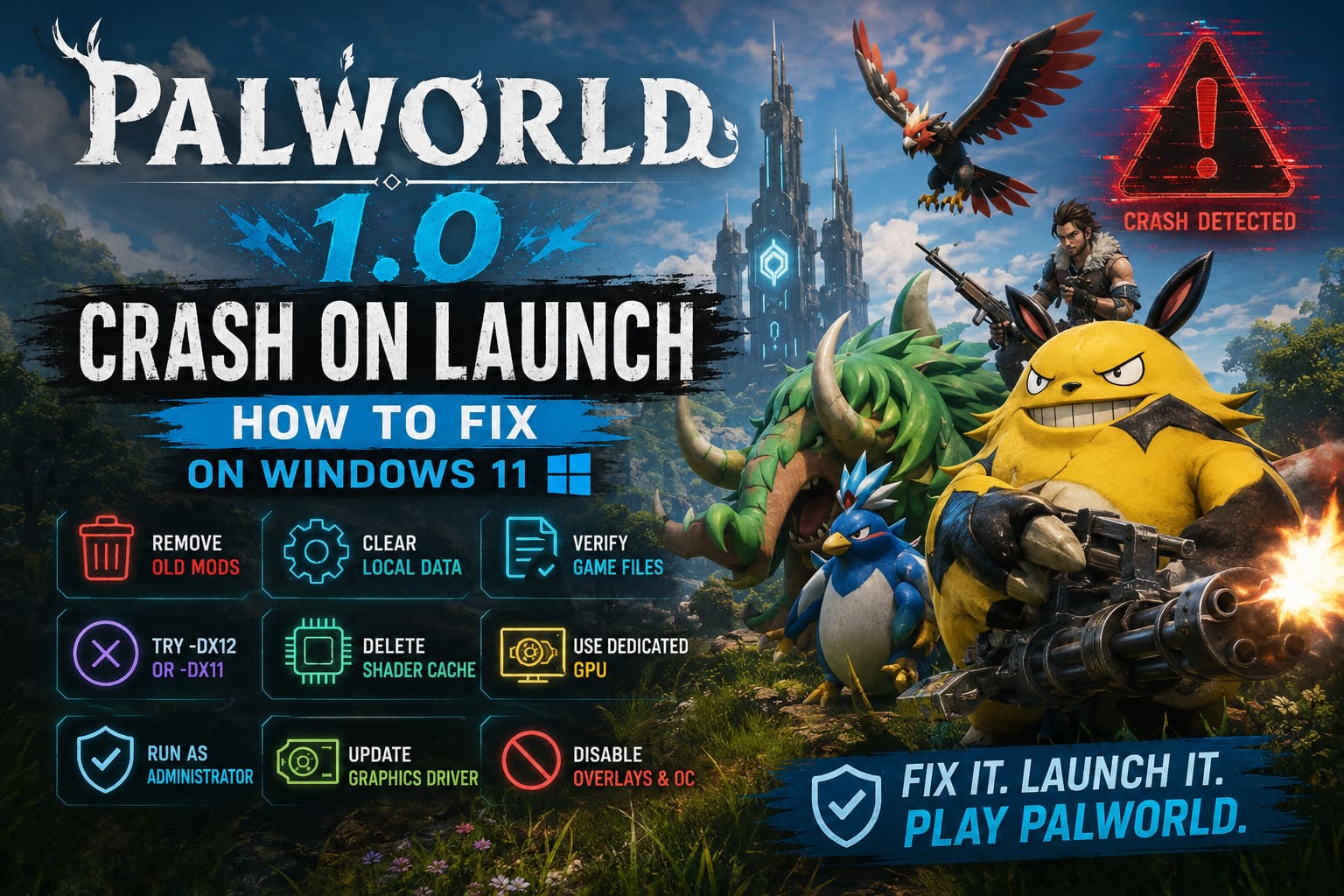
The most common reasons include:
| Problem | What Happens |
|---|---|
| Old Mods | Legacy UE4SS files and outdated mods crash immediately after startup. |
| Corrupted Shader Cache | Windows loads damaged DirectX shader data, causing black screens. |
| Damaged Local Configuration | Old settings conflict with the new engine. |
| Graphics Driver Problems | Older GPU drivers fail to communicate correctly with the updated renderer. |
| Windows Security Restrictions | Certain Windows 11 features block the executable from accessing required resources. |
| GPU Selection Issues | Windows launches the game on integrated graphics instead of the dedicated GPU. |
If you’ve been playing since Early Access, outdated files are easily the biggest offender.
Remove Every Old Mod Before Doing Anything Else
This is the fix that solves the largest number of crashes.
Even if you removed your mods months ago through Vortex or another manager, plenty of leftover files remain behind. Steam never deletes custom scripts, replacement DLLs, or modified PAK files during a normal uninstall.
That’s exactly why players reinstall the game only to discover it still crashes.
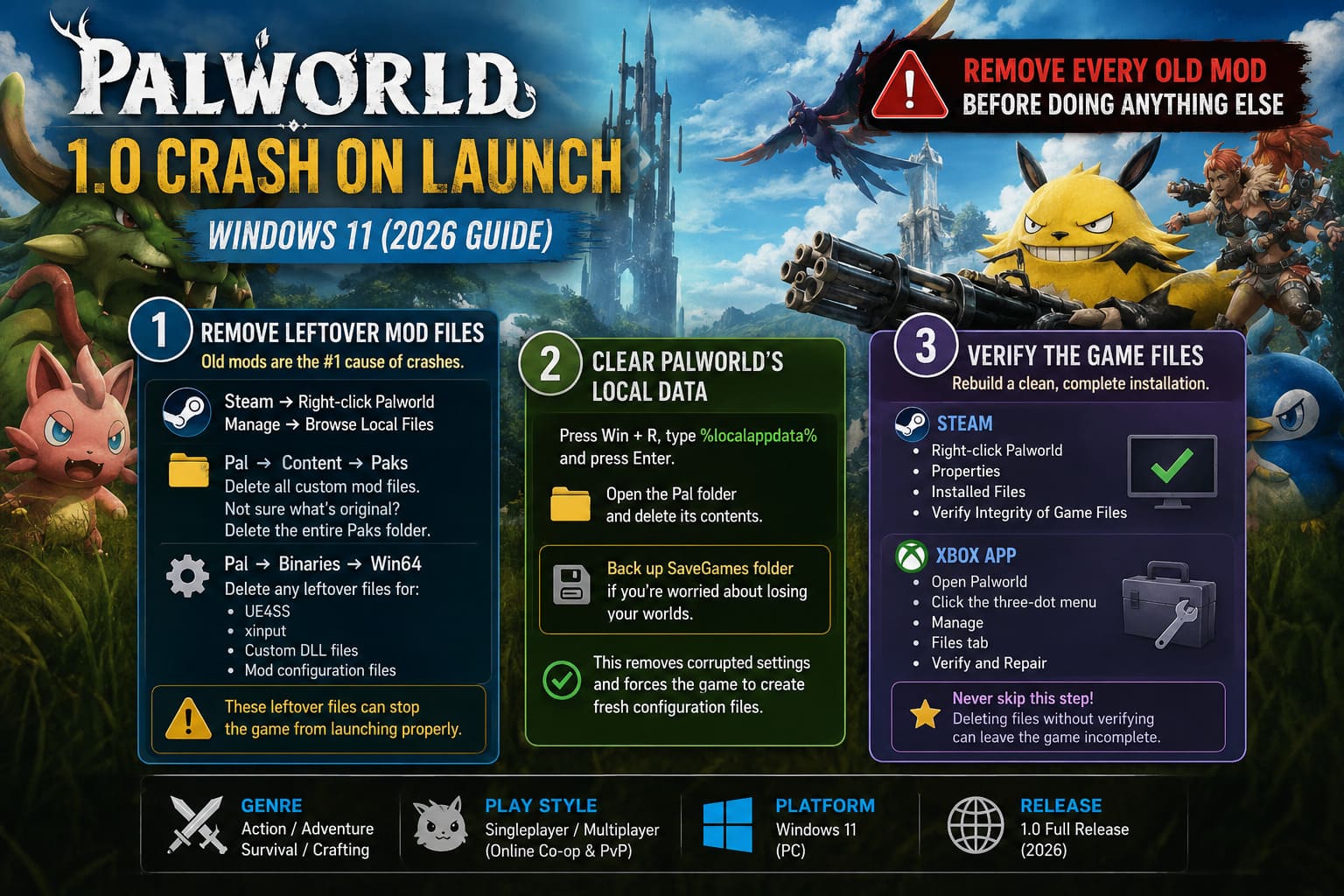
Here’s what I recommend.
- Open your Steam Library.
- Right-click Palworld.
- Select Manage → Browse Local Files.
Inside the installation folder, navigate to Pal → Content → Paks.
- Delete every custom mod file you previously installed.
- If you aren’t sure which files belong to the original game, remove the entire Paks folder and let Steam restore it later.
Next, open Pal → Binaries → Win64 and delete every leftover file related to:
- UE4SS
- xinput
- Custom DLL files
- Mod configuration files
These leftover files frequently prevent the updated executable from loading correctly.
Clear Palworld’s Local Windows Data
Old configuration files can continue causing crashes even after removing mods.
Press Windows + R, type %localappdata%, and press Enter.
Open the Pal folder and delete its contents.
If you’re worried about losing your worlds, copy the SaveGames folder somewhere safe before deleting anything. Steam Cloud normally restores your saves, but creating a manual backup is always a smart precaution.
Removing corrupted configuration files forces Palworld to generate brand-new settings the next time it launches.
Verify the Game Files
After deleting outdated files, let your launcher rebuild everything correctly.
Steam
- Open your Steam Library.
- Right-click Palworld.
- Select Properties.
- Open the Installed Files tab.
- Click Verify Integrity of Game Files.
Steam will automatically scan your installation and download anything that’s missing.
Xbox App
- Open the Xbox App.
- Select Palworld.
- Click the three-dot menu.
- Choose Manage.
- Open the Files tab.
- Click Verify and Repair.
Don’t skip this step. Removing folders without verifying your installation simply leaves the game incomplete.
Force DirectX Manually
Some Windows 11 systems automatically select a rendering path that causes immediate startup crashes.
Open Steam → Properties → General → Launch Options and try the following launch parameter:
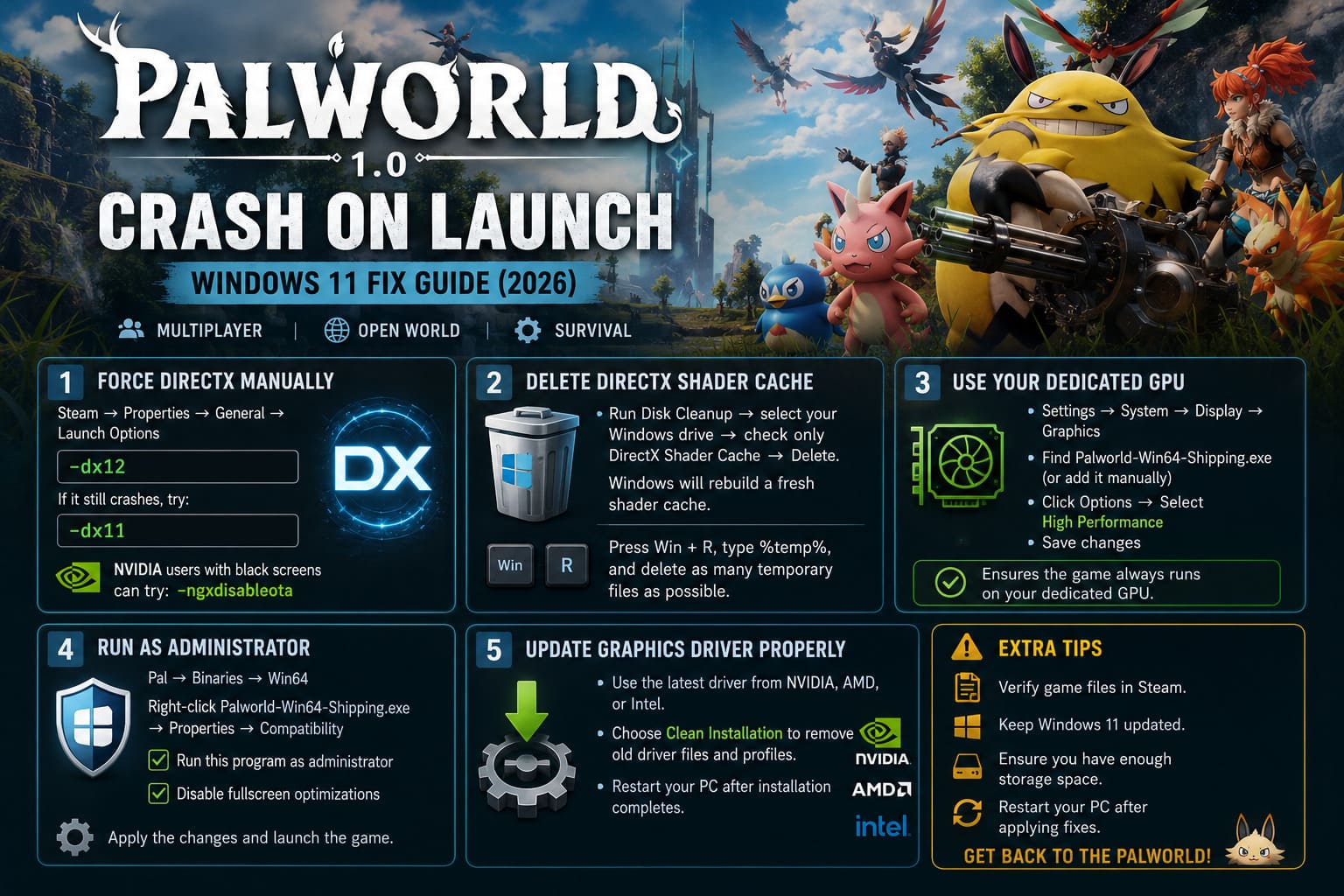
-dx12If the game still refuses to launch, replace it with:
-dx11Older graphics hardware often behaves more reliably with DirectX 11 despite the newer rendering improvements introduced in version 1.0.
NVIDIA users dealing with instant black screens can also try:
-ngxdisableotaThis disables certain DLSS update behavior that has been linked to startup crashes on some RTX systems.
Delete the DirectX Shader Cache
Windows stores compiled shaders to reduce loading times, but after major updates those cached files sometimes become incompatible with the latest version of the game.
Open Disk Cleanup, select your Windows drive, leave only DirectX Shader Cache checked, and delete the files.
When you launch Palworld again, Windows will automatically rebuild a fresh shader cache optimized for the current version.
While cleaning your system, press Windows + R, type %temp%, and delete as many temporary files as possible. Windows will automatically skip any files currently in use.
Force Windows 11 to Use Your Dedicated GPU
One surprisingly common issue is Windows launching Palworld using integrated graphics instead of your dedicated GPU.
- Open Settings → System → Display → Graphics.
- Locate Palworld-Win64-Shipping.exe.
- If it isn’t listed, add it manually.
- Click Options.
- Select High Performance.
- Save your changes.
This ensures Windows always launches the game using your dedicated graphics card.
Run the Game as Administrator
Windows security updates occasionally prevent games from accessing required system resources.
Navigate to Pal → Binaries → Win64, right-click Palworld-Win64-Shipping.exe, and open Properties.
Inside the Compatibility tab, enable the following options:
- Run this program as administrator
- Disable fullscreen optimizations
Apply the changes before launching the game again.
Update Your Graphics Driver Properly
Installing the latest graphics driver isn’t always enough if older driver files remain on your system.
Whenever possible, choose the Clean Installation option available in NVIDIA, AMD, or Intel driver installers. This completely removes previous driver profiles before installing the newest version.
After installation finishes, restart your PC to ensure every component loads correctly.
Disable Overclocks for Testing
Palworld 1.0 places heavy loads on CPUs, GPUs, and memory, exposing hardware instability that other games may never reveal.
If you’re using software such as MSI Afterburner, Ryzen Master, Intel XTU, or custom undervolt profiles, temporarily return everything to factory defaults.
If crashes continue, enter your BIOS and temporarily disable Intel XMP or AMD EXPO memory profiles to rule out unstable RAM settings.
You don’t necessarily need to leave these features disabled permanently—they’re simply valuable troubleshooting steps.
Don’t Forget Background Software
Many background applications inject overlays into games during startup, and they can occasionally trigger launch failures.
Temporarily disable overlays from:
- Discord
- Steam
- NVIDIA GeForce Experience
- MSI Afterburner
- RivaTuner Statistics Server
If you’ve recently updated Palworld, temporarily disable your antivirus software as well to confirm the new executable wasn’t mistakenly quarantined.
Palworld 1.0 Breeding & Legendary Traits Guide + Xbox Game Pass Global Upgrade Times
Quick Troubleshooting Checklist
If you just want the fastest path back into the game, work through this checklist:
- Delete all old mods and UE4SS files.
- Clear the
%localappdata%\Palfolder. - Verify your game files.
- Test
-dx12,-dx11, or-ngxdisableotalaunch options. - Delete the DirectX Shader Cache.
- Force High Performance GPU mode.
- Run the game as Administrator.
- Perform a clean graphics driver installation.
- Disable overlays while testing.
- Reset CPU, GPU, and RAM overclocks if necessary.
Final Thoughts
Palworld 1.0 is easily the strongest version of the game yet, but the transition from Early Access to the full release introduced enough engine-level changes that many older installations carry hidden problems. Based on extensive community testing, leftover mods and corrupted local files remain the leading causes of startup crashes.
If those aren’t responsible, verifying your game files, rebuilding the DirectX shader cache, forcing the appropriate graphics API, installing a clean graphics driver, and making sure Windows uses your dedicated GPU solve the overwhelming majority of launch issues.
Work through each solution patiently instead of jumping between random fixes. Once Palworld launches successfully, you’ll finally be able to enjoy everything the 1.0 update has to offer instead of staring at a black screen or another frustrating crash report.