How to Fix VRAM Memory Leak and Crashes in IRON NEST: Heavy Turret Simulator (2026 Guide)
The first time I loaded IRON NEST: Heavy Turret Simulator, I immediately understood why it exploded during Steam Next Fest. The atmosphere is fantastic, the artillery mechanics are surprisingly deep, and every successful firing solution feels earned rather than scripted. It doesn’t try to be another arcade shooter. Instead, it asks you to think like an artillery operator.
Unfortunately, after spending hours experimenting with different hardware configurations and comparing reports from countless PC players, one technical issue keeps appearing again and again: a progressive VRAM memory leak.
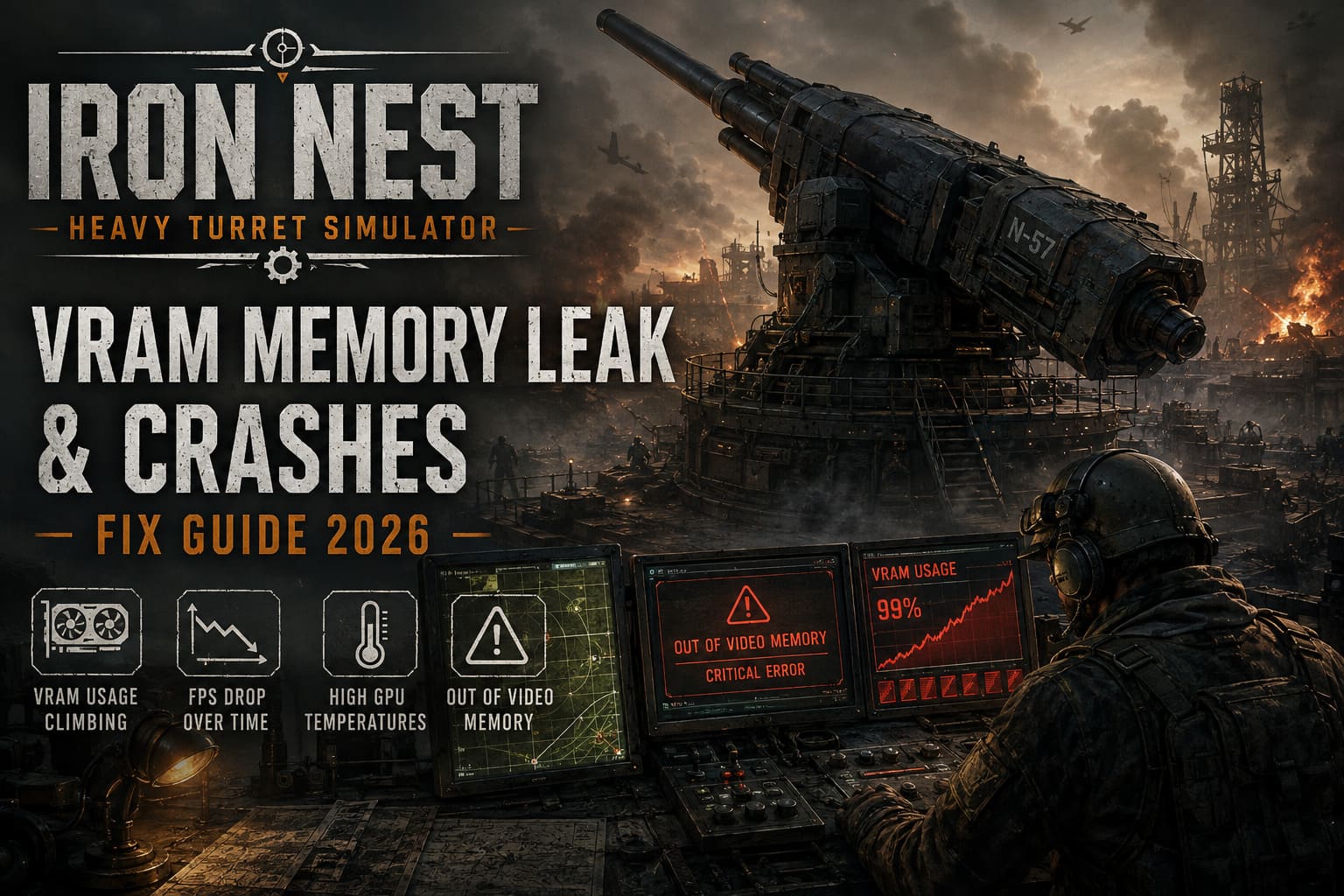
The frustrating part is that this problem isn’t limited to older gaming rigs. I’ve seen reports from players using RTX 5070 Ti, RTX 5080, RX 7800 XT, RX 6800, and other powerful GPUs experiencing exactly the same symptoms:
- GPU usage locked at 99–100%
- VRAM consumption climbing during long sessions
- FPS gradually dropping after 20–40 minutes
- GPU temperatures rising far above normal
- Random “Out of Video Memory” crashes
- Sudden desktop crashes without warning
If that sounds familiar, don’t panic. The game itself is excellent, but its current Unity implementation clearly struggles with memory management during extended missions.
This guide combines the most reliable community discoveries together with several optimization techniques I’ve personally used in Unity-based games suffering from similar behavior.
Why IRON NEST Starts Running Worse the Longer You Play
The biggest clue is simple.
Many players report that the game launches perfectly. The opening mission runs smoothly. GPU temperatures stay reasonable.
Then something changes.
After spending time inside tactical coordinate maps, artillery planning menus, printer interfaces, or several long engagements, VRAM usage steadily increases without ever falling back to normal.
That usually points toward memory that’s being allocated but never properly released.
Instead of recycling unused textures, overlays, and simulation assets, the engine continues reserving video memory until Windows and the graphics driver eventually run out of available resources.
Typical causes include:
| Problem | Why It Happens | Result |
|---|---|---|
| Unlimited FPS | GPU renders hundreds of unnecessary frames | High temperatures and maximum power draw |
| VRAM Memory Leak | Textures and simulation assets remain allocated | Progressive FPS loss |
| High Render Resolution | Large frame buffers consume excessive VRAM | Out-of-memory errors |
| Unity Asset Streaming | Assets aren’t recycled efficiently during long sessions | Stuttering and crashes |
The issue becomes significantly more noticeable at 1440p and 4K, where every rendered frame demands substantially more VRAM than 1080p.
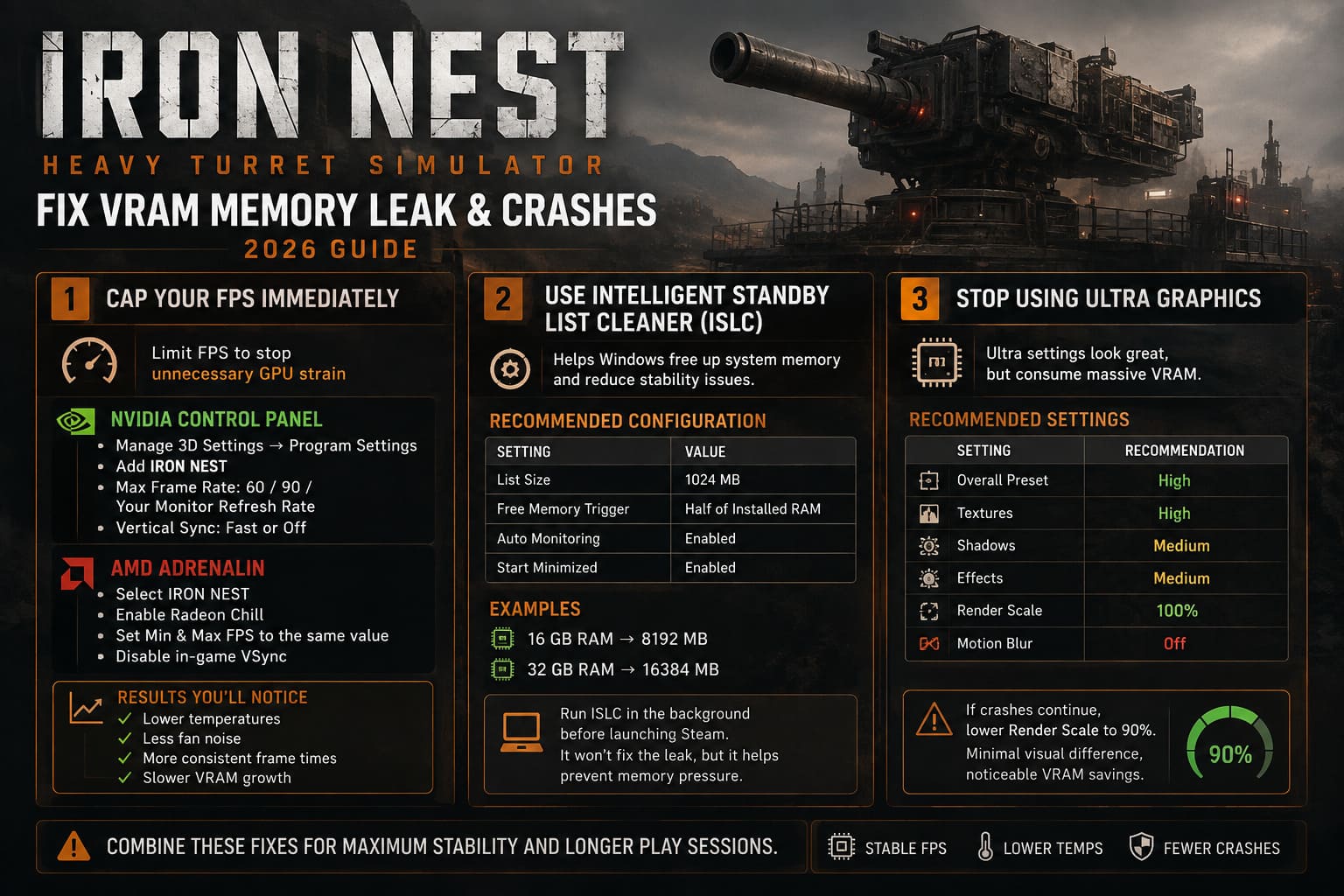
Fix 1 — Cap Your FPS Immediately
This is easily the biggest improvement.
IRON NEST doesn’t always control frame generation properly, especially inside menus where frame rates can exceed 200–300 FPS.
That serves absolutely no purpose except cooking your GPU.
NVIDIA
Open NVIDIA Control Panel.
Navigate to:
Manage 3D Settings → Program Settings
Add IRON NEST if it isn’t already listed.
Then configure:
- Max Frame Rate: 60, 90, or your monitor refresh rate
- Vertical Sync: Fast or Off
The GPU instantly stops wasting resources rendering unnecessary frames.
AMD
Inside AMD Adrenalin:
- Select IRON NEST
- Enable Radeon Chill
- Set both Minimum and Maximum FPS to exactly the same value
- Disable in-game VSync
This forces stable frame pacing while dramatically reducing GPU workload.
After doing this alone, many players notice:
- Lower temperatures
- Less fan noise
- More consistent frame times
- Slower VRAM growth
Fix 2 — Use Intelligent Standby List Cleaner (ISLC)
Although ISLC doesn’t repair the VRAM leak itself, it helps Windows recover system memory before it becomes another bottleneck.
For long gaming sessions, it’s surprisingly effective.
Recommended configuration:
| Setting | Value |
|---|---|
| List Size | 1024 MB |
| Free Memory Trigger | Half of installed RAM |
| Auto Monitoring | Enabled |
| Start Minimized | Enabled |
Examples:
- 16 GB RAM → 8192 MB
- 32 GB RAM → 16384 MB
Leave ISLC running in the background before launching Steam.
I’ve used this utility for years with several Unity titles, and while it isn’t magic, it definitely helps prevent memory pressure from snowballing into larger stability issues.
Fix 3 — Stop Using Ultra Graphics
Ultra settings look great.
They also eat VRAM like candy.
If you’re running:
- RTX 2060
- GTX 1660 Super
- RX 6600
- RX 580
- Any GPU with 6 GB VRAM or less
Ultra simply isn’t worth it.
Instead, try:
| Setting | Recommendation |
|---|---|
| Overall Preset | High |
| Textures | High |
| Shadows | Medium |
| Effects | Medium |
| Render Scale | 100% |
| Motion Blur | Off |
If crashes continue, reduce Render Scale to 90%.
Image quality barely changes, but VRAM usage drops noticeably.
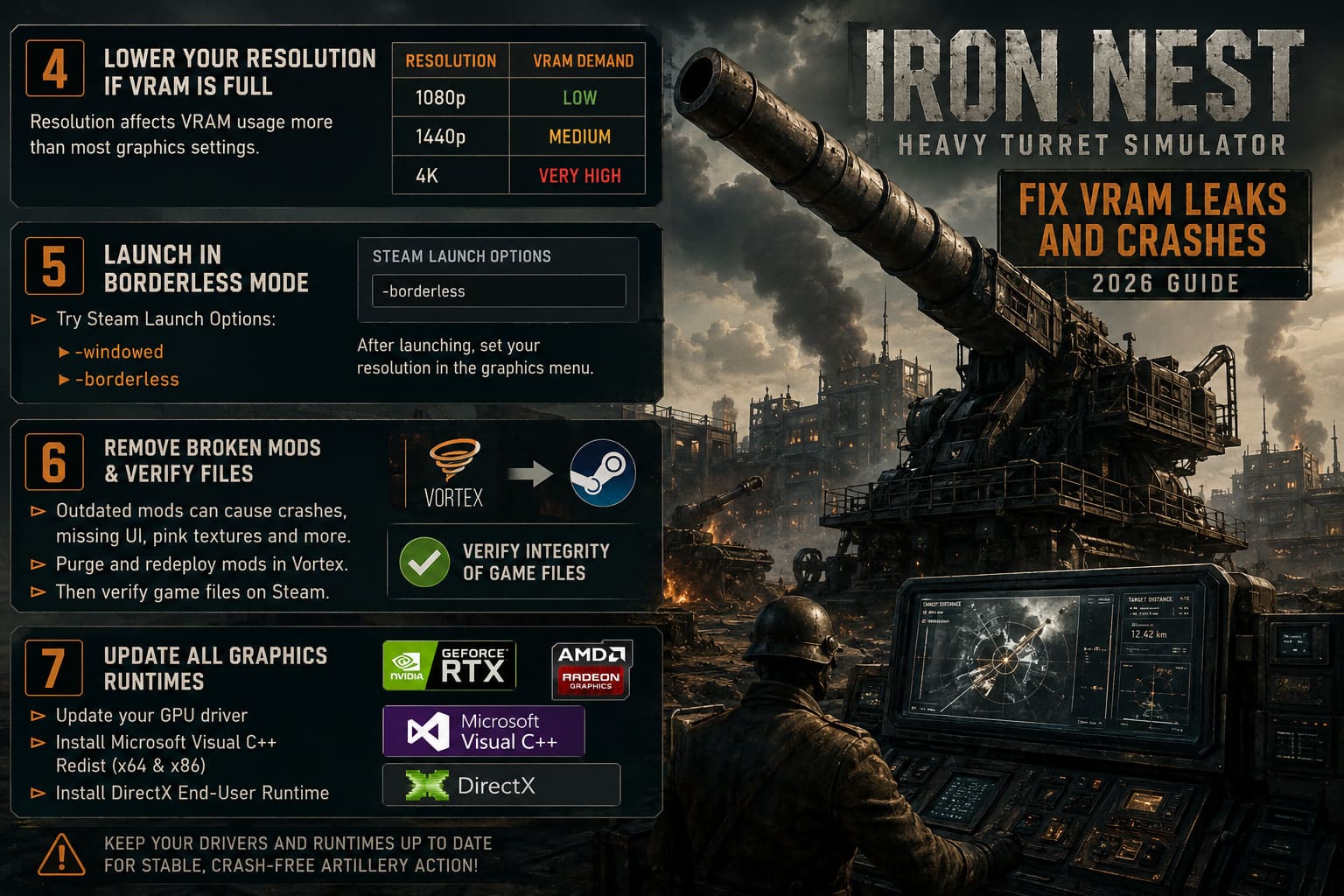
Fix 4 — Lower Your Resolution if VRAM Is Full
Resolution affects VRAM far more than most graphics options.
Approximate memory requirements:
| Resolution | VRAM Demand |
|---|---|
| 1080p | Low |
| 1440p | Medium |
| 4K | Very High |
If you’re already close to your GPU’s memory limit, lowering resolution often eliminates crashes completely.
There’s no shame in choosing stable gameplay over prettier pixels.
A smooth artillery simulation is far more enjoyable than watching Windows close the game every half hour.
Fix 5 — Launch the Game in Borderless Mode
Some players never even reach gameplay.
Instead they get:
- Black screen
- Frozen loading screen
- Instant crash
Steam Launch Options can often bypass these fullscreen initialization issues.
Open:
Steam → Properties → Launch Options
Try:
-windowed
or
-borderless
Once the game launches successfully, adjust the resolution inside the graphics menu.
Fix 6 — Remove Broken Mods and Verify Files
IRON NEST already has a growing modding community.
Unfortunately, outdated mods frequently cause:
- Missing UI
- Pink textures
- Broken assets
- Random crashes
If you’re using Vortex:
- Purge Mods
- Redeploy Mods
- Restart Steam
Afterward:
Steam Library → Properties → Installed Files → Verify Integrity of Game Files
Steam automatically downloads damaged or missing files.
Never skip this step after a major game update.
Fix 7 — Update Every Graphics Runtime
Crashes aren’t always caused by the game itself.
Outdated software can create identical symptoms.
Make sure you install:
- Latest GPU driver
- Microsoft Visual C++ Redistributables (x64 & x86)
- DirectX End-User Runtime
Clean driver installations also rebuild corrupted shader caches, eliminating another common source of stuttering.
IRON NEST Steam Deck Best Settings: How to Get 60 FPS (Verified Optimization Guide)
Extra Tweaks That Actually Help
These aren’t miracle fixes, but together they make a measurable difference.
Disable unnecessary background software.
Close RGB software, hardware monitoring overlays, browser tabs, recording utilities, and anything consuming GPU resources.
Watch VRAM usage.
MSI Afterburner or your preferred monitoring software lets you see exactly when memory usage starts climbing.
If VRAM steadily increases without dropping, save your progress and restart the game before a crash occurs.
Avoid marathon sessions.
Until the developers improve memory management, restarting every couple of hours is a practical workaround.
It’s not elegant, but it’s far better than losing mission progress.
How to Fix IRON NEST Heavy Turret Simulator Stuck on Loading Screen
Recommended Stability Settings
| Issue | Most Likely Cause | Recommended Fix | Result |
|---|---|---|---|
| GPU constantly at 100% | Unlimited FPS | Cap frame rate | Lower temperatures |
| FPS slowly decreases | VRAM memory leak | Lower graphics and restart periodically | Stable performance |
| Out of Video Memory | VRAM exhausted | Lower Render Scale and resolution | Prevent crashes |
| Startup crash | Fullscreen conflict | Launch with -borderless | Reliable startup |
| Pink textures | Broken mods | Purge mods and verify files | Correct visuals |
| Random desktop crashes | Corrupted runtime or drivers | Update DirectX, VC++, GPU driver | Better stability |
Final Thoughts
IRON NEST deserves the attention it’s getting. Few indie strategy games manage to make operating a heavy artillery platform feel this satisfying, and the mechanical depth is genuinely refreshing. That’s exactly why it’s frustrating to see technical issues overshadow such a strong gameplay foundation.
Right now, the biggest obstacle isn’t your graphics card—it’s the game’s current memory handling. Until the developers release an official optimization patch, the best approach is to reduce unnecessary GPU load, keep VRAM usage under control, and avoid pushing the engine beyond its comfort zone.
A proper FPS cap, sensible graphics settings, periodic memory cleanup, and verified game files won’t magically eliminate the underlying leak, but together they make IRON NEST far more stable. I’ve seen these same techniques rescue countless Unity-based games over the years, and they work here too.
Hopefully the next major update focuses on texture streaming, asset recycling, and long-session stability. Once those systems are improved, IRON NEST has every chance of becoming one of the standout tactical simulators of 2026—not just because of its brilliant gameplay, but because players can finally enjoy it without worrying about their GPU giving up halfway through a mission.