How to Fix EA Sports FC 27 AntiCheat Game Security Violation Error – Full Guide
EA Sports FC 27 is finally here, and while the new gameplay systems, presentation upgrades, and competitive features make matches feel better than ever, PC players are also discovering one particularly annoying roadblock: EA Javelin AntiCheat Game Security Violation errors.
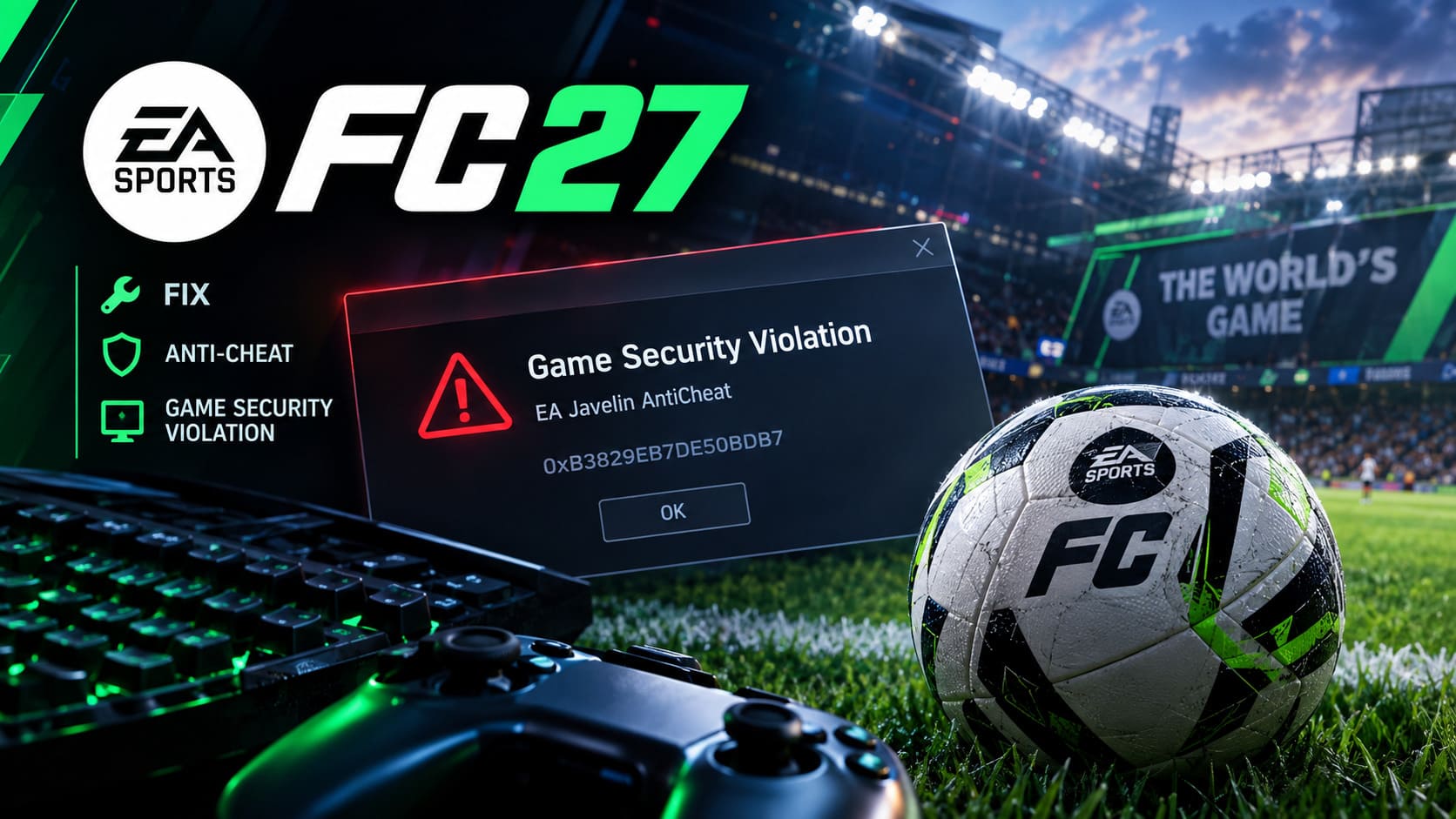
There is nothing quite like booting up FC 27, watching the anti-cheat splash screen reach 100%, and then… nothing. The game disappears. The EA App comes back into focus. Sometimes you get a security violation popup with a cryptic hexadecimal code. Other times, the game simply crashes to the desktop without explaining what went wrong.
I’ve dealt with enough PC gaming nonsense to know that kernel-level anti-cheat problems can turn a five-minute troubleshooting job into an entire evening of restarting Windows, closing background applications, and wondering why a perfectly legitimate RGB utility suddenly became Public Enemy No. 1.
The good news is that you do not need to reinstall Windows just because FC 27 refuses to launch.
The problem is usually connected to a software conflict, driver, Windows security setting, anti-cheat installation, or system configuration that Javelin doesn’t like. This guide walks through the most practical fixes, starting with the easy stuff before moving into deeper Windows and firmware settings.
What Is the FC 27 Game Security Violation Error?
EA Javelin AntiCheat operates at a very deep level of Windows, which allows it to detect software and system modifications that traditional anti-cheat tools may miss.
That security comes with a downside.
A completely harmless application can sometimes look suspicious if it interacts with memory, drivers, virtual hardware, overlays, or protected system resources. Hardware monitoring tools, RGB applications, virtual-drive software, VPN components, encryption software, and other utilities can potentially become part of the problem.
Common symptoms include:
- EA Javelin AntiCheat security violation popups
- FC 27 crashing immediately after the anti-cheat splash screen
- A black screen followed by a return to the EA App
- The EA App minimizing while
fc27.exesilently terminates - Error codes such as
0xB3829EB7DE50BDB7 0xC0000005application crashes- Generic Game Security Violation Detected messages
- The game launching correctly once certain background applications are closed
The exact hexadecimal code isn’t always enough to identify the culprit. In many cases, you need to work through the surrounding software and Windows configuration.
Why Does EA FC 27 Trigger AntiCheat Security Violations?
There are several recurring causes worth checking before doing anything drastic.
| Possible Cause | What It Can Affect |
|---|---|
| Administrative permissions | Anti-cheat and game executable access |
| Virtual drive software | Virtual storage and emulated hardware |
| Windows Defender | Anti-cheat or game file access |
| Controlled Folder Access | Game configuration and save-file access |
| Exploit Protection | Memory mitigation and executable behavior |
| RGB/monitoring utilities | Drivers, overlays, hardware hooks |
| VPN or encryption drivers | Kernel-level system activity |
| Insider Windows builds | Unsupported or changing kernel components |
| Corrupted AntiCheat files | Failed Javelin initialization |
| Background applications | Software conflicts and injected overlays |
The important thing is not to assume that one particular application is definitely responsible. Troubleshooting is about isolation. Disable one variable, launch FC 27, and see what happens.
Fix 1: Run EA App and FC 27 With Administrator Rights
Let’s start with the boring fix because, honestly, boring fixes are often the ones that work.
If Windows permissions prevent Javelin AntiCheat from accessing something it needs, FC 27 can fail before the actual game even starts.
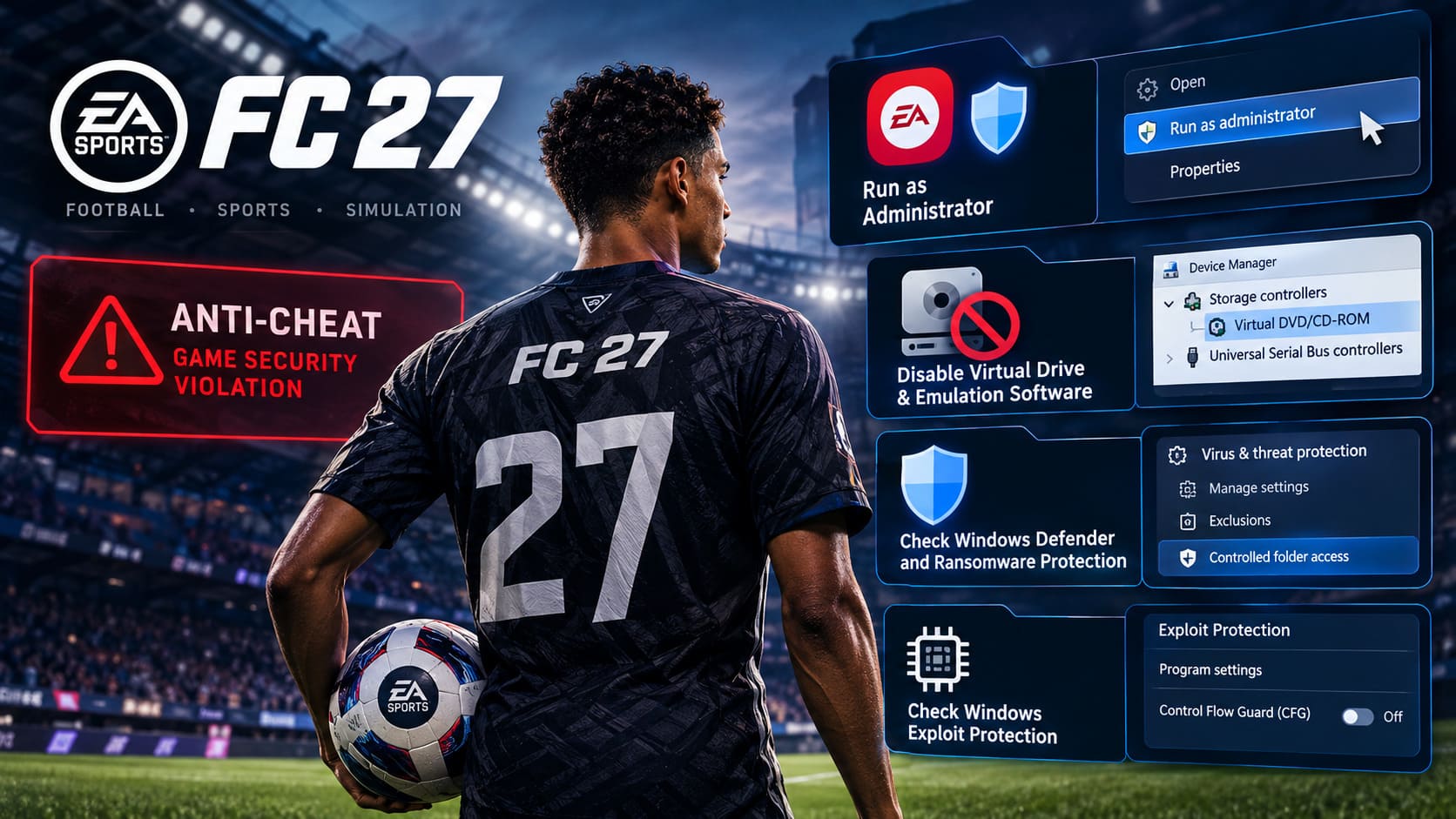
How to Enable Administrator Privileges
- Locate the EA App executable, normally found under:
C:\Program Files\Electronic Arts\EA Desktop\EA Desktop - Find EADesktop.exe.
- Right-click it and select Properties.
- Open the Compatibility tab.
- Enable Run this program as an administrator.
- Click Apply, then OK.
- Find the FC 27 installation folder.
- Locate fc27.exe and repeat the same process.
- If you’re using Steam or Epic Games Store, you can also test administrator privileges for the corresponding launcher executable.
Restart the launcher after making the change and try FC 27 again.
Don’t randomly give administrator privileges to every executable on your PC. That’s how you turn troubleshooting into a completely different security headache.
Fix 2: Disable Virtual Drive and Disk Emulation Software
Virtual-drive utilities are another area worth investigating.
Applications that emulate optical drives or virtual storage controllers can interact with Windows at a low level. That’s exactly the sort of behavior kernel anti-cheat systems pay attention to.
If you have old virtual-drive software installed, especially tools such as Daemon Tools or Alcohol 120%, temporarily disable its virtual hardware.
Check Device Manager
- Right-click the Windows Start button.
- Open Device Manager.
- Expand Storage Controllers.
- Look for virtual controllers associated with disk-emulation software.
- If you identify one belonging to a program you’re testing, right-click it.
- Select Disable Device.
- Also inspect Universal Serial Bus controllers for related virtual hardware.
- Restart Windows completely.
- Launch FC 27 again.
If the game suddenly works, you’ve found a strong lead.
You can then determine which application or driver needs to be removed, updated, or kept disabled while playing.
Fix 3: Check Windows Defender and Ransomware Protection
Windows Security is supposed to protect your PC. The slightly annoying part is that sometimes it protects your PC from software you actually want to run.
If Defender or ransomware protection blocks FC 27 or Javelin components, the game may crash during initialization.
Open Windows Search and type Virus & threat protection.
Go to:
Virus & threat protection → Manage settings → Exclusions → Add or remove exclusions
You can test exclusions for legitimate EA installation directories such as:
C:\Program Files\EAC:\Program Files\EA GamesC:\Program Files\Electronic Arts
You should also check Ransomware protection.
If Controlled Folder Access is enabled, test whether allowing fc27.exe through it resolves the problem. Rather than permanently weakening Windows security, it’s preferable to use the specific Allow an app through Controlled Folder Access option when possible.
After changing security settings, restart the game and test again.
Fix 4: Check Windows Exploit Protection
This is one of the more advanced fixes, so don’t start changing random Windows mitigations unless you’ve already tried the simpler solutions.
Windows includes Exploit Protection, which uses various memory and execution safeguards. Those protections are useful, but certain applications can occasionally clash with anti-cheat technology.
To test FC 27 specifically:
- Open Windows Search.
- Type Exploit Protection.
- Open the settings page.
- Select Program Settings.
- Choose Add program to customize.
- Select Choose exact file path.
- Browse to your FC 27 installation.
- Select
fc27.exe. - Find Control Flow Guard (CFG).
- Enable Override system settings.
- Test the setting with CFG disabled for this executable.
- Click Apply.
- Restart Windows.
This is an application-specific troubleshooting step, not a recommendation to disable Windows security globally.
If it doesn’t solve the issue, restore the default setting.
Fix 5: Repair or Reinstall EA Javelin AntiCheat
If the anti-cheat installation itself is damaged, changing Windows settings won’t magically repair it.
Interrupted updates, corrupted files, or failed installations can leave Javelin unable to initialize correctly.
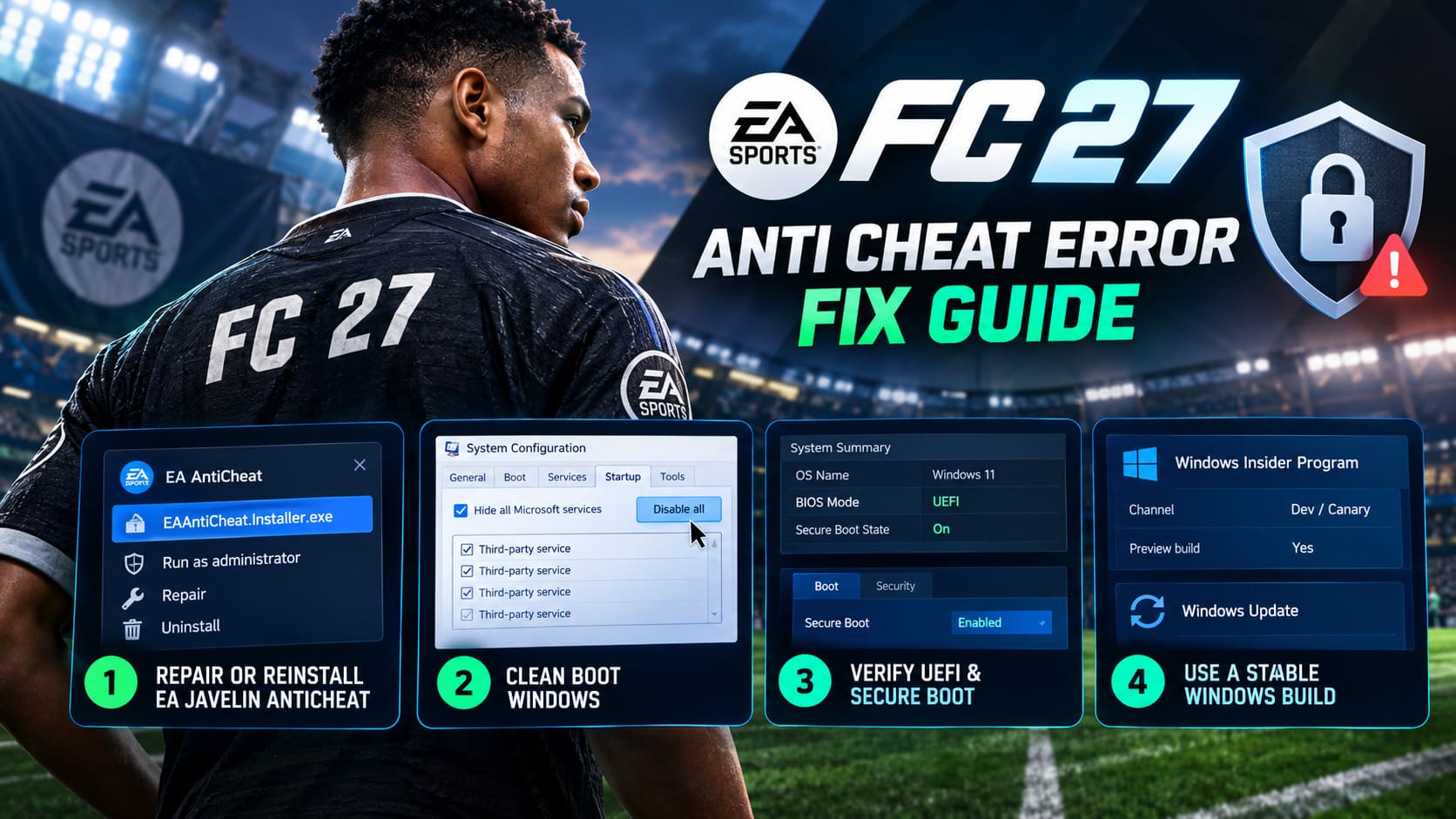
Look for the EA AntiCheat installer in:
C:\Program Files\EA\AC
Find:
EAAntiCheat.Installer.exe
Right-click it and select Run as administrator.
When the installer opens:
- Select EA SPORTS FC 27 from the game list.
- Choose Repair.
- Allow the process to finish.
- Restart your PC.
- Test FC 27.
If repair doesn’t work, reopen the installer and select Uninstall for FC 27.
Afterward, use your game launcher to repair or verify the installation.
For Steam, use the game’s Verify integrity of game files option. With the EA App, use its available repair functionality.
The goal is to force the launcher to restore missing or damaged components rather than continuing to boot the same broken anti-cheat installation.
Fix 6: Perform a Windows Clean Boot
Now we’re getting into the method I recommend when a PC refuses to reveal which program is causing the mess.
A clean boot starts Windows with non-essential third-party services disabled. If FC 27 suddenly works, you’ve proven that another application or service is interfering.
Clean Boot Procedure
- Press Windows + R.
- Enter
msconfig. - Press Enter.
- Open the Services tab.
- Check Hide all Microsoft services.
- Click Disable All.
- Open the Startup tab.
- Select Open Task Manager.
- Disable enabled third-party startup applications.
- Close Task Manager.
- Click Apply, then OK.
- Restart your PC.
Now launch FC 27.
If the game works, don’t immediately re-enable everything at once. That’s how you lose another hour.
Instead, re-enable applications in small groups. RGB software, hardware monitoring tools, overlays, VPN utilities, peripheral software, and similar programs deserve particular attention.
Once the game breaks again, you’ve narrowed down the culprit.
Fix 7: Verify UEFI and Secure Boot
Windows 11 systems can also run into anti-cheat problems when firmware security isn’t configured correctly.
Start by checking your current configuration.
Search Windows for System Information and open it.
Under System Summary, find:
- BIOS Mode
- Secure Boot State
Ideally, BIOS Mode should show UEFI, while Secure Boot should show On.
If BIOS Mode says Legacy or CSM, don’t immediately start changing BIOS settings blindly. Switching boot modes incorrectly can prevent Windows from starting.
If your system is already configured for UEFI, enter your motherboard’s BIOS/UEFI interface and verify Secure Boot.
Common BIOS keys include Delete, F2, F10, or F12, depending on the motherboard.
Look under areas such as Boot or Security and confirm that Secure Boot is enabled.
If Secure Boot is enabled but appears inactive, firmware key configuration may need attention. Some motherboards allow you to restore default Secure Boot keys or change the Secure Boot mode.
Be careful here. BIOS changes are significantly more serious than closing an overlay. If you’re unsure about your motherboard’s settings, check its documentation before changing boot configuration.
Fix 8: Get Off Windows Insider Preview Builds
This one is easy to overlook.
If you’re running a Windows Insider Dev or Canary build, you’re using a version of Windows that can contain major system-level changes before they reach the standard public release.
Kernel-level anti-cheat software can be particularly sensitive to those changes.
If FC 27 started producing security violations after moving to an Insider build, the Windows version itself should be considered a possible factor.
Open:
Settings → Windows Update → Windows Insider Program
Check which channel your system is using and whether you’re running a preview build.
If the problem appeared after moving to an unstable or preview Windows version, returning to a supported public build may be necessary.
The exact rollback options depend on your Windows version, installation date, and Insider configuration, so don’t start deleting partitions or reinstalling Windows unless the normal recovery options have been exhausted.
How to Fix EA Sports FC 27 Black Screen After Stadium Intro Glitch
FC 27 AntiCheat Troubleshooting Checklist
Before going nuclear with a Windows reinstall, run through this checklist:
- Restart Windows completely.
- Run EA App and FC 27 with appropriate administrative permissions.
- Close overlays and unnecessary background utilities.
- Temporarily disable virtual-drive software.
- Check Windows Defender and Controlled Folder Access.
- Repair the EA Javelin AntiCheat installation.
- Verify or repair FC 27 game files.
- Test with a Windows clean boot.
- Confirm UEFI and Secure Boot configuration.
- Check whether you’re running a Windows Insider build.
- Re-enable disabled software gradually to identify conflicts.
The biggest mistake is changing ten things simultaneously. If FC 27 suddenly launches, you’ll have no idea which change actually fixed it.
EA FC 27 Holographic Cards Guide: Rarity, FUT Gallery Set Scores, and Collection Rewards
Final Thoughts
The EA Sports FC 27 Game Security Violation problem is frustrating because the error message often tells you that something is wrong without telling you what that something actually is.
Javelin AntiCheat is designed to operate deep inside Windows, so conflicts can involve much more than the game itself. A harmless-looking hardware utility, virtual driver, security feature, overlay, or unusual Windows configuration can potentially stop FC 27 before you ever reach the main menu.
Start with the low-risk fixes: restart Windows, close background software, repair the anti-cheat installation, and verify your game files. Then move toward clean boot testing and deeper Windows configuration checks.
And if you’re troubleshooting a freshly installed game, don’t reinstall Windows as your first move. In most cases, the smarter approach is to isolate the conflict methodically.
Once you identify the offending software or configuration, FC 27 should be able to get past the Javelin security check and finally let you do what you actually wanted to do in the first place: play football instead of staring at an EA App window.