How to Fix Esports Manager 2026 Crash on Launch: Comprehensive Troubleshooting Guide
If there’s one thing that instantly kills the excitement of launching a brand-new management simulator, it’s watching the game flash a logo for two seconds before throwing you back onto the desktop. No error message. No explanation. Just… gone.
I’ve spent hundreds of hours across sports management sims, strategy titles, and esports simulators, so I know this routine all too well. Every major PC release seems to have its own collection of strange launch bugs. Some games refuse to open because Windows blocks a folder. Others hate overlays, antivirus software, or even one corrupted configuration file hiding deep inside AppData.
Esports Manager 2026 is unfortunately no exception.
The good news? Nearly every startup crash has a solution. After digging through Steam discussions, Reddit troubleshooting posts, and countless community fixes, several methods consistently solve the problem for most players.
Instead of randomly reinstalling Windows or downloading questionable “DLL fixes,” start with the proven solutions below.
Why Does Esports Manager 2026 Crash Before It Starts?
A launch crash usually isn’t caused by one single issue.
In most cases, the game never even reaches its main engine because something interrupts the startup process first. That interruption may come from Windows security, damaged configuration files, graphics driver conflicts, missing runtime libraries, or software injecting itself into the game before it fully loads.
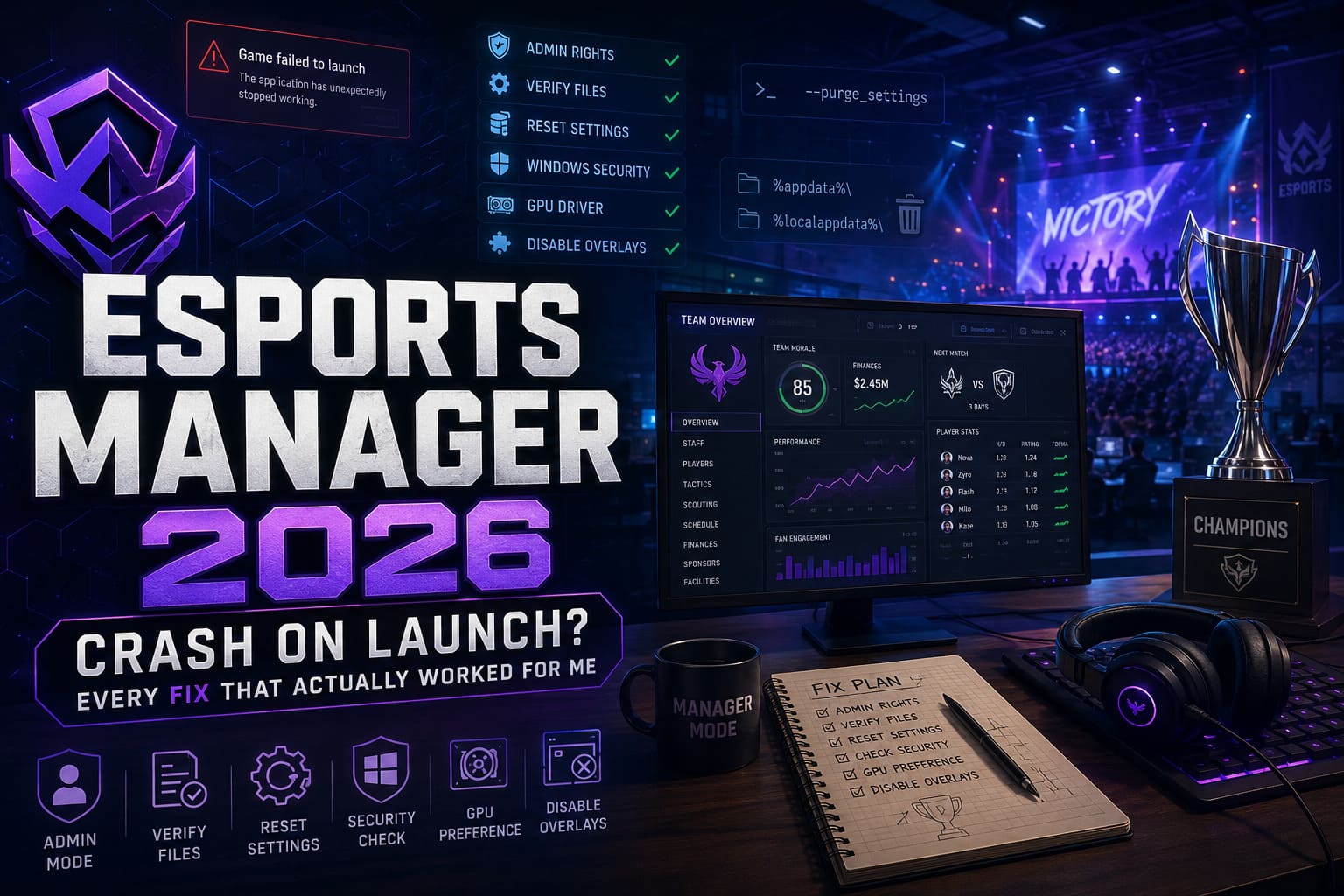
Some players crash immediately.
Others freeze on the loading screen.
A few only see a black window before everything disappears.
Fortunately, each symptom usually points toward one of several common causes.
| Problem | Possible Cause | Difficulty |
|---|---|---|
| Instant desktop crash | Corrupted settings | Easy |
| Black screen | Wrong GPU selected | Easy |
| Loading screen freeze | Damaged cache | Medium |
| Startup error | Missing Visual C++ libraries | Medium |
| Random crash every launch | Overlay conflict | Easy |
| Game never opens | Windows security blocking files | Easy |
Fix 1: Always Launch the Game with Administrator Rights
This is easily the first thing I recommend.
Windows sometimes limits write access to Documents, AppData, or protected folders. Simulation games constantly create save files, logs, and configuration data during startup. If Windows blocks those operations, the game may simply close without warning.
Here’s what to do:
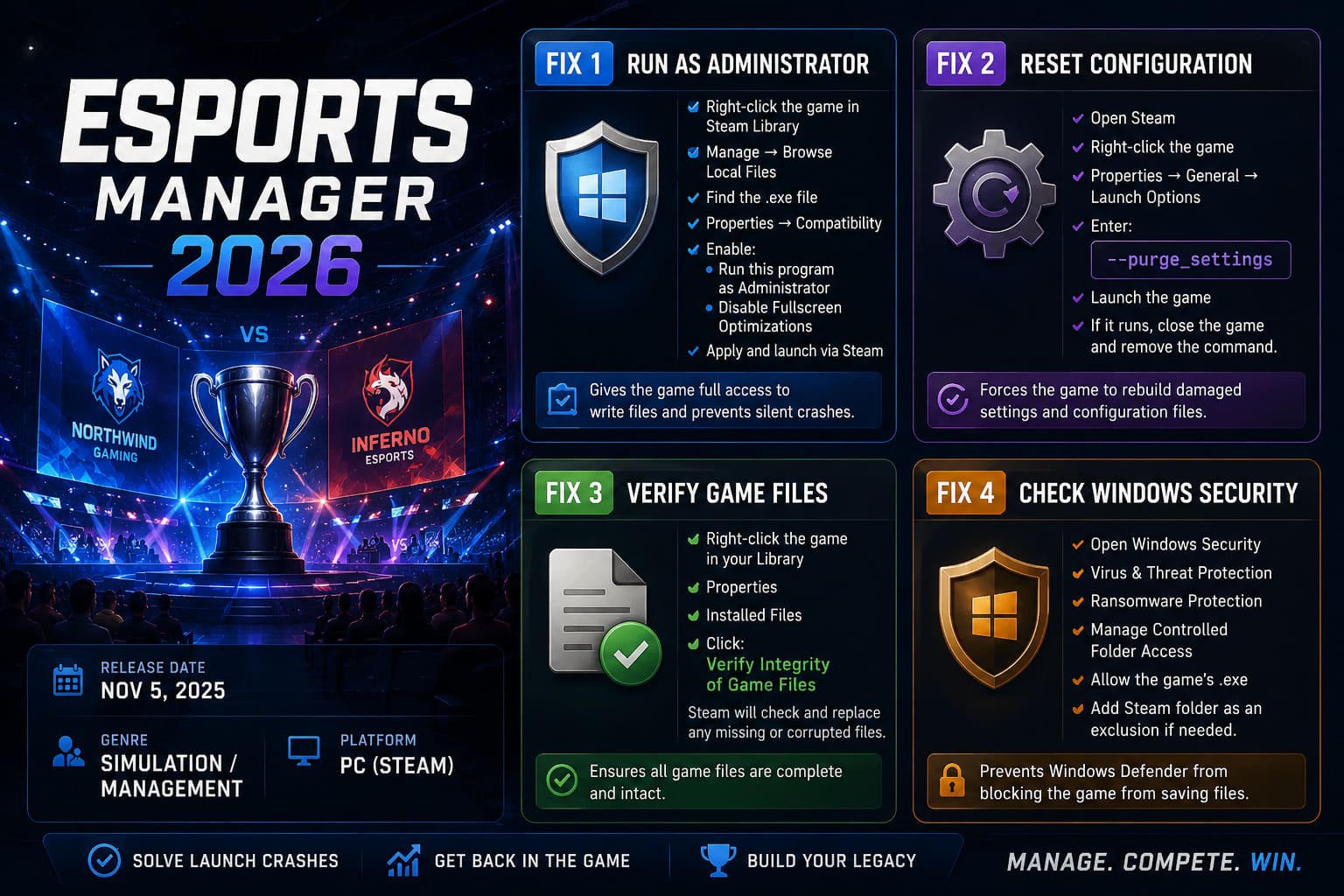
- Open your Steam Library.
- Right-click Esports Manager 2026.
- Select Manage → Browse Local Files.
- Locate the game’s executable (.exe).
- Open Properties.
- Navigate to the Compatibility tab.
- Enable Run this program as Administrator.
- Also enable Disable Fullscreen Optimizations.
- Apply the changes and launch through Steam.
It’s a tiny adjustment, yet it’s one of those fixes that solves launch problems surprisingly often.
Fix 2: Reset Broken Configuration Files
Nothing breaks a fresh installation faster than a corrupted settings file.
Sometimes the very first launch crashes while writing graphics settings. After that, every future launch reads the broken configuration and crashes again before the menu appears.
Steam includes a useful launch parameter that forces the game to rebuild these settings.
Open:
Steam → Properties → General → Launch Options
Enter:
--purge_settingsStart the game.
If everything loads correctly, close the game afterward and remove the command. Otherwise, your graphics preferences may reset every time you play.
This trick has rescued plenty of modern PC games over the years.
Fix 3: Verify Every Installed Game File
I honestly verify game files before I even consider reinstalling anything.
Modern games contain tens of thousands of files. A single interrupted download or corrupted archive can prevent the executable from loading correctly.
Steam makes checking incredibly simple.
Open:
Library → Right-click Game → Properties → Installed Files
Click:
Verify Integrity of Game Files
Steam compares every local file against its official servers and automatically replaces anything damaged or missing.
Depending on whether you’re using an SSD or HDD, the process usually finishes within a few minutes.
Fix 4: Check Windows Security Before Blaming the Game
One thing many players overlook is Controlled Folder Access.
Windows Defender has become much more aggressive over the past few years. While the feature protects against ransomware, it occasionally mistakes perfectly legitimate games for suspicious software.
If the game cannot create save files or configuration folders, startup may fail instantly.
Open:
- Windows Security
- Virus & Threat Protection
- Ransomware Protection
- Manage Controlled Folder Access
If it’s enabled:
- Allow the game’s executable.
- Add the entire Steam installation folder as an exclusion if necessary.
Many users report that the game launches immediately afterward without changing anything else.
Fix 5: Delete Corrupted Cache Files
This is another fix that gets ignored far too often.
Steam verifies installation files.
It does not verify your personal configuration folders.
Those hidden folders live inside Windows and often survive reinstalls.
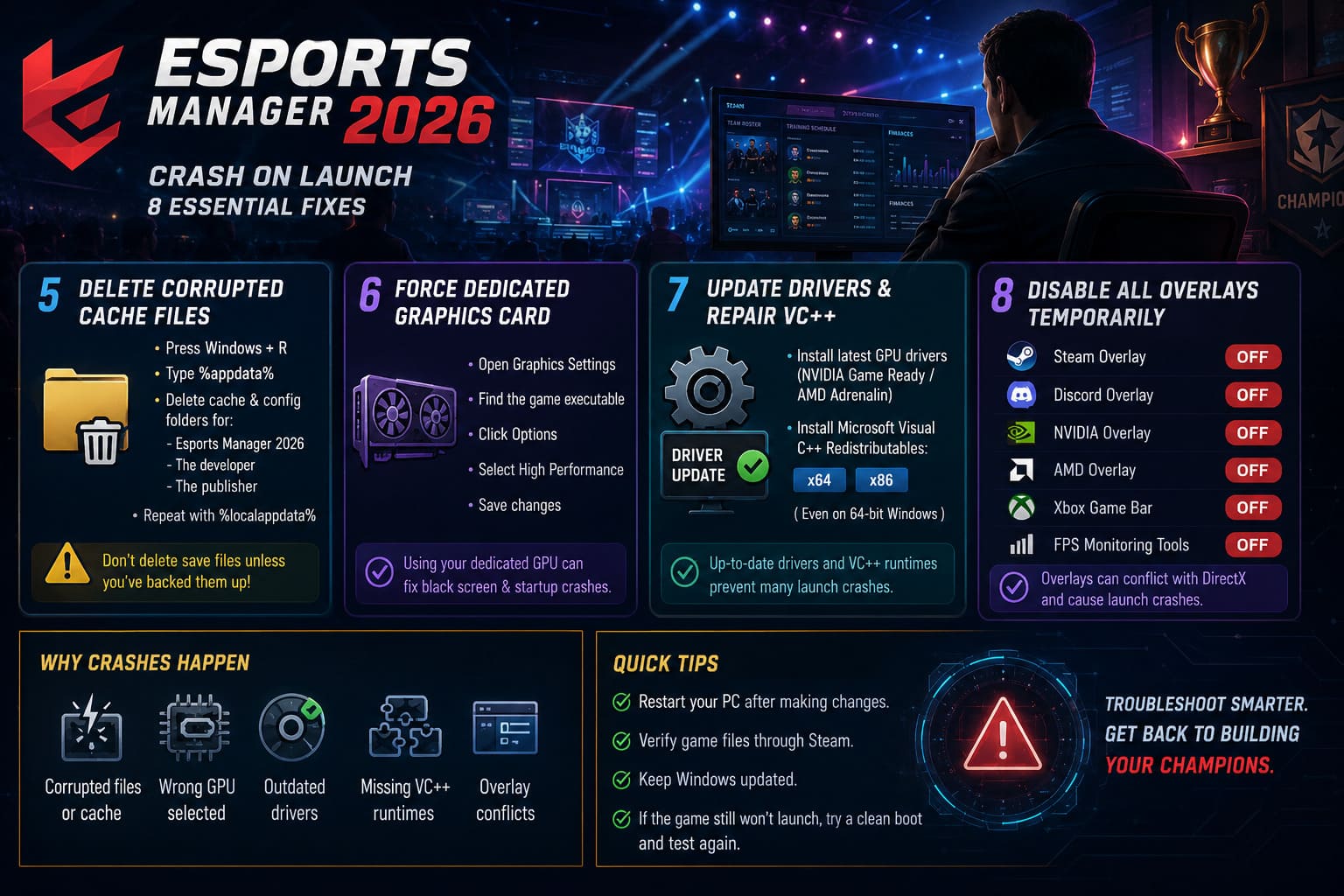
Open Run by pressing:
Windows + R
Then visit:
%appdata%Look for folders belonging to:
- Esports Manager 2026
- The developer
- The publisher
Delete only temporary cache and configuration folders.
Repeat the same process using:
%localappdata%One important warning:
Don’t delete your save files unless you’ve backed them up first.
There’s no reason to lose dozens of hours managing your dream organization over a simple cache cleanup.
Fix 6: Force Windows to Use Your Dedicated Graphics Card
Laptop owners run into this problem constantly.
Windows sometimes decides that a management simulator isn’t demanding enough to deserve your RTX or Radeon GPU.
Instead, it launches using integrated graphics.
That sounds harmless until the game engine crashes because required DirectX features aren’t available.
To fix it:
- Open Graphics Settings.
- Browse to the game’s executable.
- Click Options.
- Select High Performance.
- Save the changes.
After forcing the dedicated GPU, several black-screen startup issues disappear instantly.
Fix 7: Update Drivers and Repair Microsoft Visual C++
Graphics drivers are easy to forget—until a brand-new game refuses to cooperate.
Whenever a major PC title launches, GPU manufacturers usually release optimized drivers specifically for that game.
Installing the newest Game Ready or Adrenalin driver often eliminates compatibility issues introduced by launch-day patches.
While you’re updating software, don’t forget the Microsoft Visual C++ Redistributables.
Many Unreal and Unity-based games depend on these runtime libraries. If they’re damaged or partially removed, startup crashes become almost unavoidable.
Install both versions:
- x64
- x86
Even on a 64-bit operating system.
It only takes a few minutes and can prevent countless headaches later.
Fix 8: Disable Every Overlay Temporarily
Overlay software is fantastic…
…until it isn’t.
Steam Overlay.
Discord Overlay.
GeForce Overlay.
RivaTuner.
MSI Afterburner.
Xbox Game Bar.
Any application injecting itself into DirectX can interfere with launch.
Whenever I’m troubleshooting a stubborn PC game, I disable every overlay first.
It’s amazing how often the game suddenly starts working.
Temporarily disable:
- Steam Overlay
- Discord Overlay
- NVIDIA Overlay
- AMD Overlay
- Xbox Game Bar
- FPS monitoring software
Once the game launches consistently, you can re-enable them individually to identify the culprit.
Extra Things Worth Checking
If none of the previous fixes solve your issue, don’t panic just yet.
Here are a few additional ideas that have helped players with similar launch problems:
- Restart Steam completely.
- Reboot Windows after driver installation.
- Disconnect unnecessary USB devices.
- Close RGB software running in the background.
- Disable third-party antivirus temporarily.
- Check available disk space.
- Install pending Windows updates.
- Move the game onto an SSD if you’re still using an older hard drive.
None of these are guaranteed fixes on their own, but together they eliminate plenty of unexpected compatibility issues.
Esports Manager 2026 Guide: How to Sign Superstars and Build a Championship Roster
Final Thoughts
There’s nothing more frustrating than buying a game you’ve been waiting months for only to spend your first evening troubleshooting instead of building your championship-winning organization.
Thankfully, Esports Manager 2026 doesn’t appear to suffer from one impossible-to-fix bug. Most launch problems come from familiar Windows quirks that PC gamers have battled for years.
If I had to rank the fixes by success rate, I’d start with administrator mode, verifying Steam files, resetting corrupted settings, and checking Windows Security. Those four alone seem to solve the majority of startup crashes reported by players.
If the game still refuses to launch after trying every method in this guide, the issue is likely tied to a broader compatibility bug introduced in a recent patch. In that situation, keep an eye on official developer announcements and future updates, since launch-week hotfixes often address widespread crashing issues quickly.
Until then, work through each solution one by one instead of changing everything at once. It’s slower, but you’ll actually identify what’s causing the crash—and once you do, you’ll hopefully spend less time staring at your desktop and more time building the next esports dynasty.