Thveit Controller Support: How to Play the Norse City Builder with a Gamepad on PC
I have spent years playing city builders, survival simulations, and management games, and one thing has always been clear: these genres are usually designed around the mouse and keyboard. Precise building placement, endless menus, production chains, and detailed management screens often make controllers feel like a secondary option rather than a serious way to play.
However, Thveit, the cozy Norse-inspired city builder from Winter Cats Studios, is one of those games where a controller actually makes a lot of sense. The game focuses on exploration, settlement growth, resource management, and creating a living village surrounded by folklore creatures like trolls and dragons. Its slower pace and relaxing atmosphere make it much easier to adapt to a gamepad compared with traditional hardcore strategy titles.
Many players are now asking the same question: Does Thveit have controller support on PC, and can you comfortably play it without a mouse and keyboard? The answer is yes, but the experience depends heavily on your setup. With Steam Input, custom layouts, and a few adjustments, Xbox controllers, PlayStation DualSense controllers, and handheld PCs can provide a surprisingly smooth way to manage your Viking settlement.
Crytivo Upcoming Games 2026: The Ultimate Indie Release Guide
Does Thveit Have Full Controller Support on PC?
Thveit is launching as an Early Access city builder, which means the developers are still improving different aspects of the game based on community feedback. For smaller studios, the main focus is usually core gameplay systems, optimization, content updates, and stability before every control option receives final polish.
Based on early testing, Thveit supports standard XInput controllers, allowing most modern Xbox-style gamepads to work immediately. PlayStation controllers can also function correctly, especially when using Steam Input, although some additional configuration may be required.
The main challenge is not basic movement or camera control. The problem comes from the traditional city builder interface. Selecting small structures, managing production screens, checking villager information, and navigating detailed menus are all tasks that naturally work better with a mouse.
Still, Thveit’s gameplay style makes controller support much more practical than in many other strategy games. You are not constantly reacting to enemies or racing against a timer. Instead, you are slowly expanding your island, managing resources, building your settlement, and watching your community develop.
Best Way to Use an Xbox or PlayStation Controller in Thveit
The most reliable way to play Thveit with a controller on PC is through Steam Input. After playing many different management games, I have found that Steam’s controller system is one of the best solutions for adapting mouse-focused games to a gamepad.
Steam Input works as a translator between your controller and the game. It allows you to assign keyboard commands, mouse clicks, and custom shortcuts directly to your controller buttons, giving you much more control over the final experience.
How to Set Up Your Controller for Thveit
- Connect your controller: Use a USB cable or Bluetooth connection for your Xbox, DualSense, DualShock, or third-party controller.
- Open Steam: Find Thveit in your Steam library and open the game settings.
- Enable Steam Input: Go to the Controller section and activate Steam Input support.
- Open the layout editor: Customize your controller profile or choose a community-made configuration.
- Launch Thveit: Start the game and test your new controls.
The biggest advantage of Steam Input is freedom. You are not limited by the developer’s default controller settings. You can create a layout that feels closer to a console strategy game while keeping the accuracy needed for city management.
My Recommended Thveit Controller Layout
When adapting a city builder for a controller, I do not recommend trying to completely replace the mouse. That usually creates unnecessary frustration. A better approach is combining analog movement, mouse emulation, and smart shortcuts.
A comfortable Thveit controller setup should focus on reducing menu navigation and keeping important actions close to your hands.
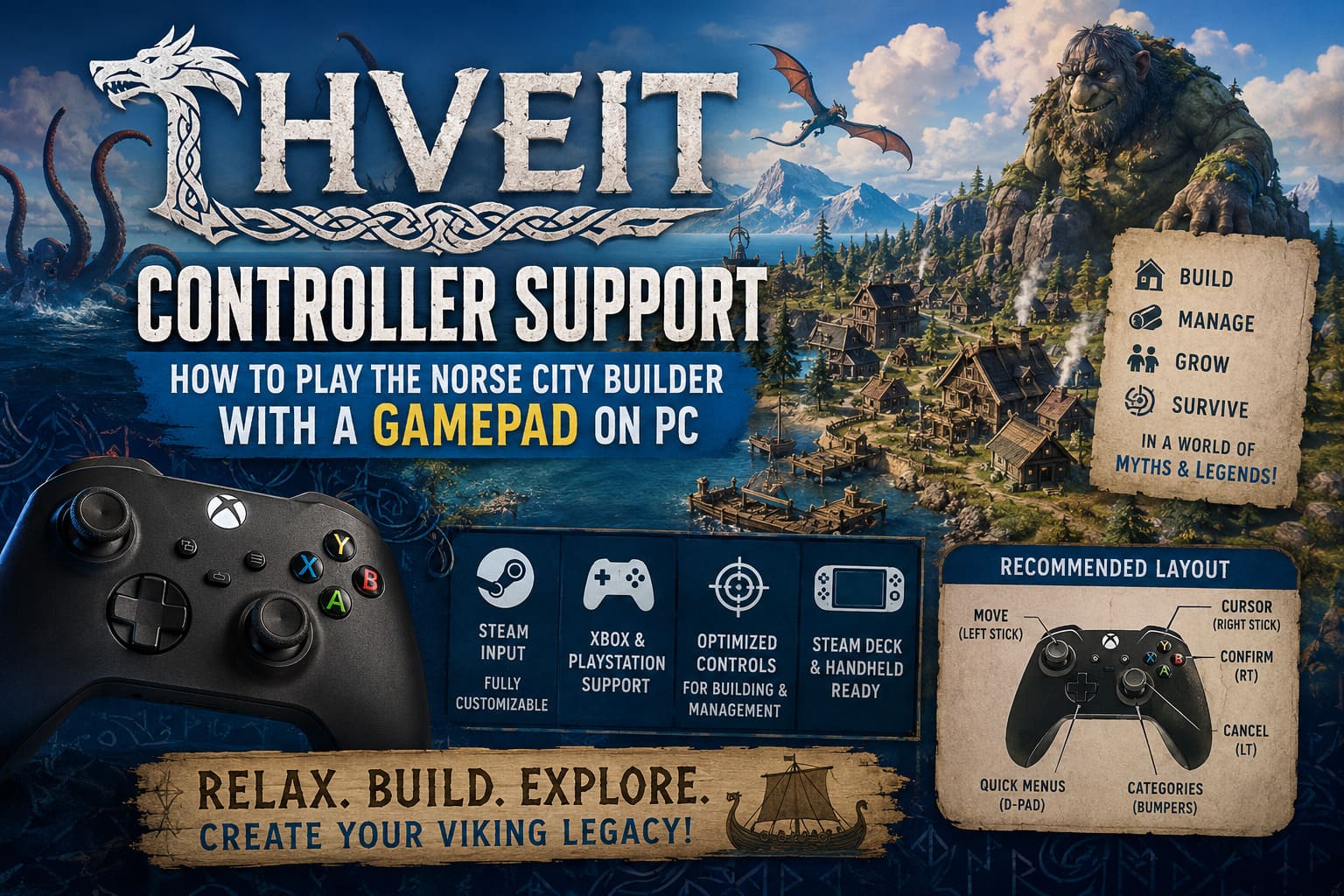
| Controller Button | Recommended Function |
|---|---|
| Left Stick | Camera movement across the island |
| Right Stick | Mouse cursor control for building placement |
| Right Trigger | Left mouse click and confirmation |
| Left Trigger | Right mouse click and cancel action |
| D-Pad | Quick access to important menus |
| Bumpers | Switch building categories and tabs |
The most important part of this setup is the right stick. I recommend using joystick mouse emulation with reduced sensitivity. The default settings are often too fast, making it difficult to place buildings accurately between trees or select individual villagers.
The D-pad should be reserved for frequently used systems. Resource storage, time controls, bestiary information, and divine offerings are perfect choices because they save time and keep the gameplay flow smooth.
Making Thveit Feel Better with a Controller
A city builder depends heavily on comfort. If every action requires several button presses, the relaxing experience quickly becomes annoying. Fortunately, Thveit’s slower gameplay rhythm works very well with a properly configured controller.
I recommend assigning important actions to buttons that do not require moving your hands. Building rotation, cancel commands, speed controls, and information panels should always be easy to access.
When expanding a village, you want to quickly place structures, check resources, and adjust production without constantly reaching for a keyboard. A good controller layout transforms Thveit from a traditional PC strategy game into something that feels closer to a console management experience.

Fixing Controller Problems in Thveit
Early Access games often have small input problems, and Thveit may occasionally require extra adjustments. If your controller is not working correctly, several solutions can help.
Use Steam Big Picture Mode
Sometimes Windows controller detection can conflict with overlays or background software. Launching Steam through Big Picture Mode forces a dedicated controller environment and can solve detection problems.
This method is especially useful for wireless controllers or players who have multiple input devices connected at the same time.
Adjust Cursor Speed
One common problem in city builders is slow cursor movement when using analog sticks. If building placement feels uncomfortable, adjust your Steam controller settings instead of searching through the in-game options.
Increasing the horizontal and vertical sensitivity of joystick mouse controls usually creates a much smoother experience.
PlayStation Controller Solutions
DualShock 4 and DualSense controllers can sometimes have compatibility issues because many PC games are optimized around Xbox-style XInput devices.
If Steam Input does not solve the problem, controller conversion software can help by making PlayStation hardware appear as a standard Xbox controller. This often improves compatibility with PC games.
Thveit on Steam Deck and Handheld PCs
For me, handheld gaming is where Thveit’s controller support becomes the most interesting. Cozy builders are perfect for portable play, and devices like Steam Deck or ROG Ally match the relaxing nature of the game extremely well.
Steam Deck users have a major advantage because of the built-in trackpads. Instead of depending only on analog sticks, you can configure the right trackpad as a precise mouse surface.
Recommended Steam Deck Setup
- Left Stick: Move around the island and control camera movement.
- Right Trackpad: Use as a precise mouse for selecting buildings and villagers.
- Back Buttons: Assign commands like rotating structures or opening menus.
- Triggers: Confirm selections and cancel actions.
This hybrid control style creates a balance between traditional PC accuracy and handheld comfort. You still get the precision of a mouse while enjoying the freedom of playing anywhere.
Final Thoughts: Is Thveit Worth Playing with a Controller?
After looking at how Thveit works, I believe controller support fits the game much better than many people might expect. This is not a stressful real-time strategy game where every second matters. It is a relaxing Norse settlement builder focused on creativity, exploration, and watching your village grow.
A mouse and keyboard will probably remain the best choice for players who want maximum efficiency and precision. However, for anyone who wants to play from the couch, use a handheld PC, or simply enjoy the atmosphere without sitting at a desk, a controller setup works surprisingly well.
With Steam Input, a carefully customized layout, and a little patience, Thveit becomes one of those PC strategy games that feels completely natural with a gamepad. Building your Viking settlement, managing resources, and exploring mythical islands can be just as enjoyable with a controller as it is with traditional PC controls.