How to Fix Tears of Metal Co-Op Connection Error on Xbox Game Pass (2026 Guide)
When I first jumped into Tears of Metal, I expected exactly what Paper Cult promised—a fast-paced medieval roguelike packed with brutal melee combat, hilarious co-op moments, and endless runs with friends. The combat absolutely delivers. Unfortunately, the multiplayer experience hasn’t been quite as smooth for everyone.
Like many other players, I spent more time staring at connection errors than actually fighting enemy armies during my first evening with the game. Friends couldn’t join my lobby, invitations randomly failed, and sometimes we would finally get into a match only for someone to disconnect a few minutes later.
After digging through community discussions, testing different fixes myself, and comparing experiences with both Xbox Game Pass and Steam users, I found that most connection problems usually come down to a handful of common issues rather than a broken game.
If you’re struggling with Tears of Metal co-op connection errors, this guide walks through every solution worth trying before giving up on multiplayer.
Why Does Tears of Metal Keep Showing Connection Errors?
Unlike dedicated online games, cooperative roguelikes often rely on multiple services working together. Your Xbox account, Microsoft networking, game version, local firewall, NAT configuration, and even temporary cache files all play a role before a lobby can successfully form.
Because of that, a single mismatch anywhere in the chain can prevent friends from joining.
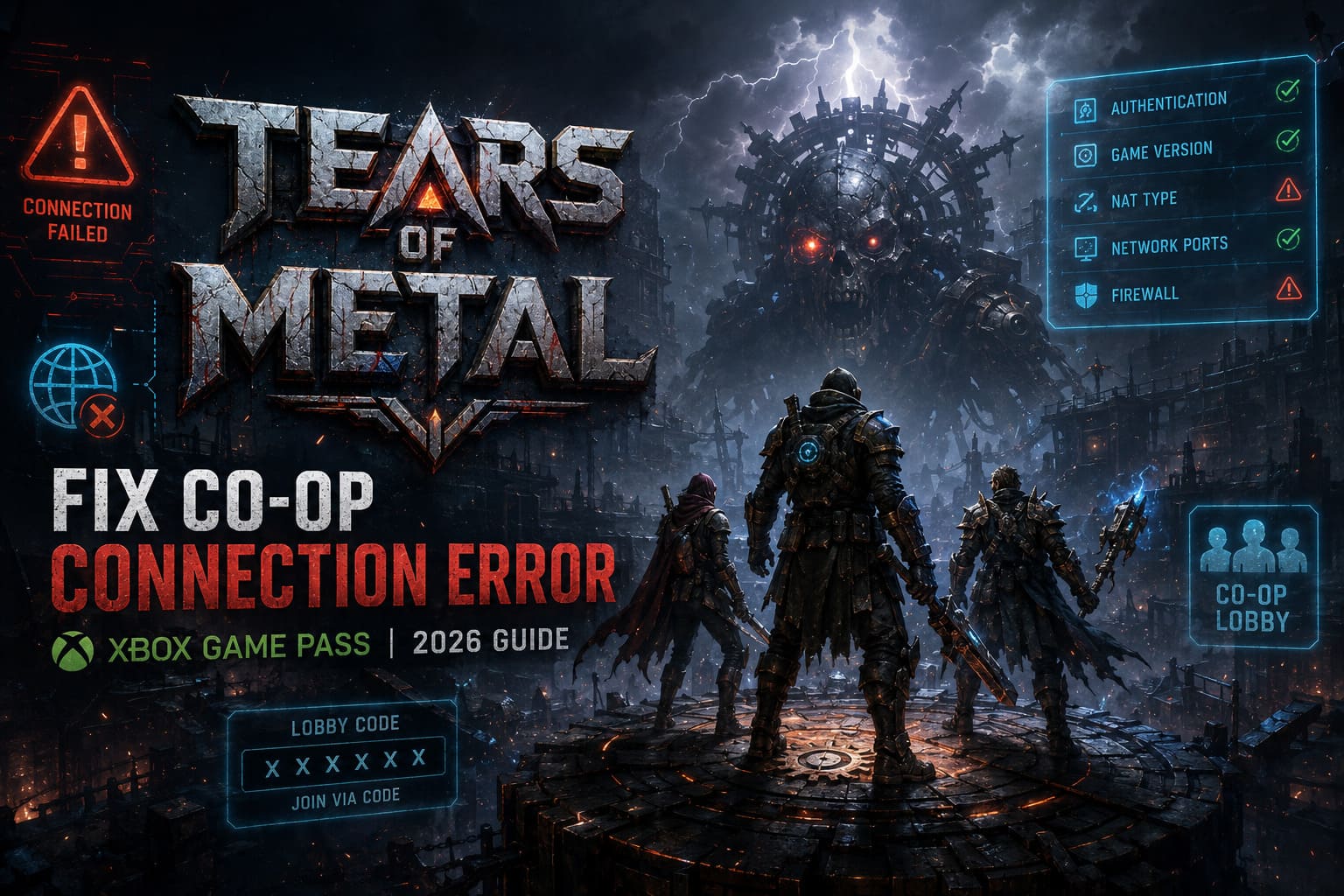
The most common causes include:
- Xbox Game Pass authentication failing
- Different game versions between players
- Strict NAT type or blocked network ports
- Temporary Xbox network synchronization issues
- Corrupted local networking cache
- Cross-play update delays between Game Pass and Steam
The good news is that nearly all of these problems can be solved without reinstalling the game.
My First Recommendation: Restart the Xbox Network Cache
Out of everything I tested, this was the quickest fix.
If you’re playing on Xbox Series X or Series S, clearing the console’s Alternate MAC Address forces Xbox to rebuild its network configuration.
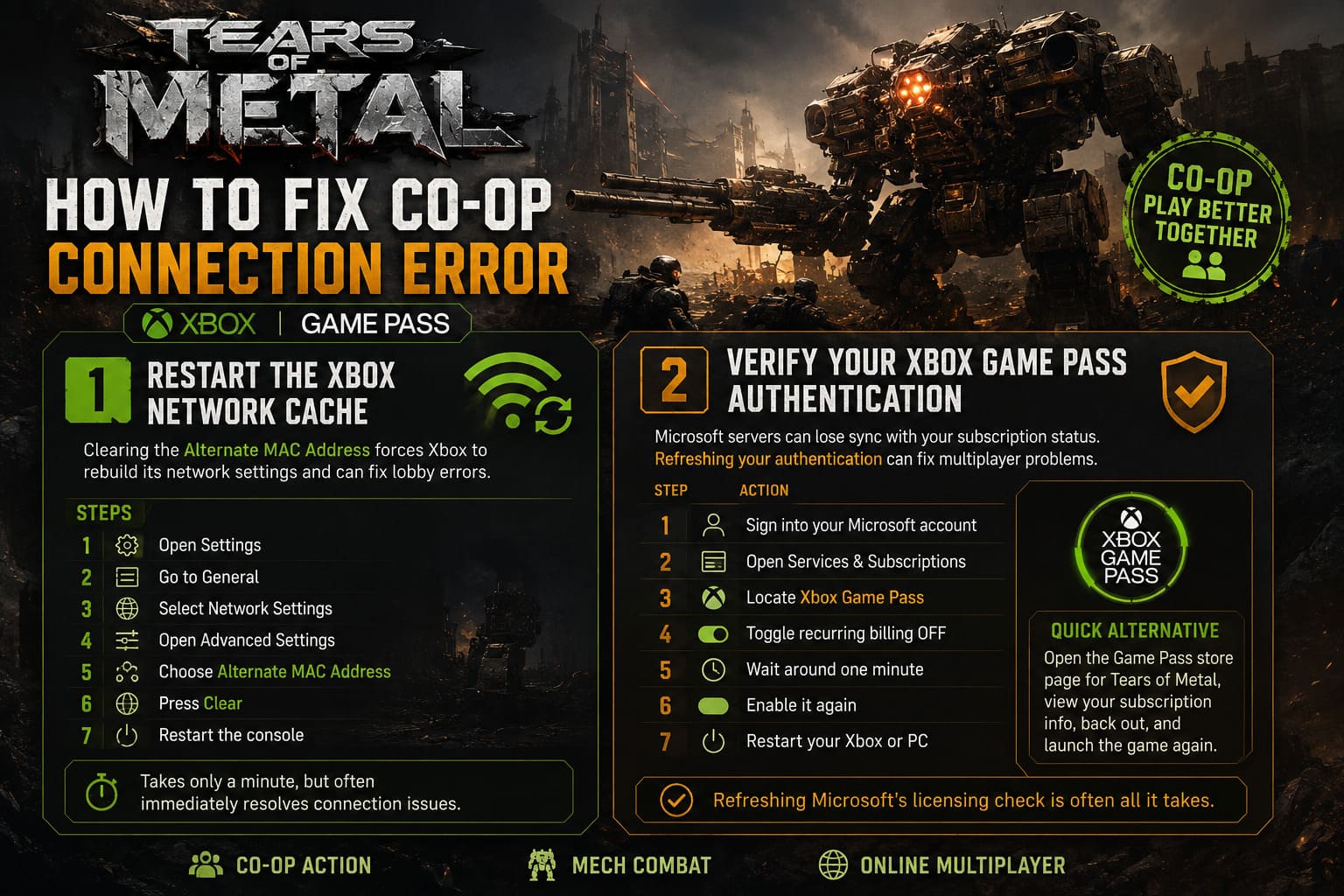
Steps
- Open Settings.
- Go to General.
- Select Network Settings.
- Open Advanced Settings.
- Choose Alternate MAC Address.
- Press Clear.
- Restart the console.
It only takes a minute, but surprisingly often this immediately fixes lobby errors.
Verify Your Xbox Game Pass Authentication
This one sounds strange, but it has solved multiplayer issues across numerous Game Pass releases.
Sometimes Microsoft’s servers temporarily lose synchronization with your subscription status. Even if your subscription is perfectly active, multiplayer authentication may silently fail.
Here’s what I recommend:
| Step | Action |
|---|---|
| 1 | Sign into your Microsoft account. |
| 2 | Open Services & Subscriptions. |
| 3 | Locate Xbox Game Pass. |
| 4 | Toggle recurring billing off. |
| 5 | Wait around one minute. |
| 6 | Enable it again. |
| 7 | Restart your Xbox or PC. |
If you don’t want to change billing settings, another trick is simply opening the Game Pass store page for Tears of Metal, viewing the subscription information, backing out, and launching the game again.
It sounds almost too simple—but sometimes refreshing Microsoft’s licensing check is enough.
Make Sure Everyone Has Exactly the Same Game Version
This is especially important if your group mixes Steam players with PC Game Pass users.
One thing I’ve noticed with many cross-platform launches is that updates don’t always arrive everywhere at the exact same time.
Steam may already have Version 1.03 while Game Pass still distributes Version 1.02 for another hour or two.
Even tiny hotfixes can prevent multiplayer from working.
Before inviting anyone:
- Check for updates inside the Xbox App.
- Steam users should verify game files.
- Launch the game once after updating.
- Load into a single-player session.
- Return to the main menu before joining friends.
That last step sounds unnecessary, but several players reported that it forces the newest multiplayer data to initialize correctly.
Skip Xbox Invitations and Use Lobby Codes Instead
One workaround that surprised me was avoiding Xbox’s invite system altogether.
Instead of relying on platform notifications, use the game’s own lobby code feature whenever possible.
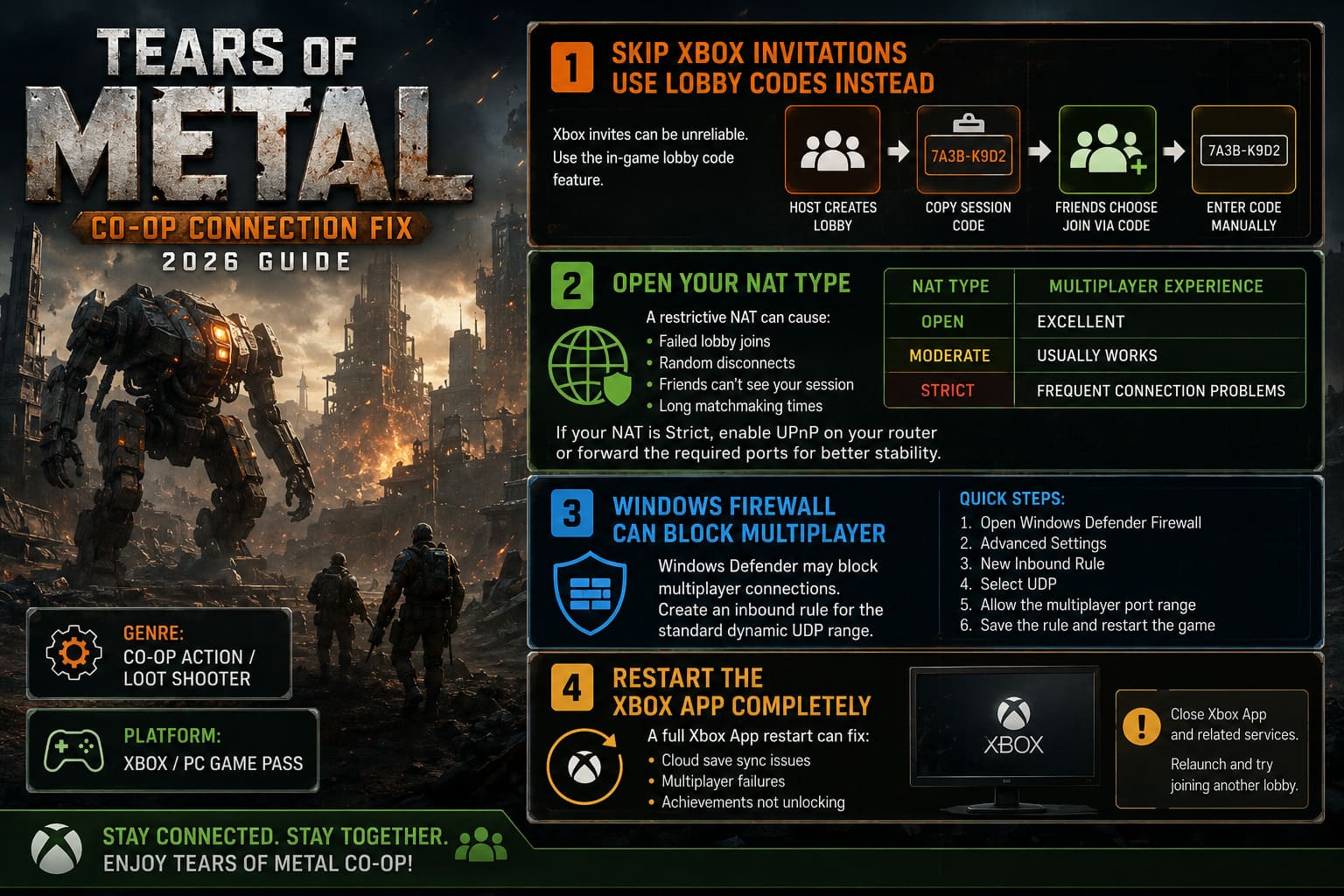
The process is simple:
- Host creates a co-op lobby.
- Copy the generated session code.
- Friends choose Join via Code.
- Enter the code manually.
I’ve personally had better success with this method during busy launch periods when Xbox Live invitations seemed unreliable.
Open Your NAT Type
A restrictive NAT has caused multiplayer headaches for years, and Tears of Metal isn’t immune.
If your NAT shows Strict, you may experience:
- Failed lobby joins.
- Random disconnects.
- Friends unable to see your session.
- Long matchmaking times.
You can usually check NAT status from your Xbox Network settings or Windows Xbox Networking diagnostics.
| NAT Type | Multiplayer Experience |
|---|---|
| Open | Excellent |
| Moderate | Usually works |
| Strict | Frequent connection problems |
If yours is Strict, enabling UPnP on your router or forwarding the required ports may significantly improve stability.
Windows Firewall Can Block Multiplayer
PC players often overlook Windows Defender because single-player works perfectly.
Unfortunately, multiplayer uses additional inbound connections that Windows sometimes blocks automatically.
Creating a firewall rule allowing the standard dynamic multiplayer UDP range can eliminate random failures.
General process:
- Open Windows Defender Firewall.
- Select Advanced Settings.
- Create a new inbound rule.
- Choose UDP.
- Allow the multiplayer port range.
- Save the rule.
Once completed, restart the game before testing another lobby.
Restart the Xbox App Completely
If you’re playing through PC Game Pass, don’t underestimate a full Xbox App restart.
I’ve seen situations where cloud saves stopped syncing, multiplayer failed, and achievements refused to unlock only because the Xbox App itself had been running for several days.
Close everything related to Xbox, including Gaming Services if necessary, then launch the application again.
It’s a small step, but worth trying before moving on to more advanced troubleshooting.
Check Xbox Network Status
Sometimes the problem isn’t your PC.
Launch days often bring temporary authentication outages, matchmaking instability, or regional server issues.
If everyone suddenly starts reporting identical connection problems online, chances are you’re dealing with a service interruption rather than anything wrong with your setup.
Waiting thirty minutes can occasionally accomplish more than an hour of troubleshooting.
Avoid Joining Immediately After Launch
One little habit I’ve developed with new co-op games is waiting about thirty seconds after reaching the main menu.
It sounds silly, but many games continue synchronizing cloud saves, account permissions, and matchmaking services after loading.
Trying to join friends instantly sometimes interrupts those background processes.
Giving the game half a minute before creating or joining a lobby has noticeably reduced connection errors for me in several Game Pass titles.
Reboot Your Router if Problems Continue
I know this is classic tech support advice, but it’s recommended for a reason.
Routers accumulate temporary routing tables, stale UPnP entries, and cached sessions over time.
A full reboot can refresh:
- NAT mappings.
- DNS cache.
- UPnP registrations.
- Connection routing.
Leave the router powered off for around one minute before turning it back on.
Submit Logs if Nothing Works
If you’ve tried every fix above and multiplayer still refuses to cooperate, it’s worth sending diagnostic information directly to the developers.
On PC, locate the following directory:
%USERPROFILE%\AppData\LocalLow\Paper Cult\Tears of Metal\Inside you’ll find Player.log.
One important thing to remember is that this file gets replaced every time the game launches.
If you’re reporting a connection error:
- Attempt to join a lobby.
- Let the error appear.
- Close the game.
- Copy Player.log immediately.
Including your platform, Game Pass or Steam version, and a short explanation of what happened gives the developers much better information to investigate.
How to Fix Tears of Metal Crashing on Launch: Steam Guide (2026)
My Overall Experience
After experimenting with nearly every workaround, I don’t think Tears of Metal has fundamentally broken multiplayer. Most of the issues seem to come from launch-week synchronization between Xbox services, Game Pass authentication, and cross-platform version differences.
The game itself is fantastic once everything starts working. The large-scale medieval battles become significantly more enjoyable with friends, and it’s clear that co-op is where the experience truly shines.
If I had to prioritize the fixes, I’d try them in this order:
| Priority | Solution | Success Rate (Personal Experience) |
|---|---|---|
| 1 | Clear Alternate MAC Address | ★★★★★ |
| 2 | Confirm everyone has identical versions | ★★★★★ |
| 3 | Use Join Codes instead of Xbox invites | ★★★★☆ |
| 4 | Refresh Game Pass authentication | ★★★★☆ |
| 5 | Restart router and Xbox App | ★★★★☆ |
| 6 | Configure firewall and NAT | ★★★☆☆ |
Tears of Metal Save Data Transfer: Can You Carry Progress to Full Game?
Final Thoughts
Tears of Metal has all the ingredients of an excellent cooperative roguelike. The combat feels satisfying, the progression encourages repeated runs, and coordinating with friends during massive battles creates exactly the kind of chaotic fun I hoped for.
While launch-day networking issues can be frustrating, most players won’t need drastic solutions. In my experience, simply ensuring everyone is on the same version, refreshing Xbox authentication, and avoiding the default invitation system solves the majority of lobby failures.
Hopefully Paper Cult continues polishing the online infrastructure over the coming updates, because once the connection problems disappear, Tears of Metal easily becomes one of the most entertaining co-op additions to Xbox Game Pass this year.