How to Fix Expeditions Samurai Crash on Launch, Freezing, and Black Screen on PC
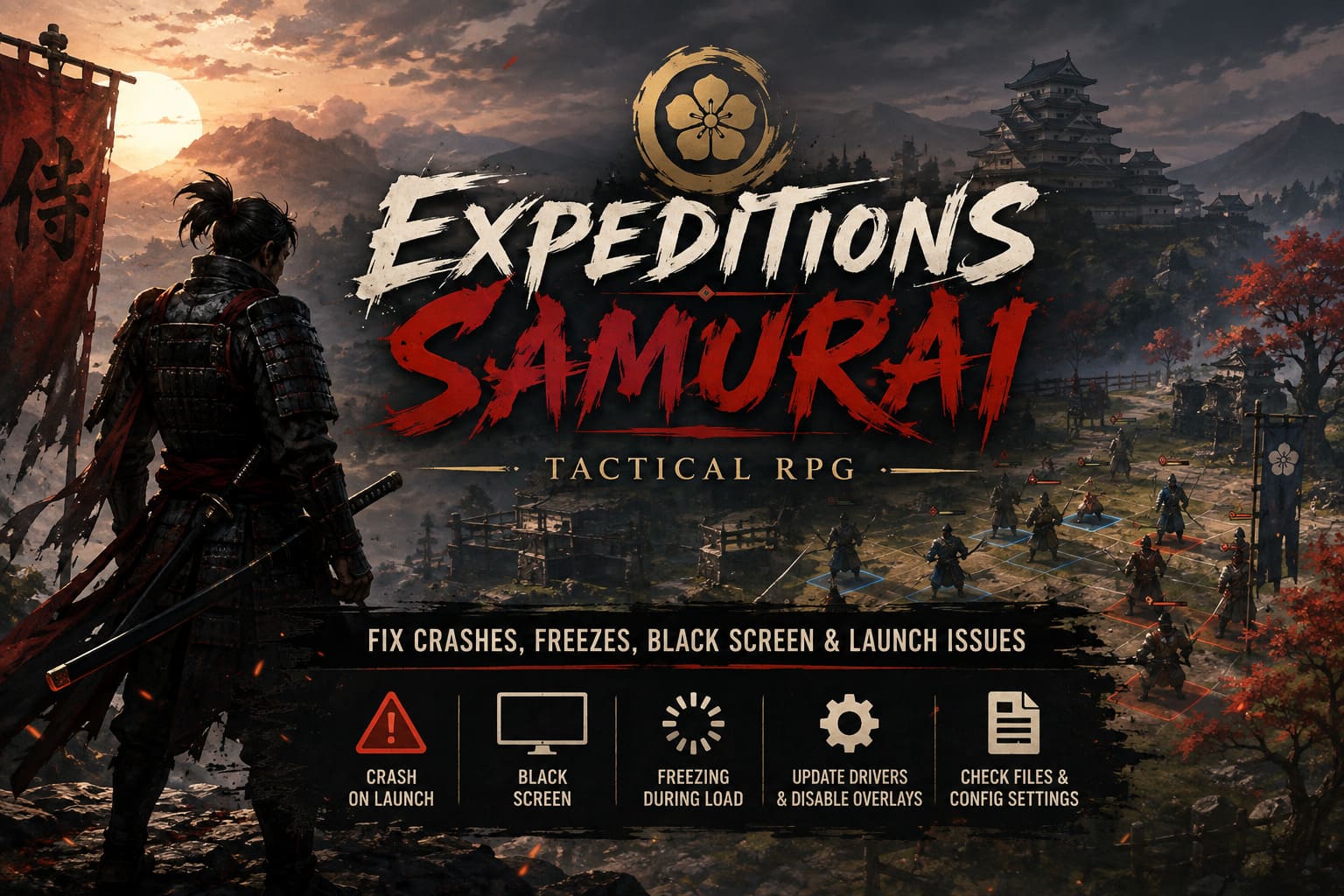
There is nothing more frustrating than buying into a promising tactical RPG, firing it up with the excitement of starting a brand-new campaign, and getting rewarded with… a black screen.
Expeditions: Samurai has a lot going for it. The Sengoku-era setting, tactical battles, character-driven decisions, exploration, and that delicious feeling of watching a carefully planned turn collapse because one enemy decided to ruin your entire afternoon — this is exactly the kind of RPG I can sink ridiculous amounts of time into.
But Early Access games can be rough around the edges, and startup crashes, freezes, black screens, and sudden desktop exits are among the most annoying problems you can run into on PC.
I’ve spent enough time troubleshooting PC games to know the drill. Sometimes the solution is ridiculously simple. Other times, Windows, GPU drivers, overlays, configuration files, and the game engine decide to form a small alliance against you.
If Expeditions: Samurai crashes on launch, freezes during loading, shows a black screen, or closes after the developer logos, work through the fixes below. Start with the easy ones first. There is absolutely no reason to start editing configuration files if Steam simply downloaded a broken file.
Quick Fix Guide for Expeditions: Samurai PC Problems
| Problem | Best First Fix |
|---|---|
| Game crashes immediately | Verify Steam files |
| Black screen after logos | Disable overlays and update GPU drivers |
| Crash during loading | Try another graphics API |
| Crash after character creation | Check configuration and video playback settings |
| No response when launching | Run the game with administrator privileges |
| Random crashes | Update drivers and disable monitoring software |
| Missing DLL/runtime errors | Repair Microsoft Visual C++ |
| Strange controller-related crashes | Disconnect unnecessary USB devices |
| Extremely long loading/asset failures | Move the game to an SSD |
Let’s get into the fixes.
1. Verify the Game Files Through Steam
This should be your first move. Seriously.
Early Access builds change frequently. Files can become corrupted during downloads, updates can fail to apply correctly, and sometimes Steam simply decides that one tiny file doesn’t deserve to exist anymore.
A missing or damaged file can be enough to make a game crash before you even reach the main menu.
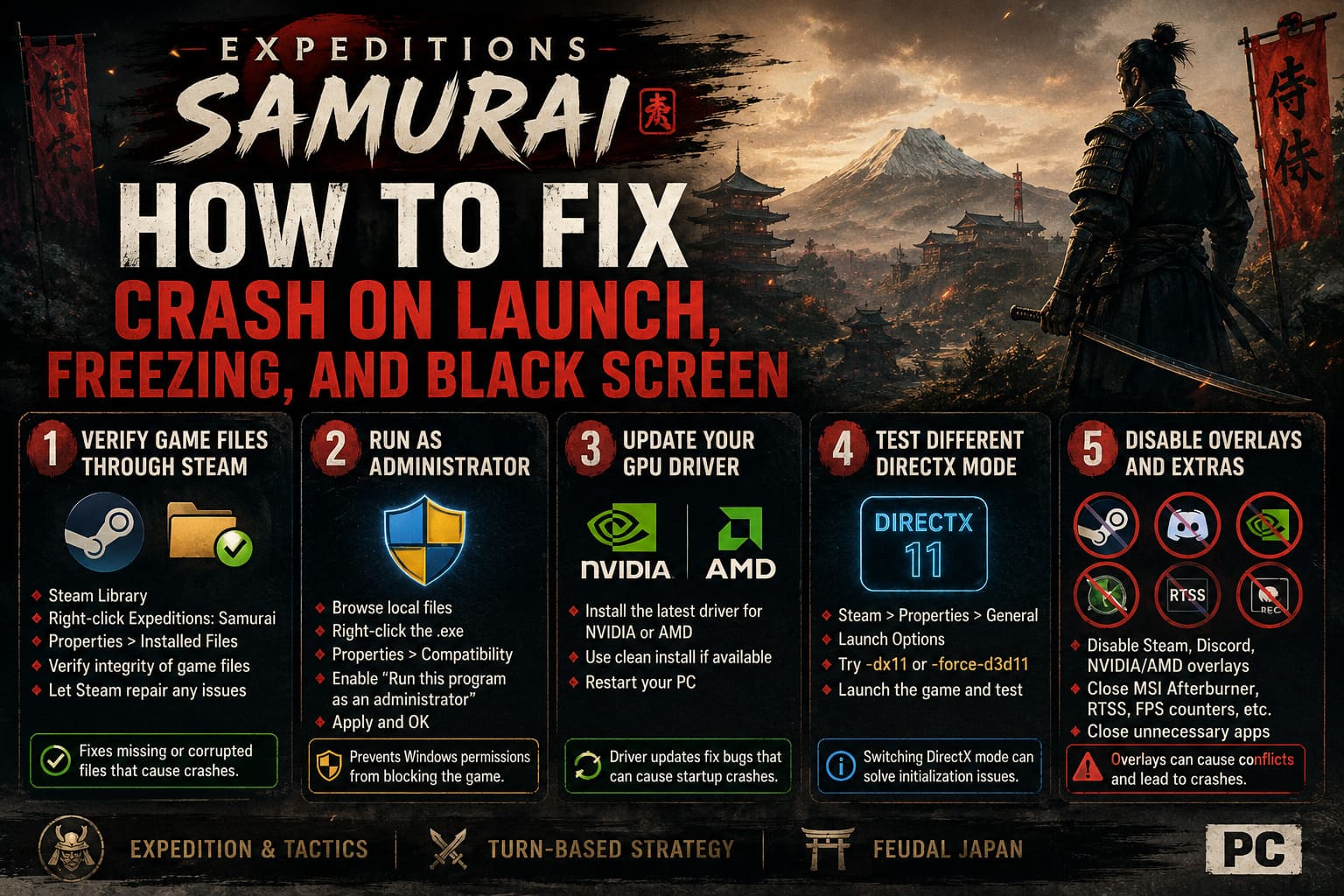
To verify the installation:
- Open Steam and go to your Library.
- Right-click Expeditions: Samurai.
- Select Properties.
- Open Installed Files.
- Click Verify integrity of game files.
- Let Steam complete the scan and repair anything it finds.
Once Steam finishes, launch the game again.
If it downloads replacement files, don’t immediately start changing other settings. Test the repaired installation first. I’ve lost count of how many PC troubleshooting sessions end with someone changing ten things at once and then having no idea which fix actually worked.
2. Try Running Expeditions: Samurai as Administrator
Windows permissions can occasionally get in the way of games trying to create or modify files in protected directories.
This can be especially irritating when the game appears to launch, flashes something on screen, and then disappears without an error message.
Try elevated permissions:
- Open Steam.
- Right-click the game.
- Select Manage → Browse local files.
- Find the main game executable.
- Right-click the
.exefile and choose Properties. - Open the Compatibility tab.
- Enable Run this program as an administrator.
- Click Apply and then OK.
Launch the game again.
I wouldn’t permanently blame Windows permissions until you’ve tested this, though. Administrator mode isn’t a magic “fix everything” button, and if the actual problem is a GPU driver or broken configuration file, this won’t suddenly make the engine happy.
3. Update Your NVIDIA or AMD Graphics Driver
If you’re getting a crash during startup, loading, shader compilation, or immediately after a splash screen, your GPU driver deserves attention.
New games can expose driver bugs that older titles never touch. Early Access builds are particularly capable of doing this because optimization is still evolving.
For NVIDIA users, install the newest driver available for your GPU. AMD players should do the same through AMD Software: Adrenalin Edition.
If your driver installation offers a clean-install option, it’s worth considering when you’ve been experiencing repeated crashes.
After installing the new driver:
Restart the entire PC.
Don’t just close the installer and jump straight back into Steam. A proper reboot gives Windows and the graphics stack a clean start.
And if the game suddenly works after the update, congratulations: you have just avoided approximately three hours of increasingly questionable troubleshooting.
4. Test a Different DirectX Launch Mode
Graphics API issues are one of those classic PC gaming headaches.
A game can run perfectly on one system with a particular DirectX configuration and absolutely fall apart on another. If Expeditions: Samurai crashes before reaching the menu or dies during initialization, experimenting with an alternative DirectX mode may be worthwhile.
In Steam:
- Right-click Expeditions: Samurai.
- Open Properties.
- Stay in the General section.
- Find Launch Options.
- If the current game build supports it, test a DirectX 11 launch parameter such as
-dx11. - Start the game and see whether stability improves.
You may also encounter -force-d3d11 in community troubleshooting discussions.
Important: launch commands are game-specific. If a parameter does nothing, causes another problem, or isn’t supported by the current build, remove it. Don’t assume every Unreal or Unity-style command you find online applies to every game.
The goal here is simple: test, don’t blindly stack launch commands.
5. Kill Every Overlay You Don’t Need
This is one of my favorite troubleshooting steps because it takes almost no time and can eliminate some surprisingly bizarre crashes.
Overlays hook into the game while it is rendering. Steam, Discord, GPU software, recording utilities, FPS counters, RGB applications, and hardware-monitoring programs can all interact with a game at the same time.
That’s a lot of software fighting for a tiny piece of the same pie.
Temporarily disable:
- Steam Overlay
- Discord Overlay
- NVIDIA or AMD in-game overlays
- MSI Afterburner
- RivaTuner Statistics Server
- Other FPS counters and hardware-monitoring tools
- Recording or streaming overlays
For a proper troubleshooting test, close unnecessary background applications entirely.
If the game suddenly launches normally, start re-enabling your utilities one at a time.
That’s how you find the troublemaker instead of permanently sacrificing every useful application on your PC.
6. Check Windows Security and Antivirus Interference
Security software occasionally gets overly enthusiastic with new game executables.
An Early Access title can contain newly compiled executables, scripts, anti-cheat components, or constantly changing files. Your antivirus may decide that something looks suspicious and block access.
If the game closes instantly without an obvious error, check Windows Security and your third-party antivirus logs.
In Windows Security:
- Open Virus & threat protection.
- Select Manage settings.
- Find Exclusions.
- Choose Add or remove exclusions.
- If you’ve confirmed the game is legitimate and the security software is blocking it, you can add the game’s installation folder as an exclusion.
Third-party antivirus programs have their own whitelist systems.
Don’t blindly disable your entire antivirus. That’s unnecessary and creates a security problem just to troubleshoot a video game. If there is an actual detection, investigate it first.
7. Repair Microsoft Visual C++ Redistributables
Some games depend on Microsoft’s Visual C++ runtime components. If the required runtime is missing or damaged, the game can fail before it even gets the chance to show you what’s wrong.
This is particularly worth checking when you encounter DLL-related errors, immediate crashes, or a game that refuses to start at all.
Install or repair the current supported Microsoft Visual C++ Redistributable packages appropriate for your Windows installation, including the x64 and x86 versions when applicable.
If the installer detects an existing installation, look for the Repair option.
Afterward, reboot Windows and test the game again.
This isn’t the sexiest fix in the world. Nobody puts “repaired Visual C++ Redistributable” in their gaming montage. But when it works, it works.
8. Black Screen After Developer Logos? Investigate Configuration Files
Now we’re getting into the more interesting stuff.
If Expeditions: Samurai launches successfully but crashes or hangs after the developer logos, the problem may be connected to video playback, rendering settings, or a damaged local configuration.
Many PC games store user configuration under the Windows AppData directories.
Press:
Windows Key + R
Then enter:
%localappdata%
Look for a folder associated with the game or its developer. Depending on the current build, folder names and configuration locations can change, so don’t assume every installation will use exactly the same directory structure.
If you find the game’s saved configuration directory, look for files such as:
Engine.iniGameUserSettings.ini
Back up the original file before editing it.
That’s important. If your change makes things worse, you want an easy way back.
Some community troubleshooting methods also involve disabling hardware-accelerated video playback or problematic codec behavior in configuration files. If you know the game’s configuration structure and have confirmed that the relevant parameters are supported by the current build, test the appropriate settings there.
Don’t randomly paste configuration commands from five different games into the file, though. That’s how troubleshooting turns into archaeology.
9. Disconnect Controllers and Unnecessary USB Hardware
This sounds ridiculous until it works.
I’ve seen enough PC games behave strangely around controllers, USB devices, virtual audio hardware, racing wheels, flight sticks, VR equipment, drawing tablets, and USB hubs to never dismiss this category.
If you’re experiencing a crash during the initial boot or input-device detection, strip your setup down.
Disconnect:
- Secondary controllers
- USB hubs
- VR headsets
- Racing wheels
- Flight sticks
- Drawing tablets
- Streaming hardware
- Unnecessary USB audio devices
Leave your basic keyboard and mouse connected.
Launch the game.
If it reaches the main menu, reconnect your devices one at a time. That lets you identify whether one particular peripheral is causing the crash.
It sounds like voodoo. Sometimes PC gaming genuinely is voodoo.
10. Move the Game to an SSD
If you’re still running modern games from an old mechanical HDD, this is worth addressing.
An HDD doesn’t automatically mean a game will crash. Plenty of games still run from them. But modern titles can stream enormous amounts of data during loading and gameplay, and Early Access builds aren’t always perfectly optimized for slower storage.
A slow drive can contribute to:
- Extremely long loading times
- Asset-streaming problems
- Stuttering
- Temporary freezes
- Black screens during loading
If you have an SSD with enough free space, moving the installation is an easy test.
In Steam:
- Right-click Expeditions: Samurai.
- Select Properties.
- Open Installed Files.
- Choose the option to move the installation folder.
- Select your SSD.
- Let Steam complete the transfer.
You don’t necessarily need to reinstall Windows or perform some ridiculous full-system ritual. Just move the game and test it.
What If Nothing Here Fixes the Crash?
This is where I would stop randomly changing things.
If you’ve verified the files, updated your GPU driver, disabled overlays, checked security software, tested launch settings, and still can’t get into the game, the problem may genuinely be in the Early Access build.
That’s an important distinction.
Not every crash is caused by your PC.
Early Access games are unfinished software by definition. A particular GPU model, Windows configuration, save state, cutscene, resolution setting, or hardware combination can expose a bug that developers haven’t encountered yet.
If the game crashes consistently at exactly the same point, gather useful information rather than simply reporting “game broken.”
Record:
- Your GPU model
- CPU model
- Amount of RAM
- Windows version
- Driver version
- Where the crash occurs
- Whether there is an error message
- Whether the crash happens on a new save
- Whether disabling overlays changes anything
- Relevant crash logs or dump files
That information is dramatically more useful to developers than a one-line Steam post saying “PLEASE FIX CRASHING.”
Is Expeditions: Samurai Worth Buying? PC Early Access Review and Impressions (2026)
My Recommended Troubleshooting Order
If I were sitting at my own PC with Expeditions: Samurai crashing on launch, this is the order I’d use:
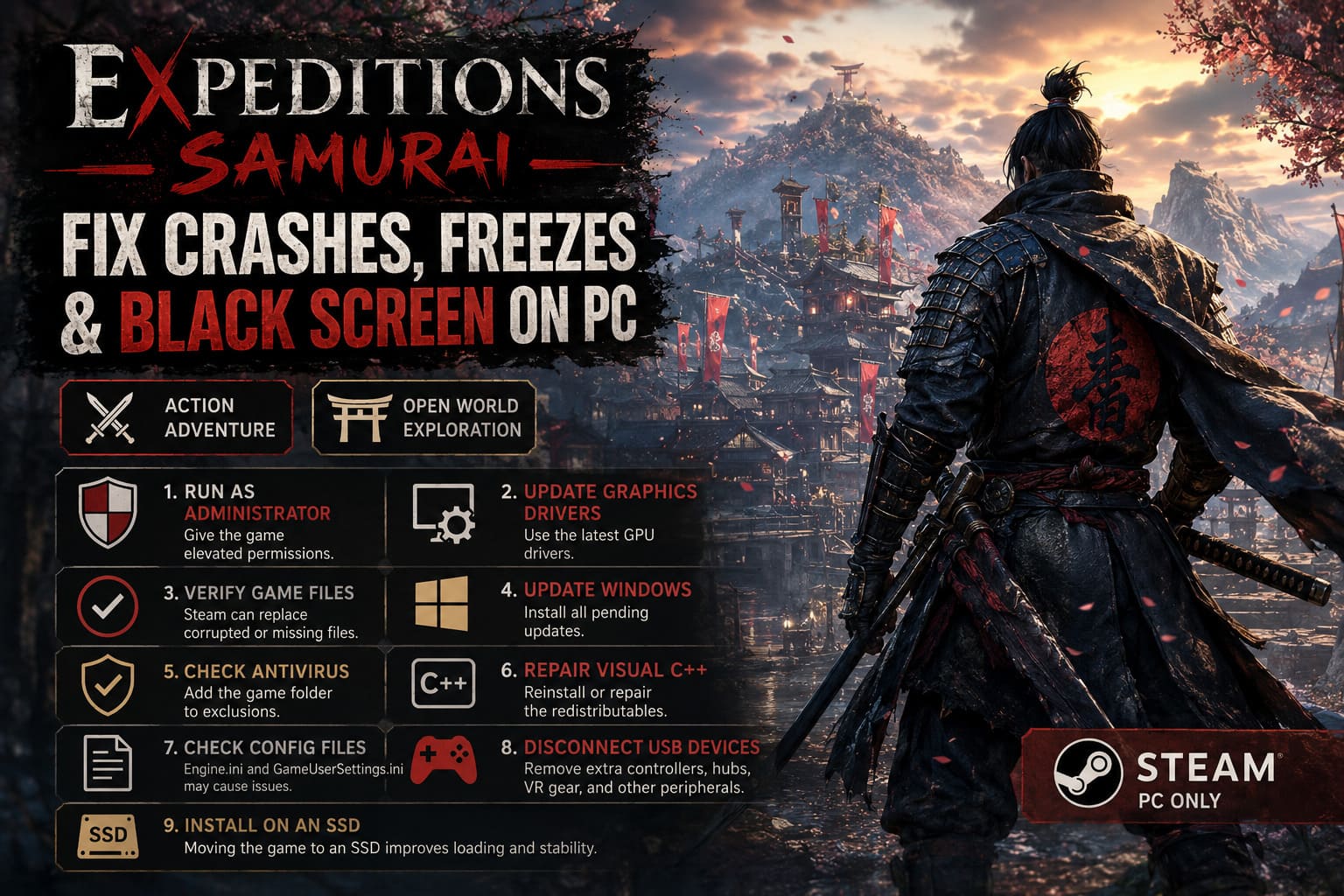
- Verify Steam files
- Restart the PC
- Update GPU drivers
- Disable every overlay
- Close MSI Afterburner/RivaTuner and similar tools
- Test administrator mode
- Check Windows Security/antivirus blocks
- Repair Visual C++ Redistributables
- Test supported DirectX launch options
- Investigate configuration files
- Disconnect unnecessary USB devices
- Move the installation to an SSD
That order matters. There is no reason to spend twenty minutes editing .ini files before you’ve verified whether Steam has simply installed a corrupted build.
Final Thoughts
Expeditions: Samurai has exactly the kind of premise that makes technical problems feel twice as annoying. When you’ve finally got the time to sit down, assemble your party, make questionable strategic decisions, and get lost in a Sengoku-era campaign, the last thing you want is Windows throwing you back to the desktop.
The good news is that many PC launch problems are fixable without resorting to a complete reinstall.
Start with the boring stuff. Verify the files, reboot, update the GPU driver, kill overlays, and check security software. Those steps solve a surprising percentage of launch problems.
If you’re dealing with a persistent black screen or a crash at a very specific point, then move deeper into configuration and runtime troubleshooting. And if absolutely nothing works, don’t assume your PC is guilty. Early Access bugs happen, and sometimes the correct solution is simply waiting for the next patch while giving the developers a useful bug report.
Keep Steam updated, keep your drivers current, and don’t underestimate the power of turning off every unnecessary piece of software running on top of your game.
Because when your Samurai finally reaches the main menu instead of crashing to desktop, that’s when the real battle begins.