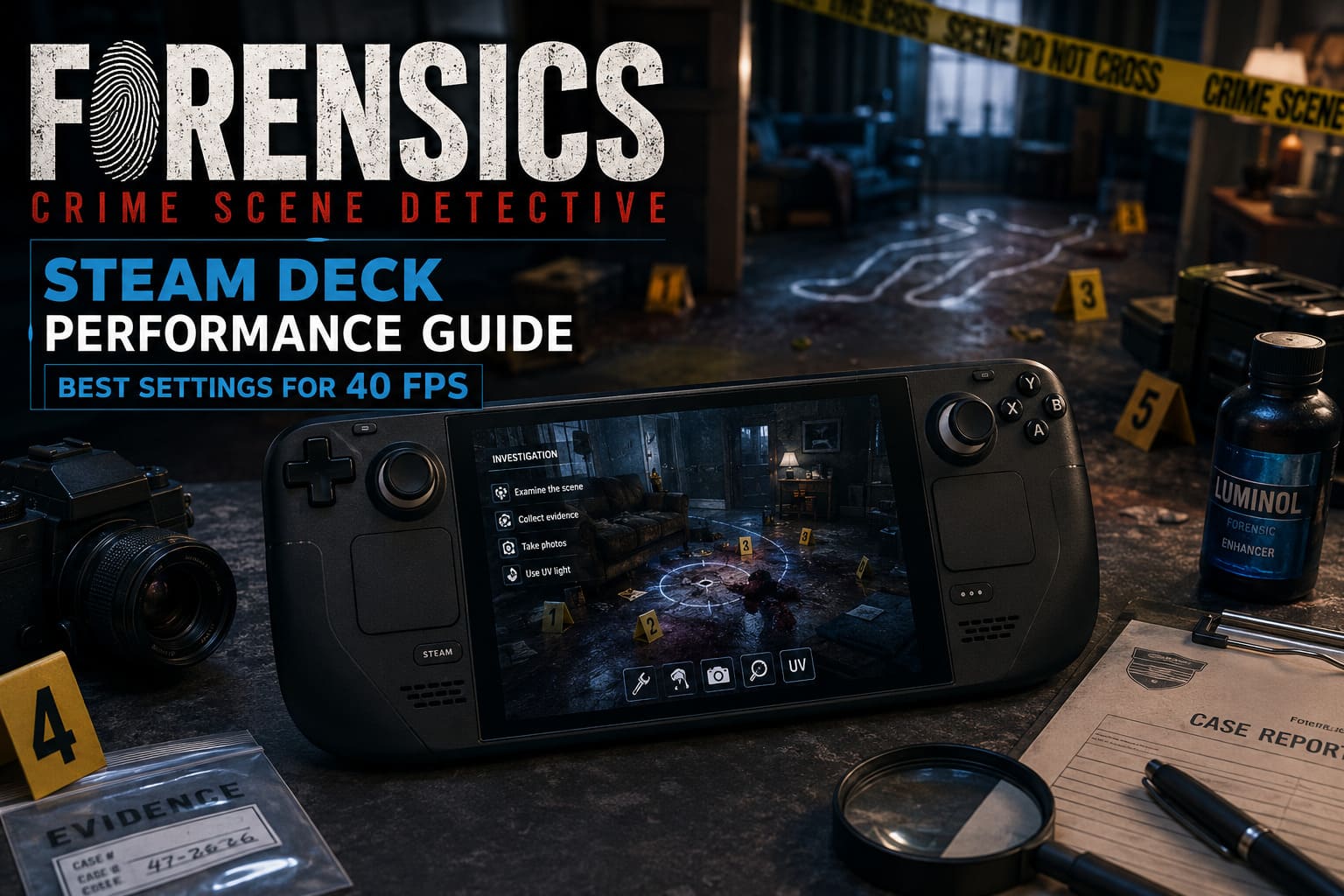
Forensics Crime Scene Detective Steam Deck Performance Guide: Best Settings for 40 FPS
When I first launched Forensics Crime Scene Detective on my Steam Deck, I honestly wasn’t sure what to expect. Games focused on realistic investigation usually lean heavily on detailed lighting, physics simulations, and dozens of tiny interactive objects. Those are exactly the kinds of features that can push Valve’s handheld harder than many action games.
After spending several hours investigating crime scenes, experimenting with graphics presets, and comparing results with discussions from other Steam Deck owners, I eventually found a setup that feels surprisingly comfortable. It isn’t about chasing the highest visual preset. Instead, it’s about preserving the details that actually matter during investigations while keeping performance consistent enough that you stop thinking about frame drops and simply enjoy solving cases.
If you’re hoping for a locked 60 FPS, you’ll probably walk away disappointed. But if your goal is a stable, responsive 40 FPS experience with good battery life, the Steam Deck is more capable than it might initially appear.
Why This Game Pushes the Steam Deck So Hard
Unlike many detective games that rely mostly on dialogue and scripted events, Forensics Crime Scene Detective constantly asks the hardware to render complex environments packed with evidence.
You’re examining tiny fibers, searching for fingerprints, scanning blood stains, reading digital devices, and switching between specialized forensic tools. Every scene contains a surprising amount of environmental detail, and realistic lighting plays an important role during investigations.
Instead of focusing only on visual spectacle, the game also performs a significant amount of simulation behind the scenes. During my testing, I noticed that GPU usage spikes while exploring larger crime scenes, whereas CPU load becomes much more noticeable inside laboratory sequences where evidence is being processed.
That balance means simply lowering every setting to Low isn’t actually the best solution.
My Recommended Graphics Settings
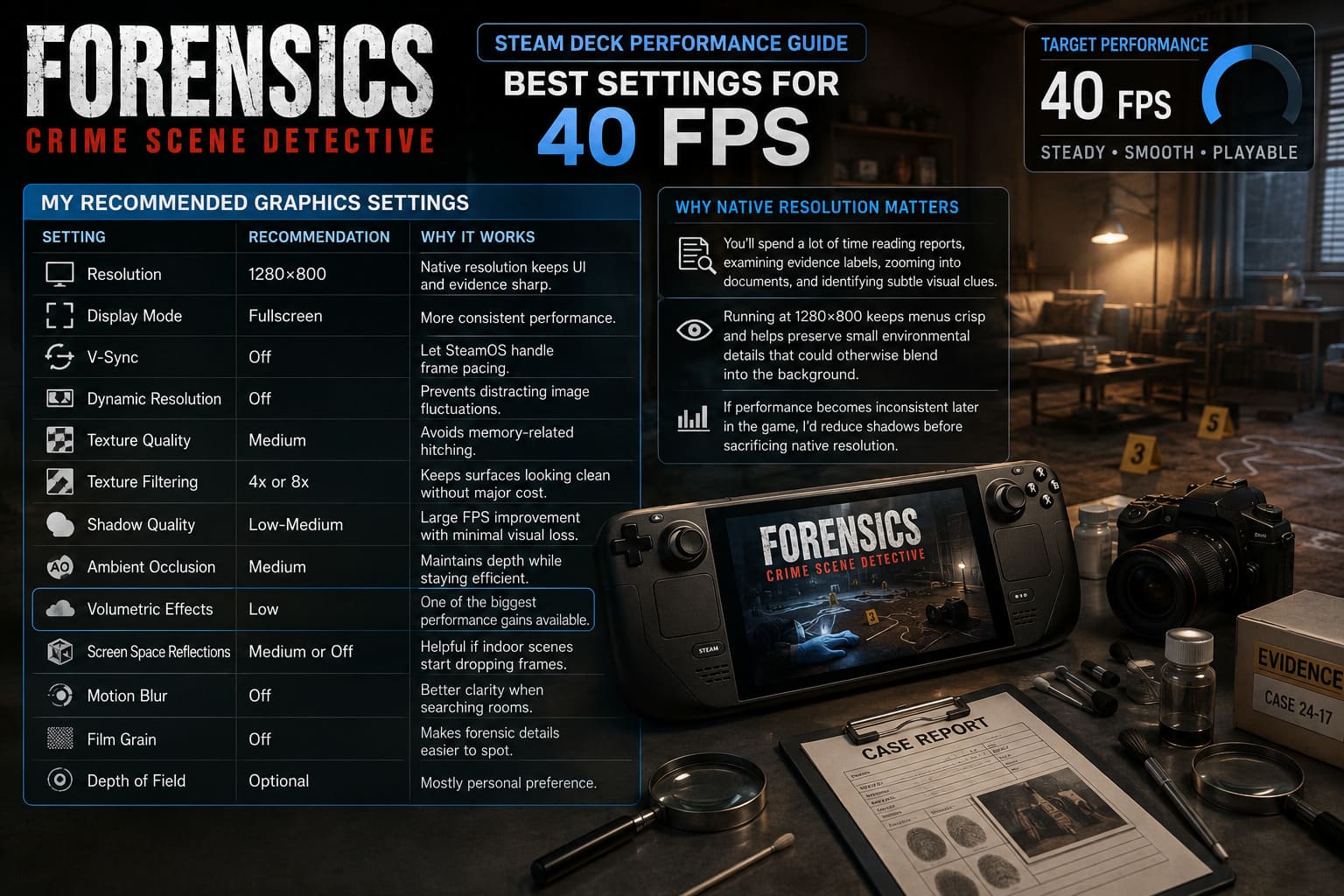
After trying multiple combinations, I kept coming back to a balanced configuration that preserves image quality without overwhelming the Deck.
| Setting | Recommendation | Why It Works |
|---|---|---|
| Resolution | 1280×800 | Native resolution keeps UI and evidence sharp. |
| Display Mode | Fullscreen | More consistent performance. |
| V-Sync | Off | Let SteamOS handle frame pacing. |
| Dynamic Resolution | Off | Prevents distracting image fluctuations. |
| Texture Quality | Medium | Avoids memory-related hitching. |
| Texture Filtering | 4x or 8x | Keeps surfaces looking clean without major cost. |
| Shadow Quality | Low-Medium | Large FPS improvement with minimal visual loss. |
| Ambient Occlusion | Medium | Maintains depth while staying efficient. |
| Volumetric Effects | Low | One of the biggest performance gains available. |
| Screen Space Reflections | Medium or Off | Helpful if indoor scenes start dropping frames. |
| Motion Blur | Off | Better clarity when searching rooms. |
| Film Grain | Off | Makes forensic details easier to spot. |
| Depth of Field | Optional | Mostly personal preference. |
The biggest surprise for me was how much Volumetric Fog affected performance. Lowering it immediately smoothed out several heavier crime scenes without making the game look dramatically worse.
Why Native Resolution Matters
Normally I’m perfectly happy lowering resolution on the Steam Deck if it gives me extra performance.
This game is different.
You’ll spend a lot of time reading reports, examining evidence labels, zooming into documents, and identifying subtle visual clues. Those tasks become noticeably harder once the image starts looking soft.
Running at 1280×800 keeps menus crisp and helps preserve small environmental details that could otherwise blend into the background.
If performance becomes inconsistent later in the game, I’d reduce shadows before sacrificing native resolution.
SteamOS Settings That Actually Make a Difference
The in-game options are only half the story.
SteamOS offers several hardware controls that noticeably improve the overall experience.
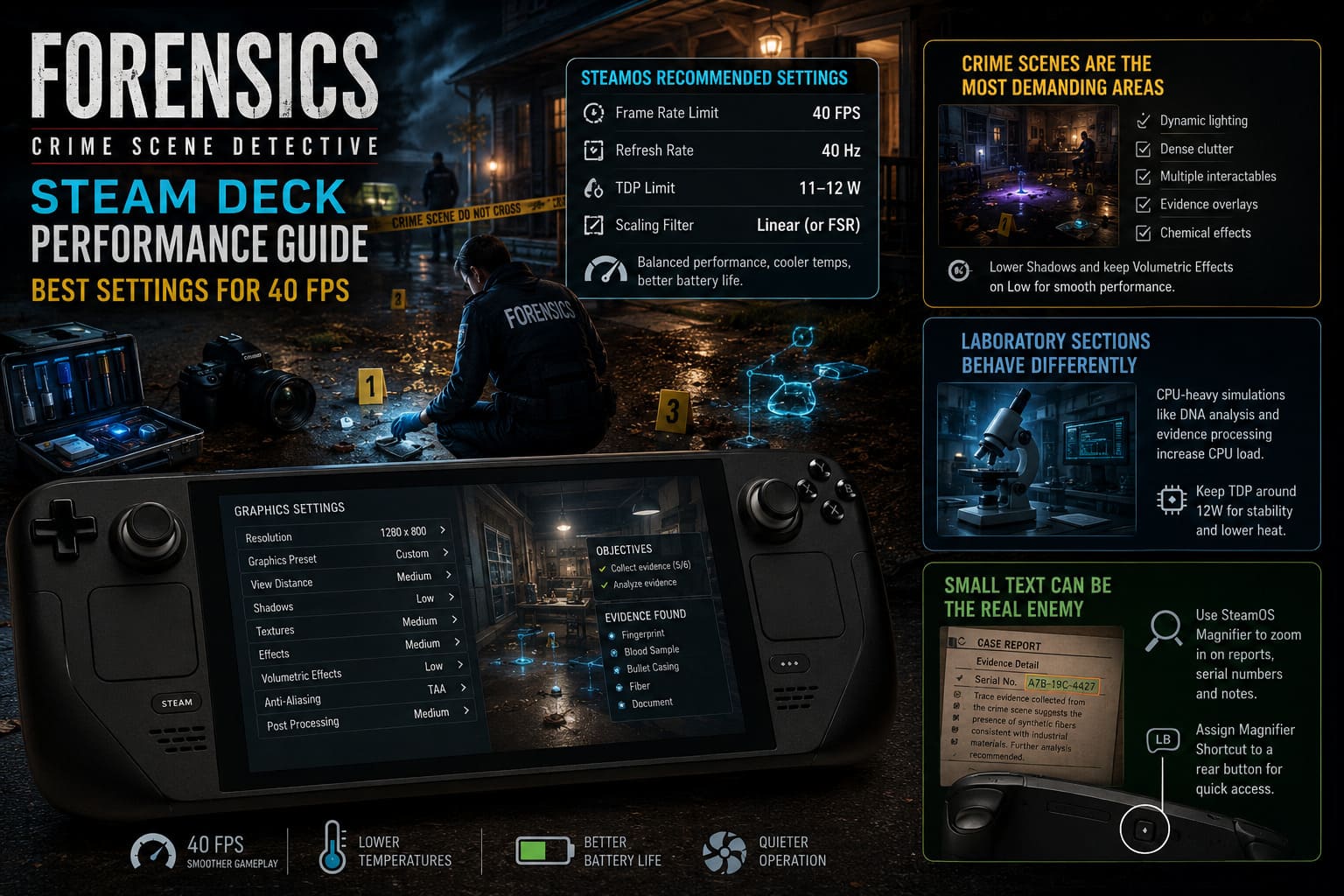
Here’s the setup that worked best during my testing:
- Frame Rate Limit: 40 FPS
- Refresh Rate: 40 Hz
- TDP Limit: 11–12 W
- Scaling Filter: Linear (or FSR if lowering resolution)
I’ve become a huge fan of the 40 FPS mode on Steam Deck, and this game is another perfect example of why.
Thirty frames per second feels playable, but camera movement becomes noticeably sluggish while searching cluttered environments. Sixty FPS, meanwhile, asks too much from the hardware and leads to unnecessary fan noise and inconsistent frame pacing.
Forty FPS lands right in the middle. Controls feel responsive, battery life improves, and temperatures stay much more manageable during longer sessions.
Crime Scenes Are the Most Demanding Areas
Performance isn’t consistent throughout the game.
The largest crime scenes are easily the most demanding sections because several systems are running simultaneously.
You’ll often encounter:
- Dynamic lighting
- Dense environmental clutter
- Multiple interactive objects
- Evidence overlays
- Chemical detection effects
Whenever I noticed small frame drops, lowering Shadow Quality and keeping Volumetric Effects on Low solved the issue almost immediately.
Interestingly, these tweaks barely changed the atmosphere of the locations.
Laboratory Sections Behave Differently
The laboratory initially looks simpler than the outdoor investigation areas, but the workload shifts toward CPU-heavy simulation.
DNA analysis, evidence processing, and various scripted systems create different performance characteristics than free exploration.
The GPU gets a chance to relax, but CPU utilization increases.
Keeping the Steam Deck’s TDP around 12 watts gave me the most consistent experience during these sequences without generating excessive heat.
Small Text Can Be the Real Enemy
If there’s one issue I kept running into, it wasn’t frame rate.
It was text size.
Many reports contain long forensic descriptions, digital records, and technical information clearly designed with desktop monitors in mind.
On the Steam Deck display, some documents become tiring to read after extended play sessions.
Thankfully SteamOS already includes an excellent solution.
The built-in magnifier can instantly zoom into any portion of the screen, making serial numbers, reports, and forensic notes dramatically easier to inspect.
If your Deck has rear buttons configured, assigning the magnifier shortcut there makes the process feel almost seamless.
It’s one of those features I rarely use in other games but found myself relying on surprisingly often here.
OLED Owners Get a Small Bonus
If you’re using the newer Steam Deck OLED, you have a slight advantage.
Besides the brighter display and improved battery life, the refreshed hardware handles sustained workloads a little more comfortably.
The OLED panel also makes darker crime scenes easier to navigate because shadow detail appears more natural.
One setup worth trying is:
| Steam Deck OLED Option | Recommended Value |
|---|---|
| Refresh Rate | 90 Hz |
| FPS Limit | 45 FPS |
Not every scene will maintain a perfect 45 FPS, but many indoor investigations come surprisingly close.
It’s a nice middle ground between maximum smoothness and battery efficiency.
Settings I Would Avoid
Some graphics options simply aren’t worth enabling on Steam Deck.
I would personally avoid:
- High Texture Quality — looks nice but introduces occasional streaming hiccups.
- Ultra Performance Upscaling — fingerprints, documents, and evidence lose too much definition.
- Heavy Motion Blur — makes searching rooms feel less precise.
- Maximum Shadow Settings — significant performance cost for relatively minor visual improvements.
The game rewards careful observation, so preserving image clarity is generally more valuable than flashy visual effects.
Battery Life Expectations
With the settings above, battery life felt perfectly reasonable for a simulation game of this complexity.
Of course, actual playtime depends on screen brightness and your Steam Deck model, but limiting power consumption to around 11–12 watts noticeably reduced fan noise while extending sessions compared to running unrestricted.
That also helped keep the handheld much more comfortable to hold during longer investigations.
Forensics Crime Scene Detective Full Walkthrough: Guide and Case Solutions
Final Thoughts
I came away pleasantly surprised by how well Forensics Crime Scene Detective adapts to the Steam Deck once a few settings are adjusted.
This isn’t the type of game where every extra frame dramatically changes the experience. Instead, success comes from maintaining a stable presentation while preserving the tiny visual details that investigations depend on.
For me, the sweet spot is simple:
- Native 1280×800 resolution
- 40 FPS / 40 Hz
- Medium overall settings
- Low volumetric effects
- 11–12 W TDP limit
That combination delivers smooth exploration, readable evidence, quieter operation, and enough battery life to comfortably work through lengthy investigations without constantly reaching for the charger.
If you’re approaching the game expecting a portable version that still respects the careful pace of forensic investigation, the Steam Deck delivers a much better experience than the system requirements might initially suggest. A few thoughtful adjustments are all it takes to transform a demanding simulation into one of the more enjoyable handheld detective experiences available today.