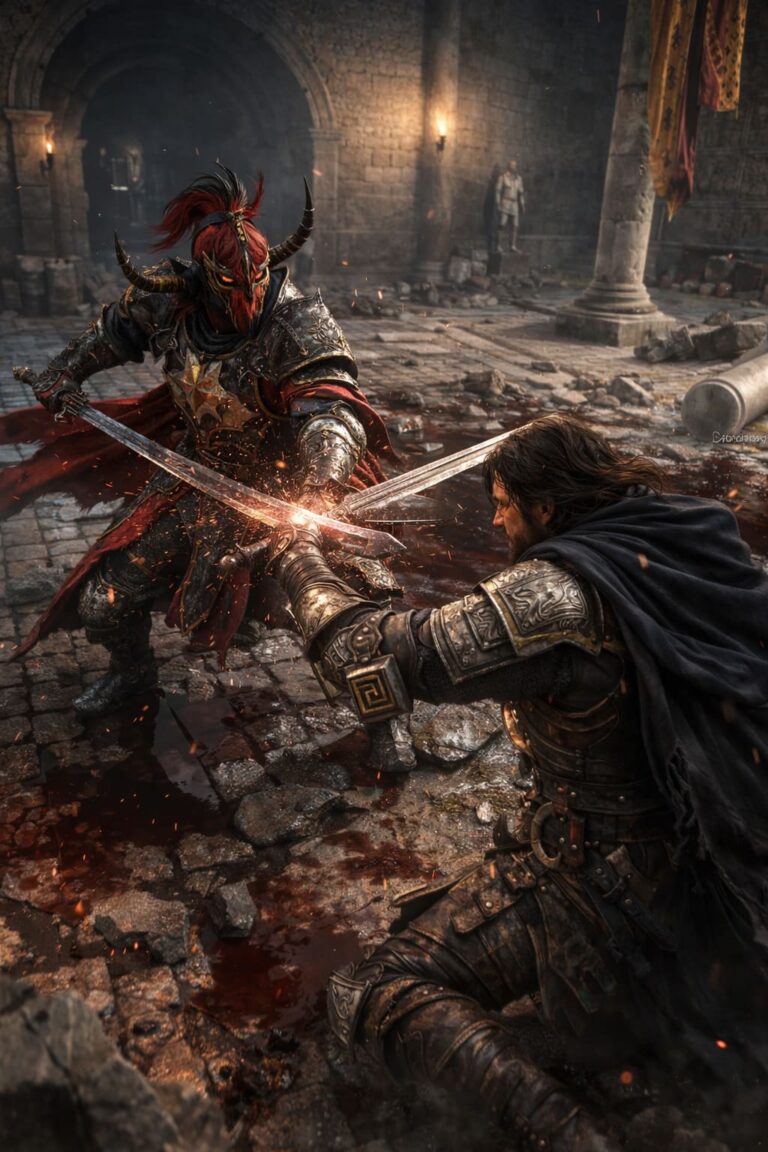
SoulQuest PC Performance Fix: Best Controller Settings for Smoother Combat
If you’ve spent even a couple of hours in SoulQuest, you probably already know why people are falling in love with it. The pixel art is gorgeous, the Celtic-inspired world feels handcrafted, and the combat? Fast, responsive, and honestly pretty addictive.
But here’s the catch — when the game starts stuttering or dropping frames mid-fight, that smooth combat turns into frustration real quick.

I’ve been there. Even on a solid PC that should handle a 2D metroidvania without breaking a sweat, I noticed micro-stutters, weird frame pacing, and occasional input lag.
After tweaking settings, testing different fixes, and digging through community discussions, I’ve put together a guide that actually works — no fluff, just real improvements.
Delusion vs. Madness Path: Key Differences in Koshmar: The Last Reverie
First Things First: Is Your PC Actually Ready?
Before diving into tweaks, it’s worth making sure your system isn’t the bottleneck. SoulQuest isn’t demanding, but it still benefits from modern hardware.
System Requirements Overview
| Component | Minimum | Recommended |
|---|---|---|
| OS | Windows 7 (64-bit) | Windows 10 (64-bit) |
| CPU | Dual-Core 2.66 GHz | Intel i5 or better |
| RAM | 4 GB | 8 GB |
| GPU | GeForce 700 Series | GeForce 900 Series+ |
| Storage | 1 GB | 2 GB |
👉 My take: If you’re running close to minimum specs, expect occasional hiccups. But if you’re above recommended and still getting stutter — it’s almost certainly fixable.
Optimize In-Game Settings (Big Impact, Zero Risk)
This is where I saw the first real improvement. SoulQuest doesn’t need ultra settings to look good — it’s pixel art, not a ray-tracing showcase.
What to tweak immediately:
- Turn OFF V-Sync — Especially if you have G-Sync or FreeSync; Reduces input lag significantly
- Match your native resolution — Sounds obvious, but mismatches can tank performance
- Avoid excessive Alt-Tabbing — The game doesn’t always recover well after minimizing
💡 Personal tip: If the game starts lagging after tabbing out, just restart it. It’s annoying, but it works.
The Hidden Culprit: Windows Background Stuff
This is where things get interesting. A lot of stuttering isn’t caused by the game — it’s caused by Windows trying to “help.”
Disable Xbox Game Bar (Yes, really)
This one made a noticeable difference for me.
Steps:
- Go to Settings
- Gaming → Game Bar
- Turn it OFF
Even when inactive, it can cause frame-time spikes in some games.
Switch to High Performance Mode
Windows loves saving power… even when you’re gaming.
Fix: Control Panel → Power Options → Select High Performance (or Ultimate Performance if available)
👉 This helps your CPU and GPU stay at full speed instead of throttling.
GPU Control Panel Tweaks (Underrated but Effective)
These settings are often overlooked, but they can smooth out gameplay.
Recommended changes:
- Power Management Mode → Prefer Maximum Performance
- Texture Filtering Quality → High Performance
- Shader Cache Size → Unlimited
💡 Why this matters: It reduces micro-stutter caused by shader compilation and inconsistent GPU behavior.
Steam Launch Options (Quick Win)
This one’s simple and surprisingly effective.
Add this in Steam:
-high -fullscreen
What it does:
- -high → Gives the game higher CPU priority
- -fullscreen → Enables exclusive fullscreen (lower latency than borderless)
👉 I noticed smoother frame pacing almost instantly after adding this.
Antivirus Can Kill Your FPS (No Joke)
This was the most surprising fix for me. Some antivirus programs constantly scan game files in the background — which can absolutely destroy performance.
Fix:
Add the SoulQuest folder to Exclusions
Typical path: steamapps/common/SoulQuest
💡 Real result: I’ve seen reports (and experienced myself) where FPS jumped dramatically after doing this.
Small Habits That Make a Big Difference
- Restart the game after long sessions
- Close background apps (especially browsers)
- Keep GPU drivers updated
- Avoid running overlays (Discord, etc.) if you notice lag
What Actually Worked for Me (Quick Summary)
If you just want the essentials, here’s what made the biggest difference: Disable Game Bar, Set power plan to High Performance, Add -high -fullscreen launch options, Exclude game folder from antivirus, Turn off V-Sync.
SoulQuest Deserves Better Performance
What’s frustrating is that SoulQuest should run flawlessly on most PCs — and once you fix these issues, it really does. The combat feels sharper. Movement becomes precise. And suddenly, the game plays the way it was clearly designed to.
From one player to another — don’t settle for stutter. Spend 10–15 minutes applying these tweaks, and you’ll actually enjoy the experience a lot more.
Rewiring Your Controller for SoulQuest: A Player’s Guide to Smoother, Faster Combat
If you’ve spent more than a couple of hours in SoulQuest, you’ve probably felt it—that moment where your brain knows exactly what to do, but your fingers just can’t keep up. I’ve been there. Missing a dash window, fumbling a jump during a combo, or dropping a clean chain because my thumb had to travel just a bit too far.
After experimenting with different setups (and honestly, getting a bit obsessed with optimizing every input), I realized something simple but powerful: default controls aren’t always designed for peak performance. They’re made for accessibility, not mastery.
So here’s a refined, player-tested controller layout that genuinely improves combat flow—especially if you enjoy fast-paced, combo-heavy gameplay.

Why Default Controls Hold You Back
Let’s start with the core issue: thumb travel.
In most standard layouts, your right thumb handles:
- Light attacks
- Heavy attacks
- Jump
- Dash
That’s… a lot. And in a game like SoulQuest, where timing and chaining matter, even a split second of delay can break your rhythm.
What you want instead is role separation:
- Thumb = attacks and abilities
- Index fingers = movement utilities (jump, dash)
Once you make this shift, the game starts to feel completely different—in a good way.
The “Flow Setup” That Changed Everything
Here’s the layout I personally recommend after testing multiple variations:
| Action | New Binding | Why It Works |
|---|---|---|
| Light Attack | X / Square | Fast, familiar, easy to spam for combos |
| Heavy / Magic | Y / Triangle | Keeps offensive inputs grouped together |
| Jump | LB / L1 | Frees your thumb, enables mid-combat control |
| Dash / Evade | RB / R1 | Instant access for reactive movement |
| Special Ability | RT / R2 | Perfect for charged or timing-based skills |
What Makes This Layout Special?
The key idea is simple: Put movement on shoulders, keep combat on face buttons.
At first, it feels unusual—especially if you’ve played with default layouts your whole life. But after 20–30 minutes, it clicks. And once it clicks, it’s hard to go back.
What Actually Improves in Gameplay
This isn’t just a “feels nicer” change. It directly impacts how you play.
1. Cleaner Combos
You no longer need to lift your thumb to jump or dash. That means:
- Fewer dropped inputs
- Smoother chaining
- Better timing on cancels
2. Better Air Control
Air combat becomes significantly more precise because you can:
- Jump while attacking
- Dash mid-combo without repositioning your hand
- React faster to enemy patterns
3. Faster Defensive Play
Having dash on RB/R1 is a game-changer. Your reaction time improves because:
- Your index finger is always ready
- No need to “switch modes” with your thumb
The “Pogo” Effect: Where This Setup Really Shines
If SoulQuest includes any kind of downward strike bounce mechanic (you know, that satisfying “pogo” style attack), this layout becomes almost essential.
Why?
Because you can:
- Hold down on the stick
- Tap jump (LB/L1)
- Attack simultaneously
All without awkward finger gymnastics. This turns what used to feel clunky into something fluid and almost rhythmic. It’s one of those small changes that unlocks a whole new layer of gameplay.
Setting It Up Through Steam Input
If the in-game settings feel limited (which happens more often than it should), Steam Input is your best friend.
Here’s a simple way to remap everything:
- Open Steam
- Go to your Library
- Right-click SoulQuest → Properties
- Navigate to Controller
- Enable Steam Input
- Open Edit Layout
From there, just:
- Swap Jump (A) with LB
- Swap Dash (B) with RB
That’s it. No complicated scripting required—unless you want to go deeper.
Extra Tweaks Worth Trying
Once you’ve got the main layout down, there are a couple of optional adjustments that can make things even better.
Dead Zone Calibration
If your character ever feels slightly “off” or your movement isn’t precise:
- Increase left stick dead zone to around 10–15%
This helps eliminate:
- Drift
- Accidental inputs
- Inconsistent dashes
Turbo for Light Attacks (Optional)
This one’s a bit controversial, but useful:
- Enable turbo on your light attack button
It’s especially helpful during:
- Long boss fights
- High-APM sections
- Sessions where your thumb starts to fatigue
Use it sparingly—it can reduce the “feel” of manual combat—but it’s a nice accessibility option.
Is This Setup for Everyone?
Honestly? No.
If you:
- Prefer slower, methodical gameplay
- Don’t rely heavily on combos
- Are deeply привык к классической раскладке
…you might not feel a huge difference.
But if you:
- Love fast combat
- Chase perfect execution
- Enjoy mastering mechanics
Then this setup is absolutely worth trying.
My Personal Take After Switching
I’ll be real—at first, I hated it. My muscle memory fought me hard for the first hour. I kept pressing the wrong buttons, missing jumps, and questioning why I even bothered.
But then something shifted. Combat started to feel lighter. More responsive. Almost like the game was finally keeping up with my inputs instead of the other way around. Now, going back to the default layout feels restrictive—like trying to play a fast platformer with input lag.
Final Thoughts
Controller optimization is one of those things most players ignore—but it can completely change your experience.
The “Flow Setup” isn’t about making the game easier. It’s about:
- Removing friction
- Improving responsiveness
- Letting skill actually shine
If you’re serious about getting better at SoulQuest, this is one of the simplest upgrades you can make. And the best part? It costs nothing—just a few minutes of setup and a bit of patience.