Best Pax Autocratica Steam Deck Controller Layout Config Guide
Playing Pax Autocratica on Steam Deck is a fascinating experience because this game constantly asks you to switch between two completely different mindsets. One moment you are an all-powerful ruler managing a dystopian colony, adjusting policies, controlling citizens, and expanding your authoritarian machine. The next moment you are thrown into a chaotic first-person shooter battle where reaction speed and precise aiming decide whether your regime survives.
After spending time with many strategy games, colony simulators, and hybrid shooters on handheld devices, I can confidently say that games like Pax Autocratica are some of the hardest titles to control properly on Steam Deck. The hardware is powerful enough to run this type of experience, but the default controller layout simply cannot handle the game’s split personality. You need a setup that feels natural for both deep management screens and intense combat encounters.
This Pax Autocratica Steam Deck controller configuration guide focuses on creating a smooth, comfortable layout that allows you to manage your colony efficiently while keeping FPS combat responsive. With the right Steam Input settings, the game feels much closer to playing on a full PC setup.
How to Fix Pax Autocratica Crashing on Startup on Windows 11
Why Pax Autocratica Needs a Custom Steam Deck Layout
The biggest problem with Pax Autocratica is not performance; it is control complexity. Unlike traditional shooters or strategy games, this title combines two genres that normally require completely different input devices.
During the colony management sections, you are constantly interacting with menus, selecting buildings, changing social policies, managing resources, and navigating detailed interfaces. These actions are designed around a mouse because you need accuracy when clicking small icons and reading complicated information panels.
Then the game completely changes direction. The FPS segments require everything you expect from a modern shooter:
- Fast character movement
- Accurate aiming
- Weapon switching
- Reloading
- Tactical abilities
- Quick reactions during enemy encounters
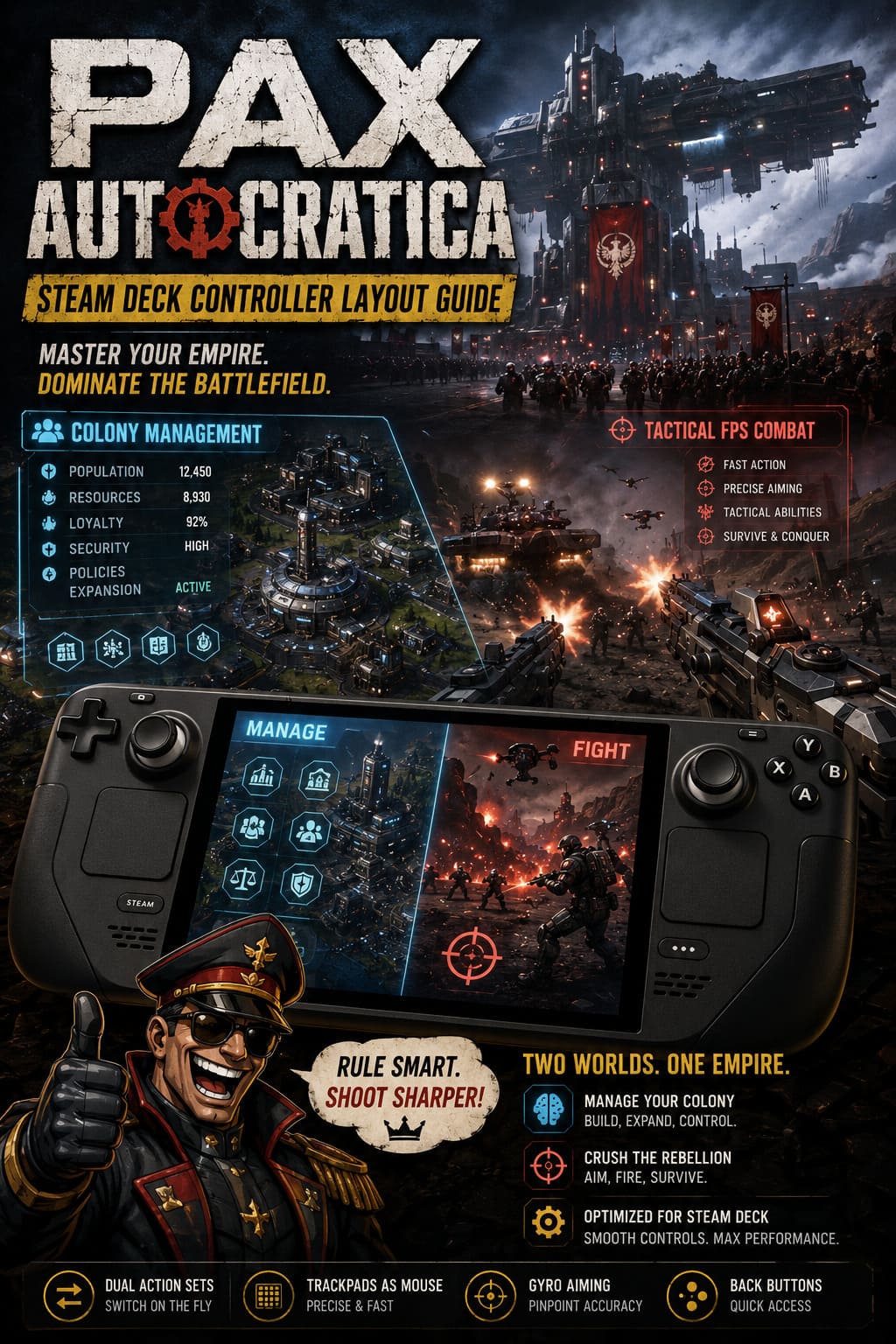
A normal controller profile usually creates problems in one of these areas. Either the menus feel slow and frustrating, or combat becomes awkward and imprecise.
The best solution is using two separate Steam Input Action Sets. This approach allows your Steam Deck controls to transform depending on what you are doing in the game.
| Gameplay Mode | Main Focus | Recommended Control Style |
|---|---|---|
| Colony Management | Building, menus, administration | Mouse-style controls |
| Tactical FPS Combat | Shooting, movement, abilities | Traditional controller + gyro |
Best Colony Management Steam Deck Layout
When you are controlling your empire, the priority is making the Steam Deck behave like a compact laptop. You want quick cursor movement, easy menu access, and shortcuts without constantly fighting the touchscreen.
The right trackpad should become your primary mouse replacement. Set it as a high-precision mouse input and slightly increase smoothing. This makes selecting small buttons and navigating policy screens much easier.
The left trackpad works extremely well as a radial menu. I personally prefer this setup because it feels much faster than scrolling through endless menus. You can assign important shortcuts to different directions, giving you instant access to construction options, citizen lists, resources, and management tools.
| Steam Deck Input | Function |
|---|---|
| Right Trackpad | High precision mouse cursor |
| Left Trackpad | Radial menu with hotkeys |
| Left Stick | WASD movement/camera control |
| R2 Trigger | Left mouse click |
| L2 Trigger | Right mouse click |
| L4/R4 Back Buttons | Zoom controls |
The back buttons are especially useful here. In large colony simulations, you constantly switch between detailed views and larger strategic maps. Having zoom controls on the rear grips means you never need to remove your fingers from the important controls.
This small adjustment makes Pax Autocratica feel much more comfortable during longer sessions.
Best Tactical FPS Combat Layout
When the game moves into shooter mode, the control scheme should completely change. The goal is to make Pax Autocratica feel closer to a dedicated FPS game rather than a strategy title being forced onto a controller.
For aiming, I strongly recommend combining the right joystick with gyro controls. After playing many shooters on Steam Deck, gyro aiming remains one of the biggest advantages handheld players have. It allows tiny aiming adjustments that are almost impossible with a regular stick alone.
| Steam Deck Input | Function |
|---|---|
| Right Stick | Camera movement |
| Right Trackpad | Fine aiming adjustments |
| Gyro | Precision aiming |
| Left Stick | Character movement |
| L3 | Sprint |
| R2 | Fire weapon |
| L2 | Aim down sights |
| A Button | Jump |
| X Button | Reload/Interact |
| Y Button | Weapon swap |
| B Button | Crouch/Slide |
For gyro, I prefer activating it only while touching the right stick or holding the aim button. This prevents accidental camera movement while exploring and gives you extra accuracy during firefights.
The rear buttons should also be reserved for combat abilities. Grenades, special skills, squad commands, or emergency actions should never force you to remove your thumb from movement controls.
How to Enable the Pax Autocratica Steam Deck Controller Setup
Creating this layout is easier than many players expect. Steam Input provides everything needed directly from the Steam overlay.
- Launch Pax Autocratica on your Steam Deck.
- Press the Steam button.
- Open the Controller Settings menu.
- Select your current controller layout.
- Choose the Steam Input editor.
- Start with the Gamepad with Mouse Trackpad template.
- Create separate Action Sets for management and combat.
- Assign the controls listed above.
- Save your configuration as a personal layout.
I also recommend checking the Community Layout section because other players often upload interesting variations. Sometimes you can find small improvements that fit your personal playstyle better.
Steam Deck Performance Tips for Pax Autocratica
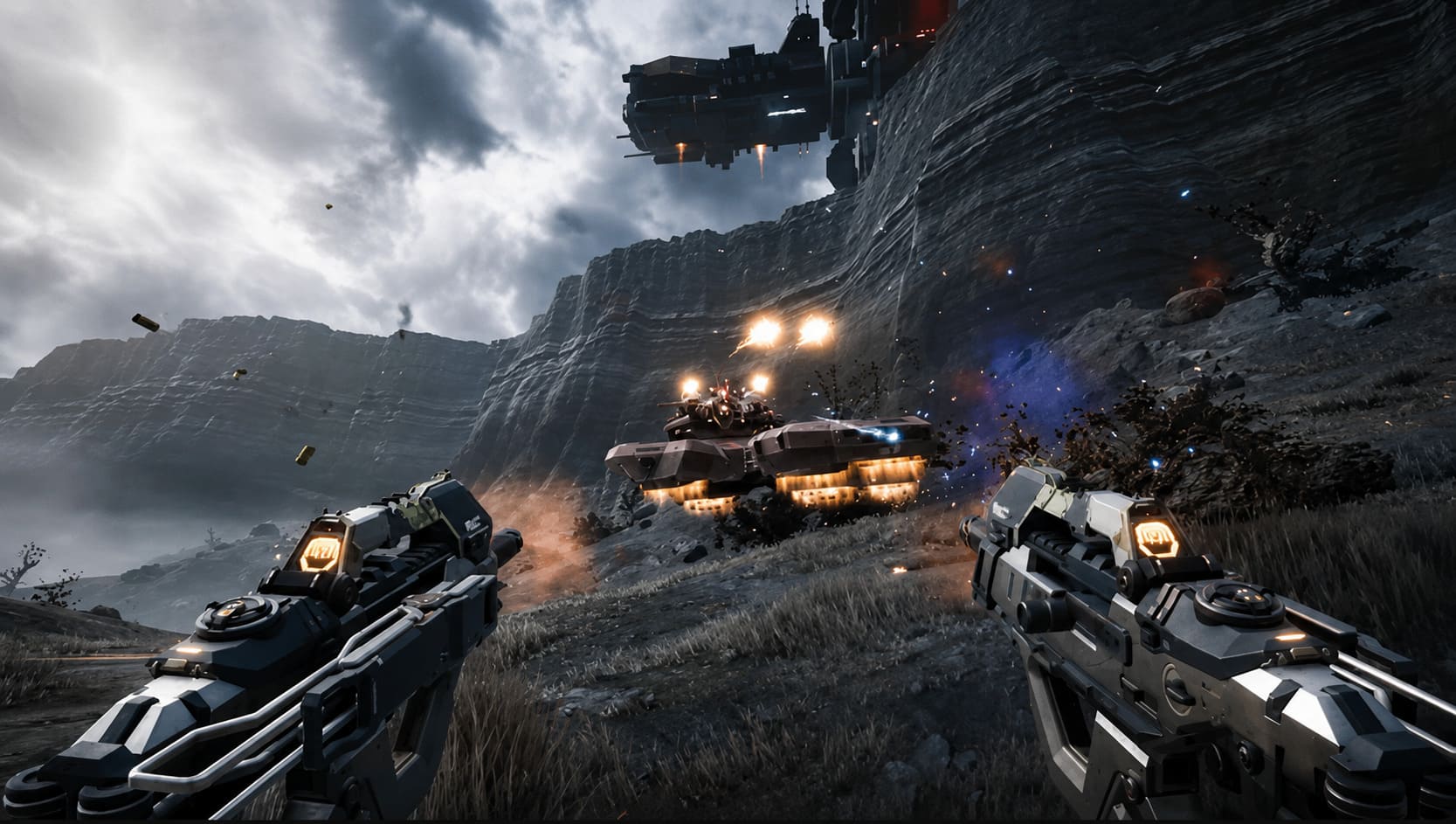
A good controller setup helps, but performance settings are equally important. Pax Autocratica can become demanding when your colony grows large or when multiple combat events happen simultaneously.
For a smoother handheld experience, I recommend adjusting a few graphical settings:
- Shadow Quality: Medium or Low
- Foliage Quality: Medium or Low
- Frame Limit: 40 FPS or 45 FPS
- Refresh Rate: 40Hz or 45Hz profile
A stable frame rate usually feels much better than chasing higher numbers. Strategy games especially benefit from consistency because input delay becomes noticeable when navigating menus or controlling units.
If you experience controller detection problems, check the game’s Steam properties and make sure Steam Virtual Gamepad support is enabled. Some hybrid games occasionally struggle with recognizing advanced controller configurations.
Final Thoughts on the Best Pax Autocratica Steam Deck Layout
Pax Autocratica is exactly the kind of ambitious game that makes the Steam Deck interesting. It is not a simple portable shooter or a basic management simulator. It combines political strategy, colony control, and FPS combat into one unusual package.
The default controls do not fully show what the game can offer, but a properly customized Steam Input layout changes everything. Having separate management and combat profiles makes the experience smoother, faster, and much more enjoyable.
After trying many strategy games and shooters on handheld hardware, this is the type of configuration I would personally recommend for serious Pax Autocratica players. Once everything is mapped correctly, managing your dystopian empire feels effortless, and battlefield encounters become far more responsive.
With the right Steam Deck controller setup, you can expand your surveillance state, crush rebellions, and control the Tyris System without constantly fighting your own controls.