Hell Let Loose Vietnam AMD GPU Crash Fix: DX12 Stability Workaround Guide
If there is one thing I love about Hell Let Loose, it is how quickly the game can turn from a quiet walk through the countryside into absolute chaos. You can spend several minutes moving carefully through foliage, listening for distant gunfire, and then suddenly the entire map erupts with artillery, machine guns, explosions, and players shouting for cover.
That atmosphere is exactly what makes the technical problems in Hell Let Loose: Vietnam so frustrating.
The game can look fantastic on a powerful AMD Radeon GPU, especially when DirectX 12 is behaving properly. But when it isn’t, the experience can go from impressive to completely broken. Crashes, shader-related stutters, sudden freezes, poor GPU utilization, and Unreal Engine’s dreaded “Low-Level Fatal Error” can turn an otherwise great match into a trip back to the desktop.
I have always preferred fixing PC games myself rather than immediately blaming the hardware. And in this case, there are several things worth trying before deciding that your Radeon card simply cannot handle the game.
This is my practical AMD GPU and DX12 troubleshooting guide for Hell Let Loose: Vietnam, based around the fixes and configuration changes that make the most sense for this type of Unreal Engine problem.
Why AMD GPUs Can Struggle With Hell Let Loose: Vietnam
The first thing to understand is that this is not necessarily a simple “AMD GPU isn’t powerful enough” situation.
Quite the opposite.
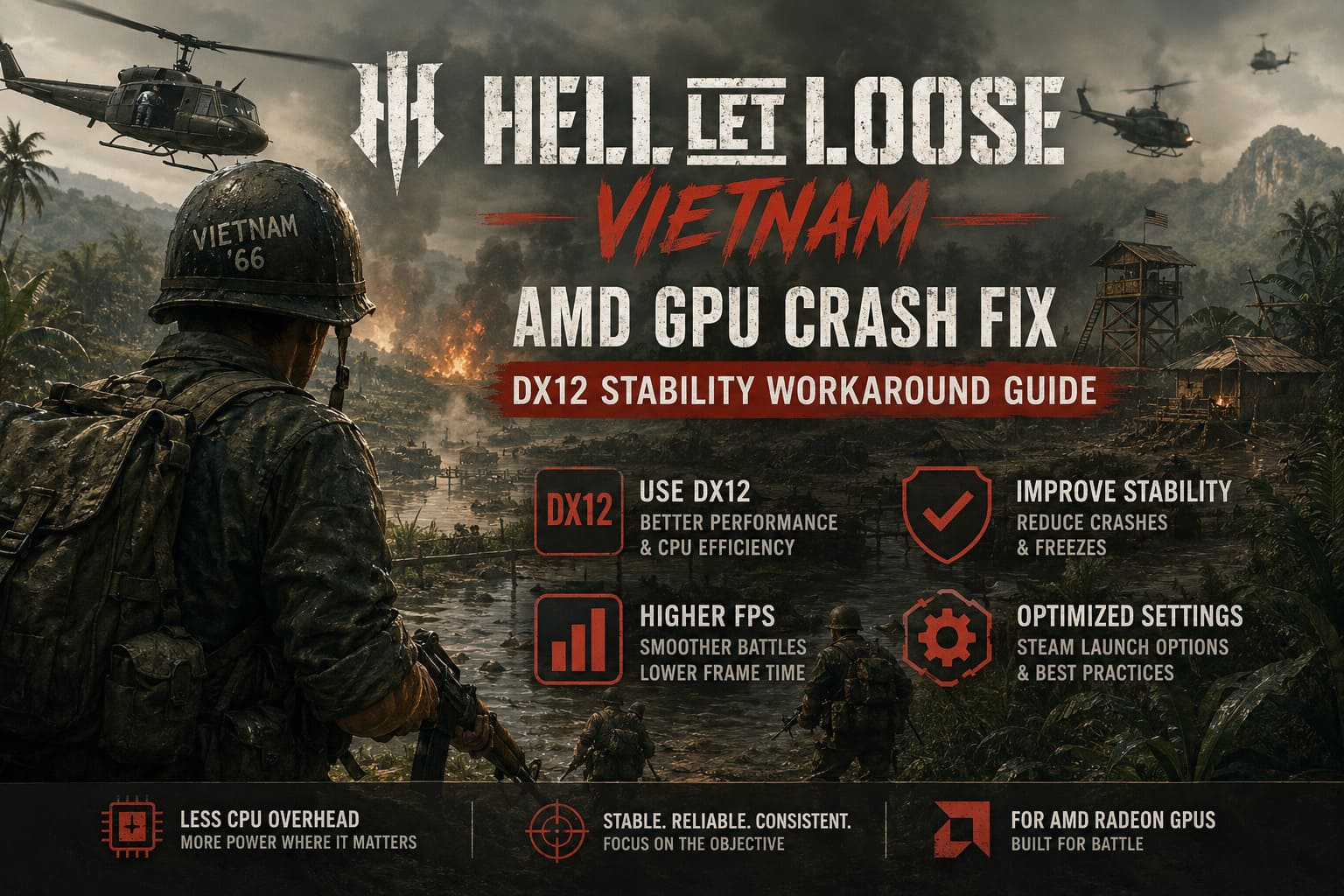
A modern Radeon card can have plenty of horsepower for the game, but Hell Let Loose: Vietnam puts an enormous amount of pressure on the CPU and rendering pipeline. Large multiplayer battles, dense vegetation, long sightlines, physics, effects, and hundreds of things happening across the map can create some nasty frame-time spikes.
DirectX 11 can make this worse because of its CPU-side overhead. In situations where the processor is already struggling to feed the GPU enough work, you may see surprisingly low GPU utilization while the frame rate collapses.
DX12 can improve that situation considerably.
The problem is that DX12 also introduces another variable: driver and engine stability.
When the game, Unreal Engine’s rendering system, Windows, and the Radeon driver don’t agree on what should happen next, the result can be a crash rather than merely a few dropped frames.
The symptoms can include:
- Unreal Engine Low-Level Fatal Error messages.
- Sudden crashes during map loading.
- Freezes after explosions or heavy particle effects.
- Crashes when switching applications with Alt-Tab.
- Severe micro-stuttering despite high average FPS.
- GPU usage suddenly dropping or behaving erratically.
- Crashes shortly after entering a new server.
If that sounds familiar, I would start with the rendering API before changing a dozen graphics settings at once.
My First Recommendation: Test DX12 Properly
The in-game API setting isn’t always the most reliable way to determine which rendering path the game is actually using.
For troubleshooting, I prefer Steam launch options because they give you a much clearer starting point.
Open Steam, find Hell Let Loose, right-click it, select Properties, and look for the Launch Options field.
For a performance-focused test, try:
-dx12 -USEALLAVAILABLECORES -highThe important part here is -dx12. The other parameters are secondary and shouldn’t be treated as magic FPS commands.
-USEALLAVAILABLECORES is intended to encourage broader CPU utilization, while -high changes the process priority. In my experience, neither should be considered a guaranteed performance boost, but they are reasonable variables to test if you’re troubleshooting frame pacing.
I would not add ten different launch commands at once. That’s how troubleshooting gets messy.
Change one thing, test the game, and then decide whether it helped.
### Recommended Launch Options
| Situation | Launch Option | What I’d Try |
|---|---|---|
| Best DX12 performance test | -dx12 -USEALLAVAILABLECORES -high | Start here |
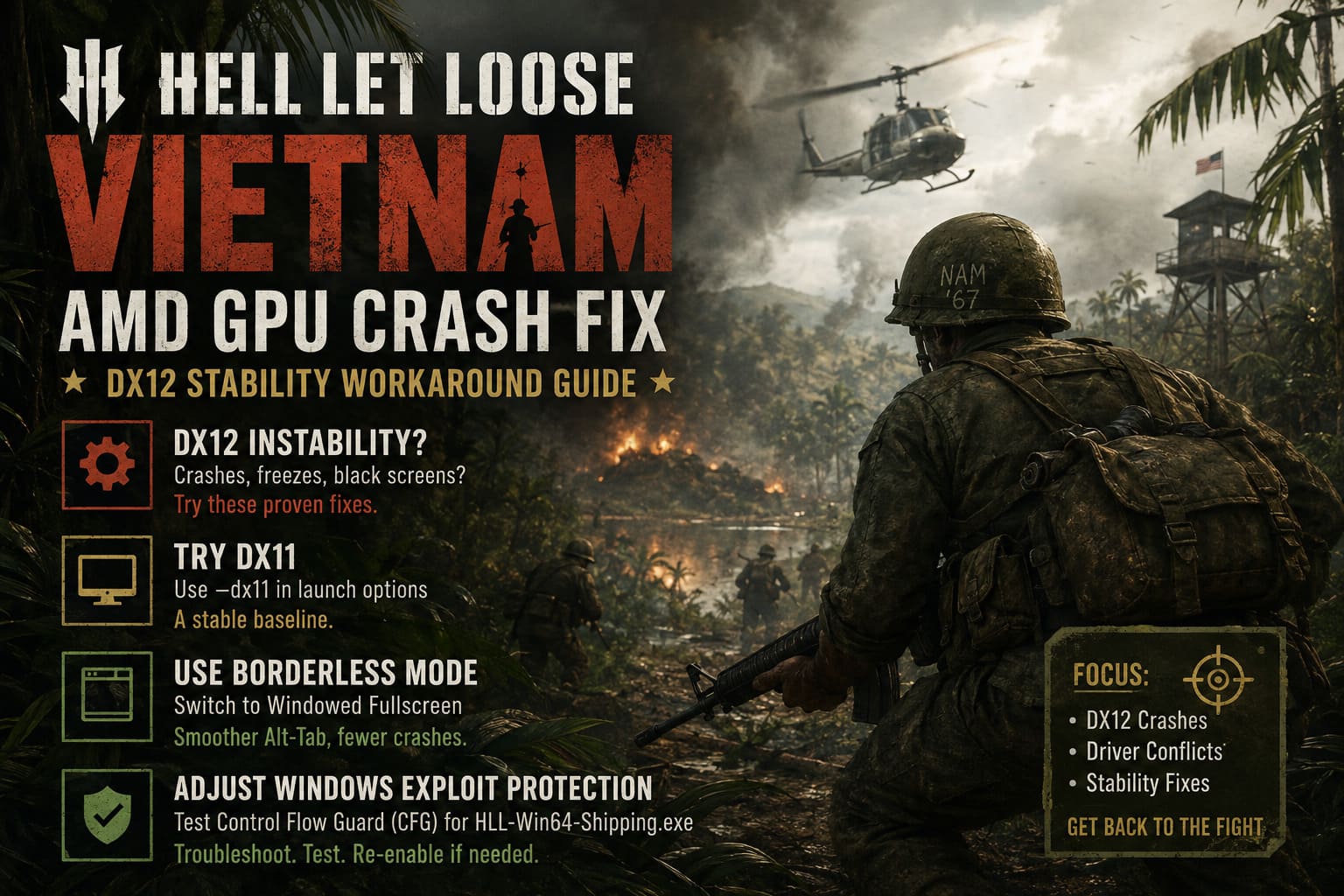
| DX12 crashes constantly | -dx11 | Stability test |
| Troubleshooting | -dx12 | Simplify variables |
| Custom tweaks | One parameter at a time | Compare results |
The most important thing is to establish a baseline.
If DX12 gives you substantially better GPU utilization and frame rates without crashing, you have already learned something useful.
If it crashes repeatedly, don’t keep forcing it for hours just because it gives you another 15 FPS.
A stable 80 FPS is better than a theoretical 120 FPS followed by a desktop crash every match.
When DX11 Is Actually the Better Choice
There is a tendency in PC gaming to assume that the newest rendering API must automatically be the best option.
I don’t agree with that.
If forcing DX12 causes constant crashes, try:
-dx11Yes, you may lose some performance.
You may also encounter more CPU-related frame-time issues, especially during large battles or in areas packed with vegetation. But DX11 can provide a useful stability baseline.
This is especially important because it helps separate two problems.
If the game crashes on both DX11 and DX12, your problem may be somewhere else: corrupted files, an unstable GPU overclock, damaged drivers, overheating, RAM instability, or another software conflict.
If DX11 works perfectly while DX12 crashes repeatedly, the DX12/driver/engine interaction becomes a much stronger suspect.
That is valuable information.
Borderless Windowed Mode Fixed One Annoying Problem for Me
One of the more irritating situations is having a perfectly good game until you press Alt-Tab.
Then the screen goes black.
The game freezes.
And suddenly you’re staring at Windows wondering whether it is going to recover.
Fullscreen exclusive modes can be particularly troublesome when a game is already experiencing rendering instability. If DX12 is crashing during focus changes, I recommend switching to:
Windowed Fullscreen / Borderless Windowed
The process is simple:
- Start the game normally.
- Open the Video Settings.
- Change Fullscreen to Windowed Fullscreen or Borderless Windowed.
- Apply the change.
- Restart the game.
- Test DX12 again.
Borderless mode isn’t a universal cure, but it removes one layer of fullscreen display-state switching from the equation.
And honestly, for a multiplayer game where I am constantly checking Discord, a browser, or another application, I prefer borderless anyway.
Don’t Ignore Windows Exploit Protection
This is one of the more advanced troubleshooting steps, so I wouldn’t recommend changing it immediately.
Windows includes security mitigations designed to protect applications from certain classes of exploits. One of them is Control Flow Guard (CFG).
In some game configurations, security mitigations can interact poorly with software and rendering workloads. If you’re experiencing persistent stuttering or unusual behavior specifically with the game’s executable, you can test a per-application CFG override.
Open Windows Search and type:
Exploit protection
Then:
- Open Exploit protection.
- Select Program settings.
- Choose Add program to customize.
- Select Choose exact file path.
- Find
HLL-Win64-Shipping.exe. - Locate Control flow guard (CFG).
- Enable Override system settings.
- Temporarily set it to Off.
- Apply the change.
- Restart Windows and test the game.
I would treat this strictly as a troubleshooting experiment, not something everyone needs to disable permanently.
If disabling CFG changes nothing, turn it back on.
There is no reason to keep a Windows security mitigation disabled when it isn’t solving your particular problem.
Clean Install Your AMD Drivers
If you’ve upgraded Radeon drivers repeatedly over several months, don’t underestimate how useful a clean installation can be.
A normal driver update doesn’t necessarily provide the same clean slate as completely removing the previous installation.
For persistent Unreal Engine crashes, I would use the AMD Cleanup Utility or a reputable driver-removal process such as DDU, preferably following the recommended Safe Mode procedure.
Then install a current stable Radeon driver.
Before testing the game again, keep the Radeon software configuration conservative.
I would temporarily disable features such as:
- AMD Fluid Motion Frames (AFMF)
- Radeon Super Resolution (RSR)
- Radeon Anti-Lag
- Radeon overlays
- Other third-party overlays
The goal isn’t to permanently disable every AMD feature.
You’re trying to create a clean baseline.
Once the game is stable, you can start enabling features one at a time. That’s much easier than having five different technologies active and wondering which one caused the next crash.
Don’t Run the GPU at Its Absolute Limit
Another thing I often recommend with unstable Unreal Engine games is a small frame-rate cap.
If you have a 144 Hz monitor, for example, try something around 140–141 FPS instead of allowing the GPU to run completely uncapped.
The exact number isn’t important.
The idea is to prevent unnecessary peaks in GPU load and power consumption.
For a game like Hell Let Loose: Vietnam, I would rather have consistent frame pacing than chase a tiny increase in average FPS.
This matters particularly during firefights. Your GPU might sit comfortably at 95% utilization one moment and then suddenly encounter a massive rendering workload when explosions, smoke, foliage, particles, and dozens of players appear simultaneously.
A sensible FPS limit can make those transitions feel less violent.
Be Careful With GameUserSettings.ini
There is another popular PC-gaming trick: manually editing the game’s configuration files.
The relevant file is usually located somewhere under the local AppData directory, commonly within the game’s Saved configuration folders.
The general path is:
%localappdata%From there, look for the game’s configuration directory and the GameUserSettings.ini file.
This can be useful for advanced tweaking, but I would not immediately mark the file as Read-only.
Why?
Because games need to update configuration files. If you lock the file too early, you can create a different problem where your settings don’t save correctly or the game can’t update important configuration values.
My preference is:
Back up the file first → edit it → test → only consider Read-only if you have a specific reason.
That is much safer than permanently locking the configuration because a game reset your settings once.
What About the OpenGL Trick?
You may also see recommendations online involving:
-gl -high -useallavailablecoresI would approach this one with caution.
If a particular build of the game genuinely supports the renderer being forced this way, it can be an interesting experimental workaround. But OpenGL should not be treated as a universal AMD solution for an Unreal Engine game.
If DX12 is unstable, I would test DX11 first.
That’s a much more sensible fallback than immediately throwing the game onto a completely different rendering path.
Hell Let Loose Vietnam Low FPS Fix: Best Jungle Optimization Config & Settings Guide (2026)
My Recommended Troubleshooting Order
If my Radeon system were crashing with Hell Let Loose: Vietnam, I wouldn’t change everything simultaneously.
I’d work through it in this order:
- Clean-install the AMD graphics driver.
- Disable Radeon overlays, AFMF, RSR, and similar extras temporarily.
- Switch the game to Borderless Windowed.
- Test DX12 using a simple launch option such as
-dx12. - If necessary, test
-dx12 -USEALLAVAILABLECORES -high. - Cap the frame rate slightly below the monitor’s refresh rate.
- If DX12 remains unstable, test DX11.
- Only then investigate advanced Windows settings such as CFG.
- Avoid locking configuration files until you’re certain the settings are correct.
This approach takes a little longer, but it tells you what actually fixed the problem.
Hell Let Loose Vietnam Out of Video Memory on RTX 4080 Fix Guide
Final Verdict: Don’t Chase FPS at the Expense of Stability
The AMD crash problem in Hell Let Loose: Vietnam is frustrating because the game can behave completely differently depending on the GPU driver, rendering API, Windows configuration, and even how you switch between applications.
For me, the biggest lesson is simple: don’t assume that the highest benchmark number is automatically the best configuration.
DX12 is absolutely worth testing on a capable Radeon system. When everything lines up, the improvement in CPU utilization and overall performance can be significant, especially in demanding multiplayer situations.
But if DX12 turns every map transition into a coin toss, use DX11 while you troubleshoot.
Start with a clean driver installation. Keep Radeon features simple. Use borderless fullscreen if Alt-Tab causes crashes. Cap your frame rate if the GPU is constantly hitting its limit. And treat advanced changes like CFG modifications as targeted experiments rather than permanent “optimization” rules.
Most importantly, change one variable at a time.
That’s the boring advice, but it’s also the advice that saves the most time.
Hell Let Loose: Vietnam is at its best when you’re thinking about the battle rather than wondering whether the next artillery barrage is going to destroy your GPU driver. A stable configuration may not give you the biggest number in an FPS counter, but it gives you something much more important in a competitive multiplayer game: confidence that your system will still be running when the firefight starts.