How to Fix EMPULSE Controller Overlay Glitch and Steam Input Bugs (2026 Guide)
The launch of EMPULSE has been one of the biggest surprises for fans of fast-paced arena shooters this year. As someone who grew up playing movement-heavy FPS games and spent far too many hours mastering wall-runs, grappling routes, and objective-based combat, I instantly fell in love with what 1047 Games is building here.
The game feels like a modern love letter to the golden era of skill-based shooters. Flying across the map with momentum, chaining movement abilities together, and then suddenly climbing into a massive war machine capable of turning entire fights around is exactly the kind of chaos I enjoy.
Unfortunately, not everything has been smooth.
A growing number of players—including me during my first few sessions—have been dealing with an incredibly annoying controller issue tied to Steam Input and the Steam Overlay. The bug usually appears at the worst possible moment. One second you’re sprinting toward an objective, and the next you’re sitting inside a mech while your controller decides it no longer wants to communicate with the game.
After spending hours reading community reports, testing fixes, and comparing notes with other players, I’ve collected the solutions that seem to work most consistently.
If your controller suddenly stops responding in EMPULSE, this guide should help.
Why the Controller Bug Happens in EMPULSE
What makes EMPULSE different from many shooters is that you’re effectively playing two games at once.
On foot, you’re using a highly mobile control scheme built around movement mechanics, quick reactions, and precise aiming.
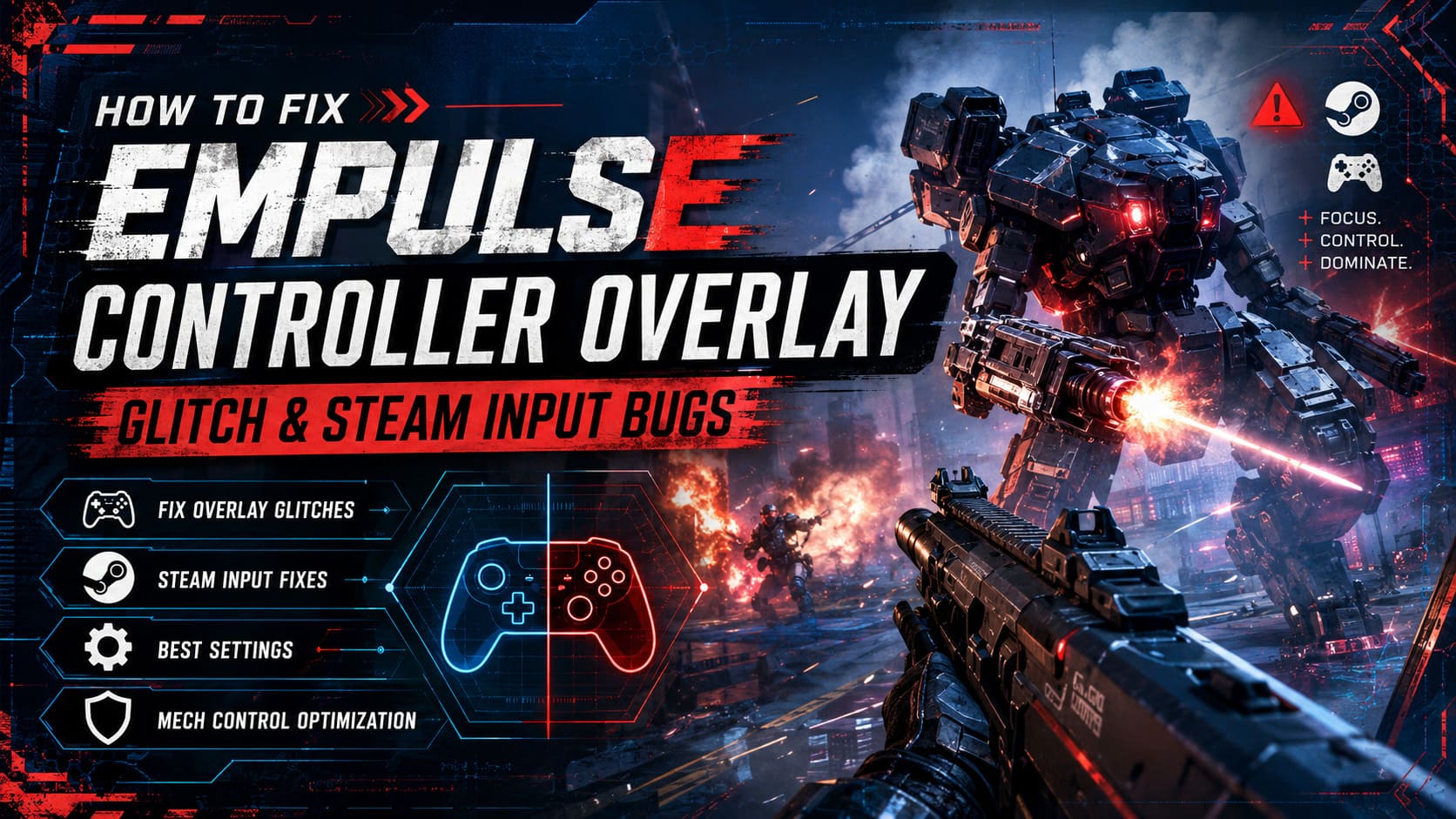
Inside a mech, everything changes.
The game swaps to an entirely different set of controls designed for heavy weapons, defensive systems, and slower but more impactful movement.
In theory, this transition should happen instantly.
In practice, Steam Input sometimes struggles when EMPULSE switches between these control states. The issue becomes even more noticeable if the Steam Overlay is opened during gameplay or if other overlay software is running in the background.
Many players report one or more of the following symptoms:
- Controller disconnects after entering a mech
- Buttons stop responding
- Analog sticks lose input tracking
- Steam Overlay causes controls to freeze
- Controller works in menus but not during gameplay
- Keyboard and mouse continue functioning normally
From what many community members have observed, Steam occasionally falls back into a desktop-style input mode rather than returning full control to the game.
The result?
Your expensive controller suddenly behaves like it’s taking a coffee break while enemy rockets are flying toward your face.
The Most Effective Fix: Switch to Big Picture Overlay
If I had to recommend only one solution, this would be it.
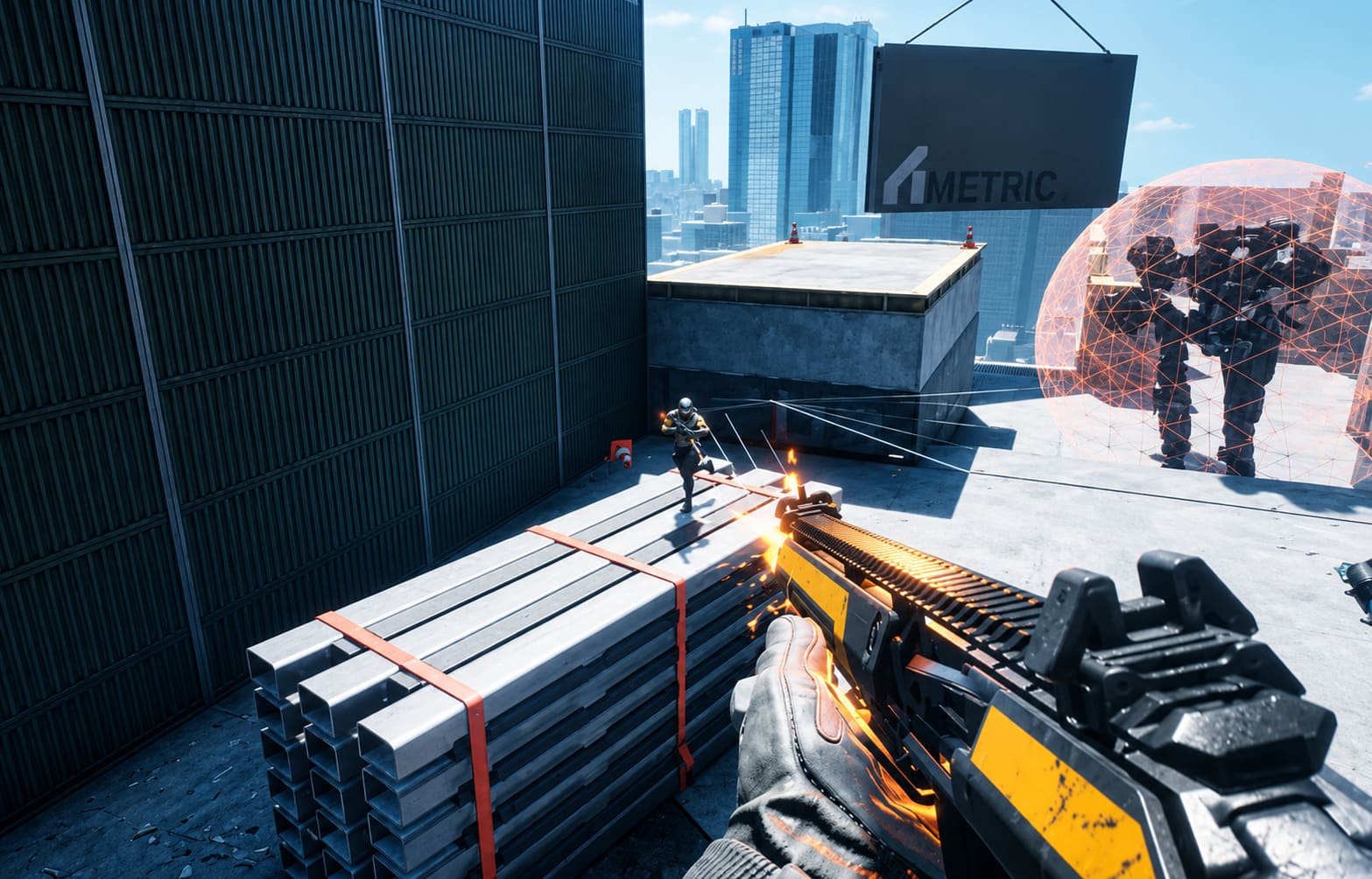
Across Reddit threads, Discord discussions, and Steam Community posts, enabling the Big Picture overlay appears to be the fix that helps the largest number of players.
How to Enable It
- Close EMPULSE completely.
- Open Steam.
- Navigate to Settings.
- Select In-Game.
- Enable Use Big Picture Overlay when using a controller.
- Restart Steam.
- Launch EMPULSE again.
Many players have reported that this prevents Steam Input from losing focus when the game switches between pilot mode and mech mode.
It’s a surprisingly simple change, but it solved the issue for a lot of people.
Kill Every Extra Overlay Running on Your PC
One thing I’ve noticed over the years is that modern PC gaming has become an overlay nightmare.
Steam has one.
Discord has one.
NVIDIA has one.
AMD has one.
Half the controller software available online wants its own overlay too.
Each one hooks into the game in a slightly different way, and EMPULSE doesn’t always seem happy when multiple programs are fighting for control.
Software Worth Disabling
| Program | Recommended Action |
|---|---|
| Discord Overlay | Disable |
| NVIDIA ShadowPlay | Disable |
| AMD Overlay | Disable |
| Xbox Game Bar | Disable temporarily |
| DS4Windows | Close if using Steam Input |
| reWASD | Disable profiles |
| JoyToKey | Exit completely |
If you’re troubleshooting, run EMPULSE with as few background applications as possible.
The fewer programs touching your controller, the easier it becomes to identify what’s causing the conflict.
Force Steam Input for EMPULSE
Sometimes Steam’s automatic detection simply doesn’t get things right.
A game-specific override can often eliminate weird behavior.
Steps
- Open Steam Library.
- Right-click EMPULSE.
- Select Properties.
- Open the Controller tab.
- Locate the controller override setting.
- Change it from Default to Enable Steam Input.
This forces Steam to handle controller translation directly instead of relying on automatic profile selection.
Several DualSense and Xbox controller users have reported much more stable mech controls after enabling this option.
Reset Steam’s Controller Profiles
This solution doesn’t get discussed nearly enough.
Steam stores global controller templates for desktop navigation and guide-button shortcuts. If these become corrupted or modified by other software, weird issues can appear in games that rely heavily on Steam Input.
What to Reset
- Desktop Layout
- Guide Button Chord Layout
- Controller Desktop Profile
- Guide Button Focus Settings
I personally recommend switching everything back to the standard Generic Gamepad template before testing again.
It only takes a few minutes and can eliminate strange input behavior that appears impossible to explain otherwise.
Verify EMPULSE Files
It sounds boring.
It sounds obvious.
Yet it still solves problems.
During Early Access, updates arrive frequently. Occasionally a file fails to update correctly, resulting in unexpected issues.
Verify Installation Files
- Open Steam Library.
- Right-click EMPULSE.
- Choose Properties.
- Open Installed Files.
- Click Verify Integrity of Game Files.
Steam will compare your installation against official files and automatically repair anything missing or damaged.
I’ve seen this fix strange control issues in several Early Access titles over the years, so it’s worth trying.
Controller Settings That Improve Mech Gameplay
Once you’ve fixed the input problem, there are a few adjustments worth making if you plan to spend a lot of time piloting mechs.
Lower Trigger Deadzones
The mech’s Chaingun rewards quick activation.
Reducing trigger deadzones helps the weapon begin spinning up immediately when you press the trigger.
Even a tiny delay can make the weapon feel sluggish.
Dedicated Shield Button
The Bubble Shield is arguably one of the strongest defensive tools available.
Map it somewhere easy to reach.
You don’t want to move your thumb off the aiming stick every time you need emergency protection.
Experiment with Gyro Aim
If you’re using a DualSense controller, gyro aiming can be surprisingly effective for rocket targeting.
Many players ignore gyro controls entirely, but once configured properly they provide a level of precision that traditional sticks struggle to match.
EMPULSE Early Access Roadmap 2026: Update Cadence, New Maps, and Mech Balancing Revealed
Quick Troubleshooting Checklist
Before diving into advanced fixes, try this sequence:
- Restart Steam
- Enable Big Picture Overlay
- Disable Discord Overlay
- Disable NVIDIA/AMD Overlay
- Force Steam Input
- Verify Game Files
- Reset Controller Templates
- Reconnect Controller
- Update Controller Firmware
- Reboot PC
Most players I’ve spoken with solved the problem somewhere within these steps.
EMPULSE Paint Bombs Guide: Mechanics, Meta Strategies, and Movement Combos Explained (2026)
Final Thoughts
EMPULSE is still in its Early Access phase, and issues like this are unfortunately part of the experience. The good news is that the controller glitch doesn’t appear to be caused by faulty hardware. In nearly every case, the problem comes down to Steam Input conflicts, overlay interference, or controller profile mismatches.
The reason the bug feels so frustrating is because it tends to appear during the game’s most exciting moments. Capturing a mech is often the turning point of a match, and losing all input right after earning that advantage can feel brutal.
Fortunately, the community has done an impressive job identifying reliable workarounds. For most players, enabling the Big Picture overlay and removing conflicting background software is enough to restore full functionality.
Until an official patch completely eliminates the issue, these fixes remain the best way to keep your controller responsive and your mech combat smooth.
And trust me—once everything is working properly, EMPULSE’s mech battles are some of the most satisfying moments you’ll find in a competitive shooter this year.