How to Fix The Blood of Dawnwalker RTX 3050 Crash on Launch and Startup Issues
There is something especially annoying about buying a new RPG, waiting years for it, hitting Play, and then watching it disappear before you even reach the main menu. That is exactly the kind of problem some PC players can run into with The Blood of Dawnwalker, particularly on systems equipped with an Nvidia GeForce RTX 3050. The game is built around Unreal Engine 5 and aims for a very demanding visual presentation, so the first few minutes of initialization can put surprisingly heavy pressure on the GPU, VRAM, drivers, and Windows memory management.
I have played plenty of demanding PC releases over the years, and one thing I have learned is that a crash on startup does not automatically mean your graphics card is too weak. Sometimes a game simply does not like a particular driver version, a corrupted shader cache, an overlay, an unusual display setting, or an unstable overclock. With an RTX 3050, you have a little less hardware headroom than someone running a high-end GPU, but there are still several things worth trying before blaming the card.
If The Blood of Dawnwalker crashes immediately after clicking Play, shows a black screen, closes back to the desktop, or produces an Unreal Engine LowLevelFatalError, work through the fixes below one at a time. I would start with the simple solutions and only move toward more invasive changes if the earlier steps do nothing.
The Blood of Dawnwalker RX 580 Optimization Guide: Best Low Settings for 60 FPS
Why Is The Blood of Dawnwalker Crashing on an RTX 3050?
The RTX 3050 is a capable entry-level gaming GPU, but its available VRAM can become a limiting factor in newer AAA games. This is particularly relevant for laptop RTX 3050 configurations, where the memory configuration can be even more restrictive.
The Blood of Dawnwalker is not exactly a lightweight game either. Unreal Engine 5 can put considerable pressure on VRAM allocation, shader compilation, CPU resources, and system memory, especially while the game is preparing its renderer for the first time.
The important point is that there can be several completely different reasons behind an identical crash-to-desktop symptom. A bad driver installation and an unstable overclock, for example, can look almost exactly the same from the player’s perspective.
The Main Fixes Worth Trying
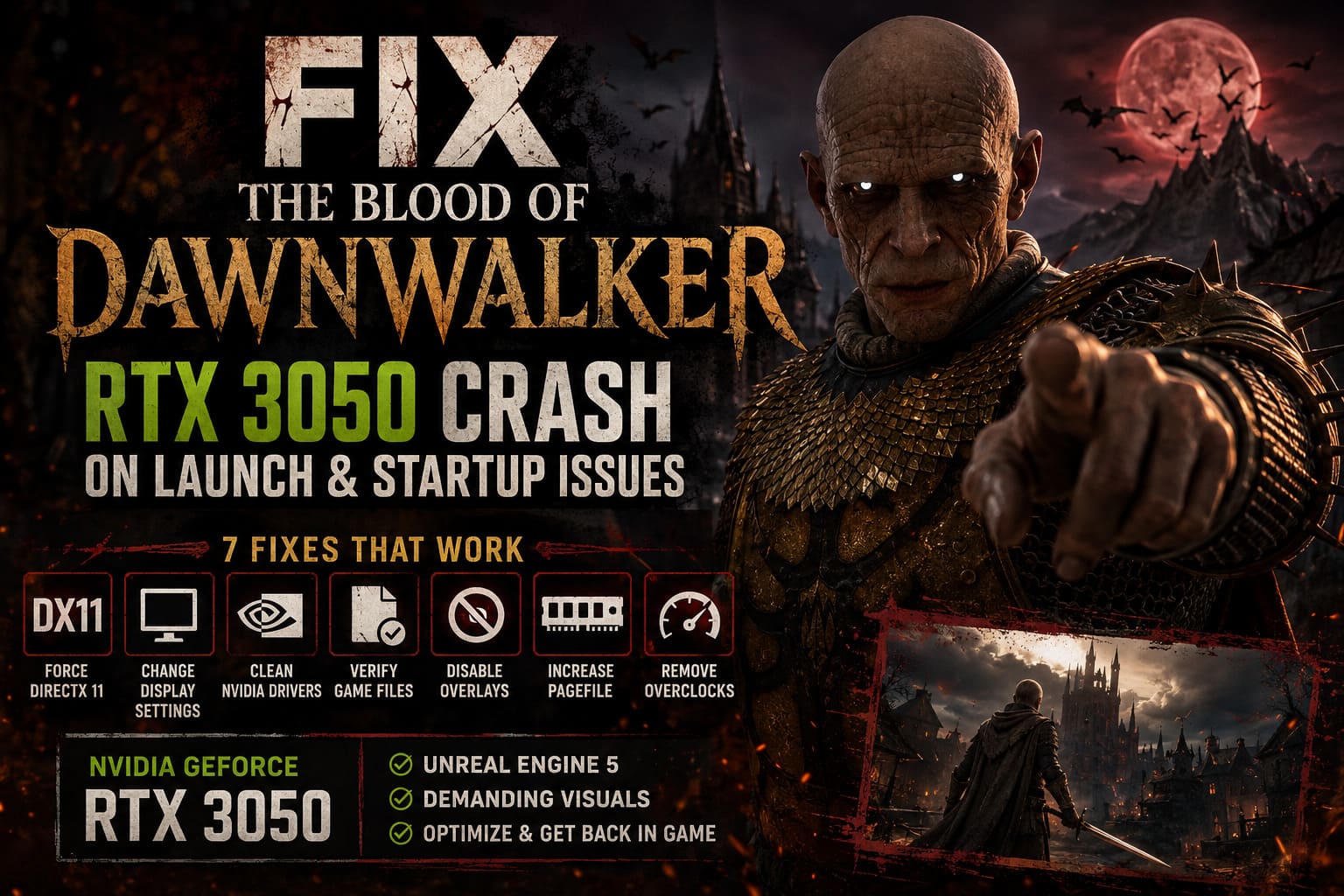
| Fix | What It Targets | Difficulty |
|---|---|---|
| Force DirectX 11 | Graphics API startup conflicts | Easy |
| Change display settings | Resolution and fullscreen conflicts | Easy |
| Clean-install Nvidia drivers | Driver corruption | Moderate |
| Verify game files | Damaged installation files | Easy |
| Disable overlays | Software conflicts | Easy |
| Increase pagefile | Memory pressure | Moderate |
| Remove overclocks | Hardware instability | Moderate |
1. Try Forcing DirectX 11
If I were troubleshooting this on my own PC, this would be one of the first experiments I would make. Unreal Engine 5 games often default to DirectX 12, and although DX12 is normally the preferred option for modern hardware, it can occasionally be responsible for startup problems.
Steam makes it fairly easy to test another rendering API. You don’t need to modify system files or dig through complicated Windows settings to give this solution a shot.
- Open your Steam Library.
- Right-click The Blood of Dawnwalker.
- Select Properties.
- Stay on the General tab.
- Find the Launch Options field.
- Enter
-dx11. - Close the Properties window and start the game.
Give it a proper test rather than launching and immediately quitting after a few seconds. The first startup can take longer than expected while the game initializes its files and shaders.
If -dx11 does not help, you can also experiment with -d3d11 or -force-d3d11, although I would not throw a dozen launch commands into the box at once. Change one thing, test it, and then move on.
2. Force a Safer Resolution and Window Mode
Another surprisingly common cause of startup crashes is the game trying to initialize a display configuration that does not play nicely with Windows or your monitor.
This can happen after changing monitors, using unusual resolutions, switching between fullscreen modes, or importing settings from another system.
You can manually edit the game’s configuration file. Press Windows + R, enter %LOCALAPPDATA%, and press Enter. Look for the folder associated with The Blood of Dawnwalker or Rebel Wolves, then navigate through the game’s Saved > Config > WindowsNoEditor folders.
Find GameUserSettings.ini and open it with Notepad.
Settings Worth Checking
Look for entries associated with:
ResolutionSizeXResolutionSizeYFullscreenMode
If you use a 1920×1080 monitor, for example, make sure the resolution values correspond to 1920 × 1080 rather than some strange custom resolution.
You can also experiment with a borderless or windowed configuration instead of exclusive fullscreen. The exact numeric values can vary between Unreal Engine configurations, so I would make a backup of the .ini file before changing anything.
If the game suddenly launches after this, you have probably narrowed the problem down to display initialization rather than the RTX 3050 itself.
3. Perform a Clean Nvidia Driver Installation
This is probably the most important driver-related fix.
Simply installing a new Nvidia driver over an old one does not always eliminate problems. Years of playing PC games have taught me that graphics drivers can occasionally leave behind cached files or configuration problems that only become obvious when a demanding new game arrives.
Download the latest compatible Nvidia Game Ready Driver for your RTX 3050. For a genuinely clean installation, many PC enthusiasts use Display Driver Uninstaller, commonly known as DDU, to remove the existing Nvidia driver before reinstalling it.
How to Clean Install the Driver
- Download the appropriate Nvidia driver.
- Download DDU from a trusted source.
- Temporarily disconnect your internet connection.
- Restart Windows into Safe Mode.
- Run DDU and select Nvidia as the GPU manufacturer.
- Choose Clean and Restart.
- After Windows boots normally, install the Nvidia driver you downloaded.
- Choose the Custom Installation option if available.
- Select the clean-install option.
- Restart your computer and test The Blood of Dawnwalker again.
I would not use DDU every time a game crashes. It is more of a serious troubleshooting step. But if several games have recently started behaving strangely, a clean driver installation becomes much more interesting.
4. Verify The Blood of Dawnwalker’s Game Files
Before doing anything complicated, let Steam check whether the installation is actually intact.
A corrupted or incomplete file can be enough to prevent a game from reaching the menu. This is particularly worth trying if the game crashed during an update, Steam reported a download problem, or you have recently moved the installation between drives.
Open Steam and go to:
Library → The Blood of Dawnwalker → Properties → Installed Files → Verify integrity of game files
Let Steam complete the process.
If it finds damaged or missing files, it should replace them automatically. Restart Steam afterward and try launching the game again.
This fix is boring, but honestly, boring fixes are often the ones I try first.
5. Disable Steam, Discord and GPU Overlays
Overlays are convenient until they aren’t.
Steam Overlay, Nvidia’s overlay, Discord’s in-game overlay, MSI Afterburner, RivaTuner Statistics Server, Overwolf, and similar applications can interact with a game’s rendering pipeline. Most of the time they work perfectly, but a new Unreal Engine title can expose compatibility problems that did not exist in older games.
For troubleshooting, temporarily close everything you don’t need.
Overlays and Background Apps to Disable
- Steam Overlay
- Nvidia in-game overlay
- Discord Overlay
- MSI Afterburner
- RivaTuner Statistics Server
- Overwolf
- Other FPS counters or monitoring utilities
You don’t necessarily have to uninstall anything. Just shut the applications down completely and launch the game with as little third-party software running as possible.
If the game suddenly works, re-enable your applications one by one. That makes it much easier to identify the offender.
6. Increase the Windows Pagefile
This one is slightly more technical, but it can matter when a game is pushing system memory particularly hard.
The RTX 3050’s VRAM is only part of the memory picture. Windows can also use a pagefile on your storage drive when physical RAM becomes insufficient. If virtual memory is restricted too aggressively, a demanding game can potentially run into memory-related failures.
To adjust it, search Windows for Advanced System Settings.
Then go to:
Advanced → Performance Settings → Advanced → Virtual Memory → Change
You can disable automatic management and manually configure the pagefile on your SSD.
A commonly used starting point is an initial size around 1.5× your physical RAM and a maximum around 3× your physical RAM, although I would not blindly apply those numbers to every computer. Windows’ automatically managed pagefile is often perfectly fine, and more is not automatically better.
If you have plenty of RAM and a properly configured system-managed pagefile, this probably isn’t the first thing I would change. Consider it a troubleshooting option rather than a guaranteed FPS or stability upgrade.
7. Remove GPU, CPU and RAM Overclocks
Here’s another thing that catches people out.
Your PC might appear completely stable in games you’ve played for months and still crash in a new release. Different engines stress hardware differently, and Unreal Engine 5 can expose borderline instability that older games never managed to trigger.
If you’re using MSI Afterburner, reset the GPU core and memory clocks to their normal values. Do the same for other GPU tuning software.
Don’t forget about system-level overclocking, either. If you have manually tuned your CPU or memory, temporarily return everything to stock settings.
That includes aggressive RAM profiles such as XMP or EXPO, if you’re trying to isolate memory stability as the potential cause.
I wouldn’t immediately start changing BIOS settings unless the simpler fixes fail. But if The Blood of Dawnwalker is the only game exposing instability, testing at stock settings can tell you a lot.
What If Nothing Fixes the RTX 3050 Crash?
At that point, I would stop randomly changing settings.
Take note of exactly when the crash happens. Does the game disappear immediately after pressing Play? Does it reach the first logo? Does it crash while compiling shaders? Does it display a LowLevelFatalError? Does reducing graphical settings make any difference?
Those details can help distinguish a driver problem from a memory problem, rendering API issue, corrupted installation, or a genuine game-side bug.
I would also avoid downloading random replacement .dll files or unofficial ‘FPS booster’ programs from questionable websites. When you’re troubleshooting a PC game, adding another unknown piece of software to the equation is usually the opposite of what you want.
My Take
The RTX 3050 isn’t the kind of GPU I’d buy specifically for a brand-new Unreal Engine 5 RPG in 2026, but that doesn’t mean every startup crash should be interpreted as ‘your GPU is too weak.’ There is a big difference between poor performance and a game refusing to launch.
If I owned an RTX 3050 and The Blood of Dawnwalker refused to start, I’d work through the fixes in this order: verify the files, disable overlays, test DX11, reset display settings, clean-install the Nvidia driver, then investigate memory and overclock stability.
The most important thing is to change one variable at a time. It is tempting to modify ten settings simultaneously and hope for the best, but then you have no idea which change actually solved the problem.
And if none of these fixes work, don’t assume your hardware is finished. New AAA releases can ship with very specific hardware and driver compatibility issues, and future patches can fix problems that no amount of tweaking on the player’s side will solve. Sometimes the smartest PC troubleshooting move is simply keeping the system clean, documenting the crash, and waiting for the developer to address the underlying issue.