Palworld 1.0 Optimal HDR Calibration Settings PC Guide (2026)
When I first launched Palworld 1.0 after the full release, I expected the colorful world to look even better than it did during Early Access. Instead, my first impression was disappointing. The forests looked slightly hazy, bright daylight almost washed out the entire landscape, and nighttime became so dark that I kept pulling out a torch even in places I already knew by heart.
The strange part was that other HDR games on the exact same monitor looked fantastic.
After spending several evenings experimenting with different Windows settings, testing NVIDIA features, comparing screenshots, and reading through discussions from experienced PC gamers, I eventually found a setup that completely transformed the game’s image quality.
This isn’t an official calibration guide, and it certainly isn’t the only way to configure HDR. These are simply the settings that consistently produced the best-looking results on my own system while staying close to accurate HDR presentation. If you’re trying to make Palworld 1.0 HDR actually look worthy of a modern OLED or Mini-LED display, this guide should save you a lot of trial and error.
Why Palworld HDR Feels “Off” at Default Settings
One thing became obvious almost immediately.
The game supports HDR, but it doesn’t offer the same level of calibration found in titles like Cyberpunk 2077 or Horizon Forbidden West. There are very few controls available, so the game relies heavily on Windows and your GPU driver to interpret HDR correctly.
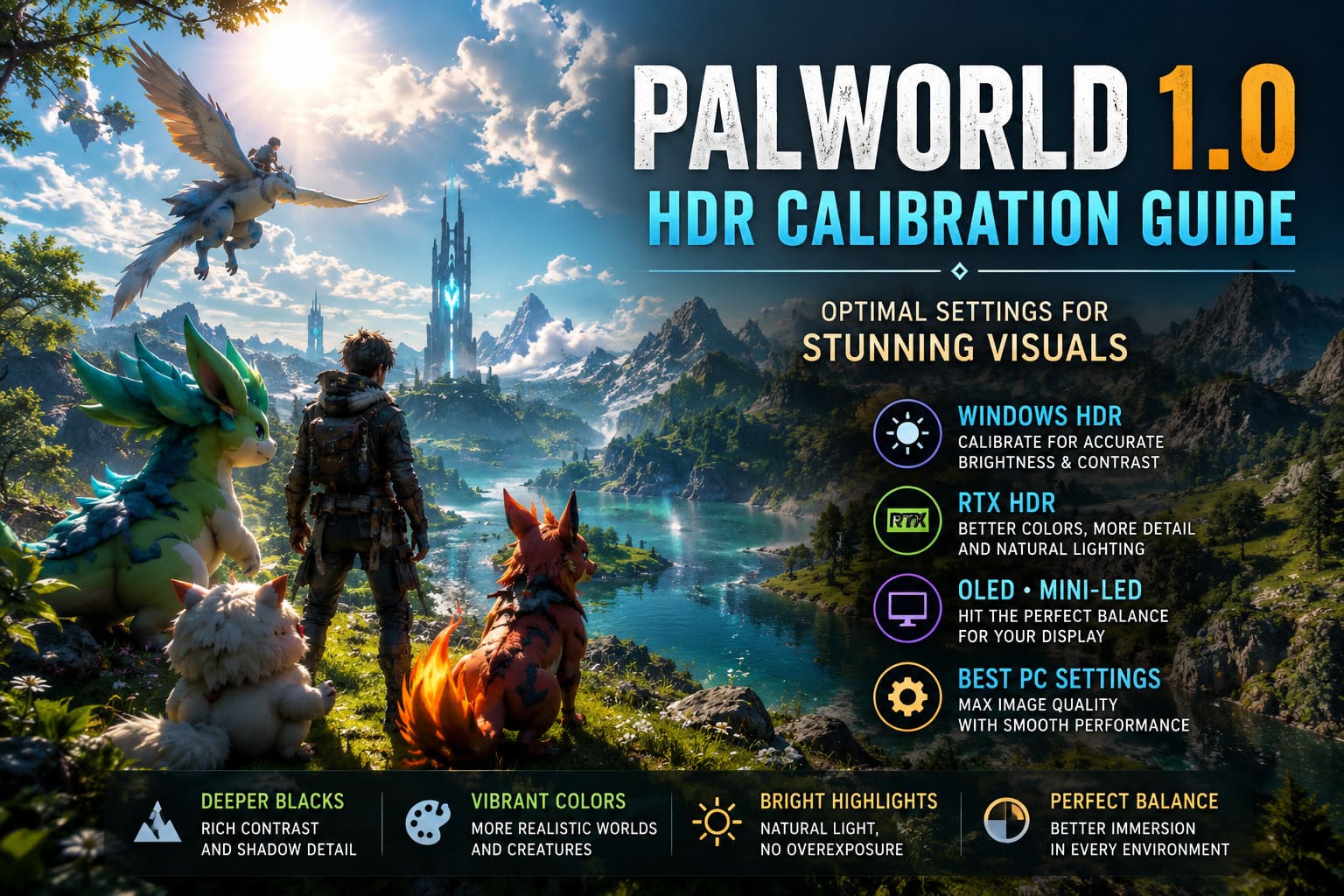
That creates several common problems.
Some players experience:
- Overly bright daytime scenes
- Faded colors
- Weak black levels
- Crushed shadow detail
- Glowing white user interface elements
- Inconsistent lighting between day and night
The issue isn’t necessarily your monitor.
More often than not, it’s the combination of Windows HDR, GPU tone mapping, and Palworld’s own implementation fighting against each other.
Once those layers are configured correctly, the visual difference is surprisingly dramatic.
Start with Windows Before Launching the Game
One mistake I made initially was trying to fix everything inside Palworld itself.
That simply doesn’t work.
Windows is responsible for passing HDR metadata to the game, so if your desktop HDR profile isn’t calibrated properly, the game never starts with accurate brightness values.
I strongly recommend running the Windows HDR Calibration utility before making any in-game adjustments.
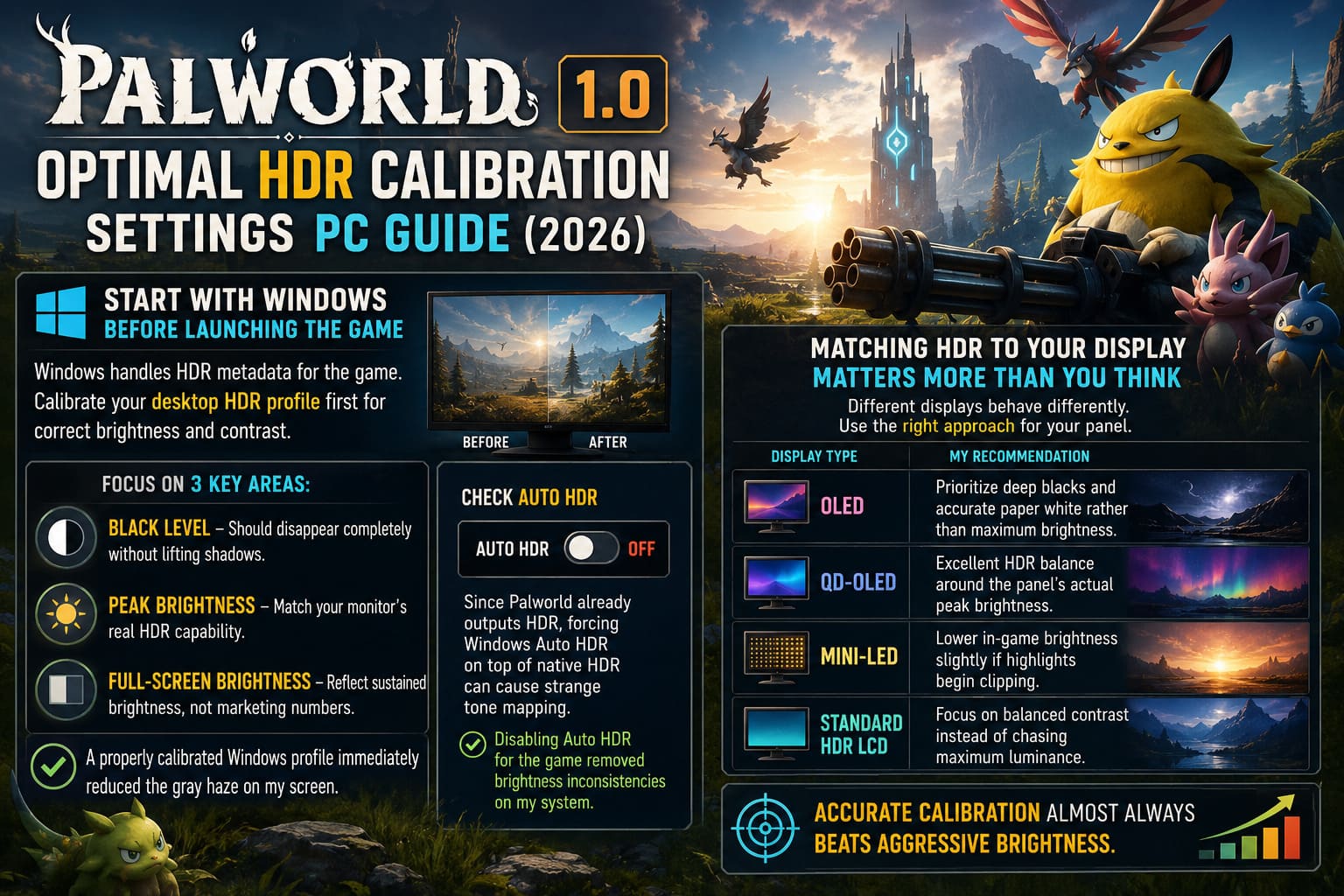
Focus on three things:
- Black level should disappear completely without lifting shadows.
- Peak brightness should match your monitor’s real HDR capability.
- Full-screen brightness should reflect sustained brightness rather than marketing numbers.
A properly calibrated Windows profile immediately reduced the gray haze that covered my screen.
Another setting I highly recommend checking is Auto HDR.
Since Palworld already outputs HDR, forcing Windows Auto HDR on top of native HDR can create strange tone mapping behavior. Disabling Auto HDR specifically for the game’s executable removed several brightness inconsistencies on my system.
Matching HDR to Your Display Matters More Than You Think
One lesson I learned quickly is that copying someone else’s HDR settings rarely works perfectly.
Different displays behave very differently.
| Display Type | My Recommendation |
|---|---|
| OLED | Prioritize deep blacks and accurate paper white rather than maximum brightness. |
| QD-OLED | Excellent HDR balance around the panel’s actual peak brightness. |
| Mini-LED | Lower in-game brightness slightly if highlights begin clipping. |
| Standard HDR LCD | Focus on balanced contrast instead of chasing maximum luminance. |
Trying to force extremely high brightness values onto a display that cannot actually sustain them usually makes the image worse rather than better.
Accurate calibration almost always beats aggressive brightness.
NVIDIA Users Have an Interesting Alternative
After testing native HDR for several hours, I also experimented with RTX HDR.
To my surprise, there were moments where RTX HDR actually looked cleaner than the game’s own HDR implementation.
Cloud detail appeared more natural.
Bright skies retained more texture.
The colorful Pals gained richer saturation without looking cartoonishly oversaturated.
If you’re using an RTX graphics card, it’s definitely worth comparing both approaches.
I personally preferred:
- Native HDR for accuracy.
- RTX HDR for visual impact.
Neither is objectively better.
It largely depends on whether you prefer realistic lighting or a more vibrant presentation.
AMD Owners Shouldn’t Ignore Driver Settings
One thing that repeatedly appeared in community discussions was AMD’s color processing.
Some Radeon users reported slightly elevated blacks or unusual gamma behavior in Unreal Engine titles.
If you’re using AMD Software, it’s worth checking whether Custom Color or Color Temperature Control is interfering with HDR output.
On several systems, simply disabling unnecessary color overrides restored much better contrast without changing anything inside Palworld itself.
Sometimes the simplest fixes really are the best ones.
My Preferred In-Game Graphics Settings
After dozens of comparisons, this is the setup I kept returning to.
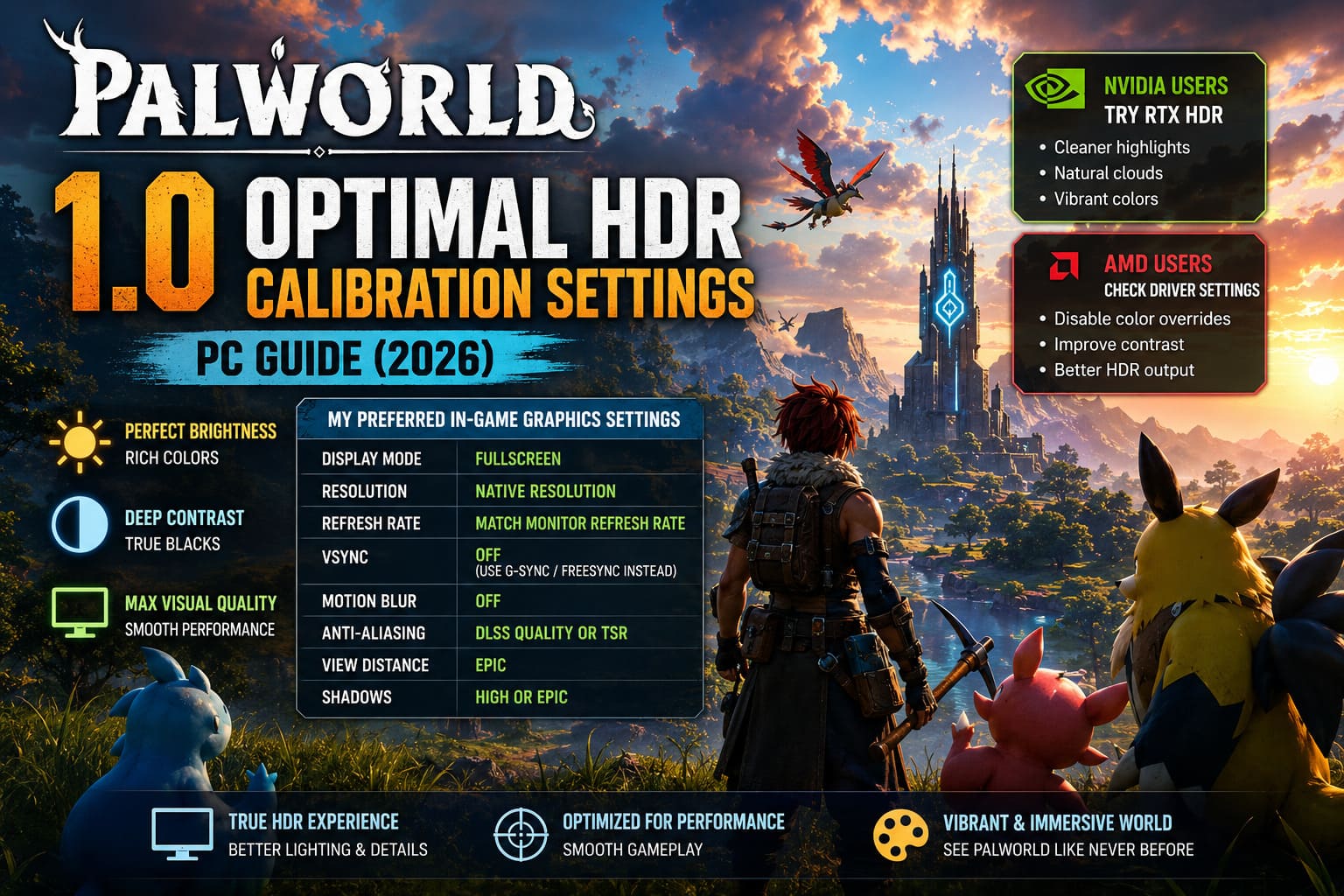
| Setting | Recommendation |
|---|---|
| Display Mode | Fullscreen |
| Resolution | Native resolution |
| Refresh Rate | Match monitor refresh rate |
| VSync | Off (use G-Sync or FreeSync instead) |
| Motion Blur | Off |
| Anti-Aliasing | DLSS Quality or TSR |
| View Distance | Epic |
| Shadows | High or Epic |
These settings aren’t designed purely for maximum FPS.
Instead, they’re chosen to preserve HDR lighting quality while keeping the game smooth.
The higher shadow quality especially helps maintain depth during sunrise and sunset when HDR lighting becomes most noticeable.
The Brightness Slider Isn’t as Simple as It Looks
Palworld only offers a general brightness slider instead of dedicated HDR controls.
That makes things a little confusing.
Unlike SDR, changing brightness here affects more than just visibility.
It also changes how the game maps HDR highlights and darker areas.
On my OLED display, I found the best balance slightly above the default value.
That kept daytime environments bright without turning every cloud into a glowing white blob.
If your monitor is significantly brighter—particularly modern Mini-LED models—you may actually get a cleaner image by lowering brightness slightly instead of increasing it.
It sounds backwards, but preserving highlight detail often produces a much more convincing HDR image than simply making everything brighter.
Small Changes That Made a Big Difference
Not every improvement came from HDR itself.
Some simple adjustments noticeably improved the overall presentation.
- Disable Motion Blur because HDR naturally increases perceived clarity and motion blur works against that advantage.
- Use Native Resolution Whenever Possible since HDR artifacts become much easier to notice at lower rendering resolutions, while DLSS Quality usually delivers the best balance.
- Keep Windows Updated because several Windows updates have quietly improved HDR handling over the past couple of years.
It’s easy to overlook, but updating Windows genuinely helped consistency across multiple games, including Palworld.
For Enthusiasts: Third-Party HDR Tools
If you’re the type of player who enjoys tweaking every visual detail, there are community-made solutions that offer even greater control.
Some advanced users prefer replacing or modifying the game’s HDR pipeline entirely through external utilities.
These tools can provide:
- Custom paper white adjustment.
- HGIG tone mapping.
- Manual peak luminance control.
- Real-time HDR sliders.
- Improved shadow detail.
- More accurate OLED black levels.
They’re certainly not required.
In fact, I think most players will be perfectly happy after properly configuring Windows and their graphics driver.
Still, it’s nice to know those options exist if you’re chasing the absolute best HDR presentation possible.
Palworld 1.0 Audio Crackling and Compression Fix: Full Guide to Restore Game Sound
My Final HDR Checklist
- ✔ Windows HDR profile calibrated.
- ✔ Auto HDR disabled for Palworld.
- ✔ Fullscreen enabled.
- ✔ Native monitor resolution selected.
- ✔ Motion Blur disabled.
- ✔ Brightness adjusted carefully instead of simply increasing it.
- ✔ GPU HDR settings verified.
Following those steps consistently gave me the cleanest and most balanced HDR image.
How to Fix Palworld 1.0 High CPU Usage, Stuttering, and Lag (2026 Optimization Guide)
Final Thoughts
After spending quite a bit of time experimenting with different configurations, I honestly think Palworld 1.0 is capable of looking fantastic in HDR—but only after a little extra work.
The default presentation leaves a lot of visual potential on the table. Once everything is configured correctly, the game becomes noticeably more immersive. Sunlight filtering through forests looks warmer, colorful Pals gain extra depth without appearing oversaturated, and nighttime finally feels atmospheric instead of frustratingly dark.
What surprised me most is that there wasn’t one magical setting that fixed everything. Instead, the best results came from several small adjustments working together: a properly calibrated Windows HDR profile, sensible GPU driver settings, careful in-game brightness tuning, and avoiding conflicting HDR features.
If you’re playing on a modern OLED, QD-OLED, or Mini-LED display, it’s absolutely worth spending fifteen or twenty minutes dialing everything in. Palworld’s art style benefits enormously from good HDR, and once you see the islands with balanced contrast, vibrant colors, and preserved highlight detail, it’s difficult to go back to the default configuration.
For me, that extra setup time completely changed how the game looked—and it finally felt like my HDR monitor was being used to its full potential.