How to Fix DOOM: The Dark Ages | Revelations Crash on Launch, Black Screen, and Freezing on PC
There are few things more frustrating than getting excited for a brand-new DOOM release only to have it crash before you even see the main menu. After spending hours reading community reports, experimenting with different settings, and comparing experiences from other players, I realized something interesting: most launch issues aren’t caused by one massive bug. Instead, they’re usually the result of several small compatibility problems that stack together.
The latest idTech engine looks incredible, but it also asks much more from modern PCs than previous entries in the series. Between hardware ray tracing, massive texture streaming, and aggressive VRAM usage, it’s easy to understand why some systems refuse to cooperate.
If DOOM: The Dark Ages crashes on startup, freezes during the intro, gets stuck on a black screen, or suddenly returns to the desktop without an error message, these are the solutions that consistently helped both me and many other players.
Why Does DOOM: The Dark Ages Crash?
One thing quickly became obvious while reading hundreds of community discussions: not everyone experiences the same crash.

Some players never make it past the splash screen.
Others reach the logos before freezing.
A few load into gameplay and crash minutes later.
Although the symptoms differ, the most common causes are surprisingly similar:
- Windows launches the game using integrated graphics instead of the dedicated GPU.
- Graphics drivers are outdated or partially corrupted.
- DLSS, FSR, or Frame Generation creates instability during startup.
- Damaged game files remain after an interrupted update.
- Insufficient VRAM or installing the game on an HDD instead of an SSD.
- Background overlays interfere with the idTech engine.
The good news is that almost all of these issues can be fixed without reinstalling Windows or replacing hardware.
Check Your Hardware Before Troubleshooting
Before changing settings, make sure your PC actually meets what the game expects.
Unlike many recent releases, DOOM: The Dark Ages isn’t very forgiving when it comes to storage speed or graphics memory.
Here’s what I’d verify first:
| Component | Recommended Check |
|---|---|
| Storage | Install the game on an SSD. |
| GPU Memory | At least 8 GB VRAM. |
| Operating System | 64-bit Windows 10 or Windows 11. |
| Graphics Driver | Latest stable NVIDIA or AMD release. |
| CPU | Modern 8-core processor or better. |
| Background Software | Close unnecessary monitoring tools. |
If any of these are missing, fixing software settings alone probably won’t eliminate every crash.
Fix 1: Make Sure the Game Uses Your Dedicated Graphics Card
This turned out to be the biggest fix for a surprising number of players.
Many modern CPUs include integrated graphics, and Windows occasionally decides those should run the game instead of your RTX or Radeon card.
When that happens, the engine often crashes almost immediately.
You can solve this by opening Device Manager, expanding Display adapters, and temporarily disabling the integrated GPU.
If you’d rather leave it enabled, Windows also allows you to manually assign a high-performance GPU.
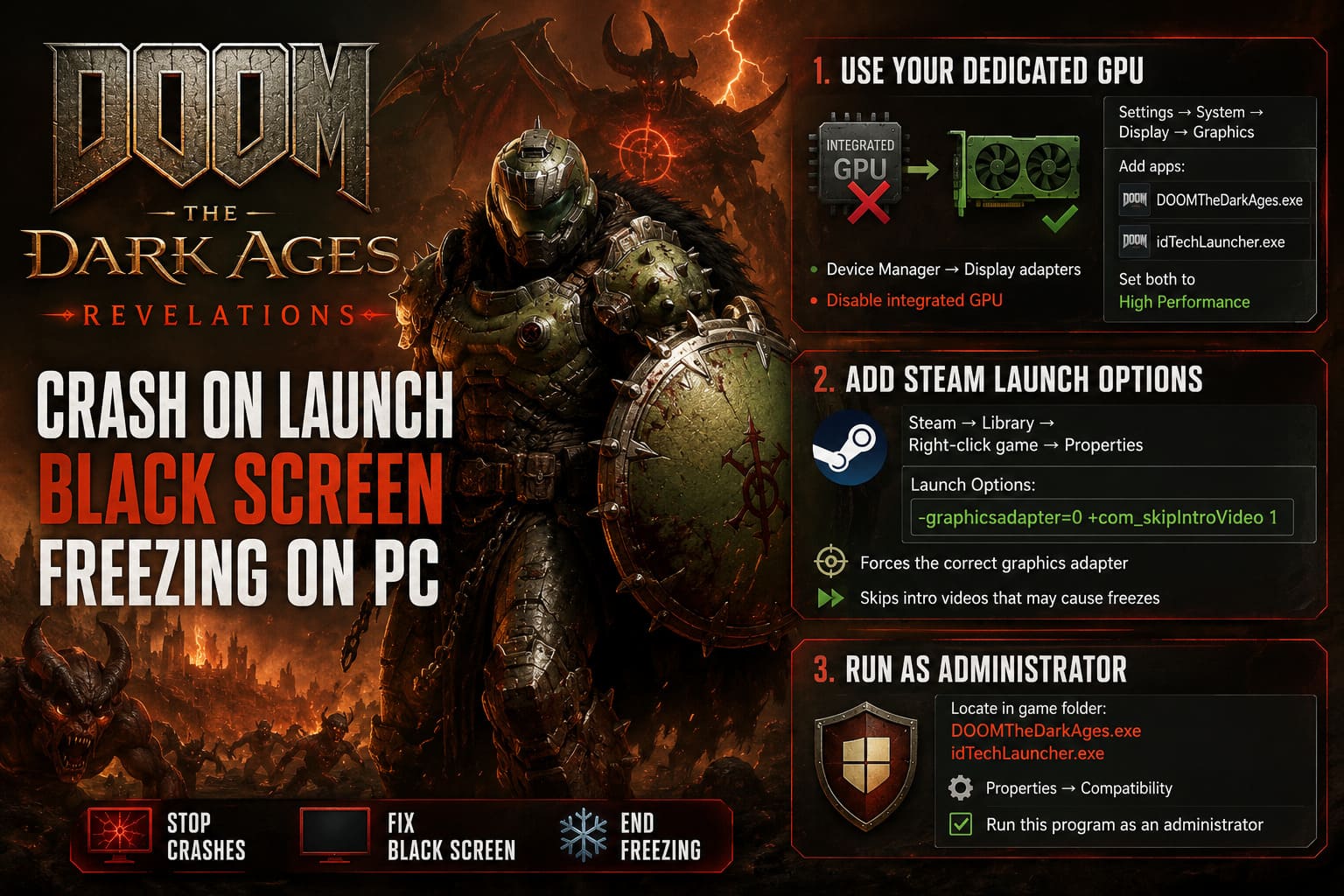
Open:
Settings → System → Display → Graphics
Then add both:
- DOOMTheDarkAges.exe
- idTechLauncher.exe
Set each application to High Performance, save the changes, and restart the game.
It’s a simple adjustment, but one that solved startup crashes for a lot of people.
Fix 2: Add Steam Launch Options
Another trick that consistently appeared in community discussions was forcing the engine to skip certain startup processes.
Inside Steam:
Library → Right-click the game → Properties
Under Launch Options, enter:
-graphicsadapter=0 +com_skipIntroVideo 1This does two useful things.
First, it tells the engine which graphics adapter should be used.
Second, it skips the intro videos that occasionally freeze while switching into real-time rendering.
If your crash always happens during the opening logos, this is definitely worth trying.
Fix 3: Run Both Executables as Administrator
Normally I don’t recommend enabling administrator mode for every game, but in this case it can help.
The launcher occasionally fails to create configuration folders or update cached files because Windows blocks certain permissions.
Navigate to the installation folder and locate:
- DOOMTheDarkAges.exe
- idTechLauncher.exe
Open Properties, switch to the Compatibility tab, and enable:
Run this program as an administrator
Restart the PC afterward instead of simply relaunching the game.
Fix 4: Reset Broken Graphics Settings
One pattern I noticed is that many players could launch the game exactly once.
After changing graphics settings, every future launch ended with a crash.
Usually, the culprit was a corrupted configuration file.
Deleting the game’s local settings forces idTech to generate completely fresh defaults.
Look inside your Saved Games or Documents folder for the DOOM configuration directory.

Remove the configuration files (or move them somewhere safe).
The next launch rebuilds everything automatically.
Once you’re back inside the game, avoid enabling multiple experimental graphics features simultaneously.
Instead, test them one at a time:
- Native resolution
- DLSS
- FSR
- Frame Generation
- Ray Tracing presets
It’s much easier to identify the unstable setting this way.
Fix 5: Perform a Completely Clean Driver Installation
Updating GPU drivers through GeForce Experience or AMD Software is usually enough.
Sometimes, though, leftover driver files cause problems that ordinary updates don’t remove.
That’s where Display Driver Uninstaller (DDU) becomes useful.
A clean installation removes every previous graphics component before installing the newest version.
The process looks like this:
- Download the latest driver package.
- Boot Windows into Safe Mode.
- Run DDU.
- Remove the existing driver.
- Restart Windows.
- Install the newest official driver.
It takes a little longer than a normal update, but it often eliminates mysterious crashes that have no obvious explanation.
Fix 6: Verify the Game Files
Sometimes the simplest fix ends up being the correct one.
Large modern games regularly receive patches, and interrupted downloads happen more often than people realize.
Steam makes checking installation files extremely easy.
Library → Properties → Installed Files → Verify integrity of game files
Steam automatically compares every file against the official version and replaces anything that’s missing or damaged.
Xbox App users can perform a similar repair using the built-in Verify and Repair option.
Small Tweaks That Can Make a Big Difference
These won’t solve every crash on their own, but together they noticeably improve stability.
- Disconnect unnecessary USB devices. Games can occasionally behave unpredictably when racing wheels, HOTAS controllers, capture cards, or multiple gamepads remain connected.
- Use only one monitor temporarily. Multi-monitor setups sometimes interfere with fullscreen initialization. Switching to PC Screen Only before launching the game has helped some players.
- Disable overlays. Programs that hook into DirectX or Vulkan can trigger conflicts during startup.
Temporarily close applications like:
- MSI Afterburner
- RivaTuner Statistics Server
- Discord Overlay
- Xbox Game Bar
- RGB monitoring utilities
If the game launches normally afterward, one of those background applications was likely causing the conflict.
DOOM The Dark Ages Revelations DLC Ending Explained: Who is the Mysterious Ally?
The Mistake I See People Making Most Often
One thing stands out whenever someone says they’ve “tried everything.”
Usually, they’ve changed ten different settings at once.
That makes troubleshooting almost impossible because you never know which adjustment actually fixed the issue.
Instead, apply one solution, launch the game, and only continue to the next fix if the problem remains.
It may take slightly longer, but you’ll quickly identify the exact cause instead of guessing.
I’ve seen players completely reinstall Windows when the real problem was simply that the game was launching on the integrated GPU instead of the dedicated graphics card.
Final Thoughts
DOOM: The Dark Ages is easily one of the most technically demanding shooters released in recent years. The new idTech engine delivers incredible visuals, but that performance comes with higher expectations from your hardware and software configuration.
Based on both personal testing and countless community reports, the most successful fixes usually involve forcing the dedicated GPU, resetting corrupted graphics settings, performing a clean graphics driver installation, and verifying the game files. Those four solutions alone resolve the majority of launch crashes for PC players.
If you’ve worked through every step in this guide and the game still refuses to launch, the remaining issue may be tied to the game itself rather than your computer. Newly released titles often receive several stability patches during their first weeks, so keeping both the game and your graphics drivers fully updated remains the best long-term approach.
Hopefully one of these fixes gets you back into the action quickly, because spending time fighting demons is a lot more enjoyable than spending hours troubleshooting Windows.