How to Fix Palworld 1.0 High CPU Usage, Stuttering, and Lag (2026 Optimization Guide)
When I jumped back into Palworld 1.0, I expected to lose hours building massive bases, catching new Pals, and exploring the updated world. Instead, my first surprise wasn’t the new content—it was my CPU fan sounding like it was preparing for takeoff.
The strange part? My GPU wasn’t even struggling.
Like many players, I noticed CPU usage constantly sitting between 85% and 100%, random stutters while traveling across the map, and occasional frame drops that completely ruined smooth gameplay. After spending time reading community discussions, experimenting with different settings, and comparing results across several systems, I realized this isn’t just a “weak PC” problem. Even powerful gaming rigs can run into the same issue.
If you’ve been searching for a way to make Palworld 1.0 feel smoother without sacrificing too much visual quality, here’s everything that actually made a noticeable difference for me.
Why Is Palworld 1.0 So CPU Intensive?
Palworld is built on Unreal Engine 5, and while UE5 delivers beautiful environments and impressive lighting, it also places a heavy workload on the processor—especially in large open-world games.
Unlike many survival titles, Palworld constantly simulates dozens of systems simultaneously:

- Pal AI
- Base automation
- Item physics
- Pathfinding
- Dynamic world loading
- Multiplayer synchronization
Each of these systems competes for CPU resources.
The bigger your bases become, the harder your processor works.
The Biggest Causes of CPU Spikes
After testing and reading plenty of community feedback, these seem to be the main reasons performance suddenly tanks.
| Problem | How It Affects Performance |
|---|---|
| Large world streaming | Sudden CPU spikes while moving across the map |
| Multiple active bases | Constant AI calculations increase processor load |
| Unlimited FPS | CPU renders unnecessary frames |
| Huge numbers of dropped items | More entities to simulate every second |
| Memory buildup during long sessions | Increasing stutter over time |
None of these issues alone completely ruin performance.
Combined, however, they can create a perfect storm.
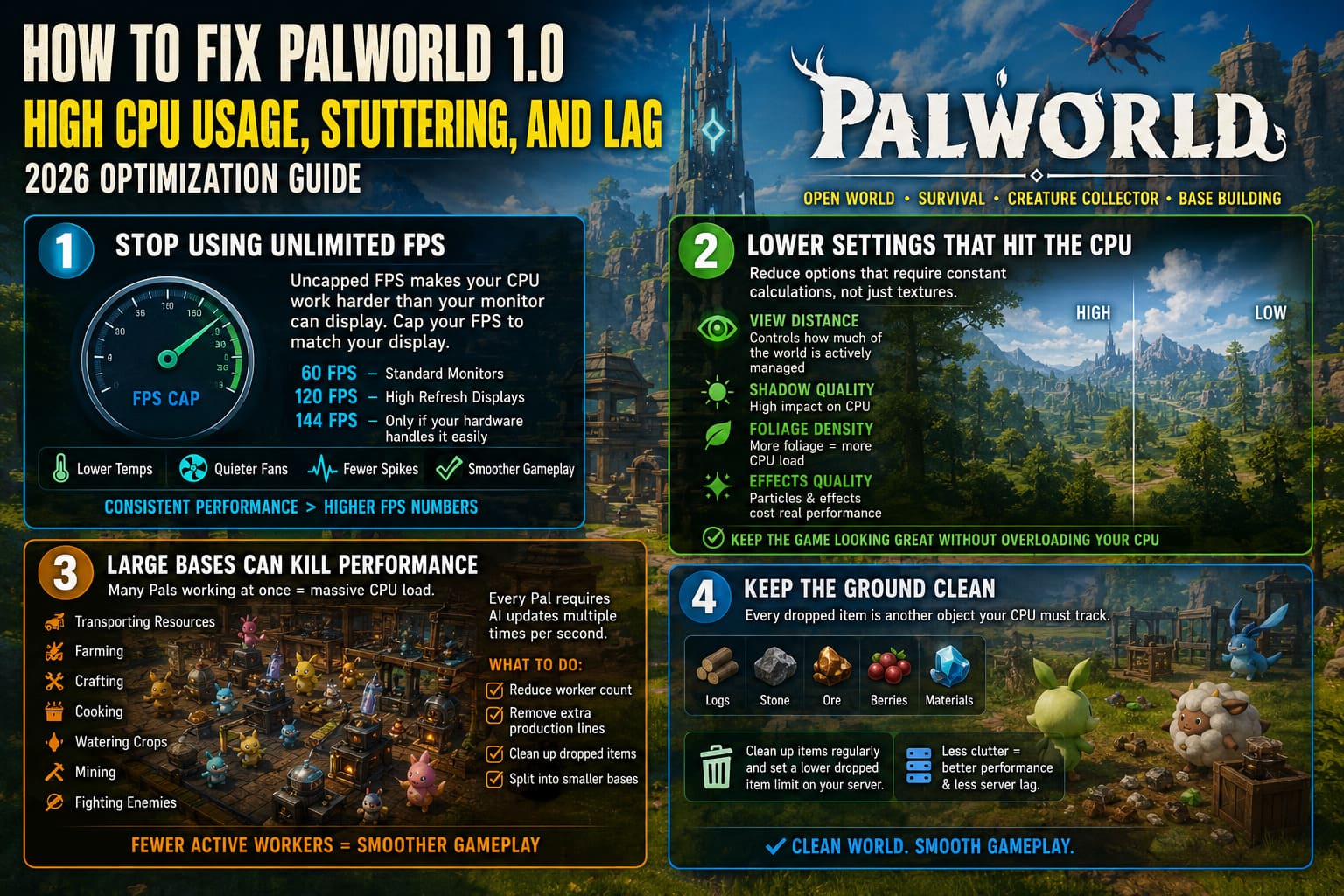
1. Stop Using Unlimited FPS
This was honestly the easiest improvement.
By default, many players leave the game uncapped because “more FPS is always better.”
That isn’t necessarily true.
When your frame rate is unlimited, your processor keeps trying to generate as many frames as possible—even when your monitor can’t display them.
That wastes processing power.
I recommend matching the cap to your display:
- 60 FPS for standard monitors
- 120 FPS for high refresh displays
- 144 FPS only if your hardware comfortably maintains it
The result is usually:
- lower temperatures
- quieter fans
- fewer frame-time spikes
- smoother gameplay
Average FPS may barely change, but consistency improves significantly.
2. Lower Settings That Actually Hit the CPU
Many people immediately reduce textures.
Ironically, textures mostly affect VRAM rather than CPU performance.
Instead, focus on settings that require constant calculations.
The biggest improvements usually come from lowering:
- View Distance
- Shadow Quality
- Foliage Density
- Effects Quality
View Distance is particularly important because it controls how much of the world the engine actively manages.
You still get an attractive game without forcing your processor to simulate everything hundreds of meters away.
3. Large Bases Can Become Performance Killers
This surprised me more than anything.
A beautiful, highly automated base feels satisfying…
…until 40 workers are simultaneously:
- transporting resources
- farming
- crafting
- cooking
- watering crops
- mining
- fighting nearby enemies
Every Pal requires AI updates several times each second.
The larger your production chains become, the more calculations your CPU performs.
If your base has become an industrial factory, try:
- reducing worker count slightly
- removing unnecessary production lines
- cleaning up dropped materials
- separating farms into multiple smaller bases
Even a small reduction in active workers can noticeably smooth gameplay.
4. Keep the Ground Clean
One optimization that many players overlook is item clutter.
Every log, stone, ore, berry, and crafted material sitting on the ground remains another object the game needs to track.
Eventually those numbers add up.
If you’re hosting your own world or dedicated server, reducing the maximum number of dropped items can noticeably improve long-term performance.
It also helps reduce server lag in multiplayer sessions.
5. Engine.ini Tweaks: Worth Trying, But Don’t Expect Miracles
You’ve probably seen dozens of videos recommending Engine.ini edits.
Some of them help.
Many do absolutely nothing.
A few can even introduce instability after future updates.
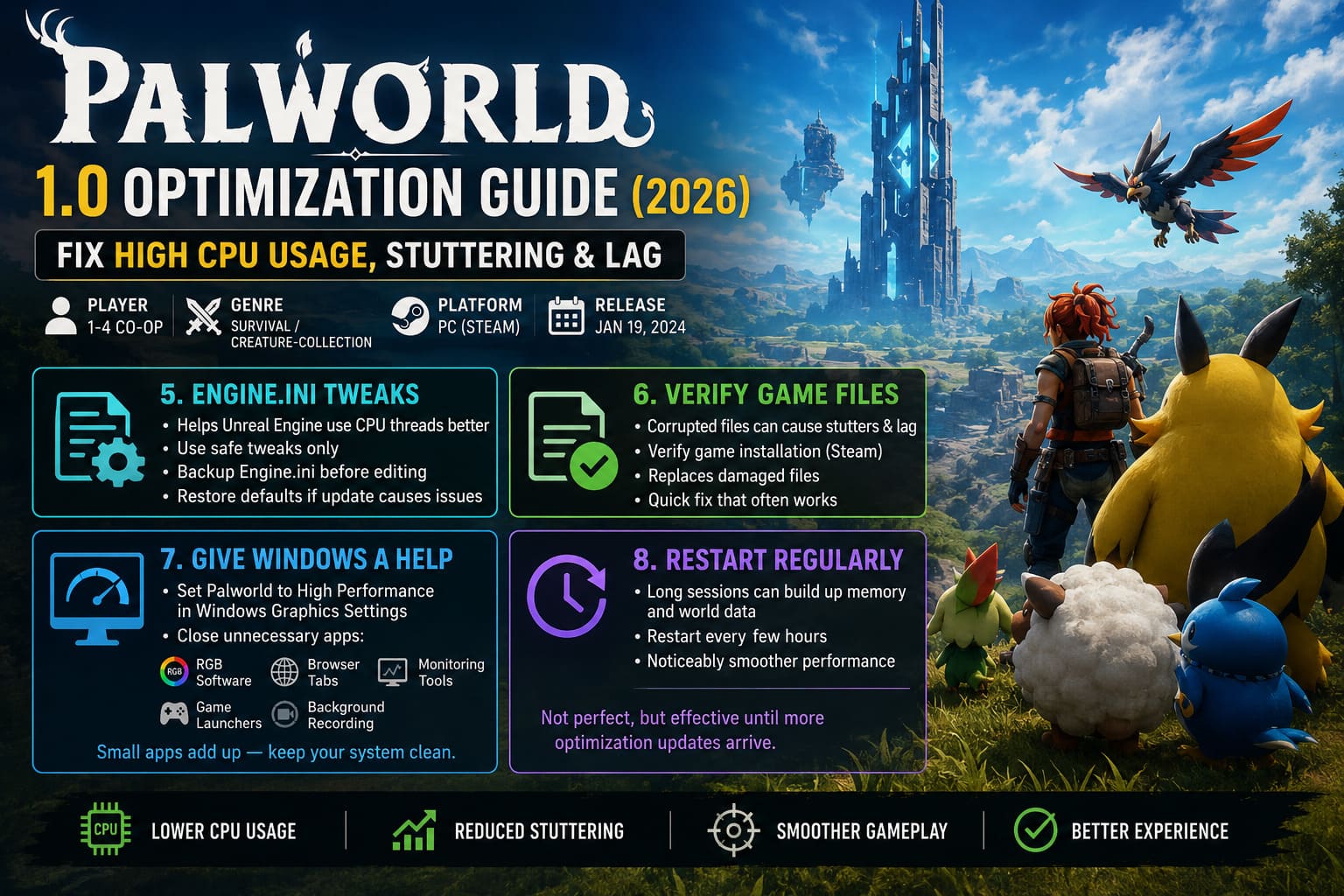
The safer tweaks generally focus on allowing Unreal Engine to better distribute workloads across available CPU threads rather than forcing aggressive rendering changes.
The important thing is to back up the original file before editing anything.
If an update breaks compatibility, restoring the default configuration only takes a few seconds.
6. Verify Game Files
This sounds boring…
…but corrupted files genuinely can create strange behavior.
Whenever I notice unusual hitching after a major update, verifying the installation is one of the first things I do.
It only takes a few minutes and sometimes replaces damaged files that continue causing unnecessary background processing.
It’s one of those simple fixes that’s easy to overlook.
7. Give Windows a Little Help
Windows occasionally decides another application deserves more attention than your game.
Setting Palworld to High Performance inside Windows Graphics Settings ensures the operating system prioritizes the correct hardware.
While you’re there, it’s also worth closing:
- RGB software
- unnecessary browser tabs
- hardware monitoring tools
- game launchers you aren’t using
- background recording applications
Individually these don’t consume much.
Together they absolutely can.
8. Restart the Game Every Few Hours
Long sessions seem to gradually become less smooth.
Whether this is due to memory management or simply the enormous amount of world data being tracked, restarting every few hours noticeably helps on many systems.
It isn’t the most elegant solution.
But until additional optimization patches arrive, it works.
Dedicated Server Tips
If you’re hosting a multiplayer server, performance becomes even more dependent on CPU power.
These changes generally provide the biggest improvements:
| Setting | Recommended Change |
|---|---|
| Maximum dropped items | Lower to 500–800 |
| Item despawn timer | Reduce to around 30 minutes |
| Base worker limit | Consider 10–12 workers |
| Automatic restarts | Every 8–12 hours |
These adjustments reduce long-term server slowdown while keeping gameplay largely unchanged.
Don’t Ignore Cooling
Sometimes the issue isn’t software.
If your processor regularly reaches 90–95°C, performance will naturally suffer because modern CPUs automatically reduce clock speeds to protect themselves.
Basic maintenance can make a surprisingly large difference.
Consider checking:
- dust buildup inside the case
- CPU cooler installation
- fan curves
- airflow direction
- thermal paste condition
A clean cooling system often performs far better than people expect.
What Worked Best for Me
After plenty of trial and error, the combination below produced the smoothest experience without making the game look dramatically worse.
| Setting | My Choice |
|---|---|
| FPS Limit | 120 FPS |
| View Distance | High |
| Shadows | Medium |
| Anti-Aliasing | TSR Quality |
| Background Apps | Closed |
| Worker Count | Reduced slightly |
| Restart Interval | Every few hours |
The biggest surprise wasn’t higher average FPS.
It was far more stable frame times, which made exploration feel noticeably smoother.
Palworld 1.0 Performance Drop Fix: Unreal Engine 5.4 Optimization Guide
Is This Something the Developers Need to Fix?
Personally, yes.
Palworld has always been ambitious.
Very few survival games attempt to simulate this many AI-controlled creatures while simultaneously handling automation, physics, multiplayer synchronization, and an enormous open world.
That’s impressive—but it also means optimization is incredibly difficult.
The community has already identified several situations where CPU usage spikes much higher than expected, especially while traveling quickly or managing complex bases. Hopefully, future updates improve world streaming and AI efficiency, because the core gameplay deserves it.
Until then, a handful of practical tweaks can make a much bigger difference than endlessly lowering every graphics setting.
Final Thoughts
Palworld 1.0 remains one of the most enjoyable survival games I’ve played in recent years, but it’s also one of the most CPU-hungry.
The good news is that you don’t necessarily need to buy a faster processor to enjoy smoother gameplay.
Simply capping your FPS, reducing CPU-heavy graphics options, keeping your bases under control, cleaning up unnecessary dropped items, and maintaining healthy system temperatures can dramatically reduce stuttering and improve overall consistency.
If I had to recommend just three changes to every player, they’d be these:
- Cap your frame rate instead of leaving it unlimited.
- Reduce View Distance and Shadow Quality before lowering textures.
- Keep automated bases efficient rather than excessively large.
Those three adjustments alone delivered the biggest improvements in my own experience—and they let me spend more time exploring Palworld instead of watching my CPU usage hit 100%.