Palworld 1.0 Performance Drop Fix: Unreal Engine 5.4 Optimization Guide
When Palworld 1.0 finally arrived, I was excited for everything that came with it. A larger world, improved visuals, new gameplay systems, and the move to Unreal Engine 5.4 sounded like exactly the kind of upgrade the game deserved. The first hour looked fantastic—but it also became obvious that something had changed under the hood.
During Early Access, my system rarely struggled. After updating to version 1.0, I immediately noticed random frame drops while exploring, sudden stutters near my main base, and GPU usage jumping around in ways it never had before. Judging by the discussions on Reddit, Steam, and gaming forums, I wasn’t the only one seeing these issues.
The good news is that the situation isn’t hopeless. After experimenting with dozens of settings, rebuilding shader caches, and comparing results with other players, I found several changes that consistently improved performance without making the game look dramatically worse.
If you’re trying to get smoother gameplay in Palworld 1.0, these are the tweaks that actually made a difference for me.
Why Palworld 1.0 Feels Heavier Than Early Access
The biggest reason is simple: Unreal Engine 5.4 is far more demanding than the engine version used previously.
The visual improvements are obvious. Lighting is richer, distant environments look better, and asset streaming is noticeably more advanced. Unfortunately, those upgrades also place much more pressure on both your CPU and GPU.
Several things seem to happen simultaneously.
- New shaders compile while you’re exploring.
- Larger environments require more aggressive asset streaming.
- Automated bases create far more CPU calculations than before.
- VRAM fills up much faster on graphics cards with limited memory.
Individually these aren’t catastrophic, but together they can create the annoying combination of stuttering and inconsistent frame pacing that many players are experiencing.
One thing I learned quickly is that high average FPS doesn’t necessarily mean smooth gameplay. Even systems showing well over 100 FPS can feel sluggish if shader compilation or asset loading interrupts frame delivery.
The Graphics Settings That Gave Me the Biggest FPS Gain
Instead of dropping every option to Low, I tried finding the settings that actually affect performance the most.
Here’s the profile that gave me the best balance between visuals and smooth gameplay.
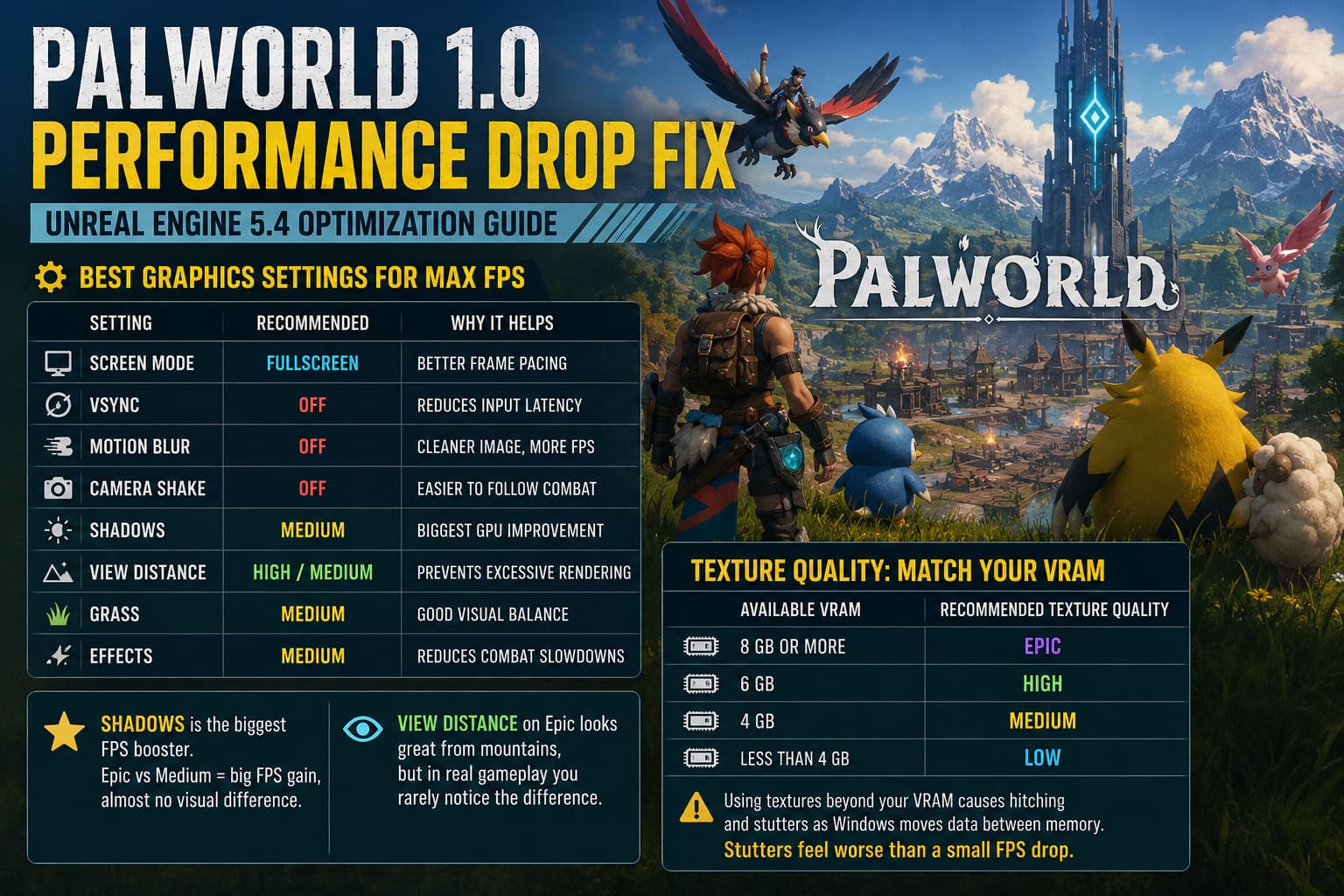
| Setting | Recommended Value | Why It Helps |
|---|---|---|
| Screen Mode | Fullscreen | Better frame pacing than Borderless |
| VSync | Off | Reduces input latency |
| Motion Blur | Off | Cleaner image and small FPS gain |
| Camera Shake | Off | Makes combat easier to follow |
| Shadows | Medium | Biggest GPU improvement |
| View Distance | High or Medium | Prevents excessive world rendering |
| Grass | Medium | Good visual balance |
| Effects | Medium | Reduces combat slowdowns |
The biggest surprise was Shadows.
I honestly couldn’t tell much visual difference between Epic and Medium during normal gameplay, but the FPS increase was immediately noticeable.
Another setting that deserves attention is View Distance.
Epic looks nice when standing on mountains, but during actual gameplay I rarely noticed the difference compared to High. My GPU certainly did, though.
Texture Quality Depends on VRAM More Than GPU Power
This is one mistake I see people making constantly.
Players often assume that owning a fast graphics card automatically means they should use Epic textures.
That’s only true if you have enough VRAM.
| Available VRAM | Texture Setting |
|---|---|
| 8 GB or more | Epic |
| 6 GB | High |
| 4 GB | Medium |
| Less than 4 GB | Low |
Running textures beyond your available VRAM doesn’t simply lower FPS.
It often creates hitching as Windows starts moving assets between system memory and video memory. Those sudden pauses feel much worse than losing 10 or 15 average frames.
DLSS and FSR Are Worth Using
A couple of years ago I tried to avoid upscalers whenever possible.
That mindset doesn’t really make sense with modern Unreal Engine games anymore.
DLSS, FSR, and Frame Generation have become surprisingly effective.
For my testing:
- 1080p: Quality mode looked excellent.
- 1440p: Balanced provided a great compromise.
- 4K: Balanced or Performance delivered the smoothest experience.
If you own a newer RTX card with Frame Generation support, it’s definitely worth testing.
While it doesn’t solve every CPU bottleneck, it noticeably improves perceived smoothness during exploration.
AMD users shouldn’t ignore FSR 3.1, either. Recent versions look much cleaner than older FSR releases, especially when paired with decent anti-aliasing.
My Biggest Source of Stutter Wasn’t Graphics
This one surprised me.
After chasing graphics settings for nearly an hour, I eventually realized that most of my severe FPS drops happened only after entering my main production base.
That’s when everything clicked.
The problem wasn’t rendering.
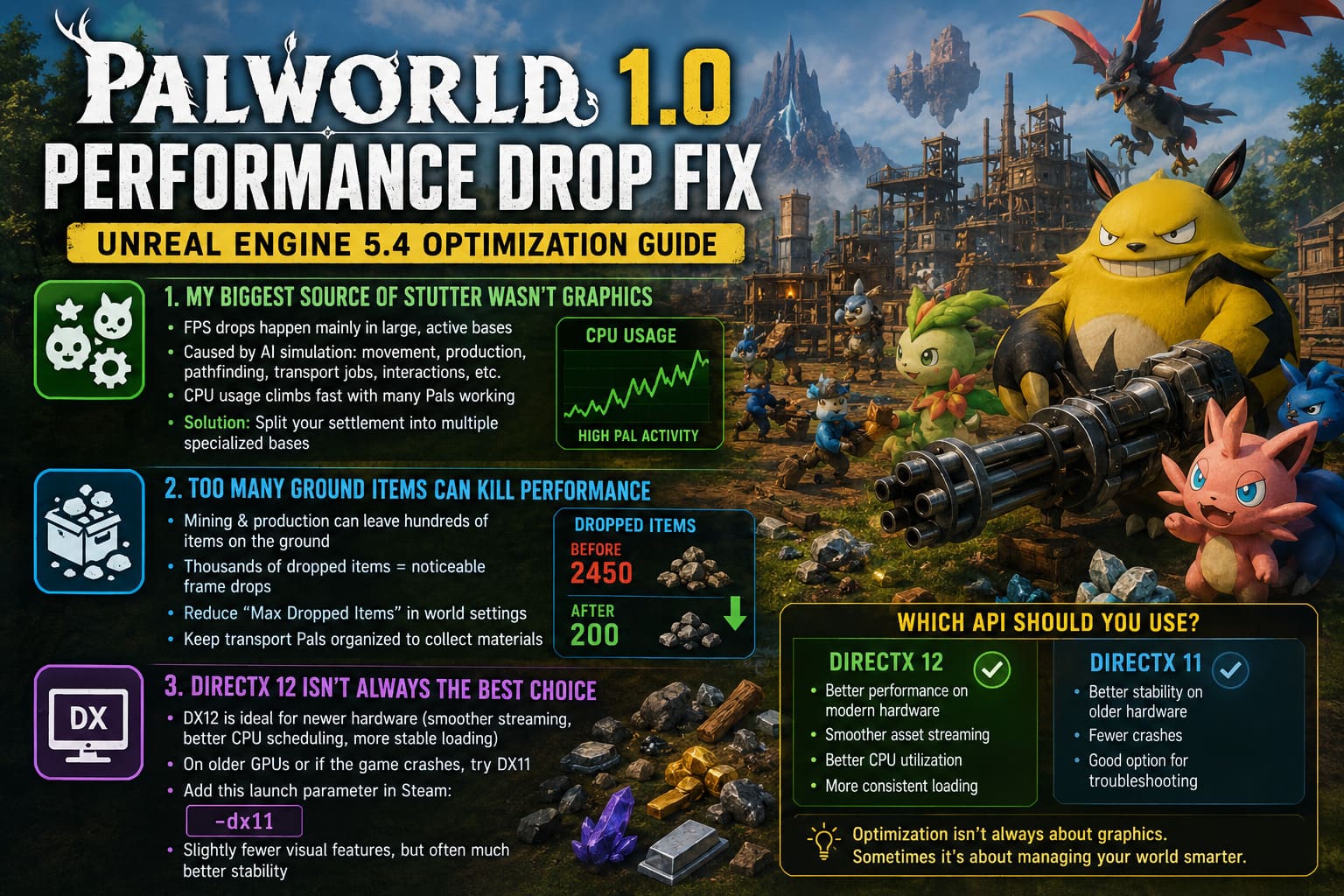
It was AI simulation.
Every working Pal constantly calculates movement, production priorities, pathfinding, transportation jobs, and interactions with nearby structures.
When dozens of them are active simultaneously, CPU usage climbs rapidly.
The larger and more complicated your base becomes, the more noticeable this gets.
I eventually redesigned my settlement into multiple specialized bases instead of one enormous industrial complex.
Oddly enough, this produced a larger FPS improvement than lowering several graphics options.
Too Many Ground Items Can Kill Performance
This was another lesson I learned the hard way.
Mining operations can leave hundreds of resources scattered around the base if transportation falls behind.
Eventually I had thousands of dropped items lying everywhere.
Even though my GPU usage looked normal, entering the area caused noticeable frame drops.
Reducing the maximum dropped item count in the world settings helped considerably.
More importantly, organizing transportation Pals so they actually collected materials prevented the issue from coming back.
Sometimes optimization isn’t about lowering graphics.
Sometimes it’s simply cleaning up your world.
DirectX 12 Isn’t Always the Best Choice
Unreal Engine 5.4 was clearly designed around DirectX 12, and on newer hardware that’s usually the better option.
Asset streaming feels smoother.
CPU scheduling is generally better.
Large environments load more consistently.
However, if you’re using an older graphics card or experiencing crashes shortly after launching the game, trying DirectX 11 is still worthwhile.
Adding the launch parameter below through Steam is incredibly easy.
-dx11You lose some of the newer rendering improvements, but stability often improves significantly on aging hardware.
If you’re troubleshooting crashes rather than chasing maximum FPS, it’s definitely worth testing.
Windows Tweaks That Actually Made a Difference
Normally I’m skeptical about Windows optimization guides because many recommend changes that accomplish almost nothing.
These three, however, were genuinely useful.
- Clear the DirectX shader cache. After updating graphics drivers, I always clear the shader cache before launching major Unreal Engine games. Old shader data occasionally creates unnecessary compilation problems.
- Enable Hardware Accelerated GPU Scheduling. Results vary depending on hardware, but on my system it noticeably reduced random hitching during fast travel and high-speed exploration.
- Leave Game Mode enabled. Windows Game Mode has improved considerably over the years. It’s no longer the placebo feature many people remember from older Windows versions.
Forensics Crime Scene Detective Steam Deck Performance Guide: Best Settings for 40 FPS
Don’t Ignore Temperature
One thing I almost overlooked was heat.
Palworld 1.0 pushes hardware harder than Early Access ever did.
That means GPUs reach higher temperatures much faster.
If your graphics card starts approaching its thermal limits, clock speeds may fluctuate, leading to inconsistent frame rates even if average utilization appears normal.
Cleaning dust filters, improving case airflow, or slightly reducing the frame rate cap can sometimes stabilize performance better than changing graphics settings.
For me, limiting FPS to match my monitor refresh rate also reduced GPU temperatures by several degrees.
The game still felt just as responsive while avoiding unnecessary workload.
My Recommended Performance Checklist
If I had to optimize a fresh installation today, this is exactly the order I’d follow:
- Use Fullscreen mode instead of Borderless.
- Lower Shadows before changing anything else.
- Choose Texture Quality based on available VRAM.
- Enable DLSS or FSR whenever possible.
- Limit FPS to your monitor refresh rate.
- Keep automated bases organized instead of oversized.
Those six changes alone solved the majority of the problems I experienced after the update.
Final Thoughts
I genuinely think Palworld 1.0 is a substantial improvement over the Early Access version. The world feels richer, exploration is more immersive, and Unreal Engine 5.4 gives the game a much more modern presentation.
That said, the engine upgrade also raises the hardware requirements more than many players expected.
Fortunately, you don’t need a flagship gaming PC to enjoy smooth gameplay. Most of the biggest improvements come from understanding where the game actually spends its resources rather than simply lowering every graphics option.
After tweaking the settings above, rebuilding my bases, clearing old shader data, and using the right upscaling technology, my experience became dramatically more consistent. The occasional shader hitch still appears when visiting entirely new areas—which is common in many Unreal Engine titles—but the constant stuttering that originally frustrated me is largely gone.
If your performance dropped after updating to Palworld 1.0, don’t assume your hardware suddenly became obsolete. Spend a little time optimizing both the game and your world, and chances are you’ll recover a large portion of the smooth experience you enjoyed before the Unreal Engine 5.4 transition.