How to Transfer Binding of Isaac Saves to a Clean Steam Install (2026 Guide)
Anyone who has spent hundreds of hours inside The Binding of Isaac knows one terrifying feeling: the thought of losing everything.
Completion marks. Mega Satan kills. Dead God progress. Every secret character. Every achievement earned after countless unlucky runs. It only takes one bad Steam Cloud sync or a corrupted installation to make all of it disappear.
I’ve rebuilt my Isaac installation more times than I can count. Sometimes it was because mods completely destroyed the game. Other times Windows updates broke something, or I simply upgraded to a new SSD. After several painful lessons, I finally settled on a method that has never failed me.
If you’re planning a clean Steam installation in 2026, this is the exact process I’d recommend to every Isaac player.
Why Save Transfers Go Wrong
Here’s the thing many guides never explain.
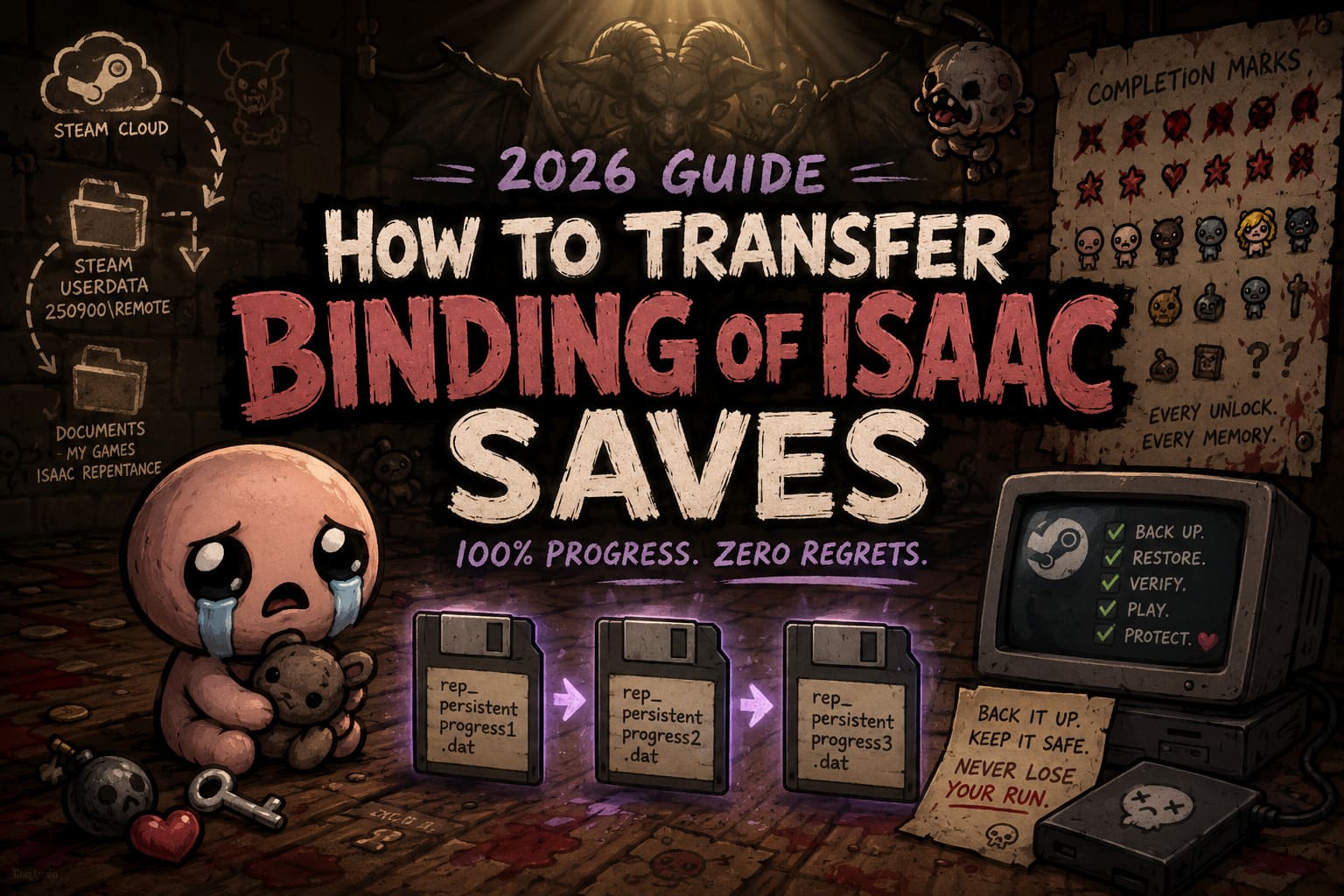
Isaac doesn’t rely on a single save location.
Instead, your progress can exist in multiple places simultaneously:
- Steam Cloud
- Steam userdata folder
- Local Documents folder
- Automatic backup saves
When these locations stop matching each other, Steam usually assumes the newest file is the correct one. Unfortunately, “newest” doesn’t always mean “the save with 800 hours.”
That’s why so many players accidentally overwrite their real progress with a fresh empty save after reinstalling Windows or Steam.
The good news?
If you prepare properly, transferring your saves is incredibly easy.
Step 1 — Back Up Everything Before Touching Steam
Seriously.
Don’t uninstall anything first.
Create a folder somewhere safe. Personally, I keep mine on an external SSD named Isaac Backup 2026.
Now copy every save-related file you can find.
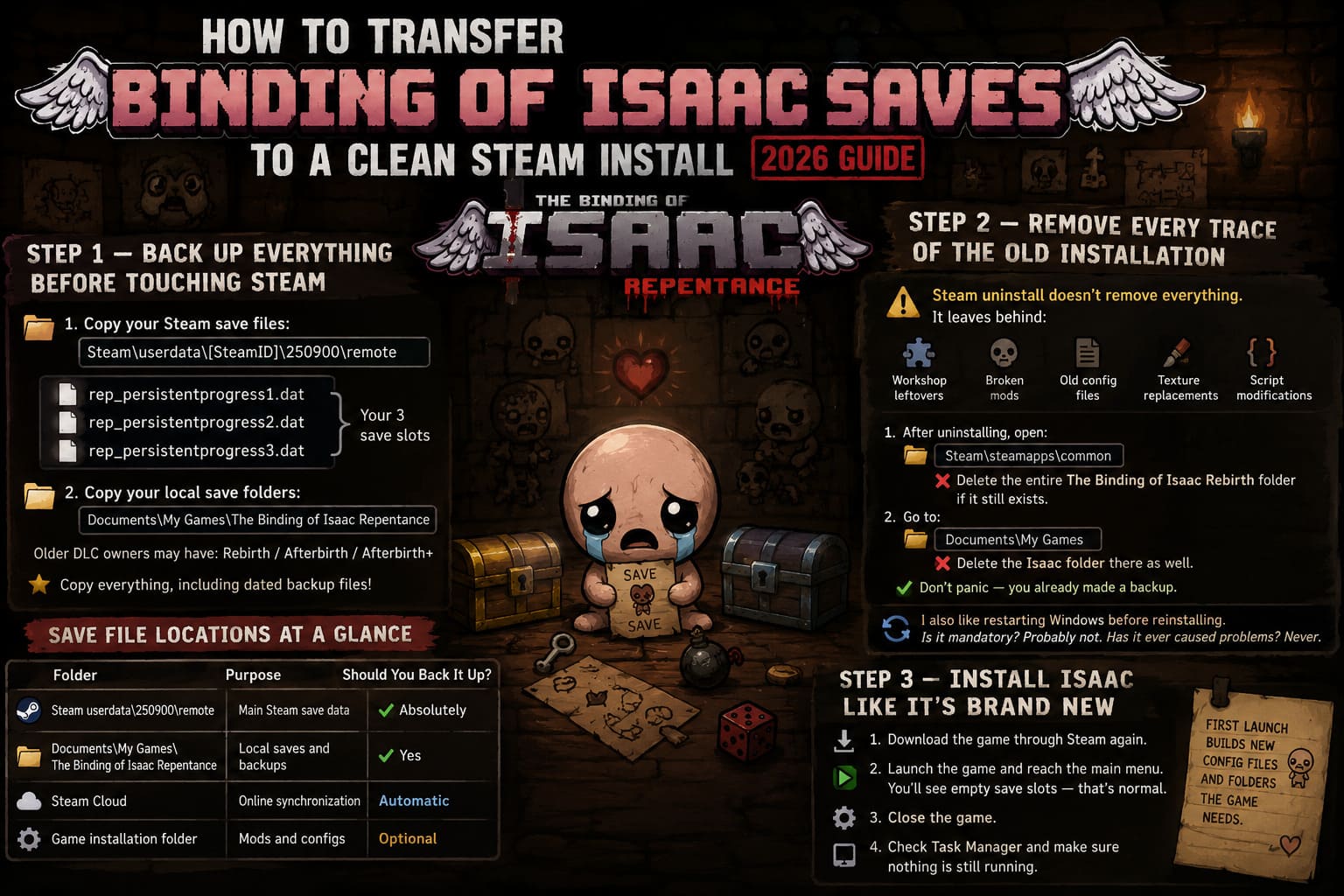
The most important Steam directory is:
Steam\userdata\[SteamID]\250900\remoteThe 250900 folder belongs specifically to The Binding of Isaac: Rebirth.
Inside you’ll usually find files similar to:
- rep_persistentprogress1.dat
- rep_persistentprogress2.dat
- rep_persistentprogress3.dat
These represent your three save slots.
After that, head to your Windows Documents folder.
You’ll normally see something similar to:
Documents\My Games\The Binding of Isaac RepentanceOlder DLC owners may instead have folders named:
- Rebirth
- Afterbirth
- Afterbirth+
Copy everything.
Not just the obvious save files.
Those dated backup files can become lifesavers if something unexpected happens later.
Save File Locations at a Glance
| Folder | Purpose | Should You Back It Up? |
|---|---|---|
| Steam userdata\250900\remote | Main Steam save data | ✅ Absolutely |
| Documents\My Games\The Binding of Isaac Repentance | Local saves and backups | ✅ Yes |
| Steam Cloud | Online synchronization | Automatic |
| Game installation folder | Mods and configs | Optional |
Step 2 — Remove Every Trace of the Old Installation
Steam’s uninstall button isn’t nearly as clean as people think.
It removes the game.
It doesn’t necessarily remove:
- Workshop leftovers
- Broken mods
- Old configuration files
- Texture replacements
- Script modifications
After uninstalling from Steam, manually open:
Steam\steamapps\commonDelete the entire The Binding of Isaac Rebirth folder if it still exists.
Then head back into:
Documents\My GamesDelete the Isaac folder there as well.
Don’t panic—you already made a backup.
I also like restarting Windows before reinstalling. Is it mandatory?
Probably not.
Has it ever caused problems?
Never.
Step 3 — Install Isaac Like It’s Brand New
Download the game through Steam again.
Once installation finishes, resist the temptation to immediately paste your old saves.
Launch the game first.
Reach the main menu.
You’ll probably see completely empty save slots.
That’s expected.
The first launch forces Isaac to generate fresh configuration files and rebuild every directory the game expects to use.
Close the game afterward.
Double-check in Task Manager that nothing is still running.
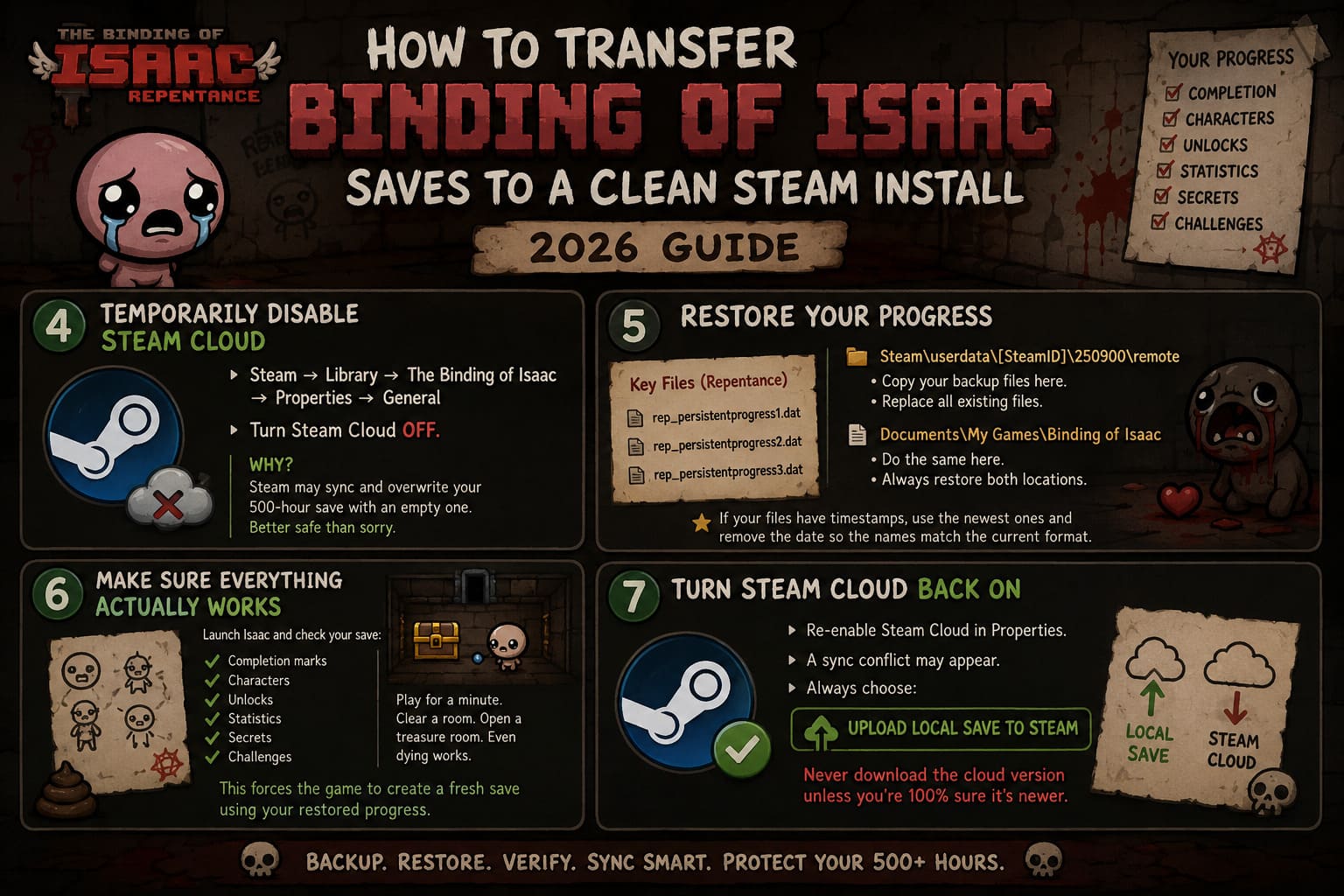
Step 4 — Temporarily Disable Steam Cloud
This tiny step saves countless headaches.
Open Steam.
Go to:
Library → The Binding of Isaac → Properties → General
Turn Steam Cloud off.
Why?
Because Steam loves syncing.
Sometimes it syncs exactly what you want.
Other times it happily uploads an empty save over your 500-hour file.
I’d rather avoid gambling outside the game itself.
Step 5 — Restore Your Progress
Now grab the backup folder you created earlier.
If you’re playing Repentance, focus on files like:
- rep_persistentprogress1.dat
- rep_persistentprogress2.dat
- rep_persistentprogress3.dat
Copy them back into:
Steam\userdata\[SteamID]\250900\remoteReplace every existing file.
Then do the same inside your Documents save directory.
Some players only restore one location.
Personally, I always restore both.
It eliminates unnecessary guesswork.
If your backup contains timestamped versions instead, use the newest copies and rename them by removing the date prefix so the filenames match the current save format.
Step 6 — Make Sure Everything Actually Works
Launch Isaac again.
This is the moment of truth.
If everything went correctly, your save slots should immediately display:
- Completion marks
- Characters
- Unlocks
- Statistics
- Secrets
- Challenges
Don’t stop here.
Play for a minute.
Clear one room.
Open one treasure room.
Even intentionally dying works.
The goal is simple:
Force the game to create a fresh save using your restored progress.
Then close Isaac.
Step 7 — Turn Steam Cloud Back On
Re-enable Steam Cloud in the game’s Steam properties.
The next launch may trigger a synchronization conflict.
This is perfectly normal.
Always choose the option that uploads your local save to Steam.
Never download the cloud version unless you’re absolutely certain it’s newer.
Otherwise, you risk replacing your freshly restored progress with outdated data.
The Most Common Problems I’ve Seen
Even experienced players occasionally run into issues.
Here are the biggest ones.
Wrong DLC Installed
Repentance saves aren’t compatible with a Rebirth-only installation.
If your previous game included every expansion, install the exact same DLC lineup before restoring saves.
Wrong Steam Account
This sounds obvious, but it happens surprisingly often.
Every Steam account has its own userdata folder.
If you’re logged into another account, Isaac won’t even look inside the old save directory.
Steam Cloud Keeps Winning
Sometimes Steam stubbornly downloads cloud files anyway.
Disable synchronization first.
Restore the saves.
Launch the game.
Verify everything.
Only then should Cloud Sync return.
Incorrect Save Folder
Older guides sometimes mention only the Documents directory.
Others mention only userdata.
Modern Steam installations often use both.
Backing up and restoring both locations gives you the highest chance of success.
Don’t Ignore the Automatic Backup Files
One feature that deserves far more appreciation is Isaac’s automatic backup system.
Every play session quietly creates dated save copies.
Most players never notice them until disaster strikes.
If your main save somehow becomes corrupted, those backup files can often rescue weeks—or even months—of progress.
Personally, I never delete them.
Storage is cheap.
Replacing hundreds of hours of Isaac isn’t.
How to Fix The Binding of Isaac: Rebirth Online Beta Crash on Launch (2026 Working Guide)
My Personal Advice After Hundreds of Hours
Isaac has become one of those rare games where your save file almost feels like a trophy collection.
Every completion mark tells a story.
Every difficult unlock reminds you of one impossible run that somehow worked.
That’s why I never trust a single save location.
My own routine is simple:
- Keep one local backup.
- Keep one external backup.
- Let Steam Cloud handle everyday syncing.
- Never reinstall without copying every save first.
It might sound excessive.
Then again, so is unlocking Dead God.
After everything this game asks from its players, spending five extra minutes protecting your progress is probably the smartest run you’ll ever make.