How to Fix Agefield High: Rock the School Crash on Launch, Freezing, and Black Screen on PC
If there is one thing that can instantly ruin the excitement of starting a new PC game, it is clicking Play on Steam and getting absolutely nothing in return.
That is exactly the kind of frustration some players are running into with Agefield High: Rock the School. Instead of jumping straight into its open-world school adventure, you may be greeted by a black screen, a frozen loading sequence, an immediate crash to desktop, or a game that simply closes before anything meaningful appears on screen.
I have always found launch problems particularly annoying because they can make you wonder whether the game itself is broken or whether your PC is suddenly the problem. In reality, it is often something much less dramatic: a damaged game file, an unhappy graphics driver, a shader cache conflict, or an overlay trying to inject itself into the game at exactly the wrong moment.
The good news is that you do not need to start randomly reinstalling Windows or changing ten different settings at once. Work through the fixes below one at a time. That makes it much easier to figure out what actually solved your particular problem.
Quick Fix Guide
| Problem | First Thing I’d Try | Why It Helps |
|---|---|---|
| Crash immediately after pressing Play | Verify game files | Repairs missing or corrupted files |
| Black screen during startup | Try DX11 | Can avoid problematic rendering initialization |
| Crash with overlays enabled | Disable overlays | Removes third-party graphics hooks |
| Freezing on loading | Clear shader cache | Forces fresh shader compilation |
| Poor GPU selection | Set High Performance GPU | Prevents integrated graphics from being used |
| Game refuses to start | Repair VC++ runtimes | Restores missing Windows dependencies |
1. Start With Steam’s File Verification
This is probably the least glamorous solution in PC gaming, but honestly, it should be your first move.
A game can have problems even when Steam says it has finished downloading everything. An interrupted download, a damaged archive, or a file modified incorrectly can be enough to make the game crash during its first few seconds.
Before touching advanced Windows settings, let Steam check the installation.
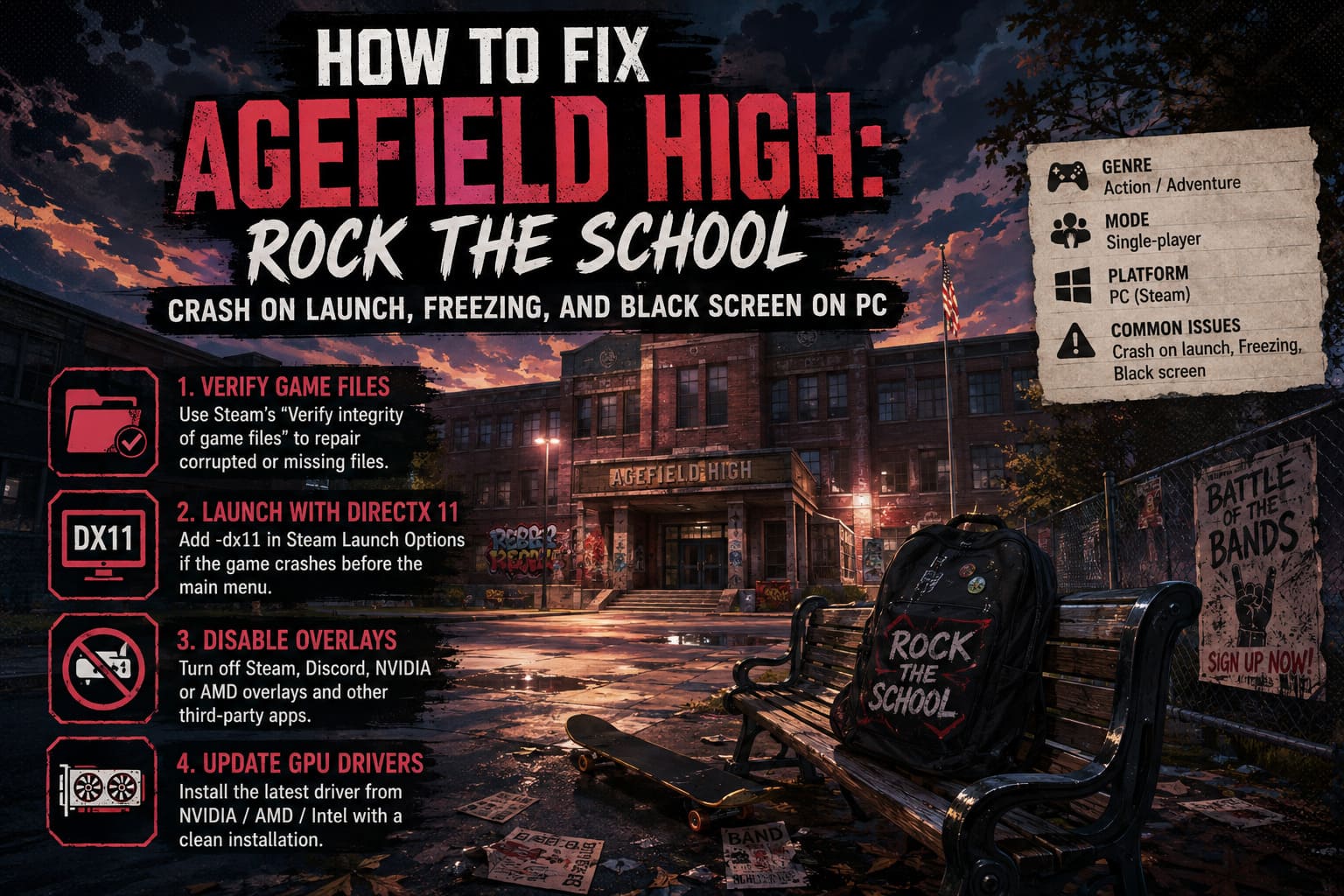
How to verify Agefield High’s files
- Open Steam and go to your Library.
- Right-click Agefield High: Rock the School.
- Select Properties.
- Open Installed Files.
- Click Verify integrity of game files.
- Let Steam finish the scan and repair process.
- Restart the game afterward.
If Steam discovers something wrong, it should automatically download the affected files.
My advice: even if you have already verified the game once, do it again after a crash caused by an interrupted update. It takes a few minutes and can save you from wasting an hour on more complicated fixes.
2. Try Launching the Game With DirectX 11
This is one of the first things I would test if the game crashes before reaching the main menu.
Modern games increasingly rely on newer rendering APIs, but newer does not always mean more reliable on every combination of GPU, driver version, Windows configuration, and shader cache. If Agefield High is falling over while initializing its graphics pipeline, DX11 can sometimes provide a much cleaner route into the game.
To test it:
- Open Steam.
- Right-click Agefield High: Rock the School.
- Select Properties.
- Stay on the General tab.
- Find the Launch Options field.
- Enter
-dx11. - Close the window and launch the game.
If the game suddenly starts working, you have learned something useful: the problem is likely connected to the default rendering path rather than the entire installation.
You can always remove the launch option later and test the normal configuration again after a graphics driver or game update.
3. Kill the Overlay Squad
Overlays are fantastic when they work. When they don’t, they can become one of the most annoying sources of game crashes.
Steam, Discord, NVIDIA, AMD, recording software, hardware monitoring utilities, and other applications can all interact with a game’s rendering process. Usually you never notice this happening. But when a new game is sensitive to third-party hooks, the result can be an instant CTD or black screen.
For troubleshooting, turn everything off temporarily.
Steam Overlay
Right-click the game in your Steam Library and open Properties. Under General, disable Enable the Steam Overlay while in-game.
Discord Overlay
Open Discord, enter User Settings, find Game Overlay, and disable the in-game overlay.
NVIDIA or AMD overlays
If you use NVIDIA or AMD software with recording, performance monitoring, or overlay features enabled, turn those functions off as well.
You don’t have to live without overlays forever. This is simply a diagnostic step.
If Agefield High suddenly launches normally afterward, enable your overlays one by one to find the culprit.
4. Give Your GPU Driver a Proper Refresh
I have seen plenty of PC problems that looked like a broken game but were actually caused by a graphics driver behaving badly.
A driver can technically be “up to date” and still have corrupted components or old configuration data left behind. This is especially worth considering when a game has recently launched or received a major update.
Download the latest driver directly from the manufacturer of your GPU rather than relying exclusively on Windows Update.
For a more thorough reset, use the clean installation option provided by your graphics driver installer where available.
The basic process is:
- Identify your exact GPU model.
- Download the newest driver from the official NVIDIA, AMD, or Intel website.
- Start the installation.
- Choose the custom/advanced installation option if available.
- Select the clean-installation option where provided.
- Finish the installation.
- Restart the PC.
Do not skip the reboot. Windows can continue running components from the previous driver session until you restart the machine.
If you are experiencing crashes in several games rather than only Agefield High, a clean driver installation becomes an even more sensible troubleshooting step.
5. Make Sure Windows Is Using the Right GPU
This one is particularly important for gaming laptops.
Many laptops have both an integrated graphics processor and a dedicated NVIDIA or AMD GPU. Windows normally makes the right decision, but occasionally a game gets assigned to the low-power graphics hardware.
That can lead to terrible performance, severe freezing, or even a failure during initialization.
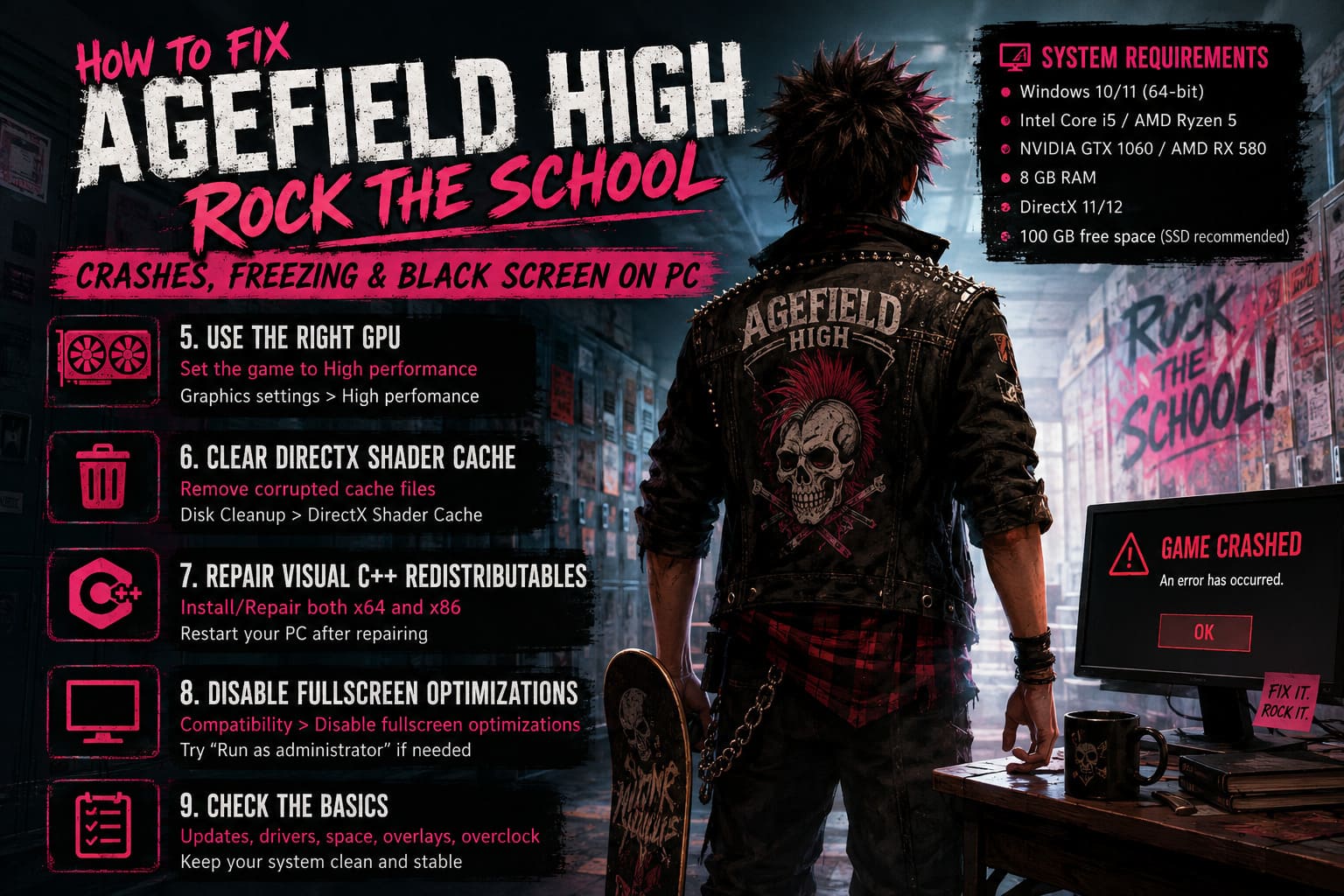
To manually choose the GPU:
- Open Windows Search.
- Type Graphics settings.
- Open the graphics settings page.
- Add the game’s executable as a desktop application.
- Select the game from the list.
- Click Options.
- Choose High performance.
- Save the setting.
Then restart the game.
You can also check which GPU is actually being used through Windows Task Manager while the game is running. If you see the integrated GPU doing all the work while your dedicated GPU sits idle, that is a major clue.
6. Clear the DirectX Shader Cache
Here’s another fix that sounds more complicated than it actually is.
Games compile and store shaders so that they don’t have to rebuild everything from scratch every time you launch them. That’s normally great for performance, but a corrupted or incompatible cache can cause problems after a driver update, game patch, or hardware change.
Symptoms can include:
- Black screen after launching.
- Freezing during the first loading sequence.
- Crashing around the developer logo.
- Repeated crashes at exactly the same point.
Windows provides a simple way to clear the cache.
Search Windows for Disk Cleanup, select your system drive, and look for DirectX Shader Cache in the cleanup list.
Select it, confirm the deletion, and restart your PC.
The next time you launch Agefield High, the game may need to rebuild some shaders. That first launch can therefore take a little longer than usual.
Don’t panic if the loading process isn’t instant afterward. A fresh shader compilation can be slower than a normal launch.
7. Repair Microsoft Visual C++ Redistributables
This is one of those boring Windows components you normally never think about until a game refuses to start.
Many PC games depend on Microsoft Visual C++ runtime libraries. If the required runtime is missing or damaged, the game can fail before it even gets far enough to display an error.
I recommend installing or repairing both x64 and x86 versions of the current supported Microsoft Visual C++ Redistributable package.
If the installer detects an existing installation, look for the Repair option.
After repairing the packages, restart Windows and test the game again.
This is especially worth trying if you have recently cleaned Windows, reinstalled your operating system, or removed old software and runtimes.
8. Disable Fullscreen Optimizations
Windows includes various gaming optimizations designed to make fullscreen applications behave better. Most of the time, they are completely harmless.
Sometimes, however, a particular game and Windows configuration simply don’t get along.
If Agefield High launches into a black screen or crashes immediately after entering fullscreen mode, this is worth testing.
Find the game’s executable through Steam:
Steam Library → Right-click the game → Manage → Browse local files
Then:
- Right-click the main
.exefile. - Select Properties.
- Open Compatibility.
- Enable Disable fullscreen optimizations.
- Apply the change.
- Launch the game again.
I would treat Run this program as an administrator as a secondary experiment rather than something you automatically need to enable. If the game is failing because of a permissions issue, it can help, but unnecessarily running games as administrator is not my preferred default configuration.
9. Don’t Forget the Simple Stuff
At this point, if the game is still crashing, I’d take a step back instead of immediately looking for some obscure registry modification from a random forum post.
Check the basics:
- Make sure Windows is fully updated.
- Restart the PC after installing drivers.
- Close unnecessary monitoring and recording software.
- Make sure your GPU meets the game’s requirements.
- Check that you have enough free space on the drive.
- Avoid launching several demanding applications simultaneously.
- If you’re using an aggressive GPU overclock, return it to stock settings temporarily.
That last one is easy to overlook. A system that appears completely stable in everyday use can still crash when a particular game pushes the GPU in a different way.
Agefield High Rock the School Guide: Master Time and School Systems
What I’d Try First
If I were sitting at my own PC staring at an Agefield High black screen, I wouldn’t perform all nine fixes immediately.
I’d go in this order:
- Verify the Steam installation.
- Disable Steam, Discord, and GPU overlays.
- Try
-dx11. - Restart the PC.
- Update or clean-install the graphics driver.
- Clear the DirectX Shader Cache.
- Check Windows GPU assignment.
- Repair Visual C++ Redistributables.
- Experiment with fullscreen compatibility settings.
This approach is much better than changing everything simultaneously because you’ll actually know which fix made the difference.
Can You Play Agefield High: Rock the School with Friends Online? Multiplayer Status and Guide
Final Thoughts
PC launch problems are frustrating, especially when you’re ready to jump into a new game and Windows decides that staring at a black rectangle is today’s entertainment.
The important thing with Agefield High: Rock the School is not to assume that every crash means you need a completely new installation. Most launch problems can be narrowed down to a handful of common areas: game files, rendering mode, drivers, overlays, shader caches, GPU selection, or Windows runtime components.
Start with the easy fixes and work toward the more invasive ones. In my experience, there is rarely a good reason to immediately start editing the Windows registry or downloading mysterious “fix packs” from unofficial websites.
And if the game finally launches after one of these fixes, make a mental note of what worked. That information can be surprisingly useful after the next major patch or graphics driver update.
For now, though, the goal is simple: get past that black screen, reach the main menu, and actually get into Agefield High instead of spending your evening troubleshooting it.