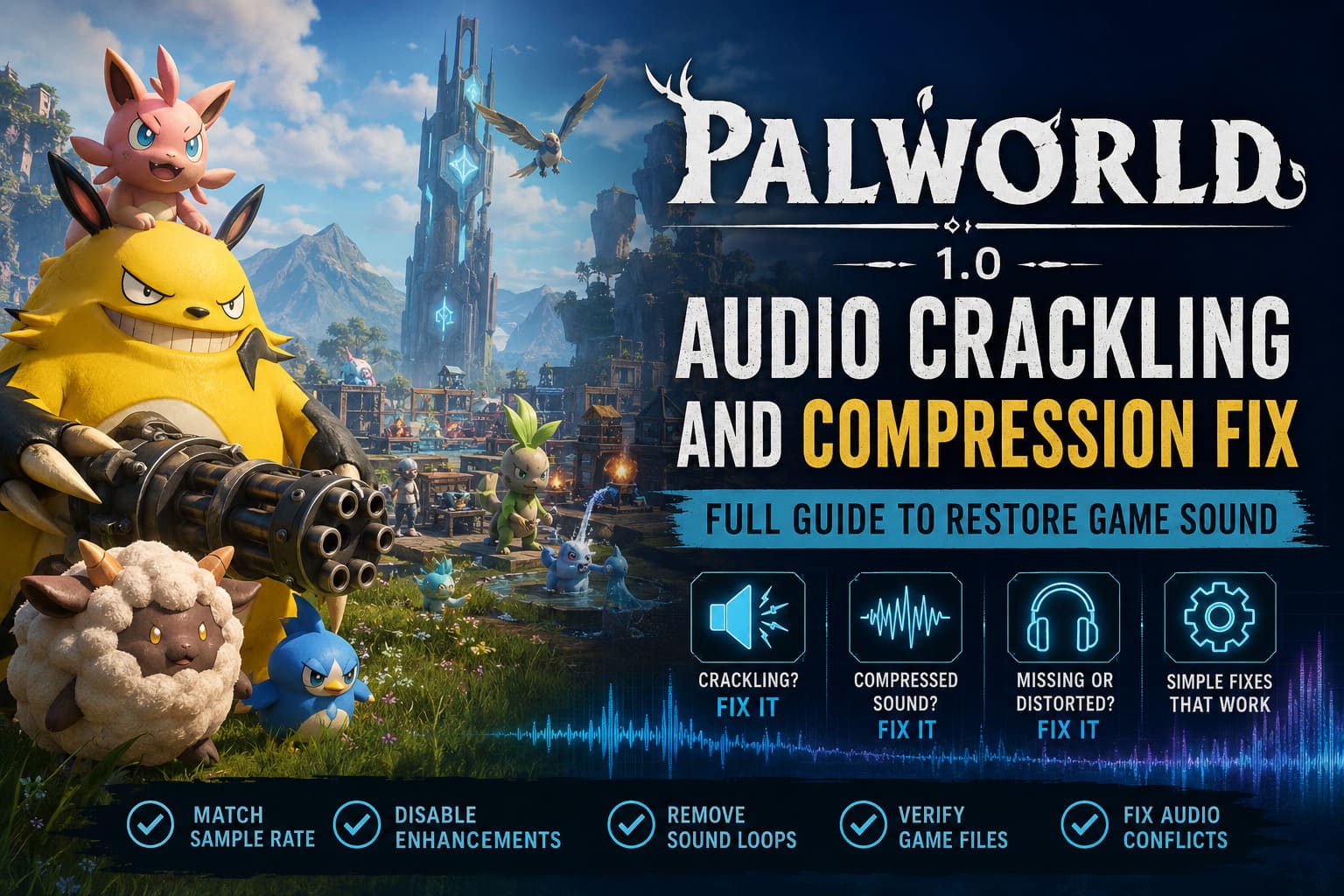
Palworld 1.0 Audio Crackling and Compression Fix: Full Guide to Restore Game Sound
Palworld 1.0 finally delivers the massive survival adventure many players had been waiting for. The expanded world feels more alive, bases are busier than ever, combat has become louder and more chaotic, and the overall presentation is a huge leap forward. Unfortunately, not every improvement arrived without problems. One issue has consistently appeared across the PC community, and it’s difficult to ignore once it starts.
Instead of enjoying the atmosphere, many players suddenly hear constant crackling, compressed sound effects, random static pops, or strange looping environmental noises that refuse to disappear. Some even describe the entire audio mix as if it were being played through an old handheld console speaker instead of a modern gaming headset.
After spending plenty of time testing different hardware configurations and reading through dozens of community discussions, one thing becomes clear: this isn’t usually a hardware failure. Most of these problems come from how Palworld interacts with Windows audio settings, Unreal Engine’s sound pipeline, outdated drivers, or leftover files from previous versions.
The good news is that almost every major sound issue has a reliable solution.
Why Does Palworld 1.0 Produce Audio Problems?
Palworld constantly streams hundreds of different sounds simultaneously. Every working Pal, every machine in your base, weather effects, ambient wildlife, combat impacts, and background music all compete for processing time.
When everything works correctly, the result is surprisingly immersive.
When something goes wrong, however, the engine starts producing several recognizable symptoms:
- Static crackling during gameplay
- Low-quality compressed sound
- Delayed or distorted effects
- Infinite environmental audio loops
- Random popping noises during combat
- Missing directional audio
The majority of players experiencing these bugs fall into one of two categories.
| Problem | Typical Cause | Difficulty to Fix |
|---|---|---|
| Crackling or popping | Windows sample rate mismatch | Easy |
| Compressed or muffled audio | Audio enhancement conflicts | Easy |
| Looping water or flying sounds | In-game sound asset bug | Easy |
| Random static through headphones | HDMI audio driver conflict | Medium |
| Missing or corrupted sounds | Damaged game files or outdated mods | Easy |
Instead of trying dozens of random fixes, it’s much more effective to tackle the most common causes first.
Fix 1 — Match Windows Audio Sample Rate with the Game
This remains the single most successful solution reported by the community.
Many premium gaming headsets, USB DACs, and studio interfaces default to extremely high playback frequencies such as 96 kHz or even 192 kHz. While those settings are excellent for music production, Palworld doesn’t always handle them gracefully.
The result is buffer desynchronization that produces clicking, popping, and intermittent distortion.
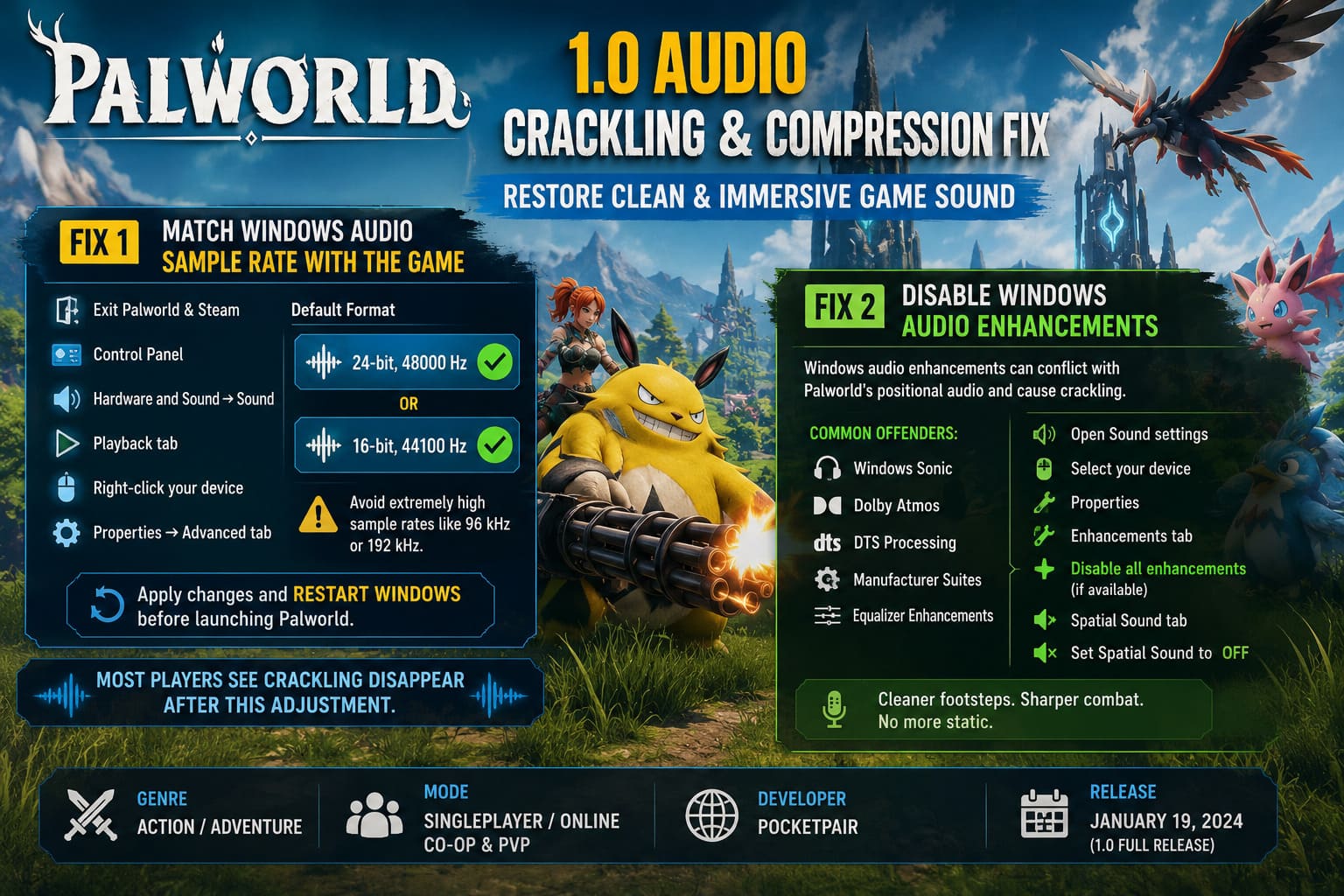
To correct it:
- Exit Palworld completely.
- Close Steam if necessary.
- Open Control Panel.
- Navigate to Hardware and Sound → Sound.
- Open the Playback tab.
- Right-click your active playback device.
- Choose Properties.
- Open the Advanced tab.
- Under Default Format, choose one of these:
- 24-bit, 48000 Hz
- 16-bit, 44100 Hz
Avoid using extremely high sample rates unless your entire setup specifically requires them.
After applying the changes, restart Windows before launching Palworld again.
For many players, the crackling disappears immediately after this adjustment.
Fix 2 — Disable Windows Audio Enhancements
Windows includes numerous sound processing features designed to create virtual surround effects or artificially improve clarity.
Normally they’re harmless.
Inside Palworld, however, these enhancements sometimes fight against the game’s own positional audio processing.
Common offenders include:
- Windows Sonic
- Dolby Atmos
- DTS processing
- Manufacturer audio suites
- Equalizer enhancements
Disable them by following these steps:
- Open Sound settings.
- Select your active playback device.
- Open Properties.
- Navigate to the Enhancements tab.
- Enable Disable all enhancements if available.
- Open the Spatial Sound tab.
- Change Spatial Sound to Off.
Once disabled, launch the game again.
Many players immediately notice cleaner footsteps, sharper combat sounds, and the disappearance of constant background static.
Fix 3 — Disable Unused HDMI Audio Drivers
Modern NVIDIA and AMD graphics drivers automatically install HDMI and DisplayPort audio devices.
If you’re gaming through USB headphones, motherboard audio, or a dedicated DAC, these extra drivers usually serve no purpose.
Even worse, Windows occasionally attempts to communicate with them in the background, creating unnecessary conflicts.
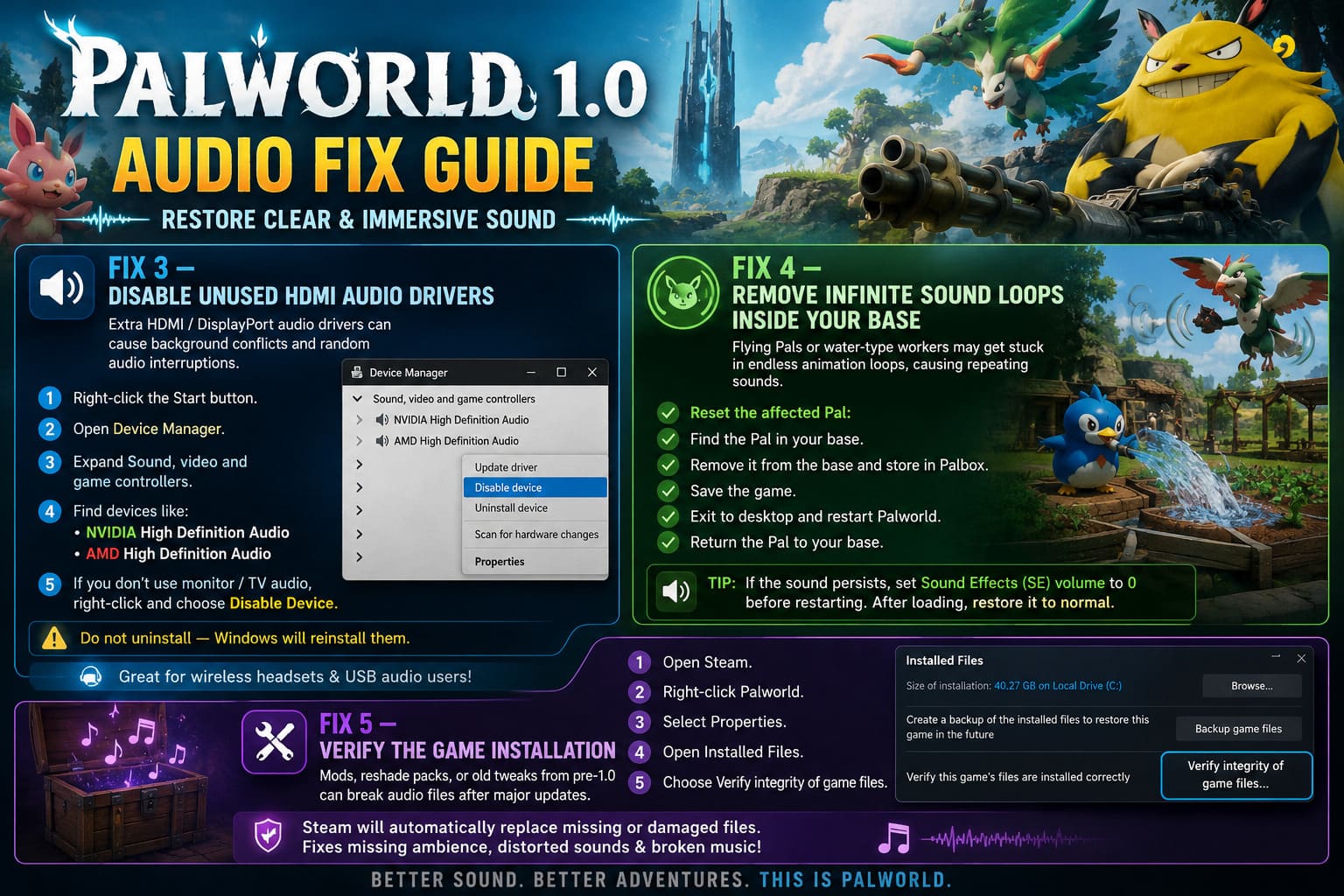
To disable unused devices:
- Right-click the Start button.
- Open Device Manager.
- Expand Sound, video and game controllers.
- Locate entries such as:
- NVIDIA High Definition Audio
- AMD High Definition Audio
- If you never send sound through your monitor or TV, right-click these devices and choose Disable Device.
Avoid uninstalling them since Windows will simply reinstall them later.
This small tweak has helped eliminate random audio interruptions for many players using wireless gaming headsets.
Fix 4 — Remove Infinite Sound Loops Inside Your Base
Not every strange sound comes from Windows.
Sometimes Palworld itself gets confused.
One particularly annoying bug involves flying Pals endlessly flapping their wings or water-type workers continuously playing irrigation sounds long after they’ve stopped moving.
These looping effects usually happen after a Pal becomes stuck inside terrain or repeatedly attempts the same task without resetting its animation state.
Fortunately, clearing the bug is simple.
Reset the affected Pal
- Visit your Palbox.
- Find the Pal responsible for the noise.
- Remove it from your active base.
- Store it inside your Palbox.
- Save the game.
- Exit to desktop.
- Restart Palworld.
- Return the Pal to your base.
If the sound persists, temporarily lower Sound Effects (SE) volume to zero before restarting the game. After reloading your world, restore the slider to its normal level.
This forces the audio engine to rebuild several active sound channels.
Fix 5 — Verify the Game Installation
If you experimented with optimization mods, reshade packages, custom Unreal Engine tweaks, or audio replacements before version 1.0, there’s a decent chance those files are now causing conflicts.
Major updates frequently reorganize internal asset paths.
Old modifications can leave broken references that result in distorted sound or missing effects.
To repair the installation:
- Open Steam.
- Right-click Palworld.
- Select Properties.
- Open Installed Files.
- Choose Verify integrity of game files.
Steam compares your installation against the official version and automatically replaces damaged or modified files.
This process often fixes missing ambient sounds and broken music tracks without requiring a complete reinstall.
Don’t Forget Old Mods
One mistake many returning players make is forgetting about old modifications installed months earlier.
Even if a mod appears unrelated to audio, it may still modify Unreal Engine configuration files.
Examples include:
- Performance tweaks
- Engine.ini edits
- FPS unlockers
- Texture optimization packs
- Audio overhaul mods
- Shader injectors
If problems began immediately after updating to version 1.0, temporarily remove every unofficial modification before searching for more complicated solutions.
A surprisingly large number of “game bugs” turn out to be compatibility issues caused by outdated community files.
How to Fix Palworld 1.0 High CPU Usage, Stuttering, and Lag (2026 Optimization Guide)
Additional Tips That Can Improve Audio Stability
While they don’t solve every case, these extra adjustments have produced positive results across a wide variety of PC setups.
Worth trying:
- Restart your PC after changing audio settings instead of simply restarting the game.
- Install the latest motherboard audio drivers from your manufacturer.
- Update NVIDIA or AMD graphics drivers.
- Disconnect unused USB audio devices.
- Close software that injects overlays or sound processing, including certain RGB utilities.
- Avoid switching playback devices while Palworld is running.
Small improvements often stack together, especially on systems with multiple audio outputs.
Palworld 1.0 Performance Drop Fix: Unreal Engine 5.4 Optimization Guide
Final Thoughts
Audio is one of the most underrated parts of Palworld’s experience. Hearing your production lines humming in the distance, catching the wings of a flying Pal overhead, or listening to the atmosphere shift as night falls adds far more immersion than most people realize—until those sounds suddenly become distorted.
Fortunately, the vast majority of Palworld 1.0 sound problems can be solved without reinstalling Windows or replacing hardware. Matching your Windows sample rate to 48 kHz, disabling unnecessary enhancement features, removing unused HDMI audio drivers, repairing corrupted game files, and resetting bugged Pals will resolve the overwhelming majority of crackling, muffled audio, and looping sound effects.
If you’ve tried every solution above and the issue still remains, it’s worth testing the game with a completely clean configuration—no mods, default audio settings, and freshly verified files. In many cases, that fresh start is enough to restore the crisp environmental audio, impactful combat effects, and atmospheric soundtrack that make exploring the Palpagos Islands so enjoyable.
Once the sound is working properly again, it’s much easier to appreciate everything the 1.0 update brings. After all, surviving in Palworld feels a lot better when every explosion, Pal ability, and ambient biome effect sounds exactly the way it was meant to.