How to Fix Halo Campaign Evolved Crashing on Launch and Xbox Sign-In Loop on PC and PS5 (2026 Guide)
There are few game releases that carry as much nostalgia as Halo: Campaign Evolved. Whether you’ve been playing Halo since the original Xbox era or you’re jumping into the series for the first time on PlayStation 5, finally loading into the legendary ring should be exciting—not frustrating.
Unfortunately, launch week has been rough for a lot of players. I’ve spent time reading through community discussions, comparing solutions from different players, and testing the most commonly recommended fixes myself. One thing became clear very quickly: most startup problems aren’t caused by a single bug. Instead, they’re usually the result of several different issues that happen before the game even reaches the main menu.
If your copy crashes immediately after pressing Play, freezes on a black screen, or gets trapped in an endless Microsoft account login loop, don’t panic just yet. In most cases, the game itself isn’t permanently broken.
This guide collects the fixes that have consistently helped players get back into the game without reinstalling Windows or spending hours troubleshooting random settings.
Why Halo: Campaign Evolved Refuses to Launch
Modern Halo titles do far more during startup than older games ever did.
Before you even reach the menu, the game needs to verify installation files, initialize DirectX and your graphics driver, authenticate Xbox Live services, synchronize cloud data, load startup assets, and connect to online services.
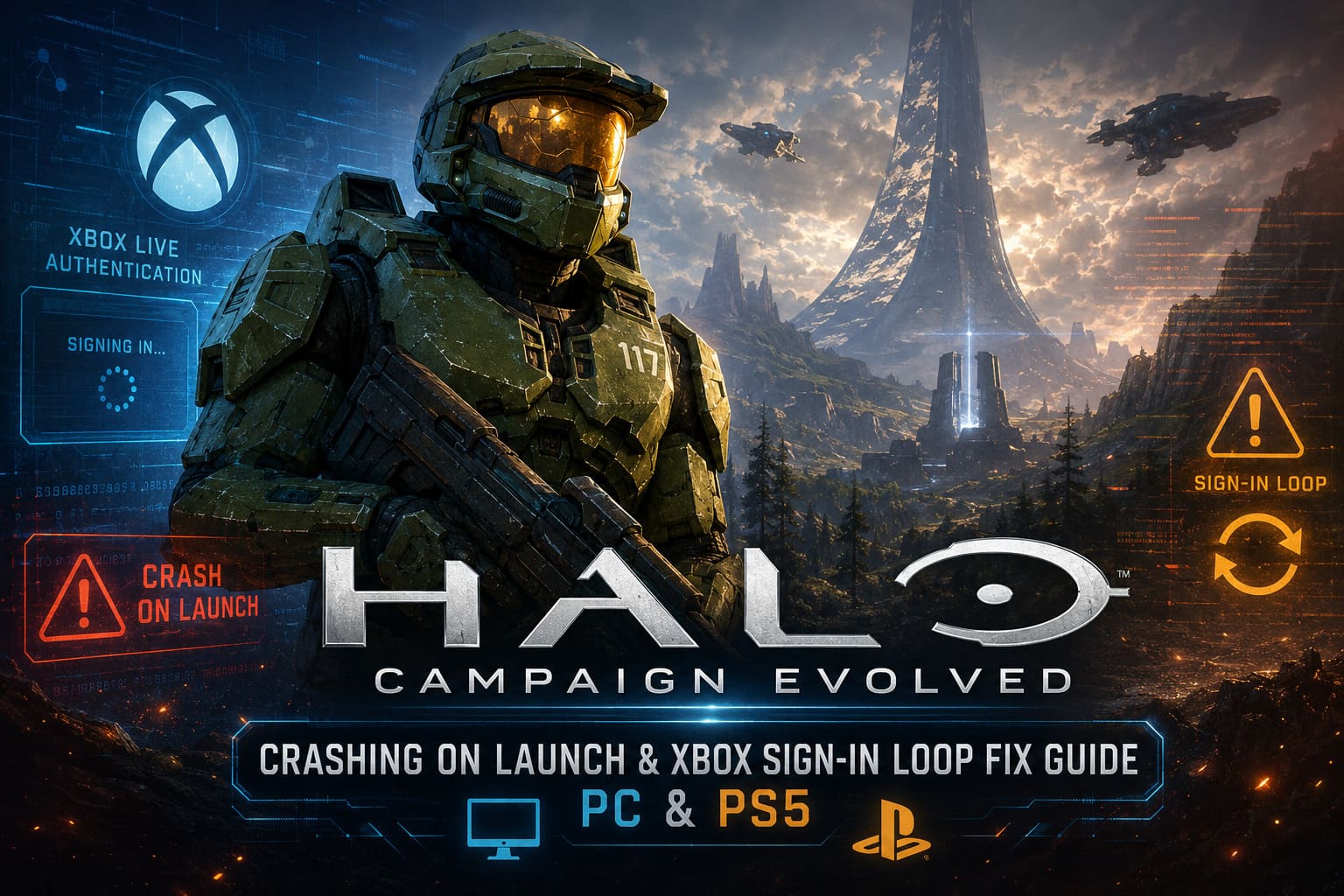
If any one of those steps fails, Windows often responds by simply closing the game with little or no explanation.
From what I’ve seen, the most common causes include:
| Problem | Typical Symptoms | Difficulty |
|---|---|---|
| Damaged installation files | Instant desktop crash | Easy |
| GPU driver conflicts | Black screen or freeze | Easy |
| Corrupted authentication cache | Endless Microsoft login | Medium |
| Overlay software conflicts | Startup crash | Easy |
| Broken startup videos | Crash before menu | Medium |
| Incorrect launch timing | Game refuses to open | Easy |
The good news is that nearly all of these can be fixed without downloading the game again.
Fix #1: Verify Your Installation First
I know this sounds like the most obvious suggestion, but it honestly solves more launch issues than people expect.
Large game releases sometimes download corrupted files, especially during launch week when servers are under heavy load.
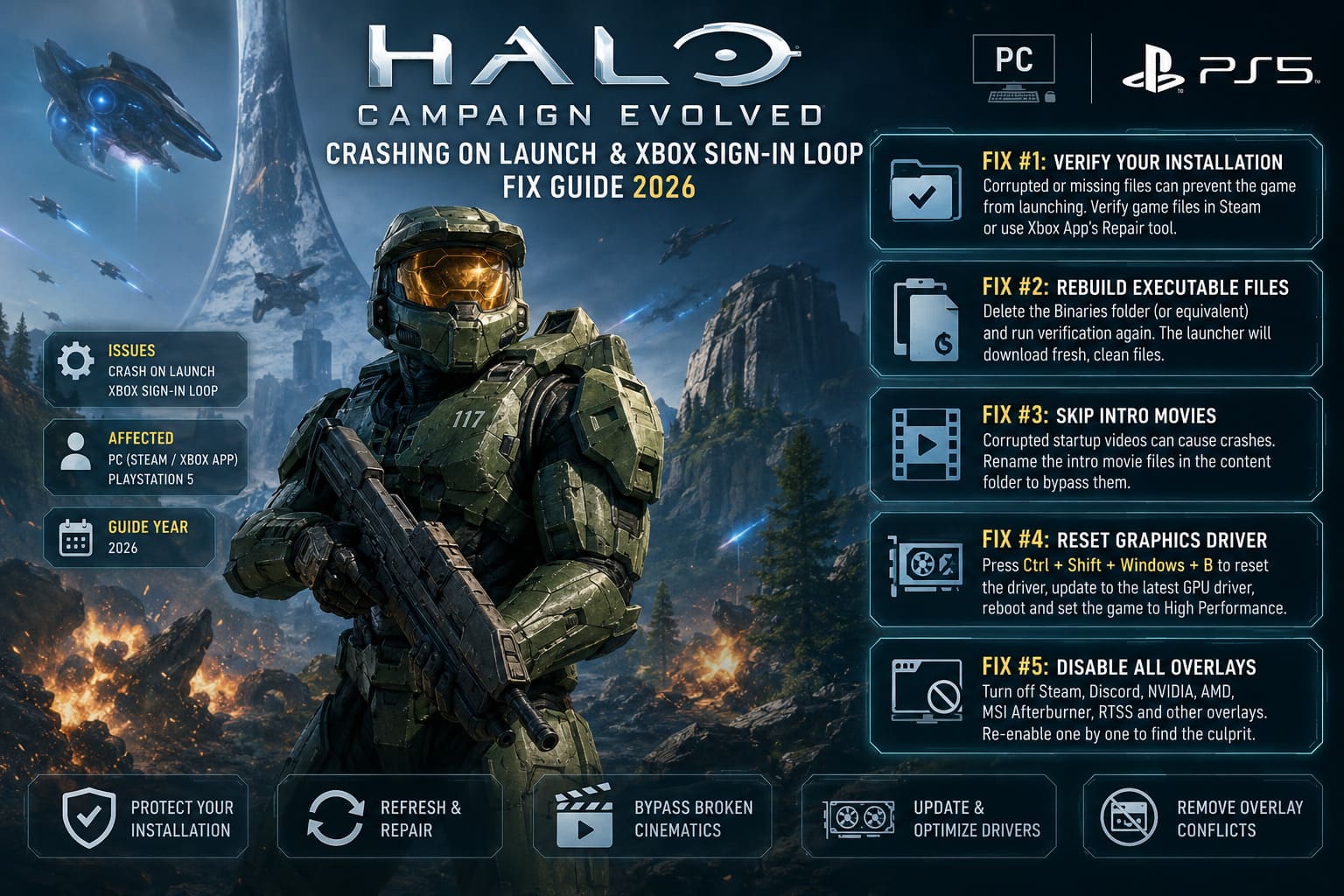
For Steam users:
- Open your Library.
- Right-click Halo: Campaign Evolved.
- Select Properties.
- Open the Installed Files tab.
- Click Verify integrity of game files.
If you’re using the Xbox App, open the game’s management menu and use the built-in Verify and Repair feature.
Even if Steam reports that only one or two files were missing, those files may be critical startup components.
Fix #2: Rebuild the Game’s Executable Files
One interesting solution that repeatedly appeared across community discussions involves deleting the executable binaries and allowing the launcher to download fresh versions.
This sounds drastic, but it isn’t.
Simply navigate to the game’s installation folder and remove the Binaries directory (or the equivalent executable folder). After that, run another file verification.
The launcher will automatically download clean replacements.
I’ve seen this resolve crashes that normal verification somehow failed to detect.
Fix #3: Skip Broken Intro Movies
This is one of those old-school PC gaming tricks that still works surprisingly often.
Sometimes the crash isn’t caused by gameplay at all—it’s the opening cinematic.
If one of the logo or introduction videos becomes corrupted, the engine can fail before reaching the menu.
Inside the game’s content folder you’ll usually find several startup movie files.
Instead of deleting them permanently, I recommend simply renaming them.
That way they’re easy to restore later if an update fixes the issue.
Fix #4: Give Your Graphics Driver a Fresh Start
Graphics drivers occasionally become unstable after Windows updates or game-ready driver installations.
If Halo crashes immediately after opening, try resetting the graphics subsystem before assuming the game is broken.
The quickest method is pressing:
Ctrl + Shift + Windows + B
Your monitor will briefly flicker while Windows reloads the display driver.
After that:
- Install the latest NVIDIA or AMD driver.
- Reboot the PC.
- Set Halo to High Performance inside Windows Graphics Settings.
On laptops especially, this can prevent Windows from launching the game on an integrated GPU.
Fix #5: Disable Every Overlay You Can
This is one fix I almost always try first whenever a brand-new PC game refuses to launch.
Multiple overlays hooking into DirectX at the same time can create unexpected conflicts.
Temporarily disable:
- Steam Overlay
- Discord Overlay
- NVIDIA ShadowPlay
- AMD ReLive
- MSI Afterburner Overlay
- RivaTuner Statistics Server
If the game starts correctly afterward, simply re-enable each overlay one by one until you identify the culprit.
The Xbox Login Loop: Probably the Most Frustrating Bug
For many players, the game itself works perfectly.
The problem is getting past Microsoft’s authentication.
Instead of reaching the menu, you’re repeatedly asked to sign into your Microsoft account.
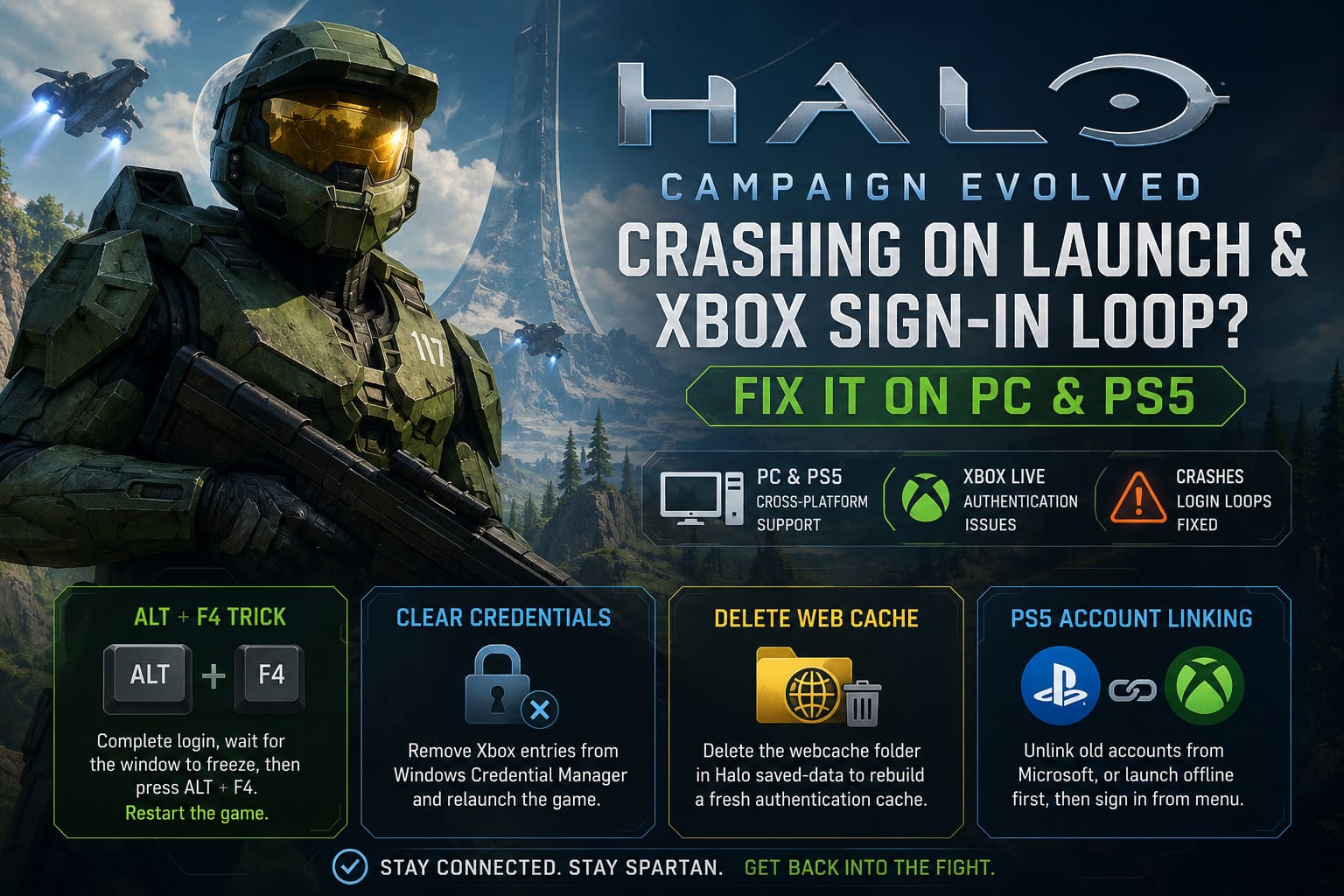
You enter your password.
The window turns gray.
Maybe it goes black.
Then you’re right back where you started.
I’ve seen countless reports describing exactly the same behavior.
Thankfully, several community-discovered workarounds have been surprisingly effective.
The Alt + F4 Authentication Trick
As strange as this sounds, it has worked for a surprising number of people.
Here’s the process:
- Launch the game normally.
- Complete the Microsoft login.
- Wait until the login window becomes blank or freezes.
- Press Alt + F4 immediately.
- Start the game again.
The first launch often stores the authentication token before freezing.
The second launch simply reuses that cached token and skips the broken login screen entirely.
It’s not elegant—but it works far more often than it probably should.
Clear Old Xbox Credentials
Windows loves remembering old authentication tokens.
Unfortunately, those saved credentials sometimes become corrupted.
Open Credential Manager from Windows Search.
Inside Windows Credentials, remove any Xbox-related entries that appear to belong to Xbox Live authentication.
After launching Halo again, Windows will request fresh authorization instead of recycling outdated login information.
This fix has helped many players who were stuck in endless sign-in loops.
Delete the Local Web Cache
Another surprisingly common issue involves the local browser cache used during Microsoft authentication.
Navigate to your local Halo saved-data folder and locate the webcache directory.
Delete its contents.
Don’t worry—this usually removes only temporary browser data.
Your saves and achievements should remain untouched.
The next time the game launches, it builds a completely new authentication cache.
PS5 Players: Don’t Ignore Account Linking Problems
Seeing Halo arrive on PlayStation still feels surreal.
But because the game relies heavily on Xbox services, account linking has introduced a few unexpected headaches.
One fix that’s worked well for many players is disconnecting any previous PlayStation account associations from your Microsoft account before attempting to pair again.
Starting with a completely clean account link often prevents repeated authorization failures.
Another workaround worth trying is launching the game offline first.
Once the main menu appears, reconnect to the internet and manually initiate the sign-in process.
It sounds unusual, but forcing a fresh server handshake sometimes succeeds where the automatic login fails.
Halo Campaign Evolved Buyer’s Guide: Standard vs Premium Edition Price & Content Explained (2026)
Extra Stability Tweaks Worth Trying
Once the game finally launches, I recommend spending a few minutes making it more stable.
A few small adjustments can save a lot of frustration later.
| Setting | Why It Helps |
|---|---|
| Run as Administrator | Prevents permission-related crashes. |
| High Performance GPU | Avoids integrated graphics selection. |
| Disable Overlays | Eliminates rendering conflicts. |
| Update Windows | Installs required runtime components. |
| Restart After Driver Updates | Clears memory conflicts. |
| Check Release Timing | Prevents false launch errors. |
Halo Campaign Evolved Early Access Not Loading: 10 Ways to Fix Crashes and Launch Errors in 2026
Final Thoughts
After looking through dozens of community reports, one pattern stood out to me: Halo: Campaign Evolved rarely crashes for just one reason.
A damaged file might combine with an outdated graphics driver. An overlay conflict may happen alongside a corrupted Microsoft login token.
That’s why randomly trying fixes usually wastes time.
Instead, work through the troubleshooting steps methodically.
Start by verifying the installation.
Then rebuild the executable files if necessary.
Disable overlays, refresh your graphics driver, clear cached Xbox credentials, and only move on to more advanced solutions if the previous step doesn’t solve the problem.
From everything I’ve seen so far, most players eventually get the game running without reinstalling their operating system or replacing hardware.
Halo has always been a series worth coming back to, and once these launch issues are out of the way, it’s easy to remember why so many of us have spent years returning to the ring. Hopefully the developers continue rolling out updates that eliminate these startup bugs, but until then, these are the fixes that consistently give players the best chance of getting back into the fight.