Halo Campaign Evolved Early Access Not Loading: 10 Ways to Fix Crashes and Launch Errors in 2026
Early access launches always come with a certain level of chaos, but I honestly expected Halo: Campaign Evolved to have a smoother debut. The excitement around stepping back into Master Chief’s legendary first adventure with a modern presentation was huge, and thousands of players jumped in the second the Premium Edition unlocked.
Unfortunately, a lot of us never made it past the launcher.
Instead of fighting the Covenant, players found themselves fighting error messages, endless loading screens, black screens after startup, desktop crashes, and the dreaded “You are too early” notification—even after paying extra for Premium access.
After spending hours browsing community discussions, testing different solutions on my own PC, and watching what actually worked for other players, I noticed something important: most of these issues aren’t caused by weak hardware. They’re mostly connected to license validation, launcher conflicts, or corrupted installation data.
If your copy refuses to launch, don’t panic just yet. Below are the fixes that seem to solve the majority of launch-day problems.
Why Halo: Campaign Evolved Isn’t Launching
Every major release has a few unexpected surprises, but this one combines several different problems into one frustrating experience.
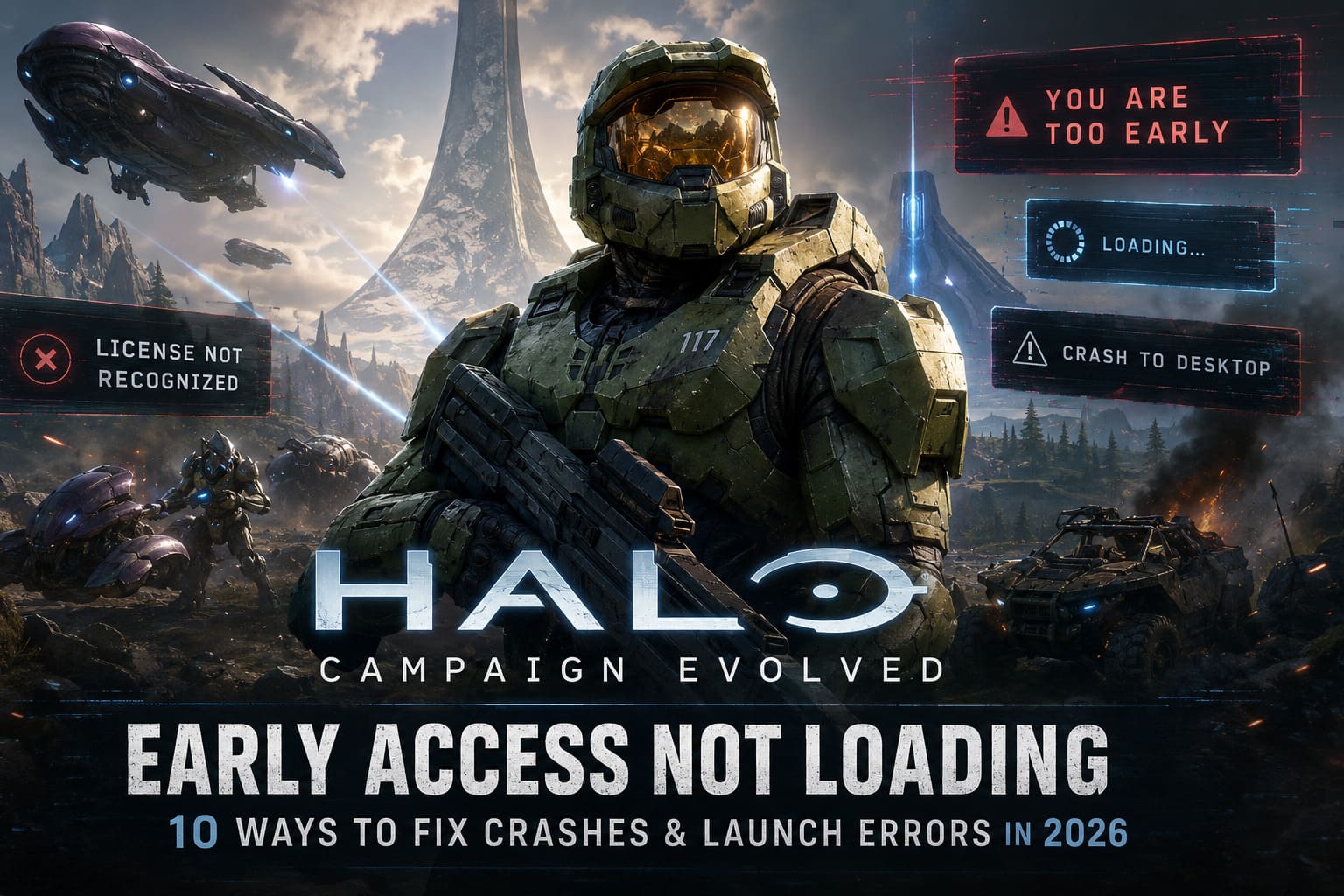
The biggest issues players are seeing include:
- Premium Edition licenses not being recognized
- Infinite loading screens
- Black screen immediately after launch
- Crash to desktop without an error
- Steam launching bonus content instead of the game
- Xbox App refusing to validate Early Access ownership
What’s interesting is that these bugs appear on both Xbox Series X|S and Windows PC, although the causes aren’t always identical.
In many situations, the game itself is perfectly fine—the platform simply refuses to recognize that you already own Early Access.
Most Common Launch Problems
| Problem | Most Likely Cause | Difficulty to Fix |
|---|---|---|
| “You are too early” | License verification bug | Easy |
| Infinite loading screen | Authentication servers | Easy |
| Black screen | Drivers or corrupted files | Medium |
| Crash to desktop | Missing or damaged files | Medium |
| Steam opens Digital Art Book | DLC priority conflict | Easy |
| Launcher won’t respond | Cache or account sync | Medium |
Most players only experience one of these issues, which makes troubleshooting much easier.
Fix 1: Force the Premium License to Refresh
This was by far the most successful solution reported by Game Pass users.
Instead of launching Halo from your normal game library, completely close the Xbox App first.
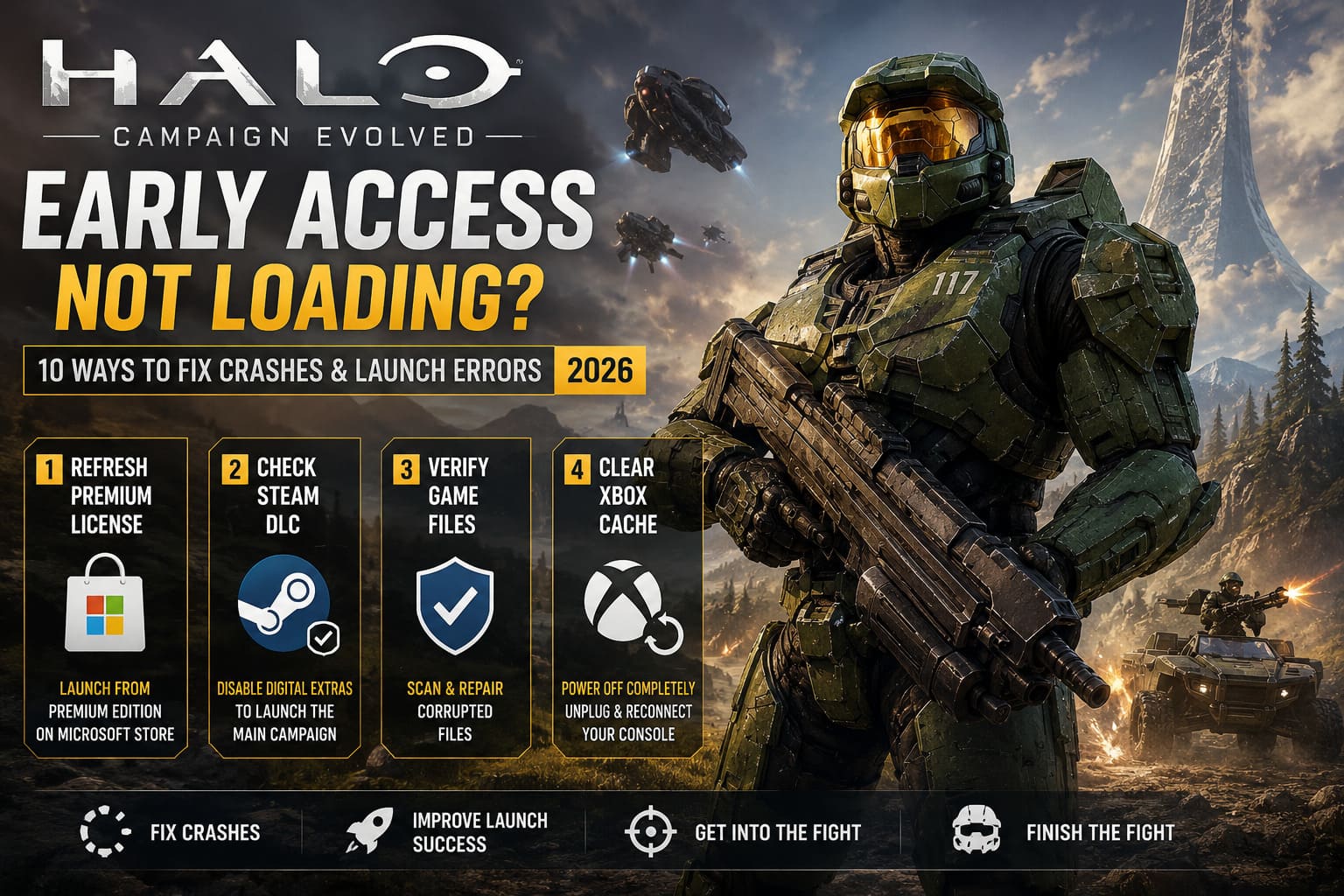
Then:
- Open the Microsoft Store.
- Search for the Premium Edition page.
- Launch the game directly from there.
- Restart the Xbox App afterward.
For whatever reason, launching from the Premium product page often forces Microsoft’s licensing servers to refresh your ownership status.
It sounds strange, but it has worked for a surprising number of people.
Fix 2: Steam Users Should Check Installed DLC
This one caught me off guard.
Several Steam users discovered that clicking Play didn’t actually launch the campaign. Instead, Steam prioritized the Digital Story & Art Collection.
The solution is incredibly simple:
- Open Steam Library.
- Right-click Halo: Campaign Evolved.
- Open Properties.
- Select DLC.
- Temporarily disable the Digital Extras.
- Restart Steam completely.
After doing this, Steam usually launches the actual game executable instead of the bonus content.
Once Halo Studios releases an update, those extras can be installed again.
Fix 3: Verify Your Installation
Pre-loading games is convenient until one file becomes corrupted.
I’ve seen this happen with plenty of AAA launches over the years, and Halo isn’t immune.
Running a verification scan is worth doing before trying anything complicated.
Depending on your launcher, this process checks every installed file against the official version and automatically replaces anything damaged.
It’s one of those fixes that feels boring—but it often solves unexplained crashes.
Fix 4: Clear Xbox Cache
Console players shouldn’t overlook this.
Temporary cache data occasionally causes weird launch behavior after major game unlocks.
A full shutdown works much better than simply selecting Restart.
Hold the power button until the console completely powers off, disconnect it for a couple of minutes, reconnect everything, and launch Halo again.
It only takes a few minutes and removes another possible source of problems.
Fix 5: Run the Game with Administrator Permissions
Windows security has become increasingly aggressive over the years.
Sometimes launchers and anti-cheat systems don’t receive the permissions they expect during first startup.
Try enabling:
- Run as Administrator
- Disable Fullscreen Optimizations
These options can be found inside the game’s executable properties.
This won’t solve every issue, but it has eliminated startup crashes for some players.
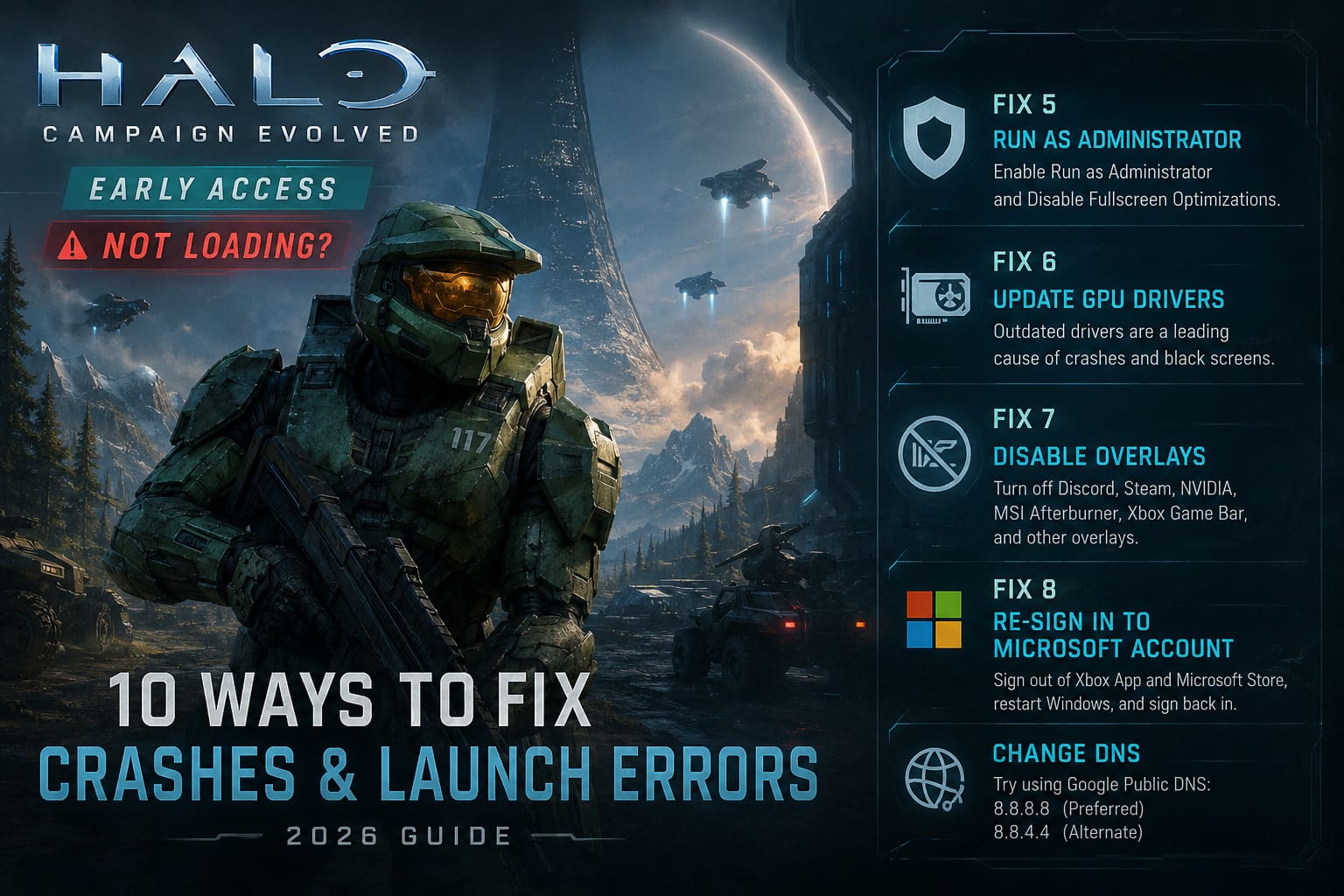
Fix 6: Don’t Ignore GPU Drivers
Whenever a major PC title launches, I always update my graphics drivers first.
It isn’t exciting advice, but outdated drivers remain one of the biggest causes of black screens and random crashes.
Make sure both your GPU driver and Windows installation are fully updated before assuming the game itself is broken.
Modern DirectX features are far less forgiving than they were a few years ago.
Fix 7: Disable Every Overlay
This is another lesson I’ve learned the hard way.
- Discord
- Steam Overlay
- NVIDIA Overlay
- MSI Afterburner
- RivaTuner
- Xbox Game Bar
Each one hooks into the rendering pipeline, and during launch week that can create conflicts developers never encountered during internal testing.
If Halo keeps crashing before reaching the main menu, temporarily disable every overlay you have running.
You can always turn them back on later.
Fix 8: Sign Out and Back Into Your Microsoft Account
If you’re playing through Xbox Game Pass, account synchronization matters more than many people realize.
Signing out of both:
- Xbox App
- Microsoft Store
before restarting Windows has fixed license validation for quite a few users.
Just make sure you log back into the exact same Microsoft account that owns your subscription or Premium Upgrade.
Using different Microsoft accounts between the Store and Xbox App can easily confuse the licensing system.
Fix 9: Try a Different DNS
This isn’t the first thing I’d recommend, but if nothing else works, changing DNS servers is surprisingly harmless.
Google’s Public DNS remains one of the easiest alternatives:
- Preferred DNS: 8.8.8.8
- Alternate DNS: 8.8.4.4
A different DNS won’t magically fix Microsoft’s servers, but it can improve the reliability of the initial authentication request.
When a Clean Installation Makes Sense
Nobody enjoys downloading a huge game twice.
Still, if you’ve exhausted every other option, a completely fresh installation removes almost every local software issue from the equation.
Before reinstalling:
- Delete leftover game folders.
- Restart your PC or console.
- Download the game again instead of relying on preloaded files.
It takes time, but it eliminates corrupted installations as a possible cause.
How to Get Signed 5-Star Cards in hololive Dreams (2026): Complete Gacha and Reroll Guide
Which Fix Seems to Work Most Often?
| Fix | Success Rate (Community Reports) |
|---|---|
| Premium license refresh | Very High |
| Disable Steam DLC | High |
| Verify game files | High |
| Restart Xbox cache | Medium |
| Account sign-out/sign-in | Medium |
| Clean reinstall | Medium to High |
Final Thoughts
I’ve covered enough game launches to know that day-one problems aren’t unusual, especially when Early Access is tied to multiple storefronts and subscription services.
What stands out here is that Halo: Campaign Evolved doesn’t appear to be suffering from one catastrophic bug. Instead, it’s several smaller problems happening simultaneously—Steam DLC confusion, Microsoft licensing hiccups, overloaded authentication servers, and a handful of installation errors.
That’s actually encouraging.
Issues like these are generally easier for developers to resolve than deep engine problems or widespread save corruption.
If you’ve already tried the major fixes and the game still refuses to cooperate, I wouldn’t immediately assume your installation is beyond repair. In many cases, the bottleneck sits on the server side, meaning the next backend update or launcher refresh may suddenly allow the game to start without changing anything on your system.
As frustrating as launch day has been for some players, the good news is that most reported issues already have practical workarounds. Until Halo Studios finishes polishing the Early Access infrastructure, patience—and a little troubleshooting—remain your best allies.
Hopefully, the next time you hit Play, you’ll finally hear that familiar Halo soundtrack instead of staring at another loading screen.