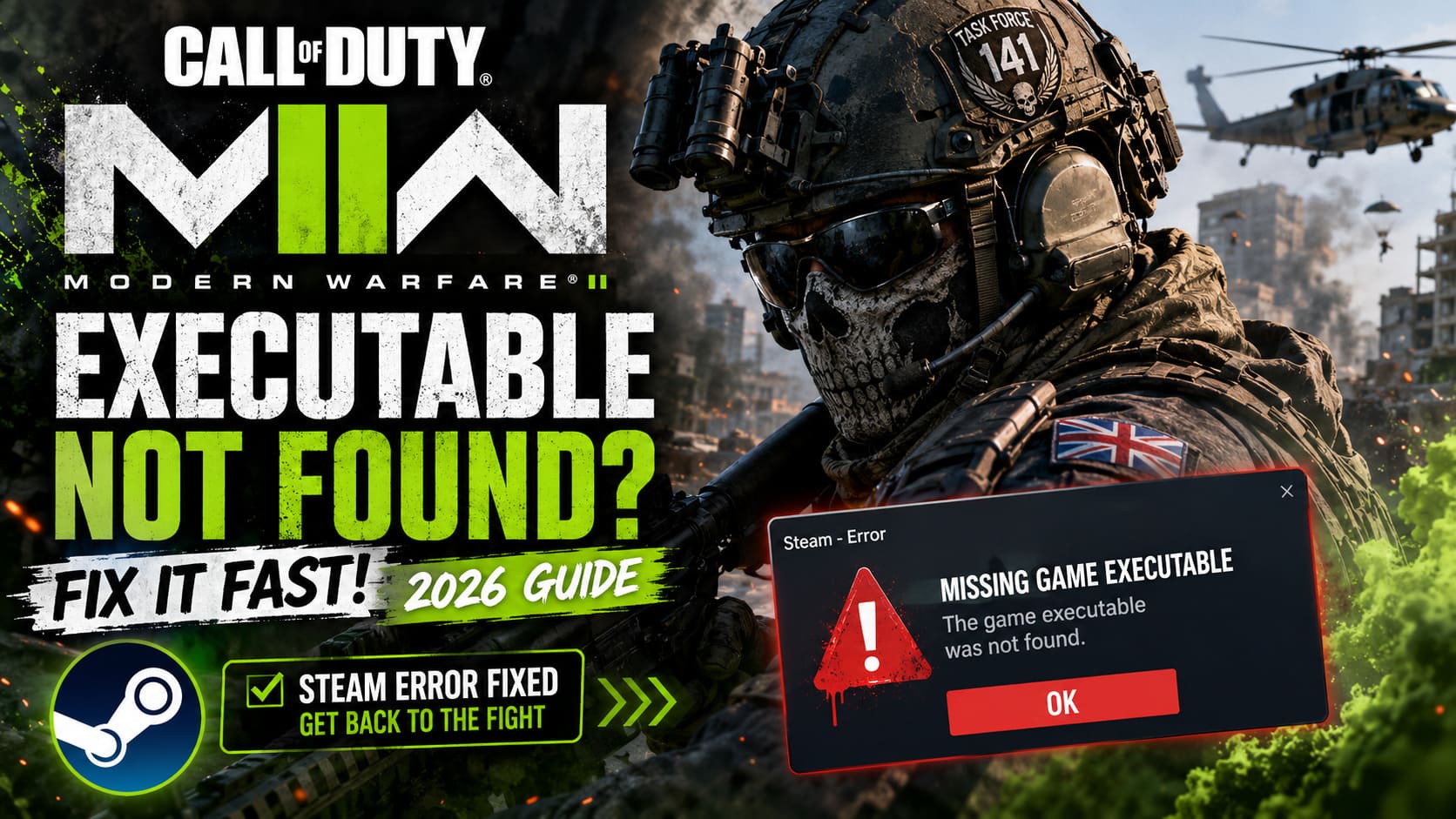
How to Fix Call of Duty: Modern Warfare II Executable Not Found Error on Steam (2026 Guide)
There are few things more annoying than finishing a huge Call of Duty update, grabbing your headset, hitting Play in Steam, and instantly getting slapped with the dreaded “Missing Game Executable” or “Executable Not Found” message. No loading screen. No crash report. Just Steam refusing to start the game because it can’t locate the file it expects to launch.
I’ve seen this issue pop up countless times over the last few years, and judging by the endless Reddit threads, Steam discussions, and YouTube troubleshooting videos, I’m definitely not the only one. The frustrating part is that the error often appears after an update, even if the game was running perfectly the day before.
The good news? In most situations, this isn’t a hardware problem, and it doesn’t automatically mean you’ll have to download the entire game again. Most cases are caused by corrupted updates, Windows security blocking important files, Steam library issues, or damaged installation data.
This guide gathers the most reliable community fixes and explains why they work, helping you get back into multiplayer without wasting hours on random internet suggestions.
Why Steam Says the Executable Is Missing
Steam launches every game by reading its installation information and locating the main executable file inside your game folder. For Modern Warfare II, that file is typically cod.exe or another launcher component depending on the current version.
If Steam can’t locate that file—or Windows prevents it from accessing it—the launch process immediately stops.
The most common reasons include:
- Windows Defender or antivirus quarantined the executable.
- Game files became corrupted during an update.
- Steam library paths no longer point to the correct location.
- Insufficient Windows permissions.
- Broken download cache.
- Incomplete installation of required game packages.
While the error message looks dramatic, it’s usually the result of one missing or inaccessible file rather than a completely broken installation.
Solution 1: Verify Game Files First
If there’s one fix every Steam player should know, it’s file verification.
Whenever Modern Warfare II receives a large seasonal update, interrupted downloads or corrupted data can leave the installation incomplete. Steam’s verification tool compares every installed file against its official servers and automatically downloads anything that’s damaged or missing.
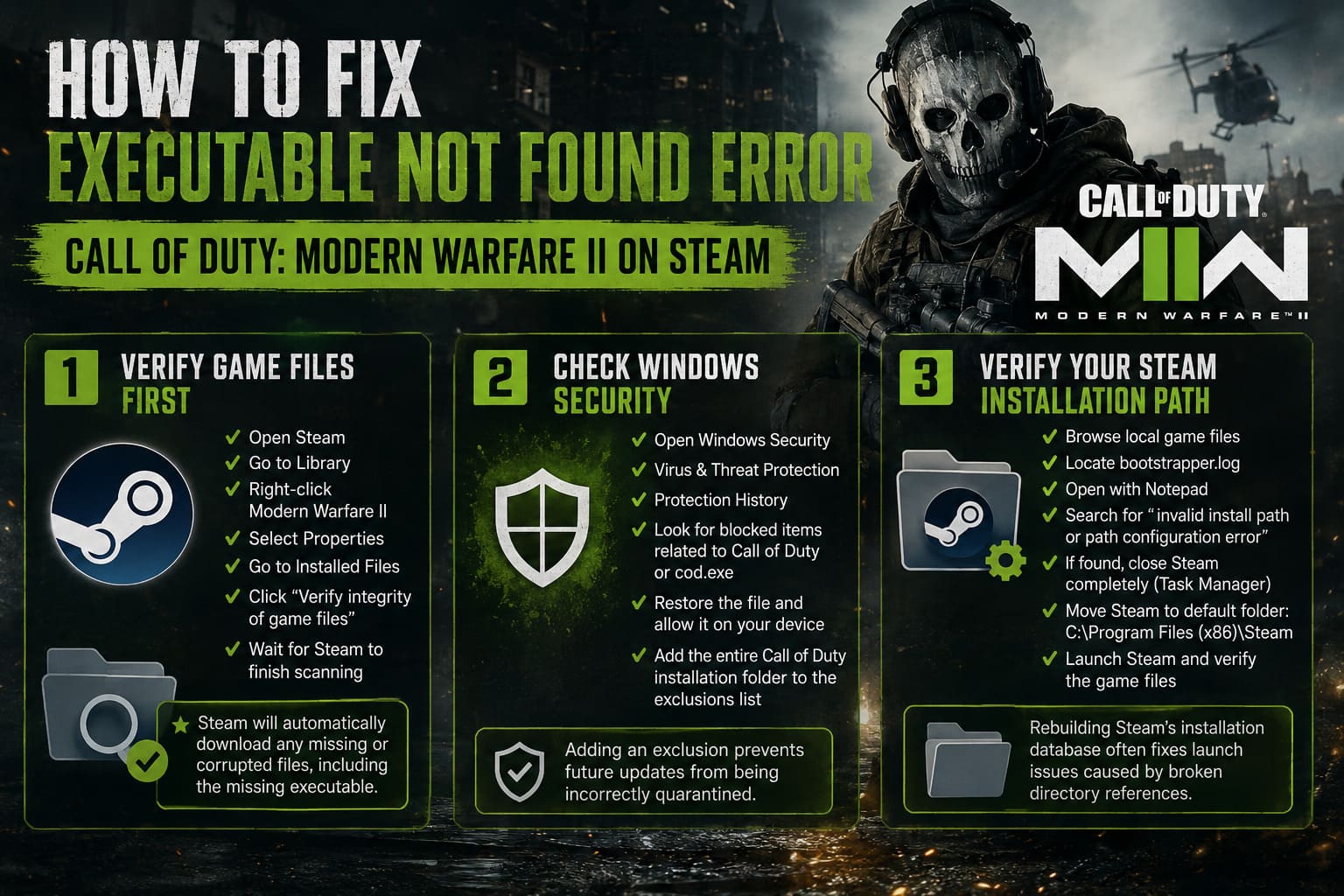
Follow these steps:
- Open Steam.
- Go to Library.
- Right-click Call of Duty: Modern Warfare II.
- Select Properties.
- Open the Installed Files section.
- Click Verify integrity of game files.
- Wait for Steam to finish scanning the installation.
The verification process may take several minutes depending on your storage device. If Steam finds corrupted or missing data, it will automatically download replacements, including the missing executable if necessary.
Pro Tip: If Steam reports that one or more files failed validation, that’s often exactly what’s preventing the game from launching.
Solution 2: Check Windows Security Before Anything Else
One of the biggest reasons behind disappearing executables is Windows Defender.
Modern Warfare II constantly updates anti-cheat services and launcher components. Occasionally, Windows mistakenly identifies these files as suspicious software and silently places them into quarantine. Steam then attempts to launch the game, but the executable has already been removed.
To check for quarantined files:
- Open Windows Security.
- Select Virus & Threat Protection.
- Open Protection History.
- Look for blocked items related to Call of Duty or cod.exe.
- Restore the file and allow it on your device if necessary.
- Add the entire Call of Duty installation folder to the exclusions list.
Creating an exclusion helps prevent future updates from triggering the same issue again.
Solution 3: Verify Your Steam Installation Path
This fix surprises many players because it doesn’t seem directly connected to the game itself.
If Steam is installed on a custom drive or inside a non-standard directory, some updates may fail to resolve installation paths correctly. Steam then searches for files in the wrong location, even though the game itself may still exist.
Here’s what to do:
- Browse your local game files through Steam.
- Locate bootstrapper.log.
- Open the file using Notepad.
- Search for messages such as invalid install path or path configuration error.
- If these messages appear, completely close Steam using Task Manager.
- Move Steam back to its default installation folder: C:\Program Files (x86)\Steam.
- Launch Steam again and verify the game files.
Rebuilding Steam’s installation database after correcting the folder location often resolves launch issues caused by broken directory references.
Solution 4: Clear Steam’s Download Cache
Sometimes the executable isn’t actually missing.
Instead, Steam incorrectly believes an update completed successfully while some installation files never finished writing to disk. Clearing the download cache forces Steam to rebuild its internal records.
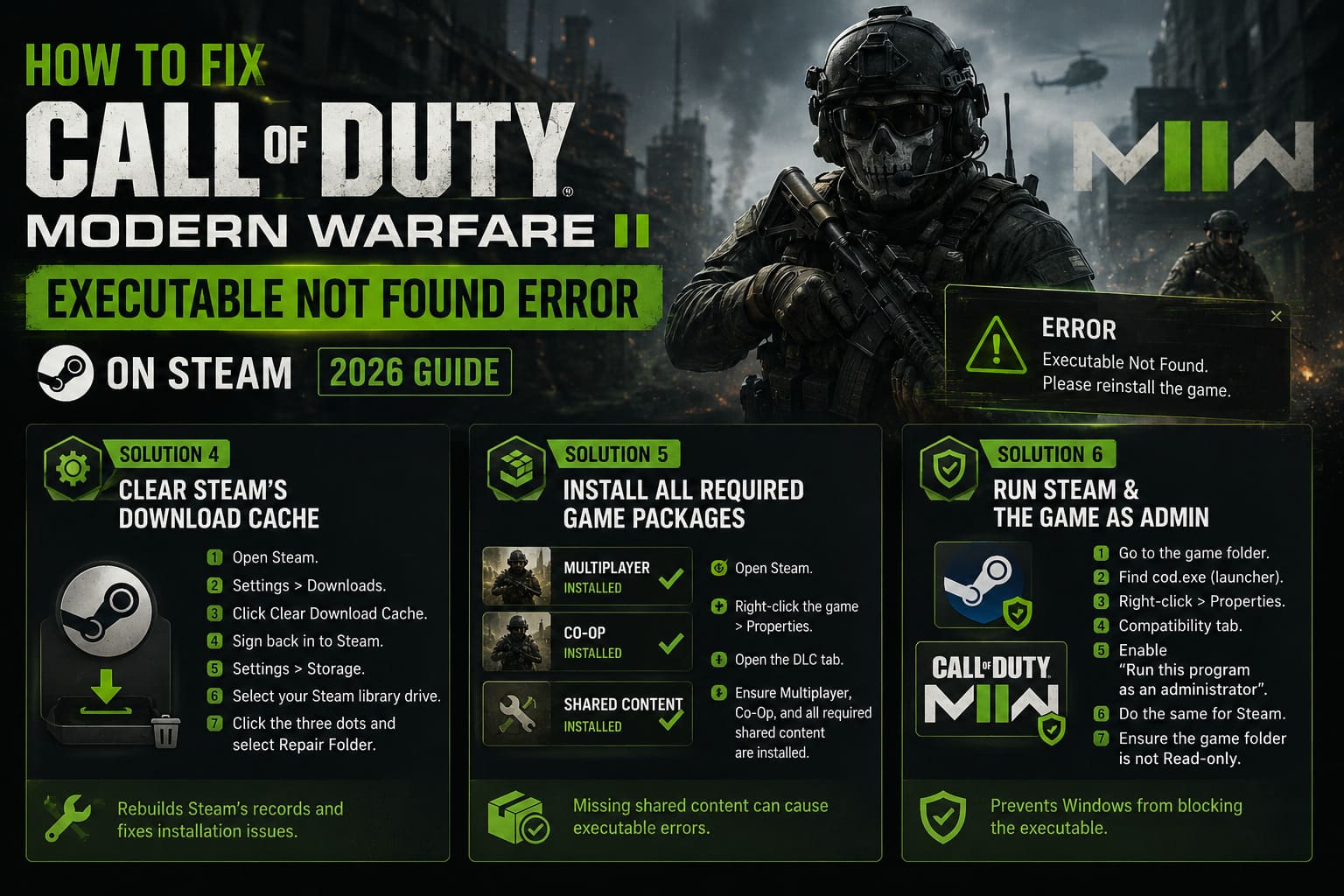
Follow these steps:
- Open Steam.
- Navigate to Settings.
- Select Downloads.
- Click Clear Download Cache.
- Sign back into your Steam account.
- Open Settings again.
- Select Storage.
- Choose your Steam library drive.
- Click the three-dot menu and select Repair Folder.
This process repairs storage permissions while refreshing Steam’s installation database.
Solution 5: Install Every Required Game Package
Modern Warfare II is no longer delivered as one complete installation. Instead, it consists of several downloadable modules that share launcher resources.
If only the Campaign is installed, Steam may still expect Multiplayer or Co-Op assets to complete the launcher configuration. Missing shared files can occasionally trigger executable errors.
Verify your installed content:
- Open Steam.
- Right-click the game and select Properties.
- Open the DLC tab.
- Ensure Multiplayer, Co-Op, and any required shared content packages are installed.
Even if you never intend to play every mode, installing the required shared components can restore missing launcher dependencies.
Solution 6: Run Steam and the Game as Administrator
Windows User Account Control occasionally prevents Steam from launching applications stored inside protected folders.
In these situations, the executable still exists, but Windows blocks access to it. Steam interprets this as a missing executable rather than a permission issue.
To change the permissions:
- Browse to the game installation folder.
- Locate cod.exe or the current launcher executable.
- Right-click the file and choose Properties.
- Open the Compatibility tab.
- Enable Run this program as an administrator.
- Repeat the same process for Steam itself.
- Check that the main Call of Duty folder is not marked as Read-only.
Allowing Steam and the executable to run with elevated permissions can eliminate launch failures caused by Windows security restrictions.
Common Causes at a Glance
| Problem | Symptoms | Recommended Fix |
|---|---|---|
| Corrupted Update | Executable missing after installing a patch. | Verify the integrity of game files. |
| Windows Defender | cod.exe disappears unexpectedly. | Restore the file and add an exclusion. |
| Invalid Steam Path | The game refuses to launch. | Move Steam back to the default directory. |
| Broken Download Cache | Update loops or incomplete installations. | Clear the download cache and repair the library. |
| Missing Game Packages | Launcher fails during startup. | Install all required DLC components. |
| Windows Permissions | The executable exists but cannot be launched. | Run Steam and the game as Administrator. |
Additional Things Worth Checking
If none of the primary fixes solve the issue, there are still a few smaller troubleshooting steps worth trying.
- Completely exit Steam using Task Manager before launching it again.
- Restart Windows to clear pending file operations.
- Temporarily disable third-party antivirus software during the update process.
- Avoid manually moving Steam game folders through File Explorer.
- Always relocate Steam libraries using Steam’s built-in storage management tools.
How to Fix Pixelated Textures in Call of Duty: Modern Warfare II (2026 Guide)
When a Clean Reinstallation Becomes Necessary
Nobody enjoys downloading well over 100 GB again, but occasionally a fresh installation becomes the quickest solution.
If you’ve already verified the files multiple times, repaired the Steam library, restored quarantined files, corrected installation paths, cleared the download cache, confirmed every required package is installed, and the executable is still missing, the installation may simply be too damaged for Steam to repair automatically.
Perform a complete reinstall:
- Uninstall Modern Warfare II through Steam.
- Delete any remaining game folders manually.
- Remove leftover configuration files from your Documents folder.
- Delete remaining Call of Duty folders inside %AppData%.
- Restart your computer.
- Download and install the game again.
A completely fresh installation rebuilds Steam’s appmanifest files, restores every launcher component, downloads a clean executable, and removes hidden corruption that standard verification cannot always detect.
How to Fix Call of Duty: Modern Warfare 2 Forced iGPU Crashing (2026 Working Guide)
Final Thoughts
The “Executable Not Found” error may look intimidating, but in most situations it comes down to missing files, corrupted update data, or Windows permissions rather than a serious system failure.
From personal experience, the quickest fixes remain verifying the game files and checking Windows Security for quarantined executables. Those two methods alone resolve the majority of launch failures that appear after major seasonal updates.
If that isn’t enough, repairing the Steam library, correcting installation paths, reinstalling required game packages, and adjusting Windows permissions usually solves the remaining cases without requiring a massive download.
A full reinstall should always be considered the final option, not the first. Although downloading the game again takes time, it guarantees a completely clean installation and eliminates every lingering issue that smaller fixes may leave behind.
If Steam keeps refusing to launch Modern Warfare II, don’t assume the installation is beyond saving. Work through each solution one by one, and in most cases you’ll be back in the lobby long before another 100 GB download finishes.