Cozy Cleaner Low FPS Lag Fix Optimization Patch & Stuck at 99% Clean Room Fix (2026 Guide)
When I first launched Cozy Cleaner, I expected exactly what the trailers promised: a relaxing experience where I could unwind after a long day, clean virtual rooms, organize clutter, and enjoy the satisfying feeling of turning chaos into order.
For the first few hours, that’s exactly what happened.
Then the performance issues started.
Frame rates began dropping whenever I moved furniture, certain rooms developed random stutters, and one level left me staring at a progress bar frozen at 99% for nearly twenty minutes. Judging by Steam discussions and community posts, I quickly realized I wasn’t the only one dealing with these problems.
After experimenting with settings, testing different Windows optimizations, and reading through dozens of player reports, I found several solutions that noticeably improved the experience. If you’re struggling with lag, low FPS, or rooms that refuse to reach 100% completion, these are the fixes worth trying.
Why Does Cozy Cleaner Lag?
At first glance, Cozy Cleaner doesn’t look like a demanding game. Its colorful visuals and simple environments suggest almost any modern PC should handle it effortlessly.
However, underneath the cozy presentation, the game constantly tracks physics interactions, object placement, lighting updates, debris states, and room progress calculations. Once multiple objects begin moving simultaneously, performance can dip unexpectedly, especially during longer sessions.

Most Common Performance Issues
| Problem | Typical Cause | Difficulty to Fix |
|---|---|---|
| Low FPS | High graphics settings | Easy |
| Micro-stuttering | Shader cache issues | Easy |
| Frame pacing problems | V-Sync conflicts | Easy |
| Sudden lag spikes | Physics calculations | Medium |
| Performance degradation over time | Memory accumulation | Medium |
| Room stuck at 99% | Hidden debris or bugged objects | Medium |
1. Lower the Settings That Actually Matter
One mistake many players make is reducing every graphical option at once.
In my testing, only a few settings produced meaningful FPS gains.

Resolution
Resolution remains the biggest performance killer.
If you’re playing at 4K and experiencing unstable frame rates, dropping to 1440p can produce a surprisingly large improvement. Likewise, moving from 1440p to 1080p often smooths out performance significantly on mid-range systems.
Shadows
Shadows seem to be one of the most demanding visual features in Cozy Cleaner.
Furniture movement frequently triggers shadow recalculations, creating sudden frame spikes. Setting shadows to Medium or Low usually delivers an immediate boost without dramatically affecting visual quality.
Motion Blur and Camera Effects
Personally, I disable these effects in almost every game.
Not only do they make the image look cleaner, but they can also reduce unnecessary GPU workload during quick camera movement.
2. Turn Off In-Game V-Sync
This was one of the biggest improvements for me.
Several players have reported inconsistent frame pacing while using the game’s built-in V-Sync implementation. Instead of relying on the in-game setting, disable V-Sync entirely and let your NVIDIA or AMD control panel manage synchronization.
The result is often smoother gameplay and noticeably better responsiveness.
3. Force the Game to Use Your Dedicated Graphics Card
This sounds obvious, but it happens more often than people realize.
Windows occasionally decides that lightweight simulation games should run on integrated graphics rather than your dedicated GPU.
To avoid that:
- Open Windows Graphics Settings.
- Add Cozy Cleaner manually.
- Select High Performance Mode.
- Save the configuration.
- Restart the game.
Laptop users should pay particular attention to this step because hybrid graphics setups can cause surprisingly large FPS losses.
4. Enable Hardware-Accelerated GPU Scheduling
Windows includes a feature called Hardware-Accelerated GPU Scheduling that can help reduce CPU overhead and improve frame consistency.
While results vary depending on hardware, many players report smoother gameplay after enabling it.
I wouldn’t call it a miracle fix, but on systems where the CPU is already working hard, every bit of optimization helps.
5. Clear Shader Cache
Shader-related stutters are common in modern PC games.
If your game pauses briefly when entering new rooms or looking at certain objects for the first time, shader cache corruption could be responsible.
Clearing your GPU shader cache forces the game to rebuild these files from scratch.
This process often helps eliminate:
- Random micro-stutters.
- First-time room loading hiccups.
- Unexpected frame pacing issues.
- Asset streaming delays.
It’s one of the easiest troubleshooting steps and takes only a few minutes.
6. Restart the Game During Long Sessions
This sounds almost too simple, but it genuinely helped me.
After several hours of cleaning and decorating, I noticed performance gradually becoming worse.
A full restart instantly restored smooth frame rates.
This suggests that some systems may experience memory buildup during extended play sessions. Until future patches arrive, restarting the game every few hours can be a practical temporary solution.
How to Fix the 99% Clean Room Bug
Now let’s talk about the issue that nearly drove me crazy.
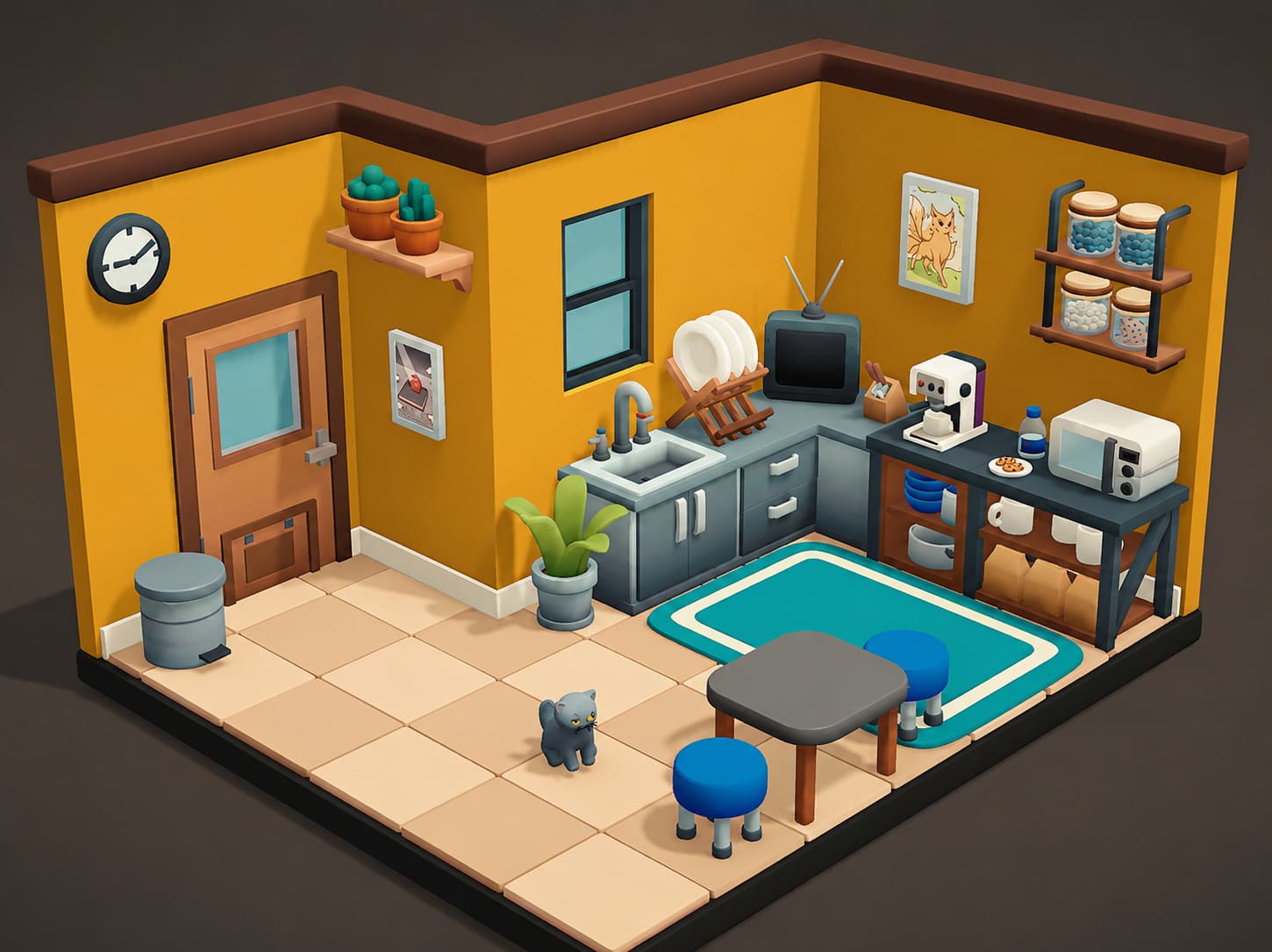
You spend an hour cleaning every visible surface, organizing furniture perfectly, collecting every piece of trash, and somehow the room still sits at 99%.
No matter where you look, everything appears spotless.
The good news is that most of the time, the missing 1% is still there.
It’s just hiding.
Search Behind Large Furniture
This should be your first step.
Move every major object away from walls, including:
- Beds.
- Sofas.
- Cabinets.
- Wardrobes.
- Refrigerators.
- Large shelves.
I’ve personally found hidden debris trapped behind furniture more than once.
Sometimes small objects become partially embedded in walls and remain almost impossible to spot until the furniture is moved completely.
Check Under Everything
Many players focus on visible surfaces while forgetting the undersides of objects.
Use crouch mode and inspect:
- Tables.
- Desks.
- Shelves.
- Kitchen counters.
- Chairs.
- Decorative furniture.
Certain dirt spots only become visible from unusual camera angles.
Inspect Windows Carefully
Windows are surprisingly easy to overlook.
Look for:
- Tiny smudges.
- Dirt in corners.
- Spots hidden by curtains.
- Missed sections of glass.
- Exterior frame dirt.
Several of my “99% rooms” ended up being caused by a single missed stain on a window.
Use Different Camera Angles
One trick that works surprisingly well is changing how you look at surfaces.
Instead of facing a wall directly, position your camera almost parallel to it.
The lighting often reveals dirt, dust, or streaks that are nearly invisible from normal viewing angles.
This technique is especially useful for:
- Floors.
- White walls.
- Countertops.
- Glass surfaces.
Use Any Available Highlight Function
Many cleaning simulation games include a tool that highlights unfinished tasks.
If Cozy Cleaner offers a scan, inspection, or highlight mode in your version of the game, use it frequently.
These tools can instantly reveal:
- Hidden dirt patches.
- Uncollected trash.
- Missed cleaning objectives.
- Bugged interaction points.
They save enormous amounts of time compared to manually searching every room.
Save and Reload the Level
If nothing else works, save your progress and reload.
This is probably the most effective workaround for bugged debris.
Reloading forces the game engine to recalculate object positions and collision states. In many cases, items that were previously stuck inside geometry reappear in accessible locations.
I’ve seen this fix multiple rooms that seemed permanently broken.
Cozy Cleaner Gameplay Walkthrough Guide: Best Tips, Upgrades, and Level Strategies for 2026
Final Thoughts
Despite its technical issues, Cozy Cleaner remains one of the most relaxing simulation games released this year. The satisfying cleaning mechanics, cozy atmosphere, and rewarding progression loop make it easy to lose track of time.
Most FPS problems can be reduced through a combination of sensible graphics settings, shader cache maintenance, and proper GPU configuration. Meanwhile, the infamous 99% completion bug is usually caused by hidden debris, overlooked cleaning spots, or objects that have glitched out of bounds.
Until future patches improve optimization, these solutions provide the best balance between performance and stability. Once everything is running smoothly, Cozy Cleaner becomes exactly what it was meant to be: a peaceful escape where cleaning virtual messes somehow feels far more satisfying than cleaning real ones.