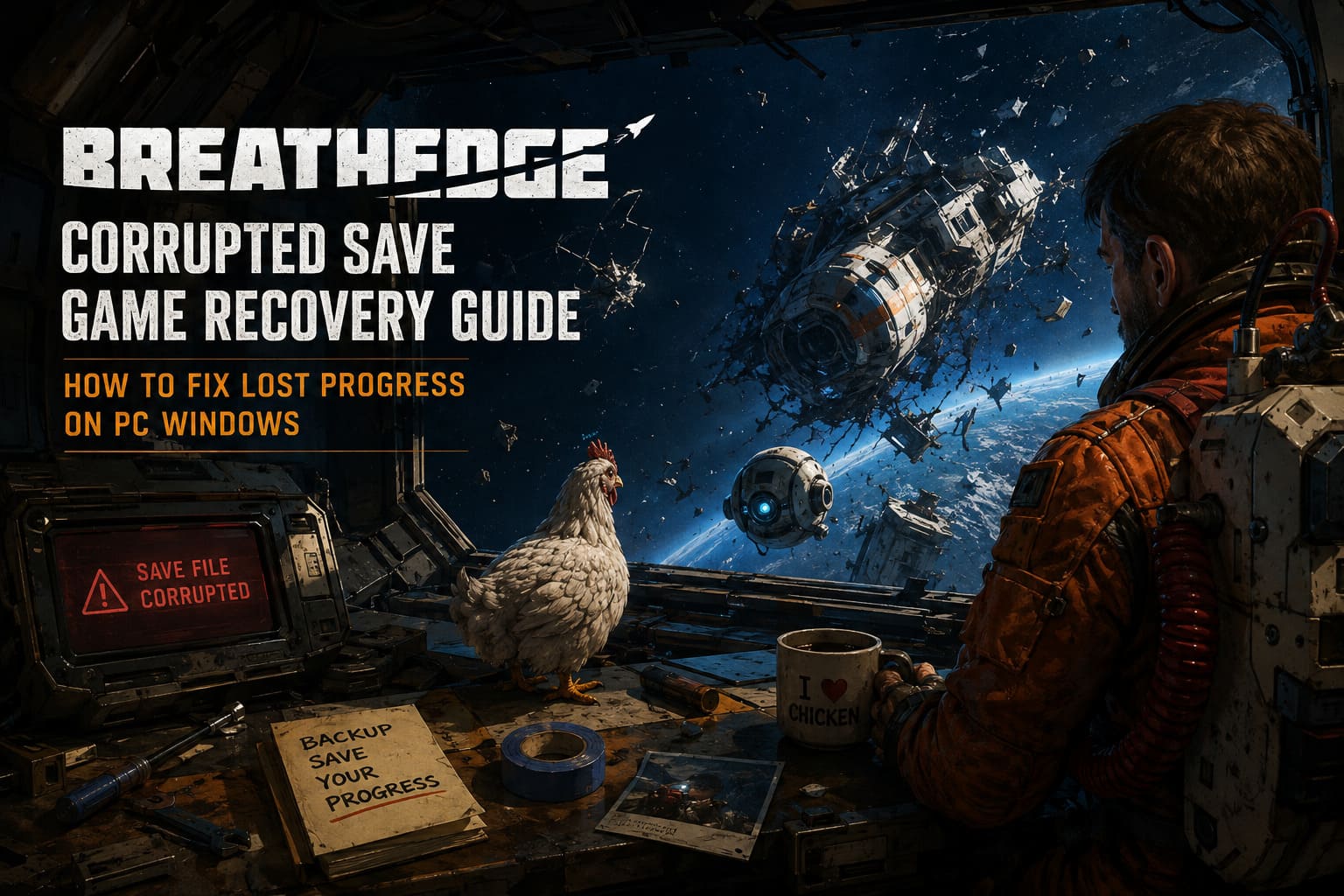
Breathedge Corrupted Save Game Recovery Guide: How to Fix Lost Progress on PC Windows
There are few things more painful in a survival game than losing a save you have been building for hours. In Breathedge, that feeling is especially brutal. You are already juggling oxygen, resources, crafting materials, strange space debris, and an immortal chicken that somehow became one of the most memorable parts of the entire adventure. Then Windows crashes, the game freezes, or Steam decides that your local save and cloud save are no longer on speaking terms.
I have always considered save corruption one of the worst technical problems a PC gamer can run into because it does not simply break the game. It can erase your time. Fortunately, a corrupted Breathedge save file does not always mean that your entire playthrough is gone. Depending on what happened, you may still have a backup, an older autosave, a Steam Cloud copy, or even a Windows recovery point.
This guide walks through the recovery methods I would try, starting with the safest options and gradually moving toward more advanced solutions. The most important rule is simple: do not start deleting files before making a complete backup of whatever is still on your PC.
Why Does a Breathedge Save Become Corrupted?
Save corruption can happen for several reasons, and most of them are not really your fault. The most obvious culprit is an interruption while the game is writing data. A power cut, system crash, forced shutdown, or hard lockup can leave a save in an incomplete state.
Steam Cloud can also complicate things. Cloud synchronization is normally a fantastic safety net, but when the local version and the cloud version disagree about which file is newer, things can get messy. In the worst case, you may end up with a damaged local file being synchronized instead of the healthy version you were hoping to recover.
There are also occasional problems associated with loading transitions, autosaves, and unusual game states. Breathedge has plenty of moving parts behind the scenes, and a save is not simply a screenshot of where your character is standing. The game has to remember progression, inventory, world states, objectives, and other variables.
So when something goes wrong, the first goal should not be “fix the corrupted file.” The first goal should be finding an older, healthy version of your progress.
Where Is the Breathedge Save Game Folder?
Before doing anything else, locate your save files. The exact location can depend on where you bought the game and how it was installed.
| Version | Possible Save Location |
|---|---|
| Steam | C:\Program Files (x86)\Steam\steamapps\common\Breathedge\Breathedge\Saved\SaveGames |
| Alternative Local Path | C:\Users\<YourUsername>\AppData\Local\Breathedge\Saved\SaveGames |
| GOG | C:\GOG Games\Breathedge\Breathedge\Saved\SaveGames |
| Microsoft Store / Xbox App | %LOCALAPPDATA%\Packages\HypeTrainDigital.BreathedgePC_7t701d8q7nf00\SystemAppData\wgs |
Don’t worry if your Steam installation does not use exactly the same folder structure shown above. Windows installations can vary, and AppData is hidden by default. If necessary, enable Hidden items in File Explorer or search your drive for SaveGames or Breathedge.
Method 1: Look for a Backup Save First
This is where I would start. It is quick, relatively safe, and does not require downloading anything or messing around with third-party recovery software.
Completely close Breathedge and also exit Steam or your other launcher. You do not want the launcher synchronizing files while you are trying to repair them.
Once you have found the save directory, copy the entire folder somewhere safe. I usually create a folder on the desktop called “Breathedge Emergency Backup.” It may look unnecessary, but this single step can save you from making the situation much worse.
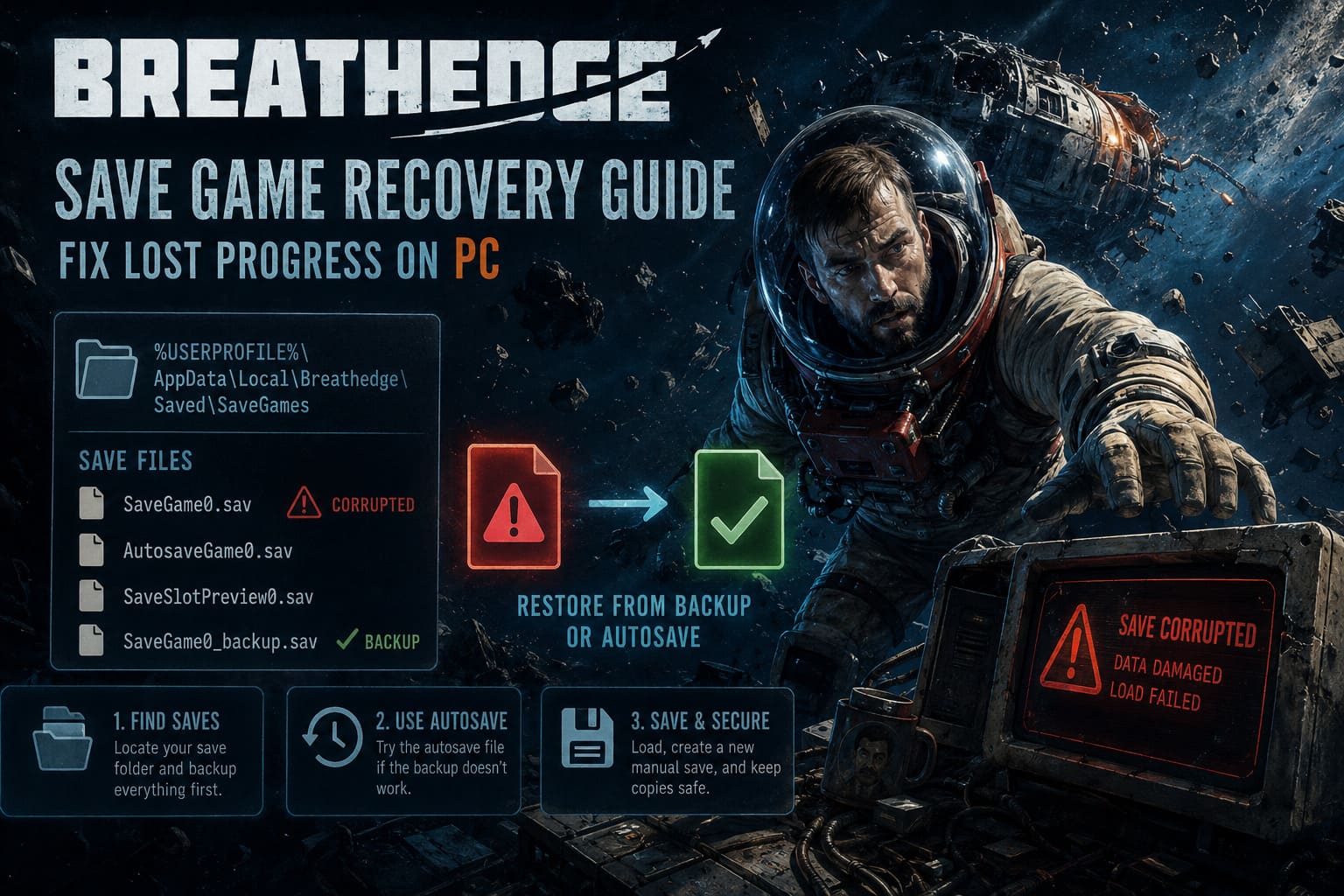
Look for files associated with your save slot. Depending on the version and save structure, you may see files resembling:
- SaveGame0.sav — your main save slot.
- AutosaveGame0.sav — an automatic save.
- SaveSlotPreview0.sav — information used for the save preview.
- SaveGame0_backup.sav — a possible backup copy.
If a backup file exists and your primary save is clearly damaged, you can try creating a copy of the backup and renaming that copy to the filename used by the main save. Do not permanently delete the original backup. Keep it inside your emergency backup folder.
After replacing the damaged save, launch Breathedge and check the Load Game menu. If your old progress appears, load it and immediately create a fresh manual save in another available slot.
Method 2: Try the Autosave Instead
If the backup does not work, the autosave may still be perfectly usable. This is one of those solutions that feels almost too simple, but it is absolutely worth trying before giving up.
Check the Date Modified information for AutosaveGame0.sav. Ideally, you want a timestamp from before the crash or corruption occurred.
Again, make a complete copy of the folder first. Then create a duplicate of the autosave rather than modifying the original. If your save structure allows it, rename the duplicate to the filename expected for your primary save slot and test it in-game.
You may lose some progress compared with your original manual save, but losing twenty minutes is considerably better than losing twenty hours.
My advice: if the recovered autosave loads successfully, don’t immediately overwrite your only remaining copy. Create another manual save and keep the recovered files somewhere outside the game directory until you are certain everything is stable.
Method 3: Recover an Older Save Through Steam Cloud
If the local folder has been wiped, overwritten, or filled with unusable files, Steam Cloud is your next major option.
For the Steam version, you can access the account’s remote storage through Steam’s website. Find Breathedge in the list of games and inspect the files associated with its cloud storage.
What you are looking for is an older version of your save with a modification time from before the corruption happened. Pay close attention to filenames, dates, and file sizes. A healthy older save can be far more useful than the newest file if the newest one is the corrupted copy.
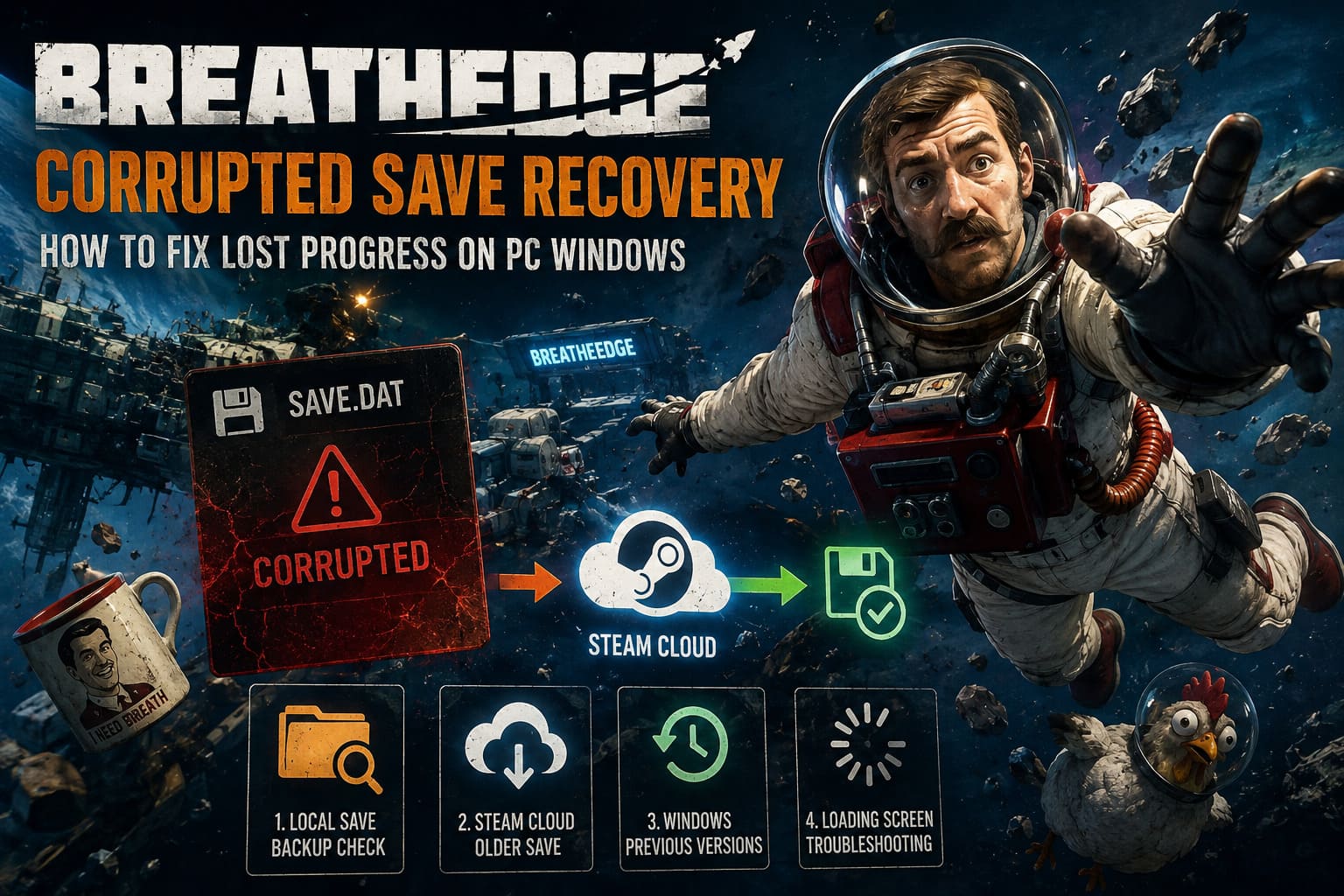
Before replacing anything locally, temporarily disable Steam Cloud synchronization for Breathedge. Otherwise, Steam may immediately decide that the corrupted local file should be uploaded again.
Download the older save, place it into the appropriate local save directory, and launch the game. If everything works, load the recovered game and create a new manual save.
Only after confirming that the recovered progression is actually working should you consider turning Steam Cloud back on. Personally, I would also keep a manual copy of the recovered save outside the Breathedge directory. Cloud storage is convenient, but having one independent backup is even better.
Method 4: Check Windows Previous Versions
This method is more of a last resort, but Windows itself may have an older version of your save directory if System Protection, File History, or another backup mechanism was configured on your PC.
Find the folder containing your Breathedge saves, right-click it, and select Properties. If Windows has stored previous versions, you may see a Previous Versions tab.
If an older version is available, don’t immediately use the Restore button. The safer approach is to restore or copy the historical folder somewhere separate, inspect the files, and then test them. This gives you another chance to recover the save without destroying your current files.
Unfortunately, not every Windows installation will have previous versions available. If the tab is empty, there may simply be nothing for Windows to recover.
What If Breathedge Gets Stuck on a Loading Screen?
A corrupted save does not always produce an obvious error message. Sometimes the game simply sits on a loading screen forever, which can make troubleshooting confusing.
First, determine whether the problem affects one save or every save. If a new game loads normally while your old career remains stuck, that is a strong indication that the problem is related to the affected save rather than the entire installation.
Don’t immediately reinstall the game. Reinstalling Breathedge generally does not repair a damaged save file, and depending on your cloud configuration, you could make synchronization problems even more confusing.
Test a different save slot, temporarily disable cloud synchronization, and work with copies of the files. That’s a much better troubleshooting path.
How to Protect Your Breathedge Saves in the Future
Once you have spent an evening fighting with a corrupted save, you start treating save files a little differently. I certainly do.
- Keep manual backups. Every few major milestones, copy your save folder to another location.
- Use multiple save slots. Don’t put your entire playthrough on one file.
- Don’t force-close the game during saving. Give Breathedge a few seconds to finish writing data before shutting down.
- Be careful with Steam Cloud conflicts. If Steam asks which version to keep, stop and check the dates before choosing.
- Keep Windows and storage hardware healthy. Sudden shutdowns and failing drives are far more dangerous to save data than most players realize.
I would also avoid randomly adding the entire game folder to antivirus exclusions unless you have a specific reason to do so. Security software can occasionally interfere with applications, but blindly disabling protection is not a good universal fix. If you suspect an antivirus conflict, investigate it first and make the smallest change possible.
SBest Stealth Assault Rifle in Tom Clancy’s Ghost Recon Wildlands (2026 Meta Guide)
A Quick Word About the Ctrl+Shift+Alt+U Fix
You may encounter community posts recommending the Ctrl+Shift+Alt+U shortcut for getting a character unstuck from geometry. If you decide to test an unofficial or community-discovered command like this, treat it as a gameplay troubleshooting trick rather than a guaranteed save-repair solution.
Getting stuck inside an asteroid or piece of debris is annoying, but it is a different problem from actual save corruption. I would never force-close the game simply because your character is stuck. Try safe in-game solutions first and give the current save a chance to finish its normal state transitions.
Final Thoughts: Don’t Give Up on Your Save Too Quickly
A corrupted Breathedge save looks disastrous when you first see it. I know that feeling: you launch the game expecting to continue your ridiculous little space survival adventure, only to discover that the save you’ve been relying on refuses to load.
The good news is that corrupted does not automatically mean permanently lost. There can be several layers of recovery between you and starting the entire campaign again. A backup file might work. An older autosave might survive. Steam Cloud could contain a usable version. Windows might even have an older copy sitting quietly in the background.
The most important thing is to work slowly. Back up the damaged files before changing anything, disable cloud synchronization while testing replacements, and never overwrite your only remaining copy.
And once you finally get your save working again, do yourself a favor: create another manual save in a separate slot. Breathedge is already strange enough without discovering that your entire space adventure disappeared because of one unlucky crash.