How to Fix Halloween: The Game Network Connection Error and Server Timeout 2026
Halloween: The Game finally throws players into the nightmare of Haddonfield, but getting into the game can sometimes feel like surviving Michael Myers before the match even starts. During the early-access launch period, players have been running into Network Connection Error, Server Timeout, Session Heartbeat Failure, failed lobby joins, and random disconnects that can kick an entire session back to the menu.
That is especially frustrating in an asymmetrical horror game where the whole experience depends on a stable connection. Nobody wants to spend several minutes waiting in a matchmaking queue, finally load into a match, and then get booted because the client lost contact with the server for a few seconds.
After digging through the usual troubleshooting suspects — server congestion, DNS problems, packet loss, Windows networking, firewall rules, overlays, corrupted files, and router issues — there is a pretty clear pattern. Not every Halloween: The Game connection error is caused by your PC. Some problems are simply the result of launch traffic hammering the game’s online infrastructure.
That distinction matters. If the servers are melting under a massive player spike, changing twelve Windows settings will not magically fix it. But if the servers are healthy and you’re still getting kicked from matches, there are several worthwhile fixes you can try.
Why Halloween: The Game Keeps Timing Out
The first thing I would do before touching any settings is figure out which side is actually causing the problem. Connection failures generally fall into three buckets: server-side congestion, client/server synchronization problems, or instability somewhere between your PC and the game servers.
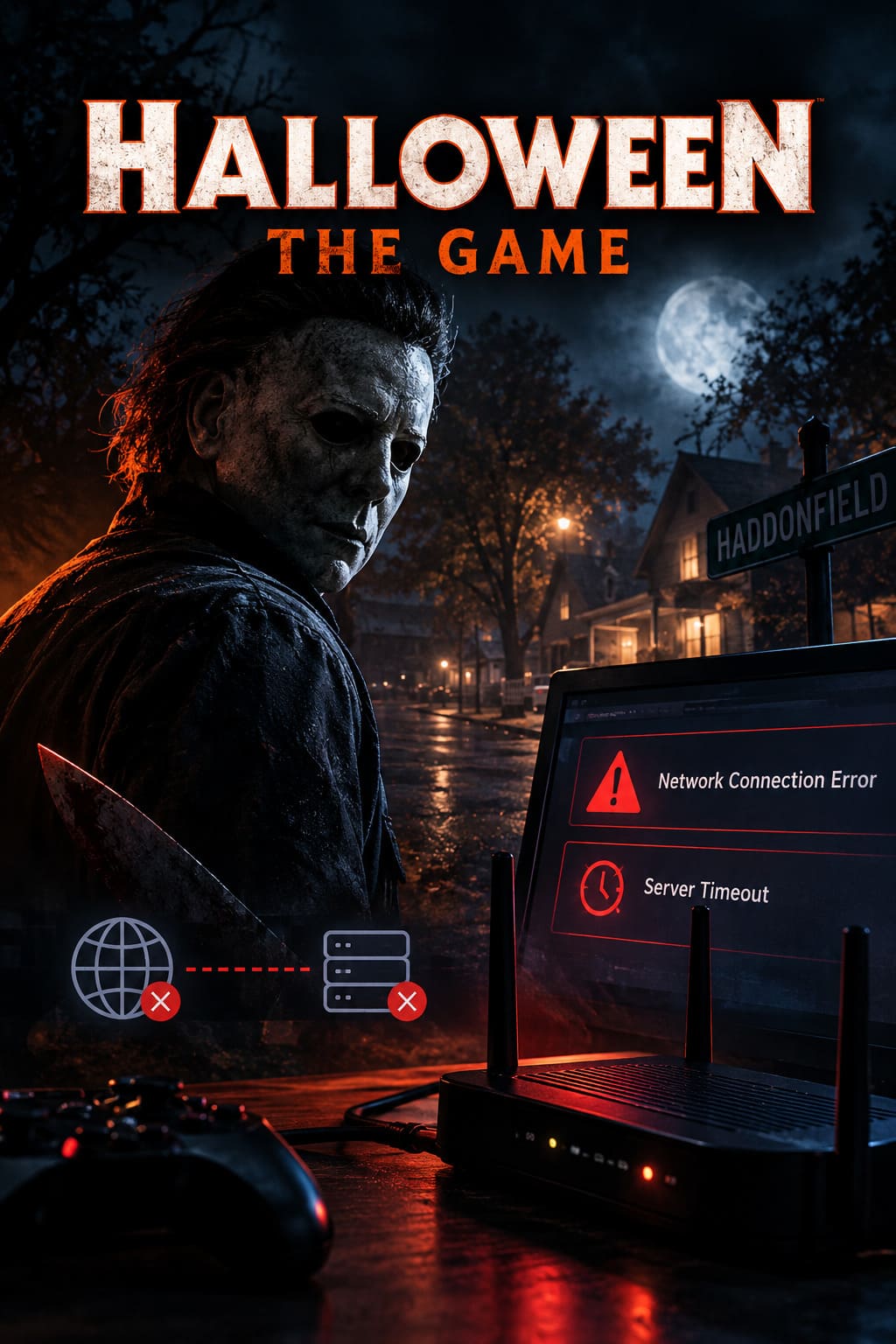
Launch-day server overload is the obvious one. When thousands upon thousands of players attempt to enter matchmaking simultaneously, queues can become enormous. The longer the client waits for a response from the lobby infrastructure, the greater the chance that a timeout threshold gets hit.
Then there are heartbeat failures. A heartbeat is basically the game’s way of checking that your client is still talking to the server. If packets stop arriving consistently or the connection becomes unstable, the server may decide that your session has disappeared even though your internet technically still works.
And this is where Wi-Fi, ISP routing, DNS behavior, VPNs, and background applications can become relevant. A connection that feels perfectly fine while watching YouTube can still suffer enough packet loss or jitter to ruin a real-time multiplayer session.
Start Here: Check the Servers and Your Game Version
Do not start by reinstalling the entire game. Seriously. If the servers are having a bad day, reinstalling 50 GB of horror assets is just a very elaborate way to waste your evening.
Check the official game channels, Steam announcements, and community reports first. If players everywhere are reporting the same timeout at roughly the same time, you are probably dealing with a server-side problem.
You should also make sure your game is fully updated. Early-access builds can change rapidly, and multiplayer games are particularly sensitive to version mismatches. If the developers have released a hotfix addressing server stability, crashes, or matchmaking, install it before doing anything else.
If your client is running an older build while the live backend expects something newer, the result can be anything from a failed lobby connection to an extremely unhelpful timeout message.
Fix #1: Change Your DNS Server
This is one of the quickest networking tweaks worth testing. Your ISP’s default DNS service is not necessarily bad, but switching to a large public DNS provider can eliminate DNS resolution problems and occasionally improve how quickly game-related addresses are resolved.
On Windows, open Control Panel → Network and Internet → Network and Sharing Center → Change adapter settings. Right-click your active Ethernet or Wi-Fi connection and choose Properties.
Open Internet Protocol Version 4 (TCP/IPv4) and select Use the following DNS server addresses.
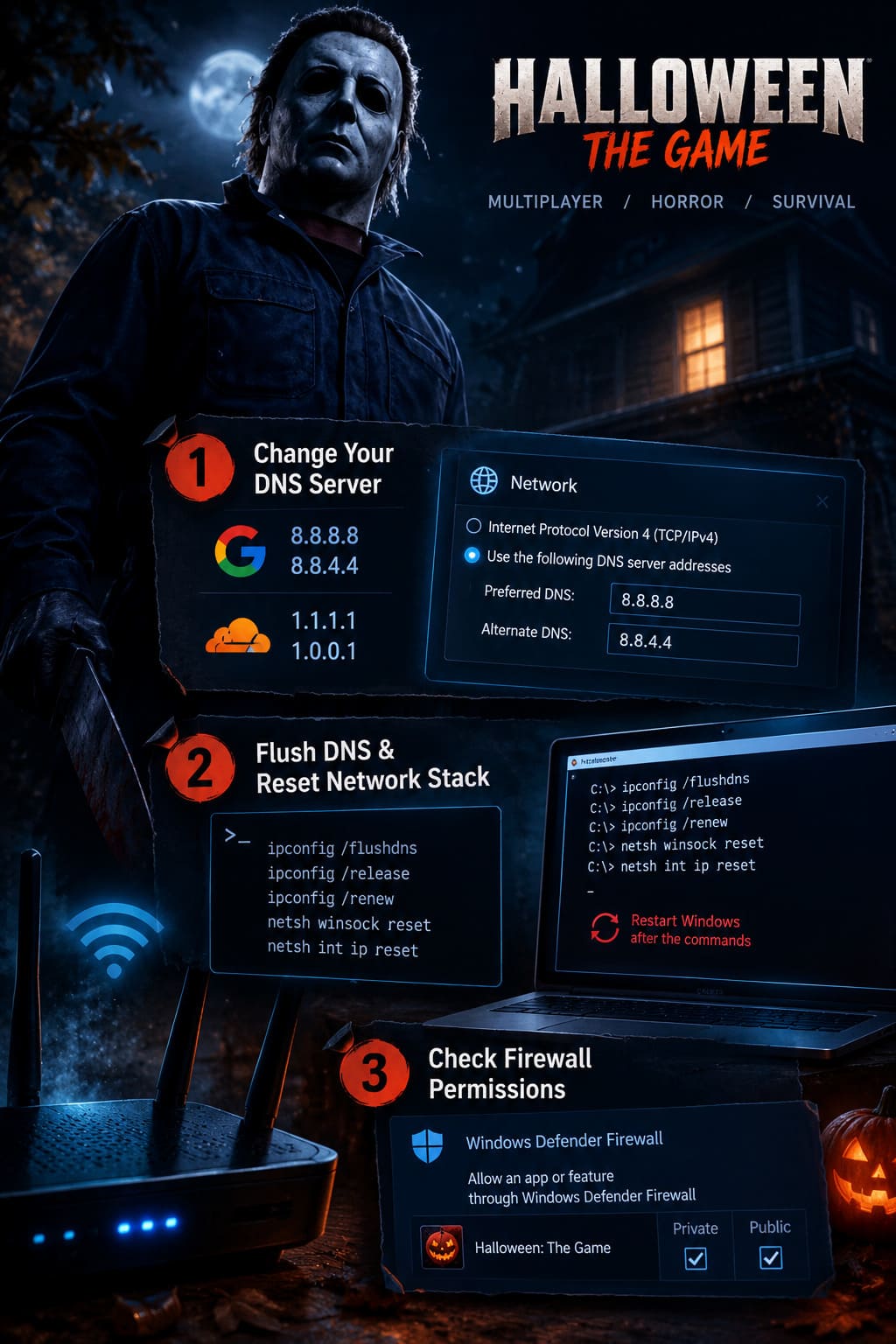
For Google DNS, use:
- Preferred: 8.8.8.8
- Alternate: 8.8.4.4
Alternatively, Cloudflare DNS uses:
- Preferred: 1.1.1.1
- Alternate: 1.0.0.1
Click OK and restart the game. I wouldn’t expect DNS to cure an overloaded game server, but if your normal resolver is behaving badly, this is an easy test with virtually no downside.
Fix #2: Flush Windows DNS and Reset the Network Stack
If Windows has accumulated a busted DNS cache or networking configuration, resetting the stack is worth doing. This is particularly useful when other internet applications work normally but one game suddenly refuses to establish a reliable connection.
Search for Command Prompt, right-click it, select Run as administrator, and enter these commands individually:
ipconfig /flushdnsipconfig /releaseipconfig /renewnetsh winsock resetnetsh int ip reset
Restart Windows after completing the commands. Then launch Steam or your relevant platform client again and test Halloween: The Game.
Don’t skip the reboot. Some of these resets do not fully take effect until Windows has restarted.
Fix #3: Check Windows Firewall Permissions
Firewall problems are another classic source of multiplayer nonsense. Halloween: The Game needs to communicate with its online services, and its anti-cheat components also need to operate without Windows silently interfering.
Open Windows Defender Firewall from Windows Search and choose Allow an app or feature through Windows Defender Firewall.
Click Change settings and find the game in the list. Make sure the appropriate Private and Public network permissions are enabled.
If the game isn’t listed, choose Allow another app, browse to the game’s installation directory, and add its executable manually.
I would avoid randomly disabling the firewall altogether. Adding the correct application exception is the cleaner approach and doesn’t leave your entire system exposed just because one horror game is throwing a tantrum.
Fix #4: Kill Overlays and Background Network Software
This is one of those fixes that sounds almost too simple, but it is absolutely worth testing. Modern gaming PCs can have a ridiculous number of programs injecting themselves into games: Discord, Steam, GPU recording software, performance monitors, RGB utilities, VPNs, capture applications, and hardware monitoring tools.
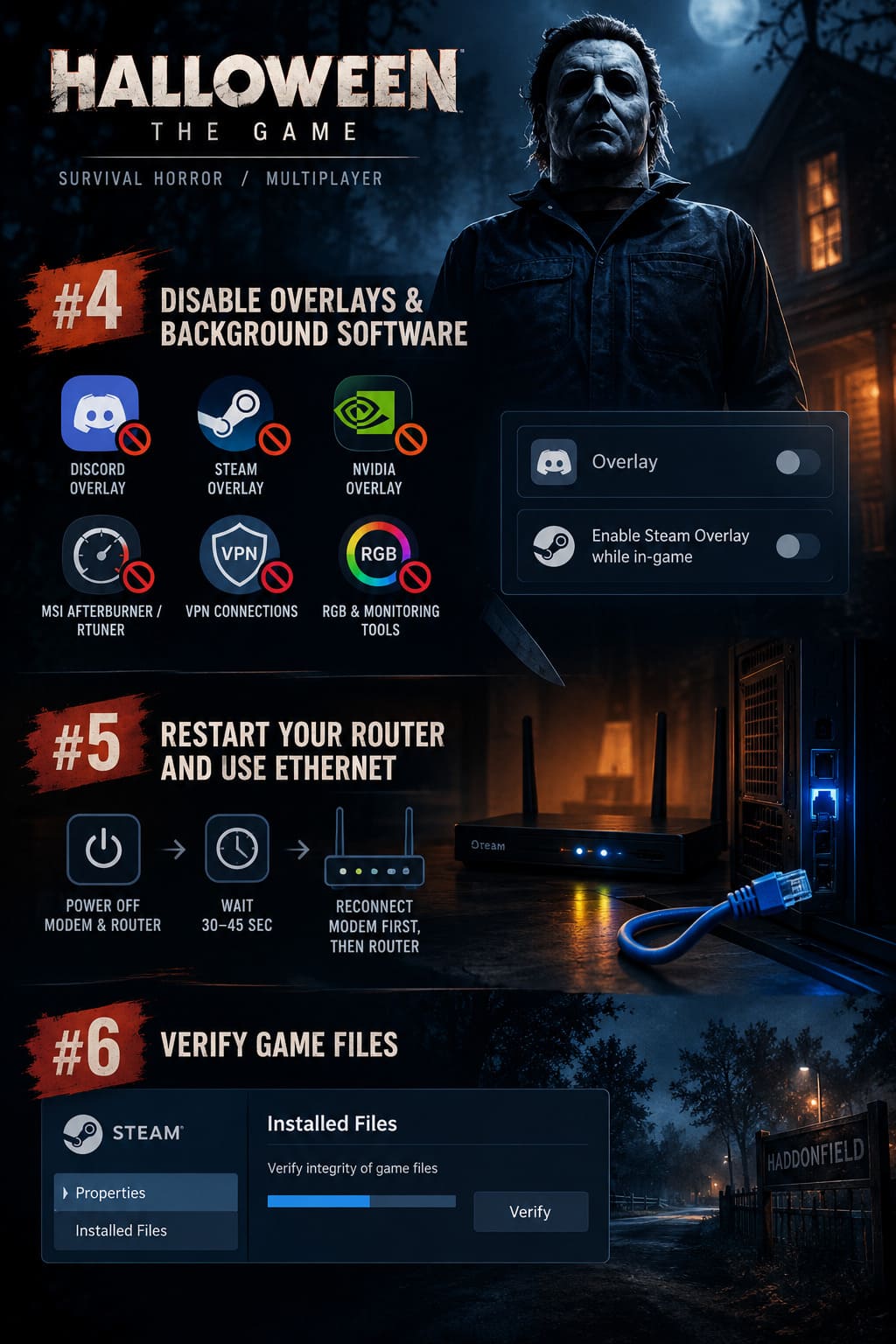
Temporarily disable:
- Discord Overlay
- Steam Overlay
- NVIDIA in-game overlay
- MSI Afterburner / RivaTuner overlays
- VPN connections or browser VPN extensions
For Discord, open User Settings and disable the in-game overlay. In Steam, open the game’s Properties and disable Enable the Steam Overlay while in-game.
You don’t have to permanently live without these features. The goal is to eliminate variables. If the connection becomes stable after disabling them, you can turn them back on one at a time and identify the culprit.
Fix #5: Restart Your Router and Use Ethernet
If you’re playing over Wi-Fi, this is probably the first physical change I’d make. Not because Wi-Fi is automatically bad, but because multiplayer horror games have very little patience for unstable wireless connections.
A few dropped packets may be invisible when browsing the web. In a live multiplayer match, those same interruptions can cause synchronization problems and eventually produce a heartbeat failure.
Power down your modem and router completely. Leave them disconnected for around 30–45 seconds, then reconnect the modem first. Once it has fully established its connection, power the router back on.
If possible, connect the gaming PC directly to the router using an Ethernet cable. A wired connection removes a whole category of potential interference, signal fluctuations, and wireless congestion.
If Halloween suddenly stops disconnecting after switching from Wi-Fi to Ethernet, you’ve found a major clue.
Fix #6: Verify Halloween: The Game Files
Connection errors are not always networking problems. A damaged update can create synchronization issues when the game tries to load assets or communicate with the current server build.
On Steam, open your Library, right-click Halloween: The Game, select Properties, then open Installed Files.
Choose Verify integrity of game files and let Steam complete the scan.
If files are missing or corrupted, Steam will download replacement data. This is particularly useful after a major early-access update, hotfix, crash during an update, or interrupted download.
Halloween: The Game Connection Error Quick Reference
| Error or Symptom | Most Likely Cause | First Fix to Try |
|---|---|---|
| Server Connection Timed Out | Server congestion, DNS or routing issue | Check server status, then test Google or Cloudflare DNS |
| Session Heartbeat Failure | Packet loss, unstable Wi-Fi or synchronization issue | Restart router and switch to Ethernet |
| Failed to Join Lobby | Version mismatch or server overload | Update the game and verify files |
| Disconnected Mid-Match | Packet loss, firewall or background software | Check firewall permissions and disable overlays |
| Repeated Login Failure | Server authentication or connectivity problem | Check official status reports before changing settings |
What I Would Try First on My Own PC
If I were sitting down to play and started getting constant Halloween: The Game network errors, I wouldn’t blindly apply every fix in this guide. I’d troubleshoot in an order that gives me useful information as quickly as possible.
First, I’d check whether other players are reporting outages. If the servers are overloaded, I’ll save myself the headache and wait.
Second, I’d make sure the game is updated. Early access means frequent patches, and multiplayer builds can be unforgiving about mismatched versions.
Third, I’d restart the router and test Ethernet. That’s one of the fastest ways to eliminate local packet-loss problems.
After that, I’d flush DNS, test a public DNS provider, check the Windows Firewall, and shut down overlays. Finally, I’d verify the Steam installation.
That order matters because it prevents you from changing ten things at once and then having no idea which change actually solved the problem.
How to Fix Halloween: The Game Compilation Stutter: Best Nvidia & AMD Settings
When None of These Fixes Work
Here’s the uncomfortable truth: sometimes there is nothing wrong with your setup.
If Halloween: The Game is experiencing huge queues, widespread matchmaking failures, or repeated heartbeat problems across different regions, the smartest fix may simply be waiting for the developers to stabilize the backend.
That can be annoying, especially when you’ve been waiting for the game and finally have an hour free to play. But there is no magic Windows command that can repair a server running out of capacity.
If the problem happens exclusively during peak hours while the game works perfectly late at night or during quieter periods, that’s another strong sign that server capacity or matchmaking infrastructure is involved.
Halloween The Game: The Shape Stealth Mechanics & Tutorial Guide (2026)
Final Verdict
Halloween: The Game’s Network Connection Error, Server Timeout, and Session Heartbeat Failure problems can come from several completely different sources. Some are local and can be fixed with DNS changes, network resets, firewall configuration, Ethernet, or file verification. Others are simply the growing pains of an online early-access game dealing with a flood of players.
My biggest piece of advice is not to panic and start reinstalling everything. Check the server situation first, update the game, then work through your own connection methodically. A wired connection, clean Windows network stack, properly configured firewall, and disabled overlays give you a much cleaner environment for troubleshooting.
And if the servers themselves are drowning under launch traffic? Grab a drink, give the backend team a little time, and come back later. Michael Myers can wait. Your router probably doesn’t need to be sacrificed to him.