How to Verify Integrity of Game Files for Dragonkin: The Banished on Steam: The Complete Troubleshooting Guide
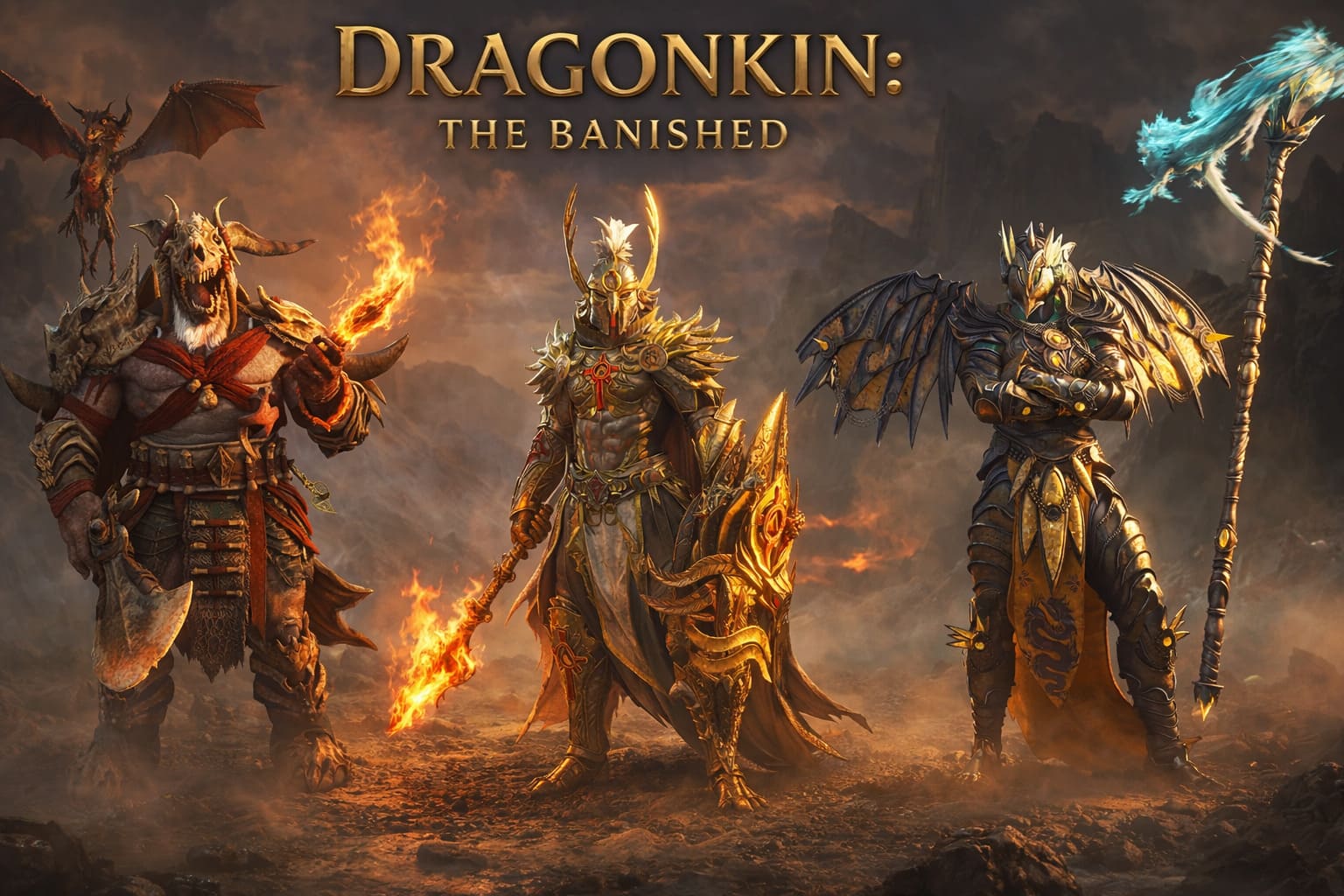
If you’ve been diving into Dragonkin: The Banished lately, you already know—it’s one of those ARPGs that just clicks. The combat feels punchy, the skill-grid system is addictive, and Unreal Engine 5 makes everything look ridiculously good. But let’s be real for a second: with great visuals comes great instability.
Crashes. Black screens. Random “Fatal Error” pop-ups. Yeah, it happens.
I’ve been there myself—mid-run, loot everywhere, and boom… desktop. No warning, no mercy.
So before you start blaming your GPU, reinstalling Windows, or going down some obscure Reddit rabbit hole, there’s one fix you absolutely need to try first:
Verify the integrity of your game files on Steam.
It sounds basic. It is basic. But it works more often than you’d expect.

Why This Matters More Than You Think
Modern games like Dragonkin aren’t just “install and play” anymore. They’re massive, complex systems with thousands of files working together.
And it only takes one broken file to ruin everything.
Here’s what can go wrong:
- Interrupted updates – even a tiny connection hiccup can corrupt a file
- Drive issues – yes, even SSDs aren’t perfect
- Overprotective antivirus – sometimes they delete or quarantine legit game files
- Shader problems (UE5 classic) – especially after crashes or forced shutdowns
The result? Crashes on launch. Random freezes. Weird graphical glitches.
Step-by-Step: How to Verify Game Files on Steam
1. Make Sure the Game Is Fully Closed
This is important. After a crash, the game might still be running in the background.
- Press Ctrl + Shift + Esc
- Open Task Manager
- Look for anything related to Dragonkin
- End the task if it’s there
2. Open Your Steam Library
- Launch Steam
- Go to your Library
- Find Dragonkin: The Banished
- Right-click → Properties
3. Run the Verification
- Go to Installed Files
- Click Verify integrity of game files
Now just let Steam do its thing.
Dragonkin: The Banished City of Montescail Guide: Best Building Upgrade Order & Leveling Strategy
4. What the Results Mean
| Result Message | What It Actually Means | What You Should Do |
|---|---|---|
| All files validated | Everything is fine | Problem is elsewhere |
| Files failed to validate | Corrupted or missing files found | Steam will fix them automatically |
If files get reacquired, that’s a good sign, not a bad one.
When Verification Isn’t Enough (Real Gamer Fixes)
Sometimes, even after a clean verification, the game still acts up. That’s when you go a bit deeper.
Here are the fixes I’ve personally seen work (and used myself).
Clear the Shader Cache (Huge for UE5 Games)
Unreal Engine 5 loves its shader cache—but when it breaks, it really breaks.
How to fix it:
- Press Win + R
- Type: %LocalAppData%
- Find the Dragonkin folder
- Go into Saved
- Delete ShaderBytecode and D3DSCache
Next launch will stutter a bit—that’s normal. It’s rebuilding.
Use Steam Launch Options
These are underrated and can fix weird startup issues.
Go to Properties → General → Launch Options.
Try these one at a time:
- -force-d3d12 – forces DirectX 12
- -windowed – helps with black screens
- -nosplash – skips intro videos
Update the “Big Three”
This is where a lot of people get lazy—and it costs them.
- GPU drivers (clean install preferred)
- DirectX runtimes (including older components)
- Visual C++ Redistributables (all versions)
Missing C++ packages often lead to random crashes, so don’t skip this step.
Common Errors and What They Really Mean
| Error | Likely Cause | Fix |
|---|---|---|
| 0xc0000005 | Memory or DLL issue | Verify files and run as admin |
| Out of Video Memory | VRAM overload | Lower textures and increase pagefile |
| Anti-Cheat errors | Software conflict | Disable RGB or overlay apps |
| Black screen with audio | Resolution mismatch | Use -windowed |
The Nuclear Option: Clean Reinstall
Sometimes nothing works, and that’s when a clean reinstall becomes the best option.
- Uninstall via Steam
- Delete the leftover folder in steamapps/common
- Remove config files in %LocalAppData%
- Reinstall the game
This ensures there are no leftover corrupted or “ghost” files.
Community Tips That Actually Work
CPU Overclocking Can Break the Game
If you’re running a high-end Intel CPU, slightly downclocking by 100–200MHz can stabilize the game. Unreal Engine 5 titles are known to be sensitive to aggressive overclocking.
Windows Game Mode Helps
On Windows 11, Game Mode has improved significantly. It can help with thread scheduling and overall stability during intense gameplay moments. Turning it on is recommended.
Final Thoughts
Verifying game files fixes more problems than people give it credit for.
It’s not flashy or complicated, but it works—especially for complex Unreal Engine 5 games like Dragonkin: The Banished.
If you’re facing crashes or performance issues, start simple before diving into advanced troubleshooting.
Keep your installation clean, your drivers updated, and your system optimized—and you’ll spend less time fixing problems and more time enjoying the game.