WARDOGS Won’t Launch on Steam: How to Fix Startup Crashes and Errors (2026 Guide)
There’s nothing quite as annoying as getting hyped for a new shooter, sitting down with a drink, launching the game — and watching absolutely nothing happen.
That has been the reality for quite a few WARDOGS players since the game’s late-August 2026 Early Access and Playtest releases. Instead of jumping straight into a massive 100-player battlefield, some players are getting black screens, endless loading, sudden desktop crashes, or Windows error messages before they even reach the main menu.
And honestly, this is probably one of the worst ways for a big multiplayer shooter to stumble out of the gate.
WARDOGS has a lot going for it: huge battles, combined-arms combat, destructible environments and the kind of chaotic warfare that PC players have been waiting for. But none of that matters if the game dies immediately after shader compilation.
The good news? A WARDOGS launch crash doesn’t necessarily mean your PC is the problem. A lot of these startup failures appear to be connected to anti-cheat services, Windows graphics settings, overlays, old files and conflicts between background software.
I’ve put together the fixes I’d try first rather than wasting an entire evening randomly reinstalling everything. Start at the top and work your way down.
First, What Is Actually Causing WARDOGS to Crash?
Before going nuclear and reinstalling Windows — yes, people really do consider that when a game refuses to cooperate — it helps to understand what is happening.
The most common WARDOGS startup problems seem to fall into a handful of categories.
| Problem | What You May See | First Thing I’d Try |
|---|---|---|
| Anti-cheat conflict | Unexpected Error, immediate crash | Reset Easy Anti-Cheat |
| GPU/Windows conflict | Crash after shaders compile | Disable HAGS |
| Overlay conflict | Black screen or CTD | Disable Steam/Discord/GPU overlays |
| Background software | Game closes before menu | Shut down other anti-cheat services |
| Corrupt cache/files | Access violation, graphics crash | Clear shader cache + verify files |
| Account/access issue | Authorization error | Restart Steam and refresh access |
The important thing is not to try ten fixes simultaneously. Change one thing, restart when necessary, and test the game. Otherwise, you won’t know which solution actually fixed your problem.
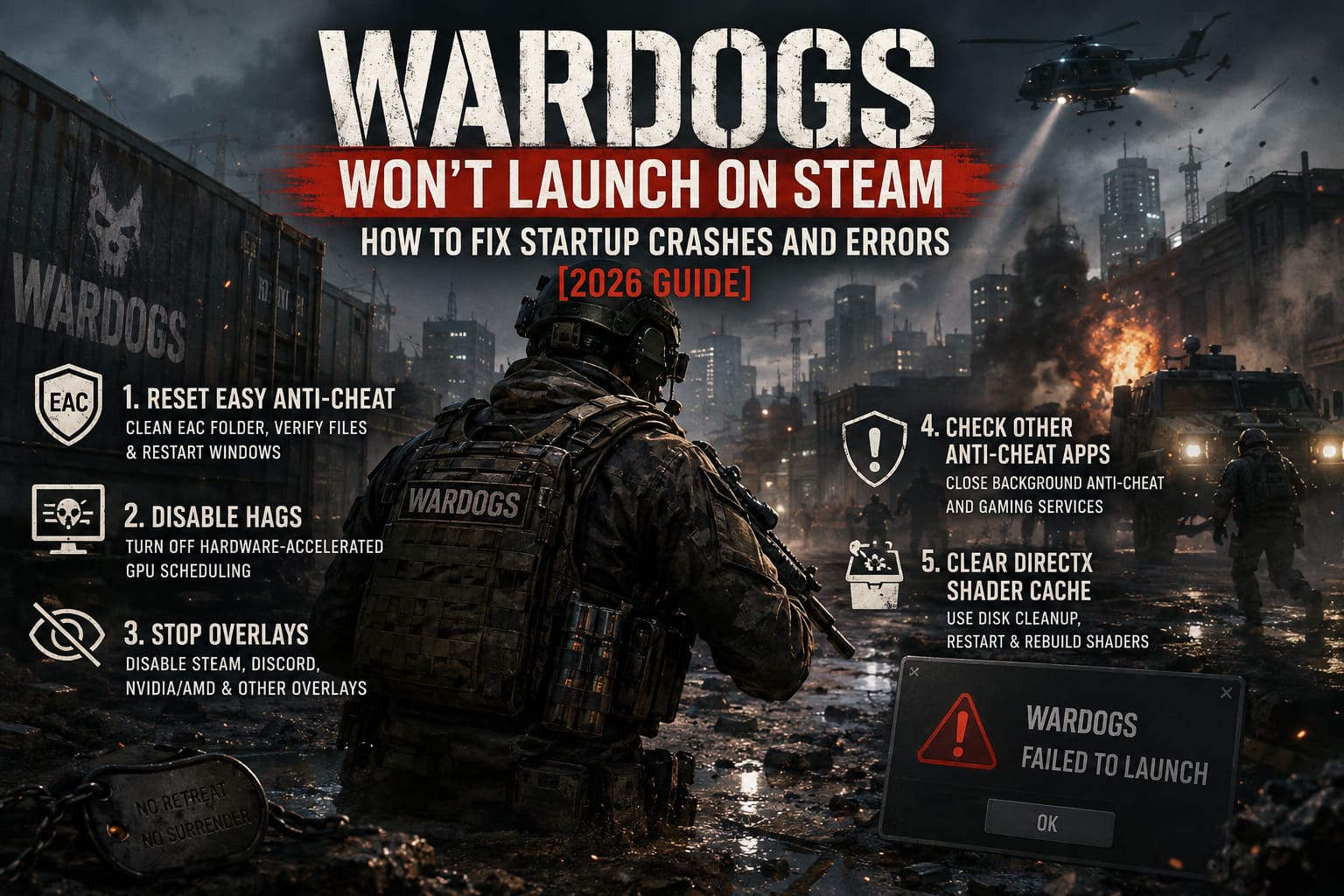
1. Start With Easy Anti-Cheat
If I had to pick one place to start with a WARDOGS launch problem, this would be it.
Multiplayer shooters depend heavily on anti-cheat software, and unfortunately anti-cheat systems can sometimes become the very thing preventing a game from starting. A damaged installation, an outdated component or a conflict with another security service can cause WARDOGS to fail before the game properly initializes.
Simply pressing a generic “repair” option isn’t always enough.
Try a clean EAC reset
- Completely exit Steam. Don’t just close the window. Check the Windows system tray and make sure Steam isn’t still running.
- Open File Explorer and navigate to your Steam installation. On many PCs, the relevant system directory is
C:\Program Files (x86)\. - Look for the EasyAntiCheat folder.
- If you’re following this cleanup approach, remove the local EAC folder.
- Start Steam again.
- Go to your Steam Library and find WARDOGS or the relevant Playtest installation.
- Open Properties > Installed Files.
- Select Verify integrity of game files.
- Let Steam replace anything missing or damaged.
- Restart Windows before launching the game again.
That last step is important. Anti-cheat components can interact with Windows at a fairly deep level, so a complete reboot is much more useful than simply closing and reopening Steam.
My advice: don’t immediately reinstall the entire game if WARDOGS crashes at startup. Try repairing the components around the game first. A 100-player shooter can be a huge download, and there’s no reason to burn hours of bandwidth if the actual problem is EAC.
2. Disable Hardware-Accelerated GPU Scheduling
This is the fix I’d try next, particularly if WARDOGS gets through shader compilation and then instantly disappears.
Windows’ Hardware-Accelerated GPU Scheduling (HAGS) is designed to change how GPU scheduling is handled. In theory, that’s a performance feature. In practice, new games and new graphics pipelines don’t always get along perfectly with every Windows/GPU configuration.
Some WARDOGS players have reported crashes around the shader initialization stage, including errors associated with platform-related DLLs.
How to turn HAGS off
Go to:
Windows Settings → System → Display → Graphics
Depending on your Windows version, you may find the relevant option under advanced graphics settings.
Look for:
Hardware-accelerated GPU scheduling
Switch it Off, then restart Windows.
After rebooting, launch WARDOGS again.
If the game suddenly gets past the exact point where it previously crashed, you’ve probably found your culprit.
And yes, I’d leave HAGS disabled while testing rather than switching it back and forth every five minutes. Get the game stable first. Performance tweaking comes later.
3. Kill the Overlays
Here’s another classic PC gaming problem: you’ve got a game, Steam, Discord, your GPU software, recording software and probably three other applications all trying to put something on top of the game.
Normally, that’s fine.
During a fragile startup sequence? Not always.
An overlay can hook into the rendering process, and if WARDOGS is already struggling during initialization, that extra software layer may be enough to trigger a crash.
Disable the Steam Overlay
Open your Steam Library, right-click WARDOGS and select Properties.
Under General, find the option for the Steam Overlay and turn it off.
Then test the game.
I’d also temporarily disable:
- Discord Game Overlay
- NVIDIA in-game overlay
- AMD’s equivalent gaming overlay
- Recording/streaming overlays
- FPS counters
- Hardware monitoring overlays
You don’t have to permanently live without them. This is a troubleshooting step.
If WARDOGS suddenly launches normally, start re-enabling your overlays one at a time. That’s the easiest way to identify the troublemaker.
4. Check for Other Anti-Cheat Programs Running in the Background
This one is easy to overlook.
You might think, “Valorant isn’t running, so Riot Vanguard isn’t relevant.”
Unfortunately, some anti-cheat components can remain active even when their associated game is closed. The same general issue can happen with other competitive shooters and their security software.
That doesn’t automatically mean Vanguard, Ricochet or another anti-cheat is “blocking” WARDOGS. Don’t assume every anti-cheat conflict is guaranteed. But if you’re getting unexplained startup crashes, eliminating those variables is worthwhile.
Open the Windows system tray and check what’s running.
Then open:
Task Manager → Processes
Look for unnecessary gaming services, launchers or anti-cheat components.
Close what you don’t need, reboot if necessary, and try WARDOGS again.
If you regularly jump between multiple competitive shooters, this is especially worth checking.
5. Clear Your DirectX Shader Cache
If your crash happens after WARDOGS starts compiling shaders, don’t ignore the possibility of a corrupted local shader cache.
Shader compilation is one of those things players normally don’t think about. The game does its technical wizardry in the background, you wait, and eventually you’re supposed to be playing.
But if cached shader data becomes inconsistent after a driver update, game patch or interrupted launch, the game can potentially crash when trying to use it.
Clear the cache
The simple Windows method is:
- Search Windows for Disk Cleanup.
- Run it for your system drive.
- Select DirectX Shader Cache.
- Confirm the cleanup.
- Restart your PC.
- Launch WARDOGS again.
The next launch may take a little longer because shaders could need to be generated again.
That’s normal.
Don’t panic because the first launch after clearing the cache is slower. You’re essentially making the game rebuild part of its graphics cache.
6. Update Your GPU Drivers — But Don’t Blindly Chase Every Beta Driver
This sounds obvious, but graphics drivers are often part of the equation when a new PC game launches.
Check the official driver software or website for your GPU manufacturer and make sure you’re using a current stable driver for your hardware.
That includes:
- NVIDIA
- AMD
- Intel
If you’re using an NVIDIA GPU and the problem started immediately after several driver updates, a clean driver installation can also be worth considering.
However, I wouldn’t automatically install every experimental or optional driver just because it is newer.
Newest doesn’t always mean most stable for your specific setup.
If WARDOGS worked before a driver update and broke immediately afterward, that’s also useful information. In that situation, a driver rollback can sometimes be more sensible than blindly updating again.
7. Don’t Forget Steam’s File Verification
This is probably the least exciting solution on the list, but it’s also one of the first things I’d do.
Game updates can occasionally leave behind missing, damaged or incorrectly updated files. That’s particularly relevant for an Early Access title like WARDOGS, where builds can change quickly.
In Steam:
Library → WARDOGS → Properties → Installed Files → Verify integrity of game files
Let Steam finish the process.
If it discovers damaged or missing files, allow it to download replacements.
This is especially useful after:
- A failed update
- A sudden PC shutdown
- A crash during patching
- Switching between Playtest and Early Access builds
- Moving the game between drives
- Removing anti-cheat files manually
8. Old WARDOGS Configuration Files Can Be the Hidden Problem
This is one of those annoying PC gaming situations where reinstalling the game doesn’t necessarily guarantee a completely clean configuration.
If you’ve participated in previous WARDOGS testing phases, your machine may have accumulated configuration or cache data from older builds.
A new build may not always behave perfectly with old settings.
Before deleting configuration folders, however, make a backup. Don’t randomly remove directories just because someone on a forum said so.
If you’re comfortable doing it, search for WARDOGS-related configuration/cache folders in your Windows user profile and temporarily rename them rather than immediately deleting them.
For example, changing a folder name to something like:
WARDOGS_Backup
lets you restore it later if necessary.
This can effectively force the game to create fresh configuration data.
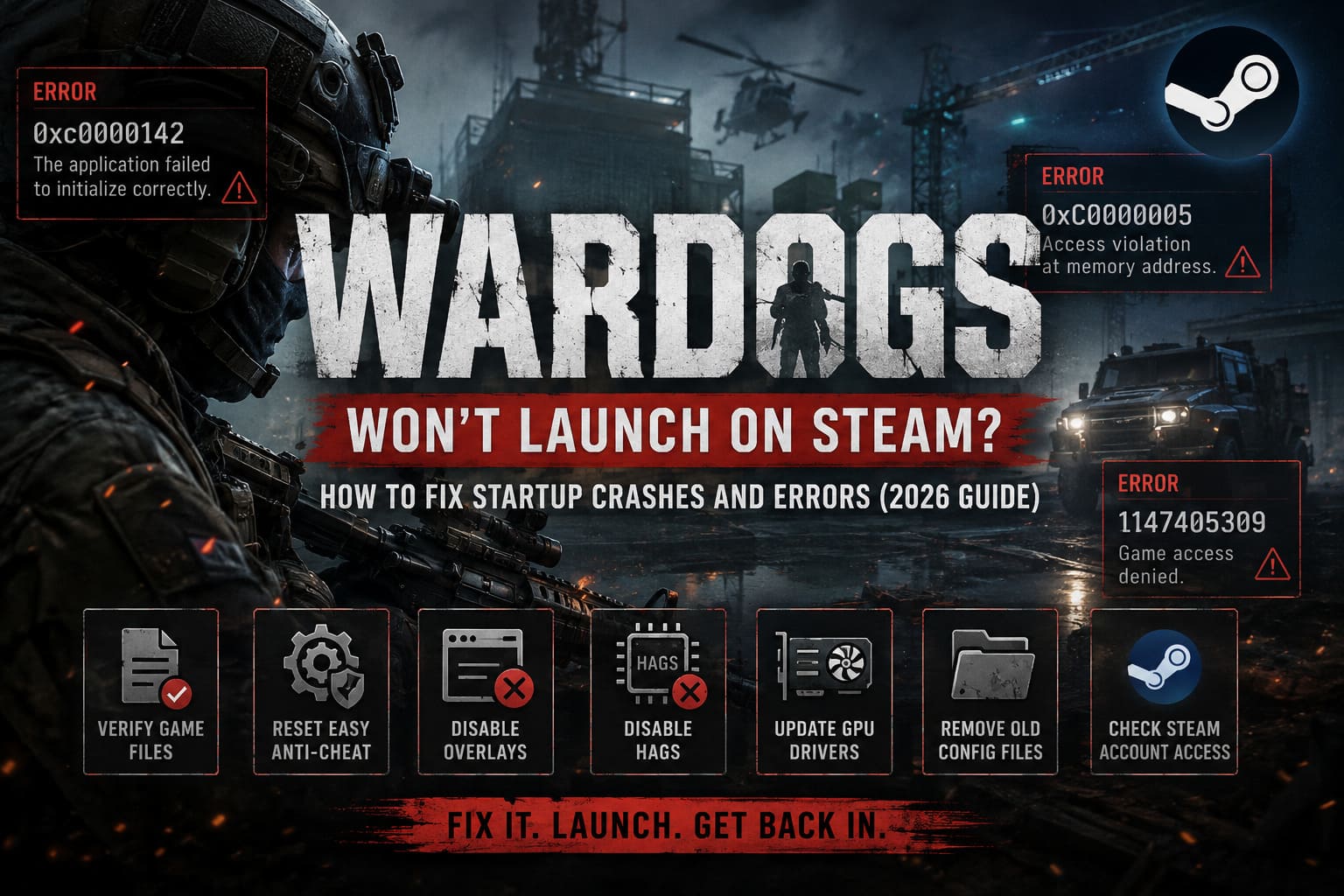
9. What About Error 0xc0000142 or 0xC0000005?
These numbers look terrifying, but they aren’t necessarily a diagnosis by themselves.
0xc0000142 can indicate a Windows application initialization problem, while 0xC0000005 is commonly associated with an access violation.
In plain English: something tried to access memory or initialize something it wasn’t supposed to.
That doesn’t tell you exactly which component is responsible.
If you encounter these errors with WARDOGS, I’d go through the basics first:
Verify game files → disable overlays → disable HAGS → update/clean GPU drivers → reset EAC → reboot → test again.
Don’t immediately conclude that your RAM or GPU is dying because you saw 0xC0000005.
10. If You See Error 1147405309, Check Your Game Access
There is another category of WARDOGS launch failure that isn’t really a graphics problem at all.
If you’re seeing Error 1147405309 or another authorization-related message, check whether your Steam account actually has access to the current version you’re trying to launch.
This matters more if you’ve participated in earlier testing phases.
Try the following:
- Confirm that the current WARDOGS Playtest/Early Access version is available to your Steam account.
- Fully close Steam.
- Restart your PC.
- Open Steam again.
- Log back into your account if necessary.
- Check the WARDOGS Steam page and confirm your access.
- Launch the correct version from your Library.
Sometimes the boring solution — forcing Steam to refresh its session — is the one that works.
WARDOGS Early Access Roadmap 2026-2027: Release Date, Price, and Future Updates
My Recommended WARDOGS Troubleshooting Order
If I were sitting in front of a PC that refused to launch WARDOGS, I wouldn’t randomly try all ten fixes.
I’d do them in this order:
- Verify Steam files
- Disable Steam/Discord/GPU overlays
- Restart Windows
- Disable HAGS
- Clear DirectX Shader Cache
- Check background anti-cheat software
- Reset Easy Anti-Cheat
- Update or clean-install GPU drivers
- Reset old WARDOGS configuration data
- Check Steam account/access errors
This approach keeps the easy fixes at the front and the more disruptive fixes toward the end.
One More Thing: Don’t Blame Your PC Too Quickly
The biggest mistake I see whenever a new PC game has launch problems is players immediately assuming their hardware is inadequate.
WARDOGS is an ambitious game. Massive multiplayer battles, destruction, vehicles and large-scale graphics systems are a complicated combination. Early Access also means you’re dealing with a moving target.
If the game crashes immediately after shaders compile, that doesn’t automatically mean your GPU can’t handle it.
Likewise, an anti-cheat error doesn’t necessarily mean your Windows installation is broken.
Start with software conflicts and corrupted files. They’re much easier to fix.
And if you’ve tried everything above and WARDOGS still refuses to launch, pay attention to exactly when it crashes and what error appears. “It doesn’t work” isn’t very useful information. “It reaches 100% shader compilation, displays an Unexpected Error and exits” is much more actionable.
Final Verdict
WARDOGS looks like exactly the kind of shooter that could become incredibly addictive once you’re actually inside a match. That’s why startup problems are particularly frustrating: the game gets you excited, compiles its shaders, loads for what feels like forever… and then sends you straight back to Windows.
Fortunately, most of the fixes are fairly straightforward.
I’d start with Steam file verification and disabling overlays, then move on to HAGS and shader-cache cleanup. If the problem looks anti-cheat related, give Easy Anti-Cheat a proper reset and make sure other security services aren’t interfering.
For players coming from older WARDOGS test builds, don’t overlook old configuration files and Steam authorization issues either.
The important thing is to troubleshoot systematically instead of throwing random fixes at the wall.
Hopefully, after a few restarts and a little Windows tinkering, you’ll spend considerably less time staring at error codes — and considerably more time watching an entire battlefield explode around you.
Because, let’s be honest, that’s the reason we’re here in the first place.