How to Fix Frame Drops During Core Spawn Swarms in Deep Rock Galactic: Rogue Core
If you’ve spent enough time inside Deep Rock Galactic: Rogue Core, you’ve probably experienced that one painfully familiar moment: everything feels smooth, your squad is shredding enemies, and then a Core Spawn swarm erupts out of nowhere. Suddenly, your FPS nosedives, explosions become a slideshow, and what should feel like an intense survival moment turns into a battle against stuttering.
I’ve been there more times than I’d like to admit.
What makes it frustrating is that Rogue Core is genuinely addictive. The rogue-lite mechanics add way more pressure compared to classic Deep Rock Galactic, and when performance tanks right at the hardest encounters, it completely ruins the flow. After testing settings, digging through forums, and spending way too much time experimenting with launch tweaks, I found several things that noticeably improved performance during those ugly swarm spikes.
This guide isn’t magic — if your PC is struggling badly, you won’t suddenly gain 100 FPS overnight — but these changes can seriously smooth out gameplay and make combat feel stable again.
Why Core Spawn Swarms Destroy Performance
Before tweaking settings, it helps to understand what’s actually happening behind the scenes.
The biggest issue with Core Spawn encounters is that the game suddenly throws a ridiculous amount of stress at both your CPU and GPU at the same time.
Here’s what’s usually causing the problem:
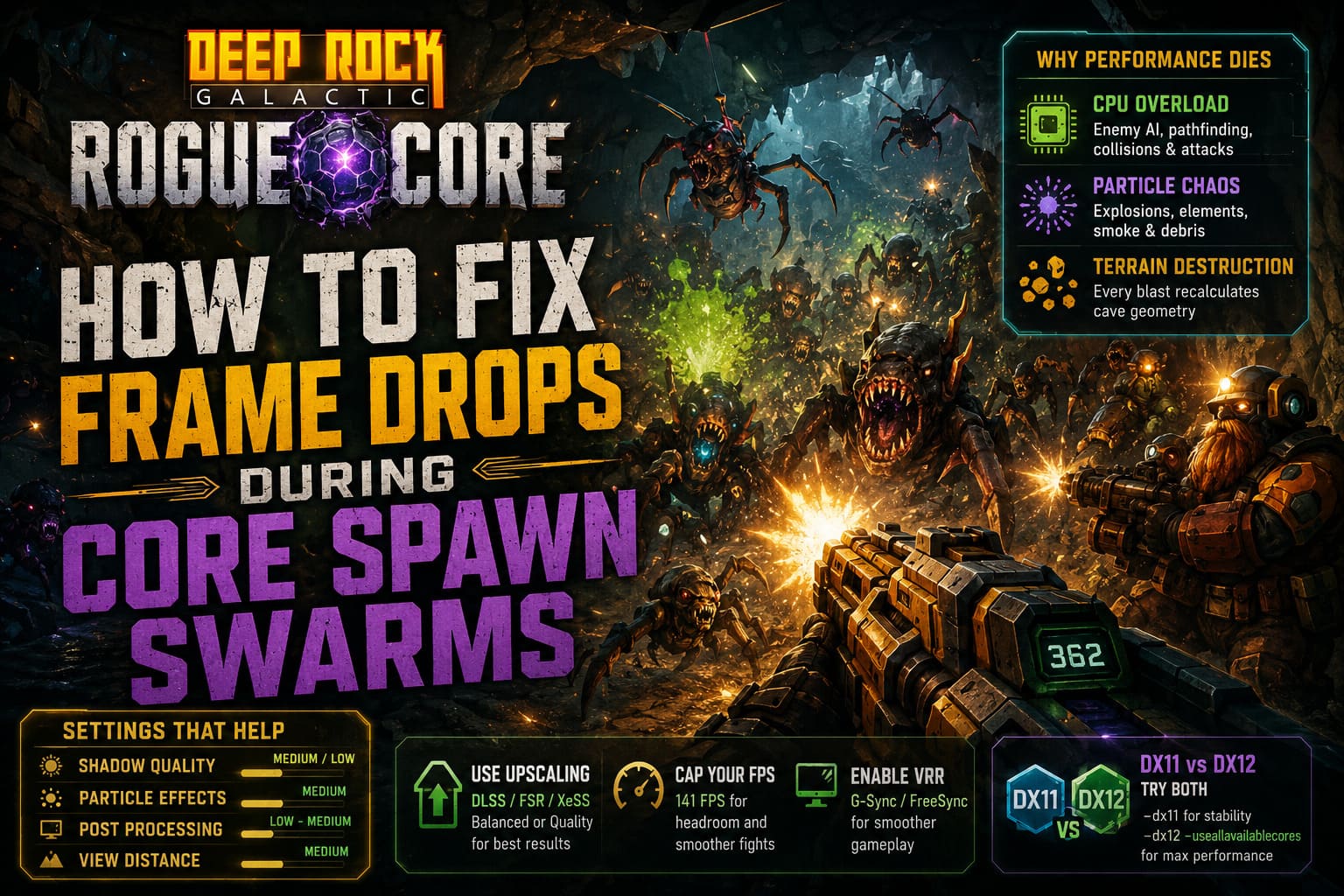
1. CPU Overload From Enemy Logic
Every enemy isn’t just standing there looking scary.
The game constantly calculates:
- enemy movement
- pathfinding
- attacks
- collision detection
- environmental reactions
When dozens of enemies flood the cave at once, your processor starts sweating hard. In my experience, this is where the biggest stutter comes from — especially if explosions and terrain destruction are happening at the same time.
2. Particle Effects Going Completely Wild
I love the visual chaos of Rogue Core, but let’s be honest: sometimes the game goes way too hard on flashy effects.
Swarm fights can instantly fill your screen with:
- glowing particles
- elemental explosions
- dissolving enemy effects
- smoke and debris
- weapon spam from teammates
It looks amazing… until your GPU starts begging for mercy.
3. Terrain Destruction Is Secretly Expensive
One of the coolest things about Deep Rock Galactic has always been destructible environments.
The downside?
Every explosion and terrain change forces the game to recalculate cave geometry in real time. During large swarm events, especially in tighter areas, this can create nasty frame pacing issues.
The Settings That Actually Helped Me
After a lot of trial and error, I found several graphics settings that gave the biggest improvement without making the game ugly.
Here’s the sweet spot that worked best for me:
| Setting | Recommended Option | Why It Helps |
|---|---|---|
| Shadow Quality | Medium or Low | Dynamic shadows from dozens of enemies are expensive |
| Particle Effects | Medium | Massive FPS improvement during swarms |
| Post Processing | Low-Medium | Reduces visual clutter and GPU strain |
| View Distance | Medium | Stops over-rendering unnecessary detail |
| Texture Quality | High (if enough VRAM) | Usually safe to keep high |
Lower Shadows First
If you only change one setting, make it shadows.
Seriously.
Dynamic lighting inside caves looks great, but when a swarm appears and every creature starts casting shadows under flare lighting, performance tanks fast.
Dropping shadows to Medium barely hurts visuals but gave me a surprisingly noticeable FPS gain.
Reduce Particle Effects
This was the biggest fix for me.
Core Spawn fights become absolute visual chaos, and lowering particle density instantly reduced stuttering.
The game still looks good — you just won’t have a million glowing effects eating your GPU alive.
Try DLSS, FSR, or XeSS (It’s Worth It)
If you’re playing at 1440p or 4K, this matters even more.
Modern upscaling technologies can stabilize performance massively.
Depending on your GPU:
- DLSS → NVIDIA cards
- FSR → AMD or universal support
- XeSS → Intel GPUs
I’d avoid aggressive presets though.
Balanced or Quality Mode usually looks sharp enough while giving better frame consistency during fights.
Ultra Performance mode? Personally, I hate how blurry everything becomes in dark caves.
You start missing enemies because everything looks smeared.
Cap Your FPS — Seriously
This sounds counterintuitive, but uncapped FPS can actually make stutters feel worse.
If your monitor runs at 144Hz, try capping the game at around 141 FPS.
Why?
Because your system keeps a bit of performance headroom instead of constantly slamming into 100% usage.
When a massive swarm suddenly appears, your hardware has breathing room to absorb the spike.
I noticed fewer dramatic drops once I stopped chasing maximum FPS.
Also Check Variable Refresh Rate
If you have:
- G-Sync
- FreeSync
Make sure it’s enabled.
Even when FPS dips happen, gameplay feels much smoother.
DX11 vs DX12: Don’t Assume Newer Is Better
This one surprised me.
A lot of people automatically think DX12 = better performance, but that wasn’t universally true in Rogue Core.
For me, DX12 gave smoother average FPS, but also introduced occasional hitching.
Meanwhile, DX11 felt more stable overall.
It really depends on your hardware.
Try both launch options in Steam:
For Older or Mid-Range Systems
-dx11 -nosplash -nojoyFor Modern CPUs and GPUs
-dx12 -nosplash -useallavailablecoresThe “-useallavailablecores” argument especially seemed to help with larger encounters.
Whether it’s placebo or real engine optimization, my frame times definitely felt steadier afterward.
One Weird Fix I Didn’t Expect
This sounds random, but switching fullscreen modes actually helped.
Some players report better performance in:
- Exclusive Fullscreen
- Borderless Windowed
Mine ran smoother in Borderless after one update.
Later, Fullscreen became better again.
It sounds annoying, but honestly, it’s worth testing both because engine updates sometimes mess with optimization.
Mods and Overlays Can Secretly Hurt Performance
This one gets overlooked constantly.
If you’re running:
- Discord overlay
- GeForce Experience overlay
- Xbox Game Bar
- browser videos in the background
- hardware monitoring software
Try disabling them temporarily.
I didn’t expect Discord overlay to matter much, but removing unnecessary background junk noticeably reduced stutter during heavy combat.
Same goes for mods.
Some quality-of-life mods are harmless, but others can create weird loading spikes when enemies suddenly spawn.
If performance feels inconsistent, try launching without mods for comparison.
Advanced Tweak for VRAM Management
For players comfortable editing files, there’s one tweak worth mentioning.
Inside the config files, adjusting texture streaming settings may help reduce stutters if your VRAM keeps maxing out.
A common recommendation is adjusting streaming memory allocation based on your GPU’s available VRAM.
That said, I’d treat config editing as a last resort.
Most people will get better results simply from optimizing graphics settings and choosing the right DirectX version.
Final Thoughts: Rogue Core Feels Better When You Stop Chasing Max Graphics
This might be an unpopular opinion, but I genuinely think Deep Rock Galactic: Rogue Core plays better when performance is prioritized over visual perfection.
During swarm fights, nobody cares if shadows are ultra quality.
What matters is:
smooth combat, responsive aiming, and stable frame pacing.
After tweaking settings, lowering particle effects, capping FPS, and experimenting with DX11/DX12, my experience became dramatically smoother.
No, it’s not perfect yet — the game still has optimization rough edges — but it became far more playable during the moments that matter most.
And honestly?
A stable 80–100 FPS feels infinitely better than bouncing between 140 and 25 FPS every time the cave turns into chaos.