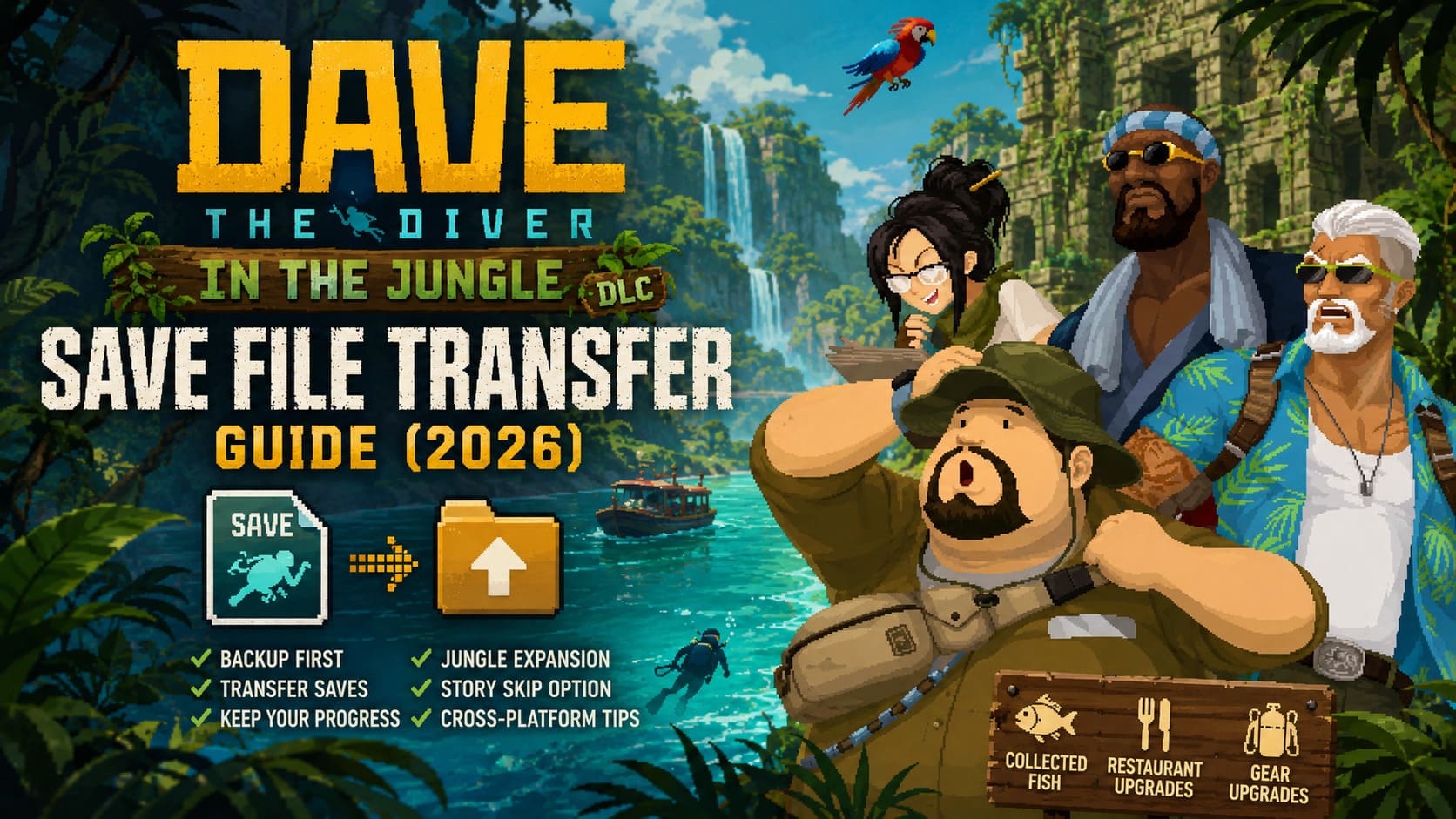
Dave the Diver In the Jungle DLC Save File Transfer Guide (2026)
Returning to Dave the Diver for the In the Jungle DLC felt surprisingly nostalgic. I had already spent dozens of hours building Bancho Sushi, catching every strange creature hiding in the Blue Hole, and upgrading nearly everything the game had to offer. When Mintrocket released the new expansion, I was ready to jump back in immediately.
There was only one problem.
My old save wasn’t on the PC I wanted to play on anymore.
Whether you’re moving to a new computer, reinstalling Windows, switching between a desktop and a Steam Deck, or simply restoring a backup after something went wrong, transferring your save can feel more stressful than fighting one of the game’s giant bosses.
The good news is that it’s actually much easier than many players think—as long as you avoid a few common mistakes.
This guide explains exactly how I transferred my own progress safely, what folders actually matter, how Steam Cloud can cause problems, and when it’s simply easier to use the new DLC skip feature instead.
Why Save Transfers Matter More With the Jungle Expansion
Unlike many DLC packs that can be started whenever you feel like it, In the Jungle is built around players who have already finished most of the original adventure.
That means if your save disappears, you’re potentially looking at many hours of replaying content before reaching the new tropical area.
Thankfully, Mintrocket clearly understood this problem.
Recent updates introduced a story skip option that lets players begin directly in the expansion with an almost fully completed save state. It’s a fantastic safety net, especially for anyone who lost progress years ago.
Still, I personally preferred using my original save.
There’s something satisfying about seeing your own completed collection, your own restaurant upgrades, and the choices you’ve made throughout the adventure instead of starting from a developer-generated file.
Where Dave the Diver Stores Save Files
One thing that confused me initially was that the save files aren’t located inside the Steam installation folder.
Instead, they’re stored in Windows’ LocalLow directory.
The default location is:
C:\Users\[YourUsername]\AppData\LocalLow\nexon\DAVE THE DIVER\SteamSData\
Inside this folder you’ll usually find another directory with a long numerical ID.
That folder contains several files similar to:
- GameSave_00_00.sav
- GameSave_01_00.sav
- GameSave_02_00.sav
These files contain nearly everything important:
| Save Data | Included |
|---|---|
| Story progression | ✔ |
| Equipment upgrades | ✔ |
| Restaurant progress | ✔ |
| Quest completion | ✔ |
| Collected fish | ✔ |
| Player statistics | ✔ |
If you’re backing up your game, these are the files you absolutely don’t want to lose.
The Method That Worked Perfectly For Me
After trying a few different approaches, I found one method that consistently worked without breaking anything.
1. Make a Backup First
This might sound obvious, but it’s the single most important step.
Copy every GameSave file into another folder before touching anything.
Storage is cheap.
Losing fifty hours of progress isn’t.
2. Turn Off Steam Cloud
Steam Cloud is incredibly useful most of the time.
During save transfers? Not so much.
If Cloud Sync stays enabled, Steam may quietly replace your transferred save with an older version before you even notice.
Before moving files:
- Open Steam.
- Right-click Dave the Diver.
- Open Properties.
- Disable Steam Cloud.
- Exit Steam completely.
Only then should you continue.
3. Create a Fresh Save
If you’re moving to another PC or performing a clean installation, launch the game once.
Play until you’re able to manually save.
This creates a brand-new save directory linked to your current Steam installation.
Without this folder, Windows won’t know where your transferred saves belong.
4. Replace Only the Save Files
This is probably the mistake I see mentioned most often online.
Don’t replace the numbered Steam folder itself.
Instead:
- Open the new numbered folder.
- Delete or overwrite the newly created save files.
- Paste your old .sav files into that directory.
The folder ID can change between installations.
The save files are what actually matter.
5. Load the Game
Launch Dave the Diver again.
If everything went correctly, your old progress should appear immediately.
I usually load the save, walk around for a minute, catch a fish, then perform another manual save.
That confirms the transferred files are working correctly before turning Steam Cloud back on.
6. Re-enable Steam Cloud
Now Steam will notice that your local save is newer than the one stored online.
Always choose to upload the local version.
Otherwise you’ll overwrite your restored progress with outdated cloud data.
Should You Just Use the Story Skip Instead?
Honestly, for some players, yes.
If your original save disappeared years ago and you only want to experience the new DLC, the built-in progression skip is surprisingly generous.
It automatically provides:
- Completed main story progression
- Fully upgraded diving equipment
- High restaurant rank
- Completed Marinca collection
- Access to the Jungle DLC
The only downside is that it isn’t truly your adventure.
For players who enjoy collecting everything naturally, manually restoring an older save still feels much more rewarding.
Steam Deck Transfers
One thing I really appreciated is how easy save transfers are between a gaming PC and Steam Deck.
Because both versions use the same save format, moving files is straightforward if you’re comfortable accessing Desktop Mode.
As long as both systems are updated to the same game version, there usually aren’t any compatibility issues.
If Steam Cloud behaves properly, you often won’t need manual copying at all.
Still, I always keep an offline backup.
Experience has taught me that cloud synchronization is wonderful—until the one day it isn’t.
What Doesn’t Work
Many players ask whether saves can be transferred from consoles.
Unfortunately, the answer is basically no.
Here’s the current situation:
| Platform | Manual Transfer |
|---|---|
| Windows PC | ✔ Yes |
| Steam Deck | ✔ Yes |
| Nintendo Switch | ✖ No |
| PlayStation 5 | ✖ No |
| Xbox | ✖ No |
Console saves remain locked inside each platform’s ecosystem.
While unofficial methods exist online, they usually require modified hardware or unsupported software.
For most people, that’s simply not worth the risk.
Common Problems After Moving Saves
If your save refuses to load, check these first.
Incorrect File Location
Many people accidentally copy the numbered folder instead of the save files inside it.
Steam Cloud Restored Older Progress
This is probably the most common issue.
Disable Cloud Sync before replacing anything.
Wrong Game Version
Older game builds may fail to recognize saves created after recent DLC updates.
Keeping both installations updated avoids unnecessary headaches.
Missing File Extensions
The files must remain in .sav format.
Renaming them or accidentally changing extensions can prevent the game from recognizing them.
Dave the Diver In the Jungle DLC Switch 2 Performance: Graphics and Resolution Review
Is It Worth Keeping Multiple Backups?
Absolutely.
I now keep three separate copies:
- Local PC backup
- External SSD backup
- Steam Cloud version
That may sound excessive, but after losing saves in other games over the years, I’d rather spend two minutes copying files than replay twenty hours of progress.
It’s one of those habits you never regret.
Dave the Diver In the Jungle DLC Walkthrough: Complete Guide, New Fish, and Recipes
Final Thoughts
The release of Dave the Diver: In the Jungle gave me the perfect excuse to revisit one of my favorite indie games in recent years. Moving my save turned out to be far less complicated than I expected once I understood how the save folders worked and temporarily disabled Steam Cloud.
If you’re lucky enough to still have your original save files, I strongly recommend transferring them instead of relying on the DLC skip. Seeing your own progress continue into a brand-new adventure simply feels more satisfying, and it preserves everything you’ve accomplished throughout the base game.
That said, I also appreciate that Mintrocket included a built-in skip option. Not everyone wants to replay dozens of hours just to reach new content, and the feature makes the expansion much more accessible for returning players.
Whether you’re upgrading to a new PC, restoring a backup after a drive failure, or moving between a desktop and Steam Deck, taking a few extra minutes to copy your save files properly can save countless hours later. Once everything is in place, you can focus on what really matters—exploring the mysterious freshwater lake, discovering new species, and enjoying another unforgettable adventure with Dave.