How to Fix WARDOGS Voice Chat Not Working: Proximity and Squad Mic Bug Solutions
If there is one thing I absolutely hate in a tactical shooter, it is losing voice chat at the worst possible moment.
You can have a perfect position, a loaded rifle, three teammates around you and a squad plan that actually makes sense — and then suddenly nobody can hear you. Your mic icon has a red line through it. Your squad is talking, but you hear absolutely nothing. An enemy is practically breathing down your neck and proximity chat has decided to take the afternoon off.
In a game like WARDOGS, that is not a minor annoyance. It can completely ruin a deployment.
With its 100-player battles, rival teams, localized combat and heavy emphasis on coordination, WARDOGS is designed around communication. Squad VOIP and proximity voice chat are not decorative features you occasionally remember exist. They are part of the gameplay loop.
The problem is that during the Closed Beta, some players have been running into a particularly nasty voice communication bug. The symptoms range from microphones refusing to activate to proximity chat disappearing completely in the middle of a match.
I’ve gone through the most useful fixes and workarounds currently associated with the problem. Some take seconds. Others require digging through Windows settings. And, unfortunately, there are situations where the problem simply isn’t on your PC at all.
Here’s what you should try before throwing your headset across the room.
WARDOGS Voice Chat Bug: What Is Actually Going Wrong?
The annoying part about this issue is that it doesn’t always present itself in exactly the same way.
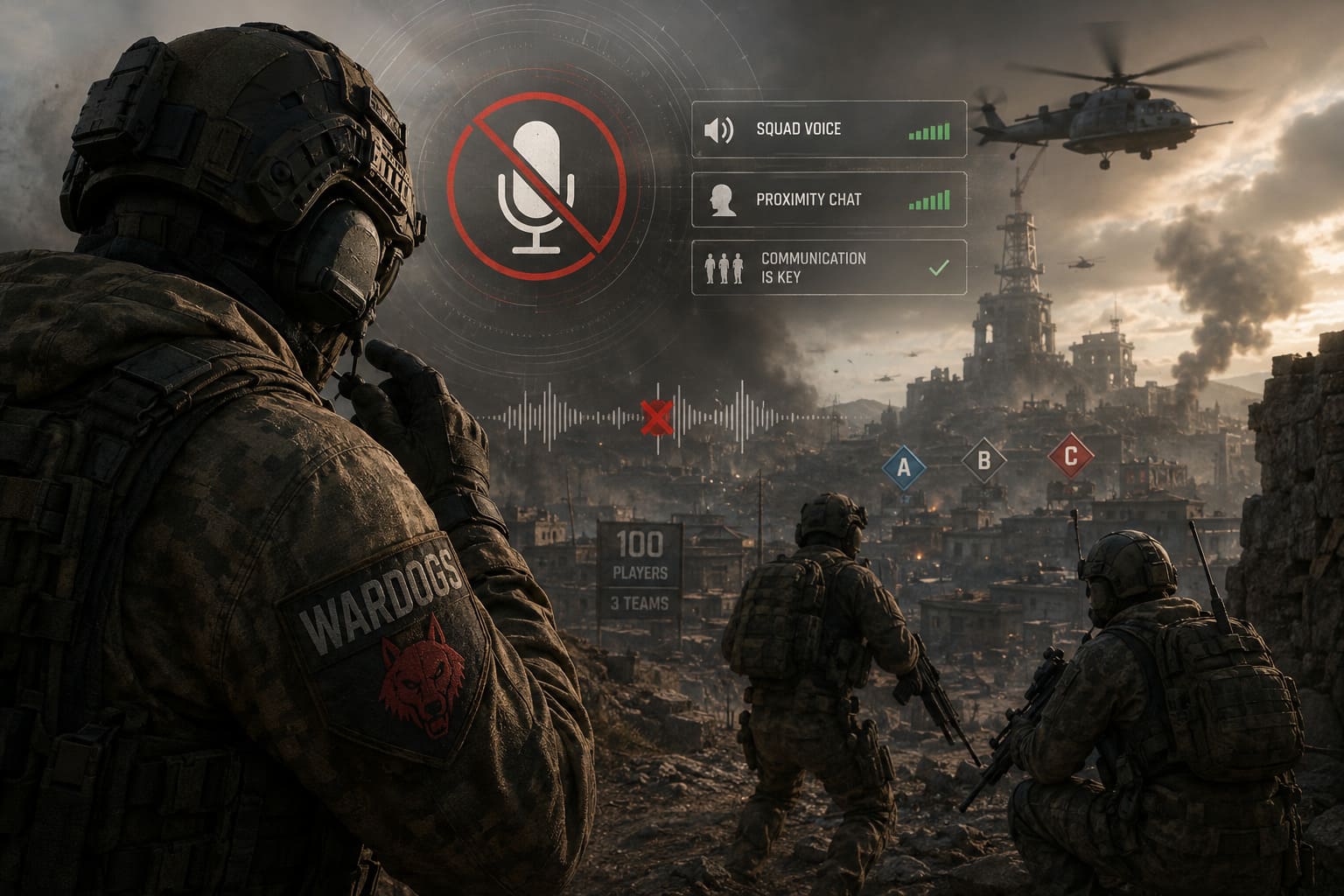
One player might have a completely dead microphone, while another can speak but cannot hear anyone. Someone else might have working squad chat but broken proximity VOIP.
| Symptom | What You May Notice | Most Likely Area To Check |
|---|---|---|
| Red Mic Icon | Microphone appears permanently muted | VOIP session or game settings |
| No Proximity Audio | Nearby players are completely silent | Proximity chat / VOIP connection |
| Squadmates Silent | Teammates appear to talk but produce no sound | Output device / VOIP |
| Mid-Match Failure | Voice works, then suddenly dies | VOIP session or server |
| Mic Not Detected | WARDOGS receives no microphone input | Windows device permissions |
| Intermittent Audio | Chat cuts in and out during combat | Network or backend issues |
The red-line microphone bug is particularly frustrating because it can make you think your push-to-talk key isn’t working at all.
Before you start reinstalling drivers, though, there is one ridiculously simple trick worth trying.
Fix #1: Try the Scoreboard + U-Key VOIP Reset
This is the first thing I would try because it takes practically no time.
If your voice chat suddenly dies during a deployment, open the scoreboard using your normal scoreboard key — Tab is commonly used by default — and press U.
Then press U again.
That’s it.
The idea behind this workaround is to force the game’s VOIP state to toggle and reconnect rather than continuing to use a broken voice session.
It sounds almost too stupid to work, but with beta software, weird little input-state resets can sometimes be surprisingly effective.
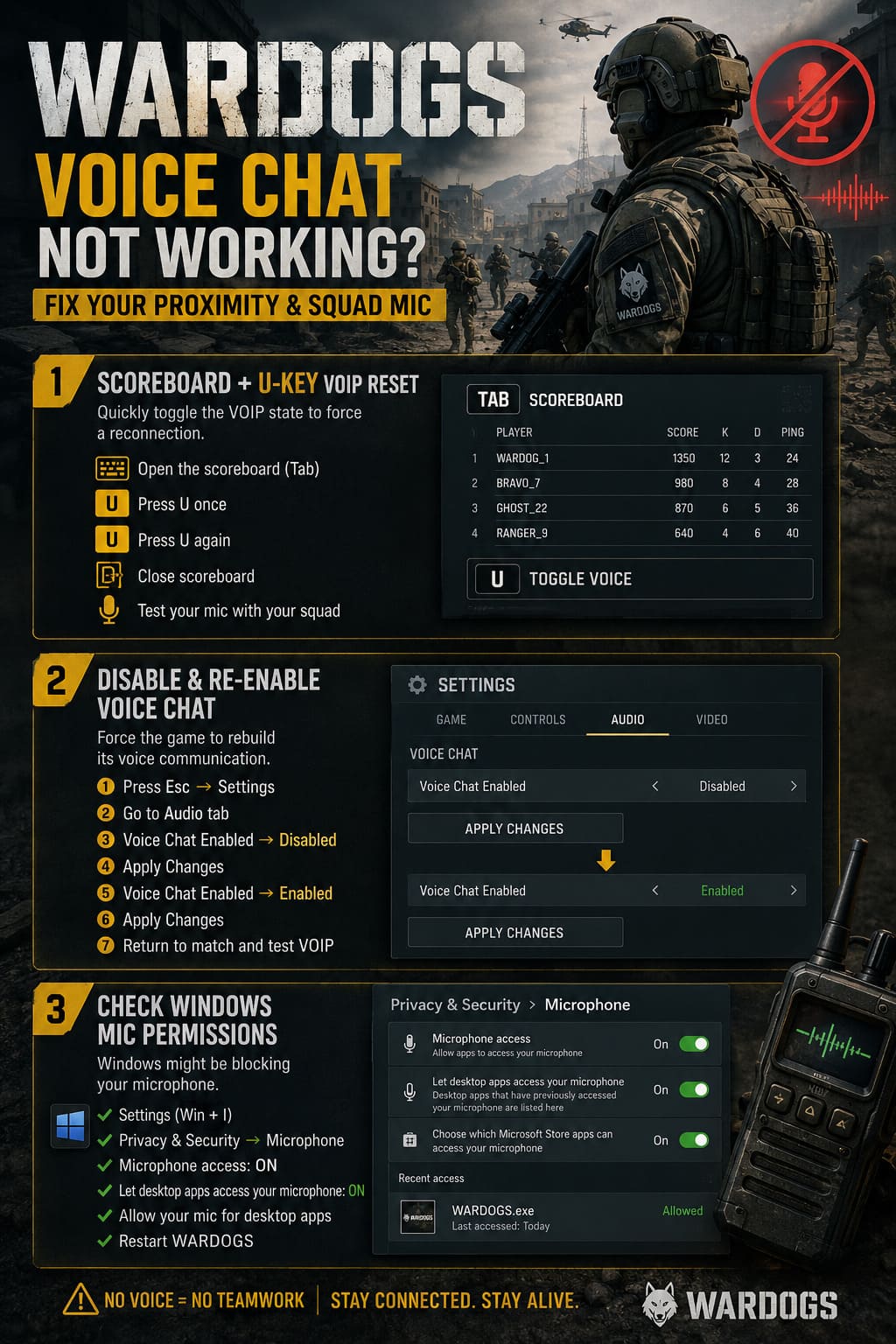
Try it like this:
- Open the scoreboard.
- Press U once.
- Press U again.
- Close the scoreboard.
- Test your microphone with your squad.
If the red line disappears and your mic starts responding, congratulations — you’ve just performed the gaming equivalent of turning the router off and on again.
Do this before changing anything complicated in Windows. If it fixes the problem, you can get straight back into the fight.
Fix #2: Disable and Re-Enable Voice Chat
If the quick U-key trick doesn’t work, go deeper into the game settings.
Open Settings → Audio and find the Voice Chat options.
Turn Voice Chat Enabled off, apply the change, then turn it back on and apply the settings again.
The important part is actually applying the disabled state before enabling it again. You’re trying to force the game to rebuild its voice communication state instead of simply changing a menu option and immediately changing it back.
The complete reset:
- Press Esc.
- Open Settings.
- Go to the Audio tab.
- Find Voice Chat Enabled.
- Set it to Disabled.
- Apply the changes.
- Set it back to Enabled.
- Apply the changes again.
- Return to the match and test VOIP.
If your problem appeared after several matches rather than immediately after launching the game, this is one of the first fixes I’d reach for.
Fix #3: Check Windows Microphone Permissions
Now we’re getting into the boring PC troubleshooting territory — but this stuff matters.
Windows has become increasingly aggressive about microphone privacy. A game can be perfectly healthy while the operating system quietly refuses to give it access to your recording device.
If your microphone works in Discord, Steam or another application but refuses to work in WARDOGS, Windows permissions are absolutely worth checking.
Close WARDOGS first.
Then:
- Open Windows Settings with Win + I.
- Go to Privacy & Security.
- Find Microphone under App Permissions.
- Make sure Microphone access is enabled.
- Make sure Let desktop apps access your microphone is enabled.
- Check that your gaming microphone is available to desktop applications.
- Restart WARDOGS.
One important detail: don’t assume that because Discord can hear you, WARDOGS automatically has permission to use the same microphone.
Windows doesn’t care about your assumptions. It cares about its settings.
Fix #4: Set the Correct Default Microphone in Windows
This is another classic PC gaming headache.
If you have a headset, webcam microphone, controller microphone, monitor audio device, virtual mixer or something like Voicemeeter installed, Windows can end up with multiple possible input devices.
Your game may grab the wrong one.
And nothing makes a player question their sanity faster than talking into a $150 headset while Windows is listening to a webcam sitting three feet away.
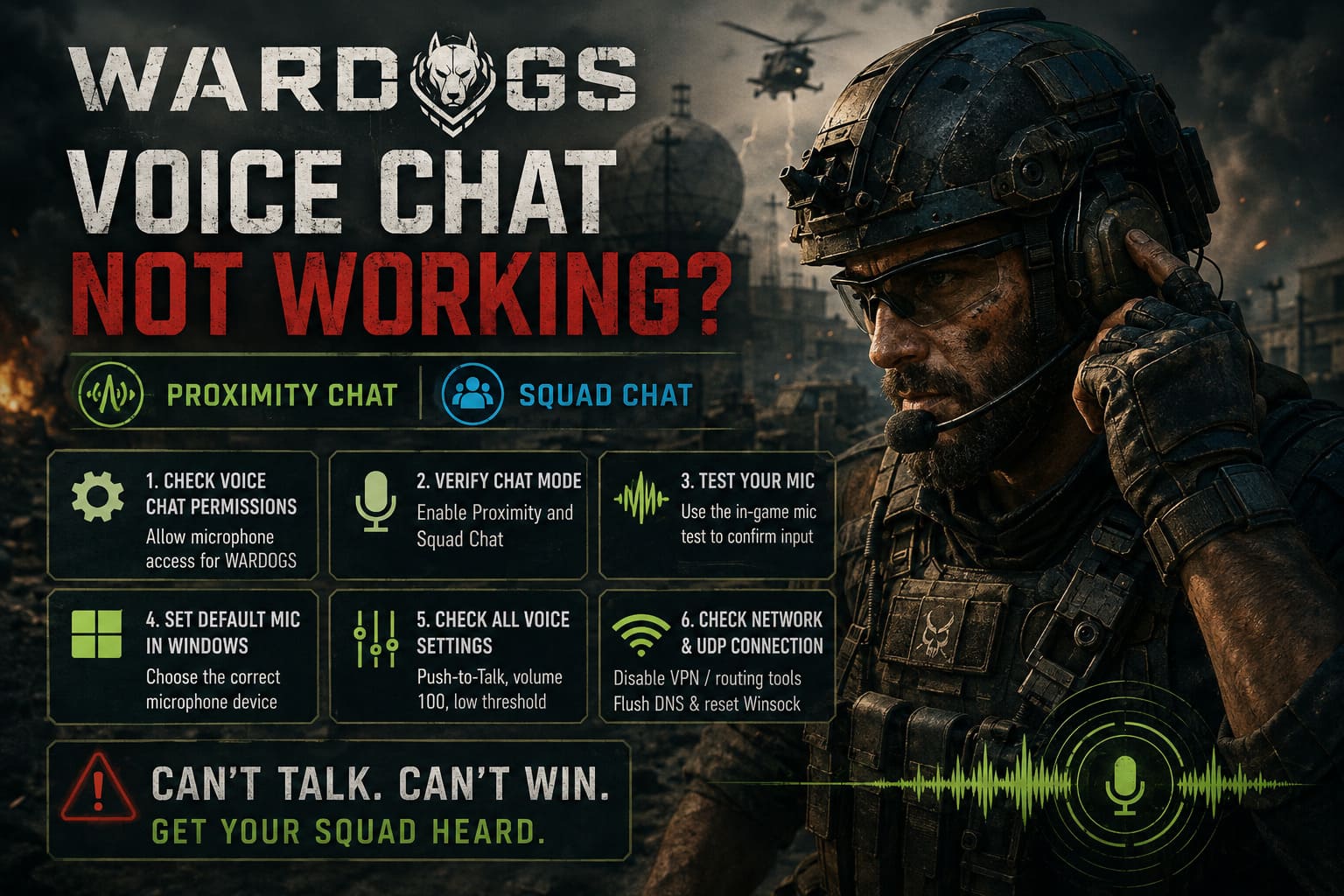
Open:
Windows Sound Settings → Input
Find your actual gaming microphone and make sure it is the primary input device.
If Windows gives you separate options for Default Device and Default Communication Device, set the correct microphone appropriately.
If you have microphones you never use, consider disabling them temporarily.
This is especially useful if WARDOGS keeps reverting to the wrong input after restarting the game.
Fix #5: Check Every WARDOGS Voice Setting
Once Windows is configured correctly, go back into WARDOGS.
Don’t assume the settings are correct just because you never changed them.
For troubleshooting, I recommend checking the following configuration:
- Voice Chat: Enabled
- Squad Voice Chat: Enabled
- Proximity Voice Chat: Enabled
- Voice Mode: Push-to-Talk
- Microphone Volume: Around 100
- Open Mic Threshold: Very low if using Open Mic
- 3D/Spatial Audio: Enabled, if available
Personally, I’d stick with Push-to-Talk during the beta.
Open microphone is convenient, but it introduces another variable into the equation. If your threshold is too aggressive, WARDOGS may technically be receiving microphone input while simply refusing to transmit quiet speech.
That can create the classic:
“Can you guys hear me?”
followed by complete silence.
If you’re using Open Mic, try lowering the threshold dramatically. Something around 0–5 is a reasonable troubleshooting starting point.
Fix #6: Don’t Ignore Network and UDP Problems
This is where things get more interesting.
Voice chat isn’t just another local audio feature. Your microphone signal has to travel through the game’s communication infrastructure, and restrictive network configurations can interfere with real-time voice traffic.
If you’re using gaming VPNs, routing tools, packet optimizers or applications such as LagoFast, ExitLag, Voicemeeter-related networking configurations or similar software, temporarily disabling them is a smart diagnostic step.
If you know exactly what you’re doing with routing rules, make sure your configuration isn’t filtering the UDP traffic required by the game.
For players experiencing broader connection problems, a Windows network reset can also be worth trying.
Open Command Prompt as Administrator and run:
ipconfig /flushdnsThen:
netsh winsock resetRestart your PC afterward.
I’m not saying this is a magical WARDOGS VOIP cure. It isn’t. But if your machine has developed some bizarre DNS or Winsock networking state, resetting those components can eliminate one more possible source of trouble.
What About WARDOGS Server or VOIP Outages?
Here’s the part many troubleshooting guides get wrong.
Sometimes your microphone isn’t broken.
If WARDOGS is experiencing an outage or its third-party VOIP infrastructure is having problems, you can spend an entire evening changing Windows settings and achieve absolutely nothing.
That’s because your local PC cannot repair a server-side voice communication failure.
This distinction is important.
If your microphone works normally in Discord, Steam and Windows, your WARDOGS settings are correct, and multiple players are suddenly reporting identical VOIP problems, I’d stop messing with drivers and wait for the developers to address the backend issue.
During a beta, this kind of thing is unfortunately part of the territory.
The developers are stress-testing systems that haven’t yet had to deal with the full chaos of a live player population. A voice service can behave perfectly during normal testing and then fall apart once thousands of players start hammering it simultaneously.
The Emergency Solution: Use Discord
If you’re playing with friends and WARDOGS voice chat is completely cooked, there is no prize for stubbornness.
Use Discord.
It isn’t as elegant as having working proximity chat, obviously. You lose the hilarious tactical moments where an enemy suddenly appears nearby and starts shouting. You also lose the ability to communicate naturally with random teammates and nearby players.
But if your premade squad needs reliable communication right now, Discord is better than screaming into a dead microphone.
You can also use Steam’s voice communication features with friends if that’s more convenient.
For organized squads, external voice chat is a perfectly reasonable temporary solution while the game’s VOIP infrastructure is being stabilized.
WARDOGS Server Browser Not Showing Up: 7 Ways to Fix the Empty Server List Bug (2026)
Which Fix Should You Try First?
If I were sitting down for a WARDOGS session and suddenly lost voice chat, this would be my order of attack:
- Try the scoreboard + U-key toggle. Fastest option and costs practically nothing.
- Toggle Voice Chat off and back on. This can refresh the game’s VOIP state.
- Check Windows microphone permissions. Especially important after Windows updates or a fresh game installation.
- Verify the correct microphone is selected. Disable unused inputs if necessary.
- Check WARDOGS audio settings. Make sure squad and proximity chat are actually enabled.
- Investigate network software. Temporarily remove VPNs, boosters and unusual routing configurations from the equation.
- Check whether other players are affected. If everyone is complaining about VOIP, the problem may be server-side.
- Move your premade squad to Discord. When the backend is down, don’t waste an hour fighting your PC.
WARDOGS Weapon Balance Meta Guide 2026: Best Guns and Tactical Loadouts
Final Verdict: Don’t Let a VOIP Bug Ruin Your Deployment
WARDOGS is at its best when communication is working properly.
There is something genuinely satisfying about hearing a teammate whisper a direction, catching a sound from a nearby enemy through proximity chat, and immediately changing your route because of that information. That’s the kind of emergent tactical gameplay that makes these games memorable.
Which is exactly why broken voice chat hurts so much.
The good news is that not every WARDOGS microphone problem requires a reinstall or some ridiculous Windows ritual. The scoreboard/U-key reset and in-game voice toggle are worth trying first, while Windows permissions and default communication devices cover the most common local PC problems.
The bad news is that beta VOIP can still fail for reasons completely outside your control.
If everything works outside WARDOGS but the game suddenly loses squad and proximity communication — especially when other players report the same thing — don’t spend three hours blaming your headset. Sometimes the servers are simply having a bad day.
For now, keep your microphone permissions clean, make sure WARDOGS is using the correct input device, keep proximity and squad chat enabled, and remember the little U-key reset trick.
And if all else fails?
Fire up Discord, tell your squad the comms are scuffed, and get back into the fight.
The enemy isn’t going to wait for the VOIP server to feel better.