Palworld Base Lag Fix: How to Stop Stuttering with 20 Workers
After spending a lot of time in survival games with complex automation systems, I have learned one important lesson: the bigger your factory becomes, the more likely performance problems will appear. Palworld follows the same rule. A small beginner base with a few workers usually runs smoothly, but once you upgrade your Pal Box and activate a full team of 20 Worker Pals, many players start experiencing FPS drops, micro-stutters, freezing moments, and annoying rubberbanding.
From my own experience building large production bases, the problem is not always your graphics card. In many cases, the biggest performance killer is the way Pal AI handles daily tasks. Every Pal constantly searches for jobs, calculates movement paths, interacts with machines, transports resources, and updates its behavior. When twenty workers perform these calculations simultaneously, your CPU can quickly become overloaded.
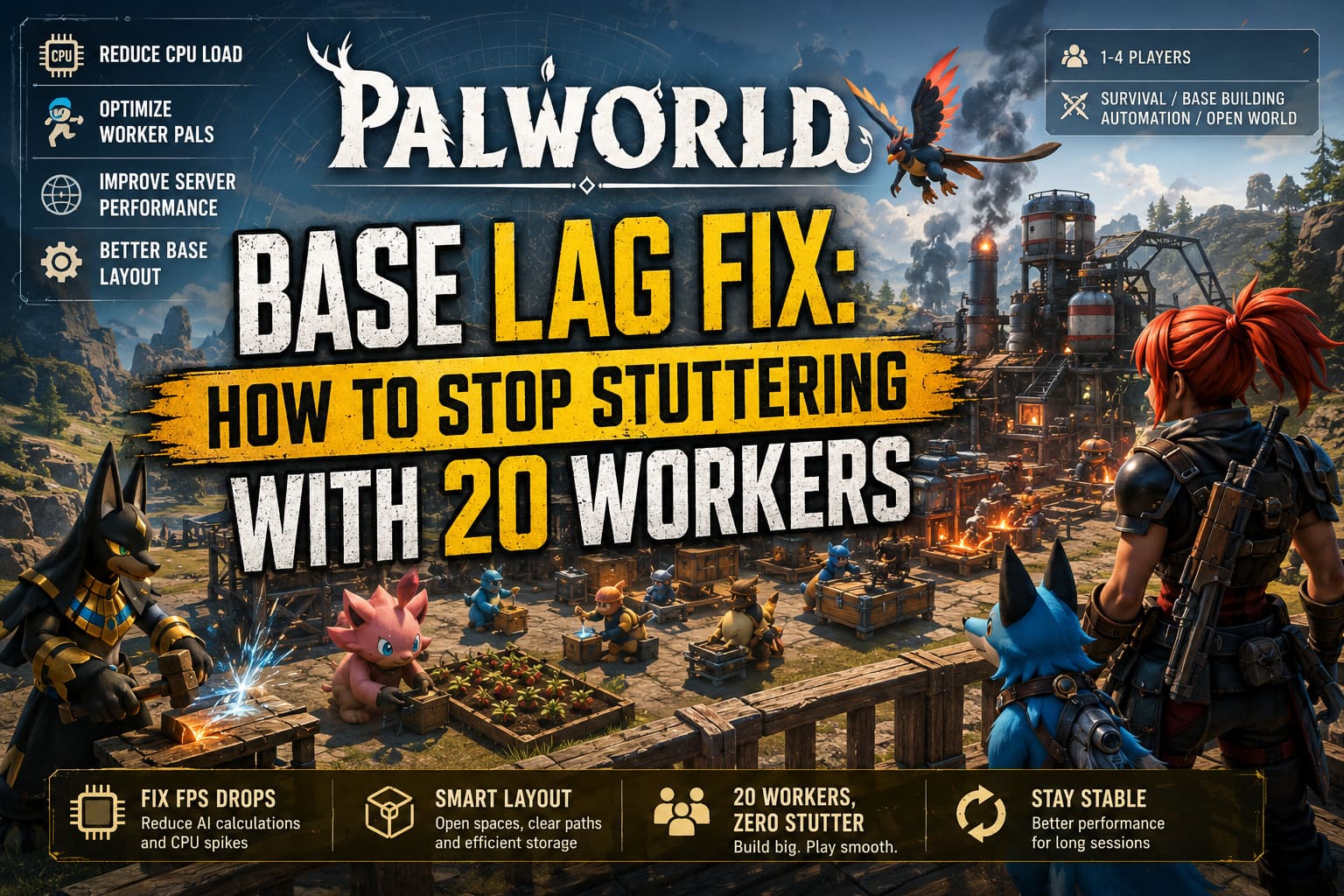
This guide covers the most effective Palworld base lag fixes, including better base layouts, smarter Worker Pal choices, Steam launch settings, dedicated server improvements, and graphics adjustments. With the right optimization, you can keep a large automated base running smoothly without sacrificing your entire production system.
Palworld Stuttering Nvidia Audio Fix: How to Stop Audio Lag and Performance Hitches
Why Does a 20 Worker Palworld Base Cause Lag?
The biggest reason for performance problems in large Palworld bases is AI pathfinding congestion. Every Pal assigned to work has its own behavior system that constantly checks the environment and searches for available tasks. A miner looks for resources, a transporter searches for items to carry, and crafting Pals look for production jobs.
The problem appears when too many AI calculations happen at the same time. If a Pal gets stuck behind a wall, furniture, storage box, or another worker, the game engine attempts to recalculate its route again and again. One stuck Pal might not matter, but twenty workers repeating these calculations can create serious CPU spikes and noticeable stuttering.
Large and complicated bases make the situation worse. Many players build impressive multi-floor factories with narrow corridors, decorative objects, and crowded production areas. While these bases look incredible, they create difficult navigation situations for Pals and force the game engine to spend more resources managing movement.
Another factor is long play sessions. Palworld can gradually increase memory usage when worlds become larger, especially when multiple automated bases, many structures, and hundreds of objects remain active for hours.
| Problem | Performance Impact | Best Solution |
|---|---|---|
| Too many active Worker Pals | Heavy CPU usage | Use specialized workers |
| Poor base layout | AI movement problems | Create open areas |
| Dropped resources | Extra physics calculations | Remove item piles |
| Long server sessions | Increasing memory usage | Restart regularly |
| High graphics settings | GPU frame drops | Reduce effects |
1. Optimize Your Base Layout for Better Pal Pathfinding
One of the biggest mistakes I made while creating large Palworld factories was designing bases like normal buildings. They looked impressive, but my workers constantly became trapped or stopped performing tasks. Once I started designing bases around Pal movement instead of appearance, performance improved dramatically.
The best performance-friendly bases are simple, open, and easy for AI to navigate. You do not need an enormous fortress filled with complicated rooms. A well-organized production area with clear walking paths will usually outperform a massive decorative structure.
Use Wide Open Production Areas
Avoid small rooms, narrow hallways, and crowded factory designs. Assembly lines, farms, ranches, and crafting stations should have plenty of empty space around them. Large Pals require even more room because their size makes movement calculations harder.
Create Clear Walking Paths
Leave open spaces between important structures. Storage boxes, crafting stations, and resource locations should not block movement routes. A simple layout with fewer obstacles allows Pals to complete tasks faster and reduces unnecessary AI calculations.
Place Storage Near Production
Transport Pals waste valuable processing power when they have to walk across the entire base. Place storage containers close to mining areas, plantations, logging zones, and crafting stations. Shorter travel distances mean fewer pathfinding calculations.
Avoid Excessive Multi-Level Buildings
Multi-floor bases can look amazing, but they often create navigation issues. If you build vertically, make sure stairs are wide and free from obstacles. Avoid placing decorations, roofs, or objects that block Pal movement.

2. Use Specialized Worker Pals Instead of Multi-Purpose Workers
Many players think using Pals with multiple work abilities is the most efficient approach. On paper, it sounds perfect because one Pal can mine, transport, craft, and water crops. In reality, this creates more AI activity because the Pal constantly switches between different priorities.
Every time a Pal changes tasks, the game needs to update its behavior and calculate new movement routes. A base full of general workers often creates unnecessary processing compared to a carefully organized workforce.
Choose Dedicated Workers
- Anubis: Excellent for handiwork and mining tasks.
- Jormuntide Ignis: Best used for smelting and fire-based production.
- Specialized Farming Pals: Keep plantations and ranch systems running efficiently.
- Fast Transport Pals: Use fewer but stronger transport workers.
Transporting items is especially demanding because the game tracks moving objects, item pickups, and delivery routes. Instead of using many low-level transport Pals, a smaller number of fast workers usually performs better and reduces CPU load.
Remove Dropped Item Piles
If your production system creates resources faster than your workers can move them, hundreds of items can accumulate on the ground. These objects increase world calculations and can quickly destroy performance. Clean up dropped resources regularly or improve your transport system.
3. Improve Palworld Performance with Steam Launch Options
If your base layout is already optimized but you still experience stuttering, you can try improving how Unreal Engine handles CPU processing. Steam launch options may help some players reduce frame-time spikes, especially on modern multi-core processors.
How to Add Palworld Launch Options
- Open your Steam Library.
- Right-click Palworld.
- Select Properties.
- Find the Launch Options section.
- Add the following commands:
-useperfthreads -NoAsyncLoadingThread -UseMultithreadForDS
These commands attempt to improve thread distribution for certain engine processes. They will not completely fix poor optimization, but they can make large bases feel more stable on systems with strong CPUs.
4. Dedicated Server Settings to Reduce Rubberbanding
Players running dedicated servers face additional problems because multiple bases and active workers increase the amount of simulation happening in the world. When several players have fully automated 20-worker bases, server performance can quickly decline.
Adjust Server Simulation Settings
Reducing the active simulation area can lower server workload. The more objects and activities the server has to process around players, the higher the chance of lag spikes.
Increase Save Intervals
Frequent autosaves can create small but noticeable stutters. Increasing save intervals gives the server more breathing room and reduces interruptions during gameplay.
Restart Servers Regularly
For long-running servers, scheduled restarts are one of the easiest performance improvements. Restarting every few hours helps clear accumulated memory usage and keeps the world running smoothly.

5. Adjust Graphics Settings for Large Bases
Even after fixing AI problems, large bases can still put heavy pressure on your GPU. Twenty animated Pals, machines, lighting effects, shadows, and hundreds of objects create a much heavier scene than a normal exploration area.
Lower Shadow Quality
Shadows are one of the biggest performance killers inside busy bases. Large buildings and moving Pals constantly create changing shadows that require additional rendering power.
Reduce Grass and Environmental Details
Dense vegetation around your base increases the number of objects your system needs to render. Lowering grass quality can improve FPS without significantly changing how the game looks.
Use Modern Upscaling Options
Depending on your hardware, technologies like TSR, DLSS, or FSR can provide a significant performance boost. They are especially useful when your base contains many visual effects and moving objects.
Best Palworld Base Performance Setup
| Category | Recommended Setting |
|---|---|
| Base Design | Open flat layout with clear paths |
| Worker Selection | Specialized Pals only |
| Storage Placement | Close to production areas |
| Server Maintenance | Restart every 4-6 hours |
| Graphics Settings | Medium shadows and reduced effects |
Final Thoughts: Keep Your Palworld Factory Running Smoothly
A 20-worker Palworld base does not have to destroy your performance. After testing different layouts and worker combinations, the biggest lesson is simple: efficiency matters more than size. A smaller optimized factory will usually perform better than a giant complicated fortress filled with unnecessary structures.
The best Palworld base lag fix comes from combining multiple improvements. Optimize your layout, use specialized workers, reduce unnecessary AI calculations, adjust server settings, and balance your graphics options.
With the right setup, you can enjoy a fully automated production base with twenty hardworking Pals while keeping your game smooth, responsive, and enjoyable.