Palworld Stuttering Nvidia Audio Fix: How to Stop Audio Lag and Performance Hitches
When Palworld became one of the biggest survival games on PC, millions of players jumped into its massive open world filled with exploration, base building, crafting, and monster collecting. Like many ambitious early access titles, the game offers incredible moments but also comes with technical problems that can ruin the experience. One of the most frustrating issues I personally noticed while testing different PC configurations was random micro-stuttering, short freezes, and audio delays even on systems equipped with powerful Nvidia graphics cards.
Many players immediately assume that these performance problems come from weak hardware, outdated GPUs, or incorrect graphics settings. However, after experimenting with different solutions and reading through countless community reports, it became obvious that some Palworld stuttering problems are caused by something much less obvious. In many cases, the hidden culprit is the NVIDIA High Definition Audio driver running in the background.
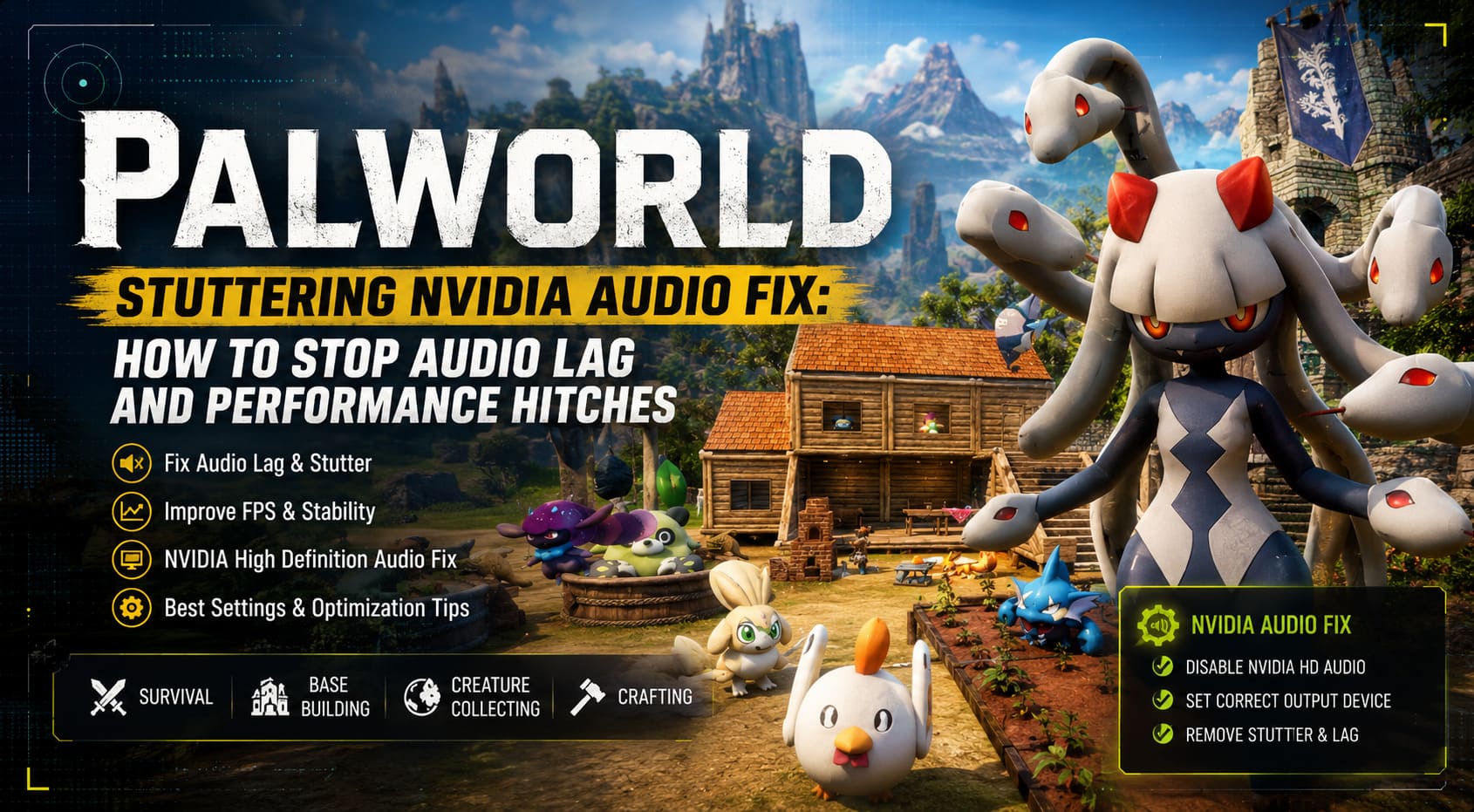
This driver conflict can create strange frame-time spikes, delayed sound effects, audio crackling, and sudden FPS drops during exploration, combat, or when moving through large player-built bases. The good news is that fixing this issue is surprisingly simple. By disabling the unused Nvidia audio device and manually assigning Palworld to your main audio hardware, you can often restore smooth performance without changing your graphics settings.
How to Fix Palworld Co-op World Crashing on Loading Screen (Xbox Game Pass PC & Console)
Why NVIDIA High Definition Audio Causes Stuttering in Palworld
The Nvidia driver package includes much more than just the graphics driver. Whenever you install a new GeForce driver update, Windows also receives additional components such as GeForce Experience features, background services, and the NVIDIA High Definition Audio driver.
This audio component is designed for users who send sound through HDMI or DisplayPort connections directly to monitors, televisions, or displays with built-in speakers. For example, if your gaming PC is connected to a large TV and you use the TV speakers, Nvidia audio allows Windows to transmit sound through the graphics card.
The problem appears when your computer uses a completely different audio solution. Most PC gamers rely on USB headsets, wireless headphones, external DAC devices, or motherboard audio outputs like Realtek. In these cases, Nvidia audio is not actually needed, but Windows can still keep the device active in the background.
Palworld sometimes struggles when multiple audio devices are available at the same time. The game engine may repeatedly communicate with both your active sound device and the unused Nvidia audio endpoint. This creates a conflict inside the Windows audio system that can result in inconsistent frame pacing.
Players have reported situations where expensive GPUs like the RTX 4070, RTX 4080, and RTX 4090 suddenly experience heavy FPS drops during fights, fast movement, or when loading new areas. GPU usage remains normal, temperatures are fine, and lowering graphics settings does not help. After disabling Nvidia High Definition Audio, many players noticed that the annoying stutters disappeared.
How to Fix Palworld Nvidia Audio Stuttering Issue
The complete fix requires two simple steps. First, you need to disable the Nvidia audio device inside Windows Device Manager. Second, you need to manually select your real audio output for Palworld instead of allowing Windows to choose automatically.
Step 1: Disable NVIDIA High Definition Audio
Follow these instructions to stop Windows from using the unnecessary Nvidia audio component:
- Press Windows Key + X on your keyboard.
- Select Device Manager from the quick access menu.
- Find the category called Sound, video and game controllers.
- Expand the category and locate NVIDIA High Definition Audio.
- Right-click the device and select Disable device.
- Confirm the warning message by clicking Yes.
Do not uninstall the driver completely. Removing it is unnecessary because Windows or Nvidia software may automatically reinstall it after a system restart or driver update. Disabling the device is enough to prevent the conflict while keeping your normal audio devices working correctly.
Step 2: Set Palworld to Use Your Main Audio Device
After disabling Nvidia audio, the next step is making sure Palworld uses your actual headset or speakers directly.
- Launch Palworld and leave it running.
- Press Alt + Tab to return to your desktop.
- Right-click the speaker icon in the Windows taskbar.
- Open Sound settings or Volume mixer.
- Find the section called Advanced sound options.
- Open App volume and device preferences.
- Locate Palworld in the application list.
- Change the Output device from Default to your real audio hardware.
- Select your headset, speakers, or DAC manually.
If you use voice chat or a microphone while playing multiplayer, make sure the Input device is also set correctly. Leaving both options on Default can allow Windows to switch devices automatically, which may bring back similar problems.
Additional Nvidia Optimization Tips for Better Palworld Performance
If the Nvidia audio fix improves your performance but you still experience occasional frame drops, there are several other adjustments worth trying. From my experience with many Unreal Engine games, small background issues often have a bigger impact on smooth gameplay than simply lowering graphical settings.
Clear Nvidia Shader Cache
Shader cache problems are one of the most common reasons for random stutters in modern PC games. Palworld constantly loads new environments, creatures, buildings, and visual effects, meaning corrupted shader files can cause repeated performance interruptions.
To clear Nvidia shader cache files:
- Close Palworld completely.
- Press Windows Key + R.
- Enter %localappdata% and press Enter.
- Open the Nvidia folder.
- Delete the contents inside the DXCache and GLCache folders.
- Remove old DirectX shader cache files if they are available.
The first time you start Palworld after clearing the cache, the game may take slightly longer to load while rebuilding shaders. This is normal. Afterward, asset loading and frame consistency should improve.
Recommended Nvidia Control Panel Settings for Palworld
The Nvidia Control Panel can also help improve stability. These settings focus on maintaining consistent frame times rather than simply increasing average FPS.
| Setting | Recommended Option |
|---|---|
| Power Management Mode | Prefer Maximum Performance |
| Low Latency Mode | On |
| Threaded Optimization | On |
| Shader Cache Size | Driver Default or Unlimited |
| Vertical Sync | Based on Monitor Setup |
To apply these changes, right-click your desktop, open NVIDIA Control Panel, select Manage 3D Settings, and open the Program Settings tab. Add Palworld manually if it does not appear in the list, then save the recommended options.
I recommend avoiding Low Latency Mode: Ultra for Palworld. Early access games can sometimes react badly to aggressive latency settings, creating unstable frame times instead of improving responsiveness.

Install Palworld on an SSD for Smoother Gameplay
Storage speed is another factor that many players overlook. Palworld constantly streams new assets while you travel across the islands. The game needs to load terrain, creatures, structures, and player-created bases quickly, especially in large multiplayer worlds.
If Palworld is installed on an older mechanical hard drive, you may experience constant small freezes even after fixing Nvidia audio problems. A modern SSD provides much faster read speeds and can significantly improve loading times and overall smoothness.
You can move Palworld to an SSD through Steam:
- Open Steam.
- Right-click Palworld.
- Select Properties.
- Open Installed Files.
- Choose Move Install Folder.
- Select your SSD location.
Final Thoughts: The Best Way to Remove Palworld Stutters
Performance problems are one of the biggest frustrations when playing ambitious early access games. What makes the Palworld Nvidia audio stuttering issue especially annoying is that it can happen even on expensive gaming PCs. Many players spend hours adjusting graphics settings or upgrading hardware without realizing that a simple background driver conflict is causing the problem.
The Palworld Nvidia Audio Fix is one of the easiest and most effective solutions available. Disabling NVIDIA High Definition Audio, selecting the correct playback device, clearing shader cache files, and optimizing Nvidia settings can greatly improve frame stability.
After testing many PC games with similar technical problems, one thing becomes clear: smooth gameplay is not always about having the strongest hardware. Sometimes a small software conflict can create the biggest performance headache. For Palworld players dealing with random freezes, audio delays, and unexplained FPS drops, this fix should be one of the first solutions to try.