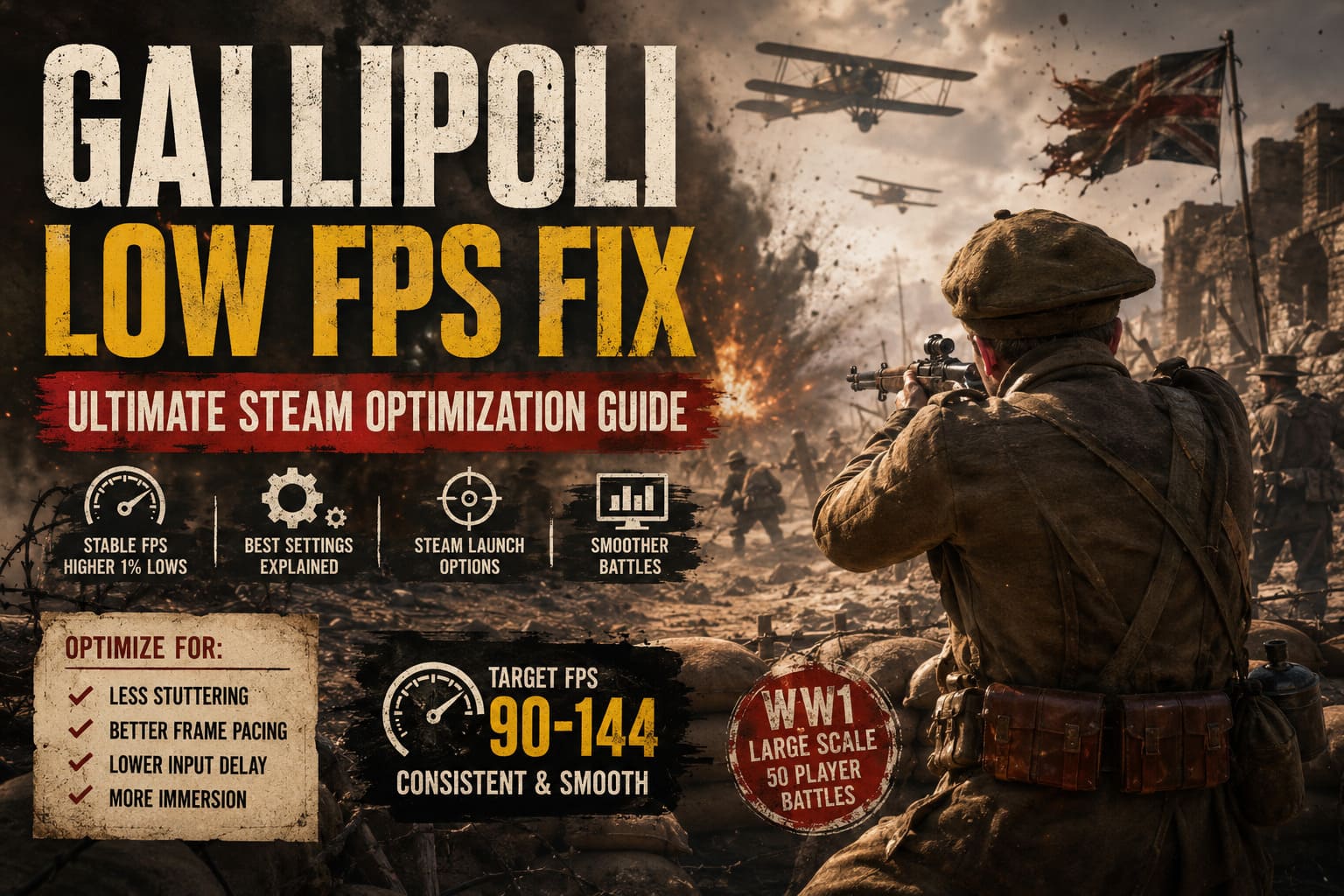
Gallipoli Game Low FPS Fix: Ultimate Steam Optimization Guide
If there is one thing that can completely ruin a good World War I shooter, it is not getting killed by an enemy hiding in a trench. It is watching your FPS collapse the moment 30 players start shooting, artillery begins landing around you, and the weather turns into a wall of dust. That is exactly the kind of performance problem some PC players have been running into with Gallipoli, the latest entry in BlackMill Games’ WW1 Game Series.
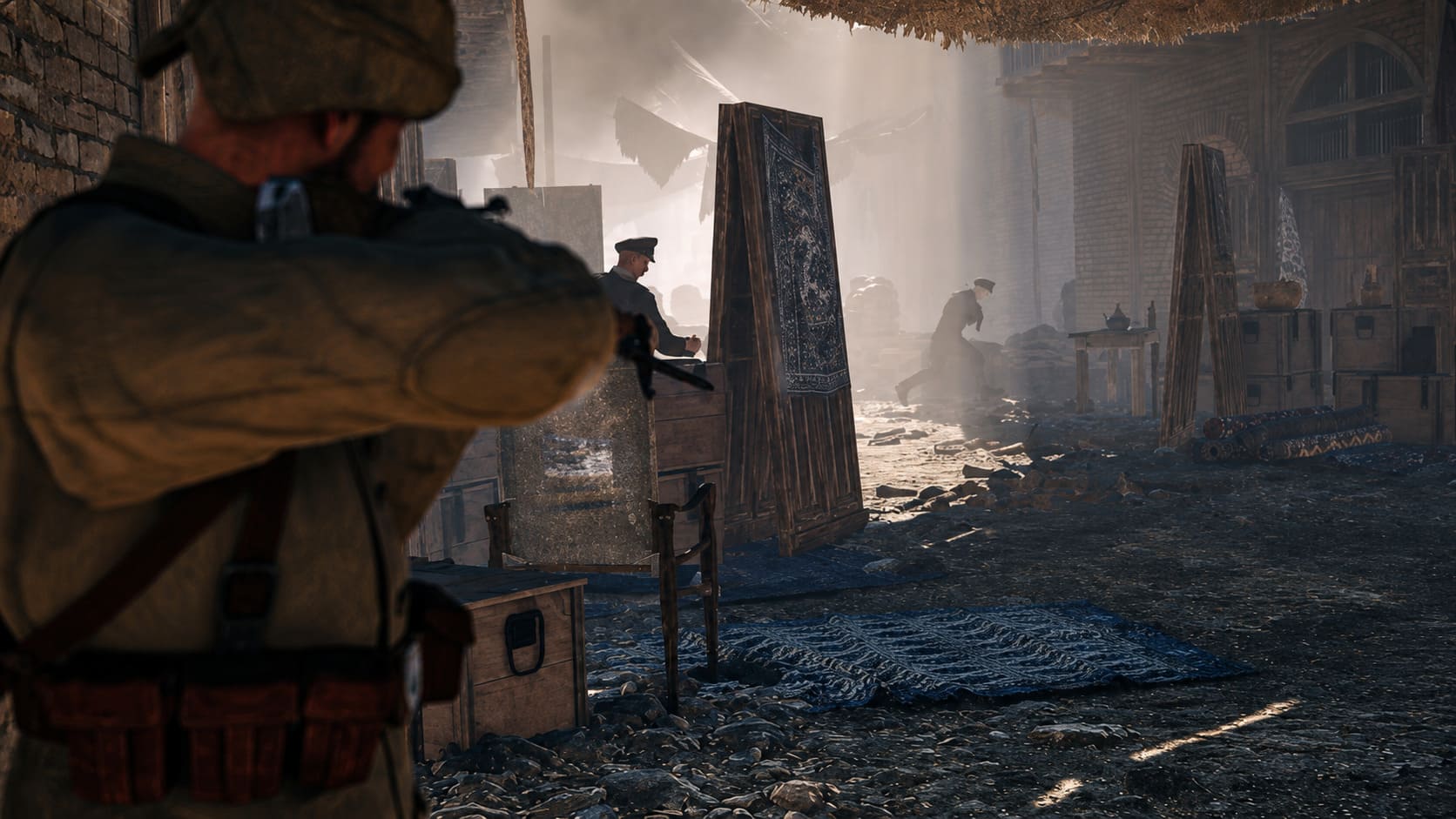
Gallipoli has plenty going for it. The large-scale battles, historical atmosphere, detailed environments, and chaotic frontline combat make it one of those games where immersion matters almost as much as gunplay. Unfortunately, all of that detail can put serious pressure on a gaming PC, especially during large 50-player battles where explosions, smoke, weather effects, terrain detail, and dozens of soldiers are being processed at the same time.
I have played enough multiplayer shooters to know that a high average FPS number does not necessarily mean a game feels smooth. A system can show 80 or 100 FPS and still feel awful if the frame pacing is inconsistent. In Gallipoli, this is particularly noticeable during artillery barrages and major objective pushes, when 1% lows, stuttering, input delay, and sudden FPS drops can become much more obvious.
The good news is that you do not necessarily need a new GPU to improve the situation. A few sensible Steam launch options, carefully selected graphics settings, driver adjustments, and an external FPS limiter can make Gallipoli considerably more stable.
How to Fix Gallipoli Game Black Screen: Ultimate 2026 Troubleshooting Guide for PC and Xbox
Why Gallipoli Can Have Low FPS and Stuttering on PC
Before changing every setting in the graphics menu, it helps to understand where the performance problems are coming from. Gallipoli combines large multiplayer battles with detailed environments, dynamic effects, weather, shadows, and a considerable amount of activity happening simultaneously.
The biggest drops usually happen when the game has to process several demanding effects at once. An otherwise stable 80 FPS can suddenly fall into the 40s or 50s when artillery, smoke, weather effects, players, and environmental details all appear in the same area.
There is also an important difference between average FPS and frame-time consistency. If your average is acceptable but the game constantly feels like it is hitching, your problem may be frame pacing rather than raw GPU performance.
Common Gallipoli Performance Problems
Players experiencing problems should look for symptoms such as:
- Sudden FPS drops during artillery or explosions.
- Stuttering when entering heavily populated combat areas.
- Poor 1% low FPS despite a high average FPS.
- Mouse input feeling delayed or inconsistent.
- Performance becoming worse during weather effects.
- GPU usage dropping unexpectedly while FPS remains low.
- CPU spikes during large multiplayer engagements.
That last point is particularly important. If your GPU is sitting at 60–70% usage while your FPS is poor, lowering every graphics setting may not help much. You could be running into a CPU, background-process, or frame-pacing limitation instead.
Best Steam Launch Options for Gallipoli
One of the easiest things to test is Steam’s launch options. They will not magically double your FPS, and I would not treat them as some secret Unity performance hack, but they can be useful when troubleshooting fullscreen behavior, CPU scheduling, and inconsistent frame delivery.
Open your Steam Library, right-click Gallipoli, select Properties, and find the Launch Options field under the General tab.
-high -fullscreen -window-mode exclusive
The -high parameter attempts to give the game a higher Windows process priority. This can sometimes help when background applications are competing for CPU resources, although the improvement varies considerably from one PC to another.
The fullscreen parameters are worth testing if you are experiencing inconsistent latency or strange behavior in borderless mode. If the game already performs well in its default fullscreen mode, however, there is no reason to force parameters that do not improve your particular system.
I always recommend testing one change at a time. Throwing ten different tweaks into a game simultaneously makes troubleshooting much harder because you have no idea which setting actually helped.
My Recommended Gallipoli Graphics Settings
This is where I would start if the goal is a good balance between image quality and competitive performance. I would rather keep Gallipoli looking sharp than turn the entire battlefield into a blurry low-detail mess just to gain a few frames.
| Graphics Setting | Recommended Value | Why |
|---|---|---|
| Display Mode | Fullscreen | Good starting point for consistent performance |
| Resolution Scale | 100% | Preserves image clarity |
| V-Sync | Off | Reduces additional input latency |
| Volumetric Fog/Clouds | Low/Medium | Can significantly reduce GPU load |
| Weather Effects | Off | Useful during major performance drops |
| Shadow Quality | Medium/Low | One of the easier settings to reduce |
| Anti-Aliasing | FXAA/SMAA | Can be lighter and sharper than heavier options |
| Decorative Mesh | Off | Removes some unnecessary environmental load |
Keep Resolution Scale at 100%
This is one setting I would not immediately sacrifice.
Dropping resolution scale can certainly increase FPS, but it also makes distant soldiers, weapons, and environmental details noticeably softer. In a multiplayer shooter, that can actually make your experience worse because identifying a target across an open area becomes more difficult.
If your GPU is struggling badly, lowering resolution scale is still a legitimate emergency fix. I would simply try other demanding options first.
Reduce Volumetric Fog and Weather Effects
If you are looking for the biggest visual settings to experiment with, start here.
Fog, clouds, dust, smoke, and dynamic weather can become surprisingly expensive when you combine them with a large battlefield. Gallipoli’s environments are designed to create a convincing atmosphere, but you do not necessarily need every atmospheric effect running at maximum quality to appreciate the game.
Set volumetric effects to Low or Medium and test the game during an actual battle rather than standing in an empty area. The difference can be much more noticeable when the screen is full of smoke, dust, explosions, and players.
Lower Shadows Before Texture Quality
Another mistake I see constantly in PC optimization guides is immediately destroying texture quality.
Textures are not always the biggest performance problem, particularly if your GPU has enough VRAM. Shadows can be considerably more expensive because the game has to calculate and display them across a complicated environment.
For Gallipoli, I would try Medium or Low shadow quality before making major sacrifices to textures.
Turn V-Sync Off If You Are Fighting Input Lag
For a competitive multiplayer FPS, I generally prefer V-Sync disabled unless there is a specific reason to use it.
V-Sync can introduce additional latency depending on the rendering setup. You might end up with a respectable FPS number while your mouse still feels slightly behind your movements.
If tearing becomes unbearable, there are other ways to control frame delivery. The important thing is to avoid assuming that V-Sync automatically creates the smoothest experience.
Fix Gallipoli Stuttering With an FPS Cap
This is one of the most useful things to test if your FPS is high but the game still feels inconsistent.
An external limiter such as RivaTuner Statistics Server (RTSS) can provide more consistent frame pacing than relying exclusively on an in-game limiter. The basic idea is simple: instead of allowing the GPU to render as many frames as possible, you establish a stable ceiling.
For example:
- 144Hz monitor → try 141 FPS.
- 165Hz monitor → try 162 FPS.
- 240Hz monitor → try 237 FPS.
The exact number is not sacred. The objective is to choose a frame rate your system can maintain consistently rather than chasing the highest possible peak.
If Gallipoli regularly jumps between 100 and 160 FPS, capping it at a stable 100 or 120 FPS can sometimes make the game feel considerably smoother. Personally, I would take stable 120 FPS over wildly fluctuating 160 FPS any day.
NVIDIA Control Panel Settings for Gallipoli
NVIDIA users can also create a dedicated profile for the game rather than changing global settings.
Open NVIDIA Control Panel, go to Manage 3D Settings, select Program Settings, and add the Gallipoli executable.
For troubleshooting, these are reasonable settings to test:
- Power Management Mode: Prefer Maximum Performance.
- Texture Filtering – Quality: High Performance.
- Vertical Sync: Off.
- Low Latency Mode: Test On or Ultra depending on the system.
I would not blindly enable every low-latency feature available. Modern NVIDIA GPUs and games can behave differently depending on whether the game itself supports technologies such as Reflex or frame generation.
The best approach is to test input latency and frame consistency after each change.
AMD Settings Worth Testing
AMD users can make similar adjustments through AMD Software: Adrenalin Edition.
For Gallipoli, consider testing:
- Radeon Anti-Lag: On.
- Radeon Chill: Off unless you specifically want an FPS or power limit.
- Texture Filtering Quality: Performance.
Again, these are troubleshooting recommendations rather than universal rules. Driver-level features can interact differently with individual games, so if a setting makes the game feel worse, turn it back off.
Update Your GPU Drivers
This sounds boring, but it is one of the first things I check whenever a new multiplayer game starts behaving strangely.
A fresh NVIDIA or AMD driver can contain game-specific optimizations, shader fixes, and compatibility improvements. If you installed Gallipoli and immediately started experiencing stuttering after a major graphics driver update, a clean driver installation can also be worth considering.
Do not overlook Windows updates either. The operating system, graphics driver, chipset driver, and game itself all contribute to the final performance you actually experience.
Disable Overlays When Troubleshooting
Overlays are convenient, but when you are trying to diagnose stuttering, I prefer eliminating as many variables as possible.
Temporarily disable:
- Discord Overlay.
- Xbox Game Bar.
- Steam Overlay.
- Unnecessary GPU recording overlays.
- Other applications that hook directly into games.
You do not have to leave all of them disabled forever. If Gallipoli suddenly becomes smoother after turning them off, you have identified another possible source of the problem.
Try Lowering Your Mouse Polling Rate
This is an unusual tweak, but it is worth mentioning for players using modern high-polling-rate gaming mice.
A polling rate of 4000Hz or 8000Hz can generate considerably more CPU activity than the traditional 1000Hz setting. In a CPU-heavy multiplayer game, that additional workload may occasionally contribute to frame-time problems.
If you are experiencing strange stutters while using a very high polling rate, try 1000Hz temporarily.
There is little downside to testing it. If the game suddenly feels smoother, you have found a surprisingly simple solution.
What I Would Change First
If I installed Gallipoli on a mid-range gaming PC and immediately encountered low FPS, I would not spend an hour changing every setting. I would approach it in this order:
- Update the GPU driver and restart the PC.
- Set fullscreen mode and disable V-Sync.
- Keep resolution scale at 100%.
- Reduce volumetric effects, weather, and shadows.
- Disable unnecessary overlays.
- Test a stable FPS cap.
- Reduce mouse polling to 1000Hz if using 4000Hz/8000Hz.
- Only then start experimenting with more aggressive graphics reductions.
This method makes troubleshooting much easier because every adjustment has a clear purpose.
Final Thoughts on Gallipoli PC Performance
Gallipoli is the kind of shooter where performance matters more than it might in a slower single-player game. When you are defending a position and half the battlefield suddenly erupts into gunfire, you need your mouse movement and frame delivery to remain predictable.
The most important lesson is not to chase the biggest FPS number possible. Stable frame pacing is often more valuable than a high but inconsistent average FPS, particularly in large-scale multiplayer battles.
Start with the heavy graphical features, keep the image reasonably sharp, eliminate unnecessary background interference, and use a sensible FPS cap if your frame delivery is inconsistent. You may not be able to eliminate every performance limitation through settings alone, but these changes should give you a much better starting point for solving the Gallipoli game low FPS fix Steam problem without turning the game into an ugly low-resolution shooter.