How to Fix CS2 Micro Stuttering on Intel 14th Gen CPUs (2026 Guide)
If you’ve invested in an Intel Core i9-14900K, i7-14700K, or i5-14600K, you probably expected Counter-Strike 2 to run flawlessly. On paper, these CPUs have more than enough power to push incredibly high frame rates, especially in a competitive shooter built around responsiveness.
Yet many players—including myself—have experienced something that doesn’t make much sense at first. The FPS counter looks fantastic, often sitting well above 300 or even 400 FPS, but the gameplay feels off. Tiny pauses, random hitching, micro stutters during peeks, and inconsistent mouse feel can completely ruin the experience.
These aren’t massive FPS drops. They’re frametime spikes, and they’re far more noticeable than a simple frame rate number suggests.
After spending far too many evenings experimenting with Windows settings, BIOS tweaks, Steam launch options, and reading countless community discussions, I found that the issue usually isn’t your graphics card or your CPU’s raw performance. Instead, it’s how Counter-Strike 2, Windows, and Intel’s hybrid processor design interact with each other.
This guide covers the fixes that consistently made the biggest difference for me and many other competitive players.
Why High FPS Doesn’t Always Feel Smooth
One mistake many people make is assuming that FPS tells the whole story.
It doesn’t.
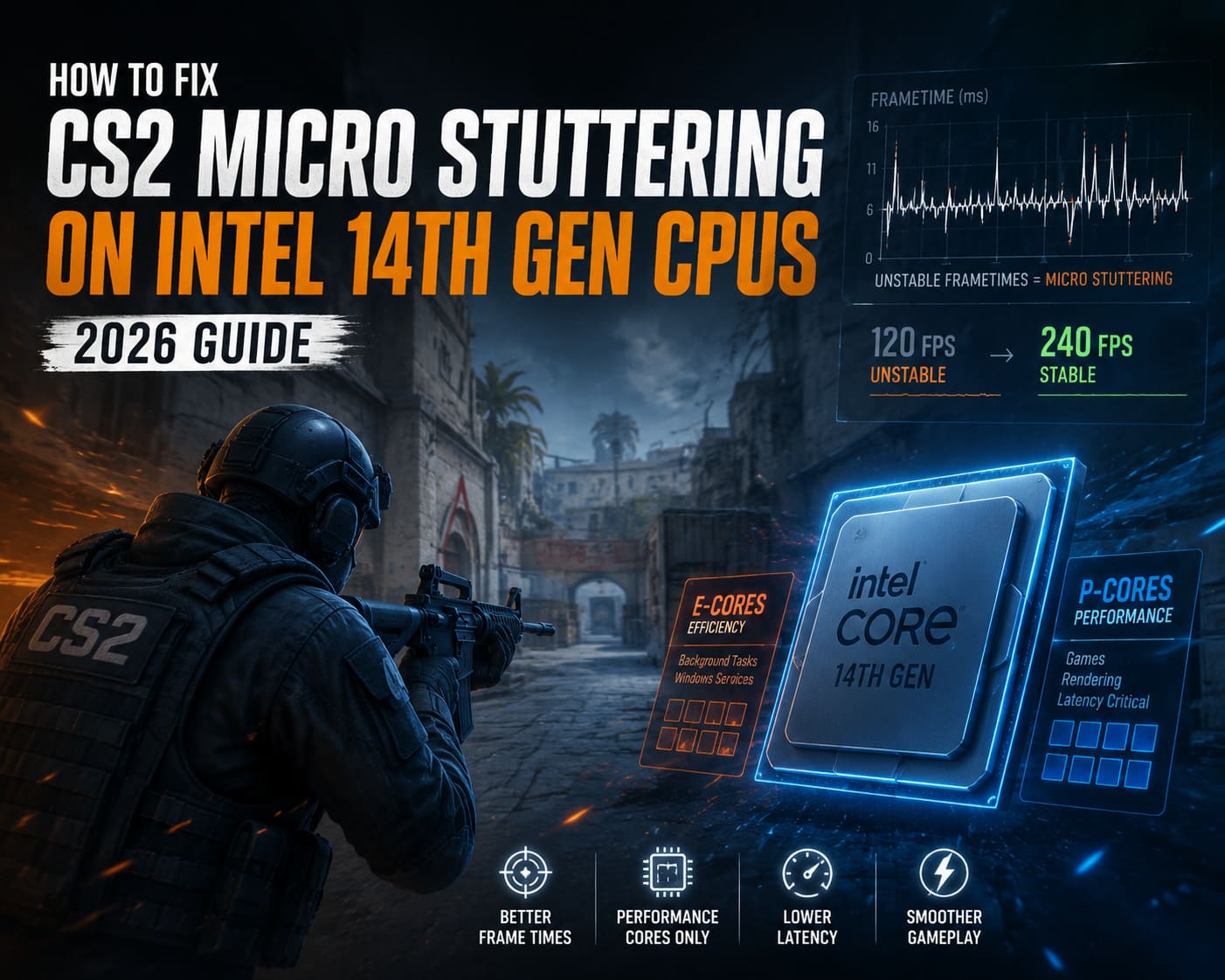
A system running at 420 FPS with unstable frame delivery can actually feel worse than one locked at 240 FPS with perfectly consistent frametimes.
That’s exactly what happens on many Intel 14th Generation systems.
The processor constantly decides where workloads should run. Instead of using only the fastest Performance Cores, Windows sometimes schedules parts of the game on Efficient Cores. Those tiny scheduling changes may only take milliseconds, but in a tactical shooter like CS2, milliseconds are everything.
The result is inconsistent frame pacing that feels like random stutters even though the FPS counter barely moves.
Understanding Intel’s Hybrid CPU Design
Intel’s latest desktop processors combine two different types of cores, each designed for a different purpose.
| Core Type | Main Purpose | Best Used For |
|---|---|---|
| Performance Cores (P-Cores) | Maximum clock speeds and responsiveness | Gaming, rendering, latency-sensitive workloads |
| Efficient Cores (E-Cores) | Power efficiency and multitasking | Background applications and Windows services |
On paper, this architecture is fantastic. During everyday use, it allows your system to stay responsive while consuming less power.
The problem is that Counter-Strike 2 doesn’t always benefit from aggressive thread scheduling. Important engine tasks can occasionally be moved to Efficient Cores, causing small delays that appear as annoying micro stutters during gameplay.
First Fix: Force CS2 to Use Performance Cores
This is by far the easiest fix and should always be your starting point.

- Launch Counter-Strike 2.
- Open Settings.
- Go to the Game tab.
- Find Preferred CPU Cores.
- Change it from No Preference to Performance Cores Only.
Valve introduced this option specifically for modern hybrid processors. Once enabled, the Source 2 engine prioritizes your processor’s fastest cores for gameplay instead of letting Windows freely distribute critical threads.
For many players, this single setting significantly reduces frametime spikes.
Remove Outdated Steam Launch Options
I still see plenty of optimization guides recommending launch commands that were useful years ago but have little value today.
The biggest example is the old -threads launch option.
Modern versions of Source 2 already manage CPU resources much better than previous Source engine games. Forcing thread counts manually can actually interfere with the engine’s scheduler and create additional instability.
My advice is simple: keep your Steam launch options as clean as possible. If a command doesn’t provide a measurable benefit, remove it.
Process Lasso: A Great Windows-Level Solution
If enabling Performance Cores Only improves the game but doesn’t eliminate every frametime spike, Process Lasso is worth trying.
This lightweight utility lets you permanently assign Counter-Strike 2 to specific CPU cores.
The setup process is straightforward.
- Install Process Lasso.
- Launch Counter-Strike 2.
- Locate cs2.exe inside Process Lasso.
- Open CPU Affinity.
- Disable all Efficient Cores.
- Save the profile permanently.
From that point forward, Windows automatically keeps CS2 on your processor’s Performance Cores every time the game launches.
Personally, this produced some of the smoothest frametime graphs I’ve seen without making any hardware changes.
BIOS Tweaks for Maximum Stability
This solution isn’t necessary for everyone, but if your PC is primarily used for competitive gaming, disabling Efficient Cores inside your motherboard BIOS can be surprisingly effective.
Doing so completely removes Windows’ ability to move game threads between different core types.
Depending on your motherboard manufacturer, you’ll usually find these settings under sections like:
- CPU Configuration
- Advanced CPU Settings
- Tweaker
- Overclocking
- Advanced Mode
Look for settings such as Active Efficient Cores, E-Core Control, or Efficient Core Count, then disable them.
Should You Disable Hyper-Threading?
This remains one of the most debated optimizations.
Some competitive players claim it noticeably improves frame consistency, while others see almost no difference.
From my own testing, Hyper-Threading didn’t dramatically increase FPS, but frametimes became slightly more stable during longer gaming sessions.
If your PC is dedicated almost entirely to gaming, it’s worth testing both configurations. If you regularly edit videos, render 3D projects, or perform other heavily multi-threaded work, keeping Hyper-Threading enabled is probably the better choice.
Clear the Shader Cache
Driver updates and major game patches occasionally leave behind outdated shader files that can introduce random stutters.
Fortunately, clearing them only takes a minute.
- Open Disk Cleanup.
- Select your Windows drive.
- Check DirectX Shader Cache.
- Delete the cached files.
The first launch afterward may take slightly longer because the game rebuilds its shaders, but future sessions are often noticeably smoother.
NVIDIA Control Panel Settings That Actually Matter
There are countless optimization videos suggesting dozens of NVIDIA tweaks, but in reality only a handful consistently make sense.
| Setting | Recommended Value | Reason |
|---|---|---|
| Power Management Mode | Prefer Maximum Performance | Prevents unnecessary GPU downclocking |
| Low Latency Mode | On | Reduces render queue latency |
| Shader Cache | Driver Default | Usually provides the most stable behavior |
| Vertical Sync | Off | Minimizes competitive input latency |
I would also be careful with Ultra Low Latency Mode. Some systems benefit from it, while others develop inconsistent frametimes. Test both options instead of assuming Ultra is always superior.
Use Exclusive Fullscreen Mode
Borderless Windowed mode is convenient for multitasking, but exclusive Fullscreen still offers the most consistent gaming experience.
Running CS2 in Fullscreen reduces desktop compositor overhead and generally delivers slightly lower input latency.
The difference isn’t massive, but every small improvement adds up in a competitive shooter.

Enable NVIDIA Reflex
NVIDIA Reflex remains one of the most valuable competitive gaming technologies available today.
If your graphics card supports it, enable either Enabled or Enabled + Boost.
Boost keeps GPU clocks higher during gameplay, which may improve responsiveness depending on your hardware. Even standard Reflex, however, is worth using on nearly every supported system.
Consider Using an FPS Cap
Many players believe unlimited FPS automatically provides the best experience.
In reality, allowing your frame rate to fluctuate wildly between 350 and 500 FPS can produce inconsistent frametimes.
Sometimes locking your FPS just below your average maximum produces much smoother gameplay.
- 240 Hz monitor: approximately 237–240 FPS.
- 360 Hz monitor: approximately 350–360 FPS.
- Very high-end systems: experiment around 400 FPS.
Every PC behaves a little differently, so don’t be afraid to test several values.
CS2 Low FPS in Main Menu Fix: Stop Menu Lag & Performance Drops (2026 Guide)
The Order I Recommend
Rather than changing everything at once, I prefer making one adjustment at a time so it’s easy to identify what actually improves performance.
- Enable Performance Cores Only in CS2.
- Remove outdated Steam launch options.
- Clear the DirectX Shader Cache.
- Enable NVIDIA Reflex.
- Use exclusive Fullscreen mode.
- Configure Process Lasso if necessary.
- Only consider BIOS changes if stuttering still remains.
CS2 Cache Remake Guide: How to Play Cache in Premier Season 5 (2026)
Final Thoughts
Counter-Strike 2 demands exceptional frame consistency, and Intel’s latest hybrid processors don’t always deliver that automatically. Fortunately, the problem usually isn’t a lack of hardware power but rather how Windows schedules the game’s most important threads.
For me, the biggest improvements came from forcing the game onto Performance Cores, removing unnecessary launch commands, and using Process Lasso to keep Windows from making poor scheduling decisions. Combined with a clean shader cache, sensible NVIDIA settings, and exclusive Fullscreen mode, the overall experience became dramatically smoother even though my average FPS barely changed.
If you’re serious about competitive play, stop focusing only on the FPS counter. Stable frametimes, responsive input, and consistent frame delivery will always have a bigger impact on your gameplay than chasing another 30 or 40 FPS that you’ll rarely notice during an intense match.