Tom Clancy’s Ghost Recon Wildlands Co-Op Fix: Voice Chat Not Working & Lag Spikes / Rubber Banding Guide (2026)
Ghost Recon Wildlands is one of those games I keep coming back to even years after release. Bolivia still looks fantastic, the missions are at their best when a four-player squad starts improvising, and few things beat watching a carefully planned stealth operation collapse into absolute chaos.
But there is one thing that can ruin a Wildlands co-op session faster than a helicopter landing on your squad: multiplayer technical problems.
Voice chat suddenly stops working. Discord becomes strangely quiet. A teammate starts teleporting across the road. Enemies freeze for a second, vehicles snap backward, and suddenly your perfectly coordinated squad looks like four players connected through a toaster.
I have dealt with these problems enough times to know that there usually isn’t one magic setting that fixes everything. Wildlands is an older PC game running on modern Windows systems, modern audio drivers, modern networking equipment, and launchers that have changed considerably since the game originally released.
So if you’re trying to get Ghost Recon Wildlands co-op working properly in 2026, this is the troubleshooting checklist I would actually go through.
Why Ghost Recon Wildlands Co-Op Can Still Have Problems
Before changing anything, it’s worth understanding why these problems happen.
Wildlands’ multiplayer experience depends heavily on the connection between players, rather than relying entirely on the kind of dedicated-server infrastructure you might expect from a newer competitive shooter. That means the quality of the session can be affected by the host’s connection, NAT configuration, system performance, background applications, and even inconsistent frame times.
Audio has its own set of headaches.
Windows has changed significantly since Wildlands launched. Modern privacy controls, multiple virtual audio devices, USB headsets, motherboard audio drivers, Discord, Ubisoft Connect, Steam, and GPU overlays can all compete for access to the same hardware.
The result is a game that can sometimes behave perfectly on one PC and completely lose its mind on another.
Here’s how I would attack the problem.
Ghost Recon Wildlands Voice Chat Not Working Fix
If your squad can hear everyone except you, or Wildlands simply refuses to recognize your microphone, start with Windows rather than immediately reinstalling the game.
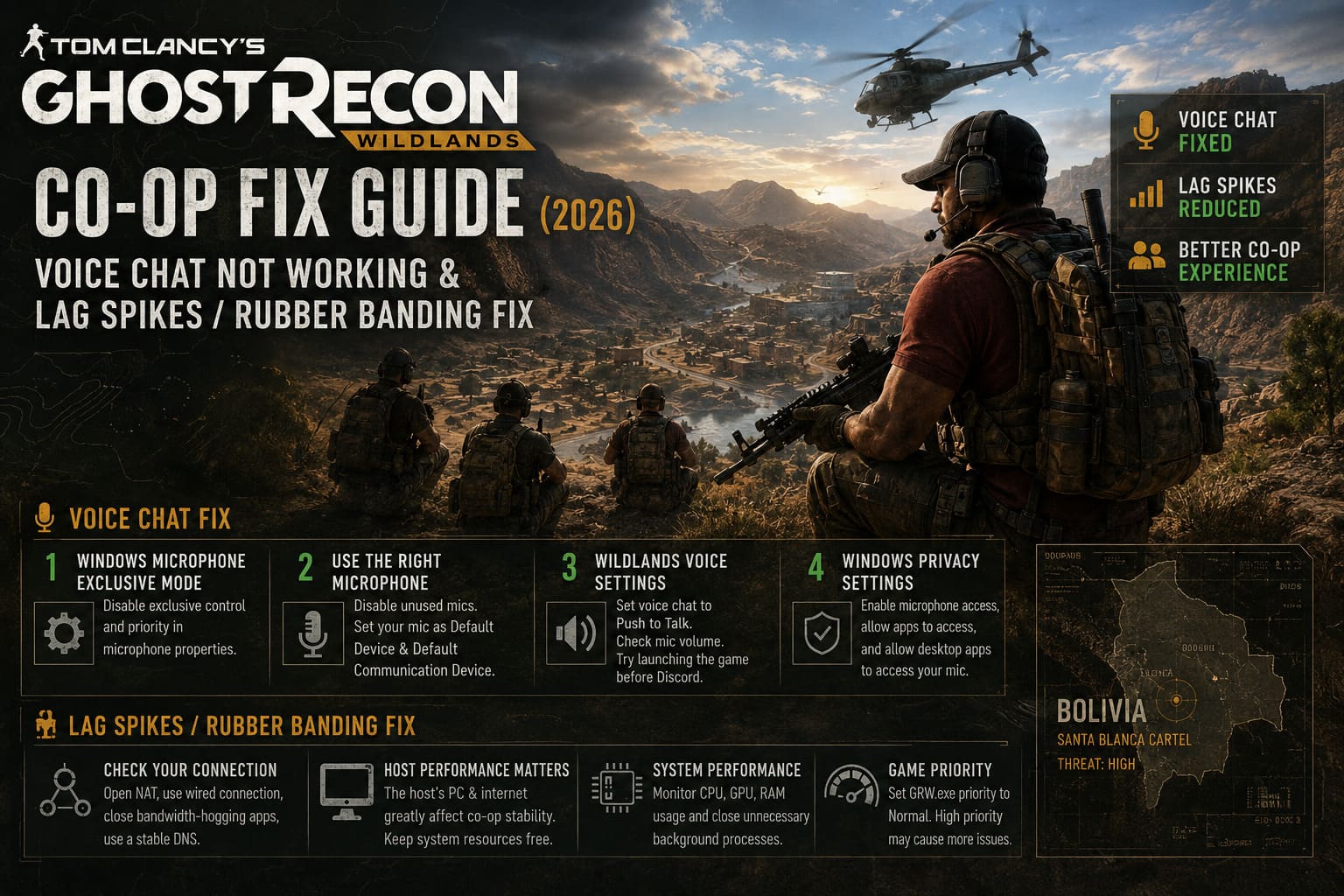
1. Stop Windows From Giving the Game Exclusive Microphone Control
This is one of the first settings I’d check.
Press Windows + R, enter:
mmsys.cpl
and press Enter.
Open the Recording tab, locate your active microphone, right-click it, and select Properties.
Go to Advanced and look for the exclusive-mode options.
Disable:
- Allow applications to take exclusive control of this device
- Give exclusive mode applications priority
Click Apply, then OK.
Why bother? Because when several programs are trying to use the same microphone, exclusive access can create some incredibly confusing behavior. Wildlands may appear to have a microphone problem when Windows is actually allowing another application to control the device differently.
Personally, this is one of those Windows settings I prefer disabling on a gaming PC anyway.
2. Make Sure Wildlands Is Using the Correct Microphone
Modern PCs can have an absurd number of audio devices.
You might have:
- Your USB headset microphone
- Your motherboard microphone input
- Your monitor’s audio device
- A webcam microphone
- Virtual audio cables
- NVIDIA or AMD virtual devices
- Discord-related audio devices
Wildlands doesn’t always make the smartest choice.
In the Windows Recording tab, disable microphones you aren’t using. Then right-click your actual gaming microphone and make it the Default Device and Default Communication Device.
This removes unnecessary variables.
One thing I wouldn’t blindly recommend is enabling every hidden recording device just because a forum post says it might help. Stereo Mix can occasionally be useful for troubleshooting, but it isn’t a universal Wildlands microphone fix. If your normal microphone works everywhere else, focus on getting Windows and Wildlands pointed at that exact device first.
3. Check Wildlands’ Own Voice Settings
Now launch the game.
Go into Options → Audio and check your voice-chat configuration.
If voice chat is set to Off, switch it temporarily to Push to Talk.
Also check the microphone volume. Don’t leave it at an extreme value while troubleshooting. Something around the middle of the slider is a sensible starting point.
Then test the microphone with your squad.
I also recommend doing one simple experiment: launch Wildlands first, reach the main menu, and then connect to Discord.
It sounds ridiculous, but audio conflicts between older games and modern communication software can sometimes disappear when you change the order in which applications claim audio devices.
If Discord is already running, disconnecting and reconnecting to the voice channel after entering the Wildlands world is another quick test.
4. Check Windows Microphone Privacy Settings
This one is easy to overlook.
Open:
Settings → Privacy & Security → Microphone
Make sure these are enabled:
- Microphone access
- Allow apps to access your microphone
- Allow desktop apps to access your microphone
The last option is particularly important for older PC games and launchers because Wildlands isn’t necessarily going to behave like a modern Microsoft Store application.
If Windows has recently updated, I would check this even if your microphone worked perfectly the previous week.
Ghost Recon Wildlands Co-Op Lag Spikes and Rubber Banding Fix
Now we get to the problem that drives me personally much crazier: rubber banding.
If your character runs forward and suddenly snaps backward, vehicles jump around, enemies teleport, or your teammates appear to be moving in short bursts, you need to determine whether you’re dealing with actual network instability or local performance problems.
Those two can look surprisingly similar.
| Problem | Typical Symptom | First Thing I’d Check |
|---|---|---|
| Network instability | Players teleport or snap backward | NAT and connection |
| Host problems | Entire squad experiences synchronization issues | Host PC and internet |
| Frame-time spikes | Movement feels uneven locally | Graphics settings |
| CPU overload | Stuttering plus multiplayer instability | Task Manager |
| Overlay conflict | Random freezes or strange behavior | Ubisoft/Steam overlays |
| DNS/network corruption | Matchmaking or connection failures | Network reset |
5. Check the Host’s PC Performance
This is something I think gets overlooked in Wildlands troubleshooting.
If you’re playing co-op and one person is hosting the session, that person’s PC and connection can matter considerably more than everyone else’s.
Open Task Manager while Wildlands is running and look at CPU utilization, memory usage, GPU load, and background processes.
You can also test the game’s process priority.
Go to:
Task Manager → Details → GRW.exe
Right-click it and select Set Priority.
Start with Normal.
Some players report better results with higher priority, but I would not treat High as an automatic performance upgrade. Giving a game more CPU priority can sometimes make the situation worse by starving other processes that the system needs.
For me, Normal is the sensible baseline. If the game is already stable, there is no reason to force High priority just because a random optimization guide recommends it.
6. Fix Your NAT Situation
NAT can become a major headache in peer-to-peer multiplayer.
If one player has a restrictive NAT configuration, matchmaking and peer connections can become less reliable.
The first thing I would try is enabling UPnP on the router.
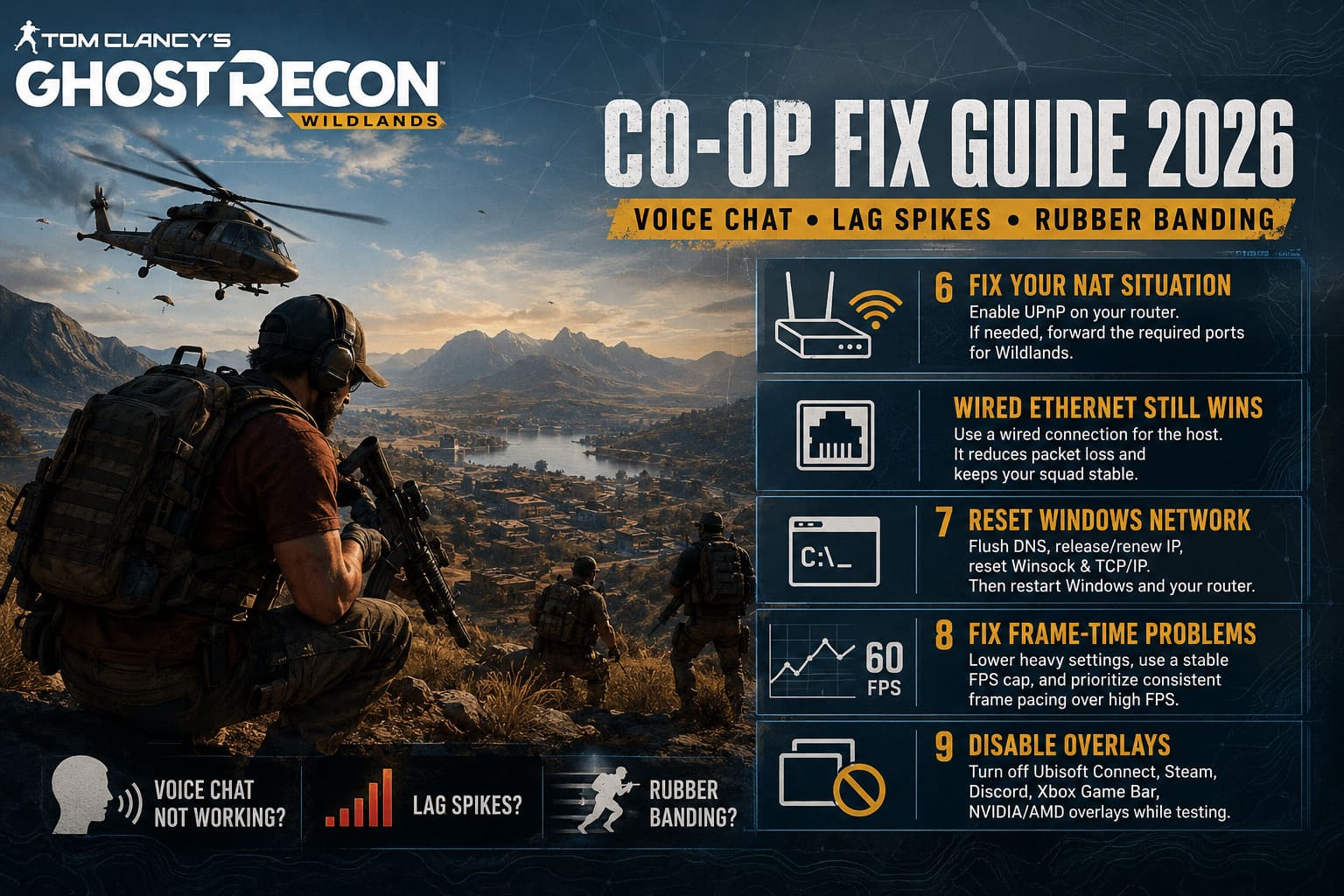
UPnP allows compatible applications to automatically request the network ports they need. It is considerably easier than manually forwarding ports.
If UPnP doesn’t solve the problem, then port forwarding is worth investigating.
However, don’t blindly copy a giant list of ports from an old forum post and assume that more open ports automatically means better performance. Router firmware and Ubisoft’s infrastructure can change, and opening unnecessary ports can create security concerns.
If you decide to use manual forwarding, verify the current requirements for your specific Wildlands platform and router configuration first.
Wired Ethernet Still Wins
If possible, have the host use Ethernet instead of Wi-Fi.
This is probably the least exciting recommendation in the entire guide, but it’s also one of the most useful.
A stable wired connection can eliminate random wireless interference, packet loss, and latency fluctuations. If your squad is experiencing rubber banding and the host is playing over weak Wi-Fi, I’d investigate that before changing twenty Windows settings.
7. Reset Windows’ Network Configuration
If the connection has become strangely unreliable, Windows’ network stack is worth resetting.
Open Command Prompt as Administrator and run:
ipconfig /flushdns
ipconfig /release
ipconfig /renew
netsh winsock reset
netsh int ip reset
Restart Windows afterward.
I’d also restart the router.
This isn’t a guaranteed Wildlands-specific fix, but it’s a useful general troubleshooting step when matchmaking, DNS resolution, or network behavior has become inconsistent.
8. Don’t Ignore Frame-Time Problems
Here’s where Wildlands gets interesting.
A player can describe the problem as “network lag” when the real issue is inconsistent local performance.
If your frame rate repeatedly drops from smooth gameplay into heavy stuttering, everything can feel delayed and broken. In co-op, this becomes even more confusing because the game is simultaneously handling AI, physics, networking, streaming, and a huge open world.
Try lowering the settings that produce heavy frame-time spikes.
I would start with:
- Turf Effects: Off
- Long Range Shadows: Lower
- High Quality Depth of Field: Off
- Bloom: Off
- Fullscreen: On
Then use a sensible FPS limit.
You don’t necessarily need to chase 200 FPS. A consistent 60 FPS can feel significantly better than bouncing between 90, 55, 110, and 48 FPS.
If your monitor supports 144 Hz, a stable 144 FPS is great. If your system can’t maintain it, however, a lower and consistent target is usually the better choice.
Stable frame pacing matters more than bragging rights.
9. Turn Off Overlays While Troubleshooting
When Wildlands starts behaving strangely, I like to remove as many extra layers as possible.
Temporarily disable:
Ubisoft Connect Overlay
Steam Overlay
Discord Overlay
Xbox Game Bar
NVIDIA/AMD overlays
You don’t necessarily have to live without them forever. This is a troubleshooting step.
If the game suddenly becomes stable after disabling everything, re-enable the overlays one at a time until you find the culprit.
That takes longer than pressing five “Disable” buttons, but it gives you an actual answer instead of guessing.
Fix Tom Clancy’s Ghost Recon Wildlands Infinite Loading Screen When Joining Friends (2026 Guide)
My Recommended Wildlands Co-Op Setup for 2026
If I were setting up a four-player Wildlands session today, this is the baseline I’d use:
- Use Ethernet for the host whenever possible.
- Keep the microphone as the Windows Default Communication Device.
- Disable exclusive microphone control.
- Set Wildlands voice chat to Push to Talk while testing.
- Keep GRW.exe at Normal priority initially.
- Disable overlays if troubleshooting.
- Use Fullscreen mode.
- Target a stable FPS rather than maximum FPS.
- Enable UPnP before attempting manual port forwarding.
- Restart the router and PC after making major network changes.
The important part is not changing everything at once.
If you change ten settings and the problem disappears, you have no idea which change actually fixed it. I prefer changing one or two things, testing the same mission with the same squad, and then moving to the next step.
Tom Clancy’s Ghost Recon Wildlands Co-Op Connection Error Fix (2026 Guide)
Final Thoughts
Ghost Recon Wildlands is still absolutely worth playing in co-op in 2026. In fact, the age of the game is part of its charm. You can load into Bolivia with three friends, choose a ridiculous plan, execute it perfectly for five minutes, and then watch everything explode because somebody accidentally drove a truck through a checkpoint.
That’s Wildlands.
The frustrating part is when the chaos isn’t caused by your squad but by the game itself.
If Ghost Recon Wildlands voice chat isn’t working, start with Windows microphone permissions, exclusive-control settings, and the game’s audio configuration. If you’re dealing with lag spikes, desync, or rubber banding, look at the host’s connection, NAT, CPU load, frame-time consistency, and overlays before assuming the servers are simply broken.
And don’t underestimate the boring fixes. A wired connection, a clean audio device configuration, stable frame rate, and fewer background applications can make a surprisingly big difference.
I wouldn’t call these fixes a guarantee—Wildlands is an older game and multiplayer behavior can vary between systems—but they’re the troubleshooting steps I’d personally go through before reinstalling the entire game or blaming my internet provider.
Sometimes the solution isn’t complicated.
Sometimes your tactical operation just needs Windows to stop fighting with your microphone.