How to Fix Blackwood Stuttering on Low End PC: Ultimate Performance Guide
If you have ever tried running a demanding modern game on hardware that is slightly below the recommended specification, you probably know the feeling: the FPS counter looks acceptable, but the game still feels awful. That is exactly the kind of problem BLACKWOOD could present to players using older or budget gaming PCs. On paper, you might see 40 or 50 FPS and think everything should be fine, yet sudden frame-time spikes, freezes during combat, and brief pauses while moving through the city can make the experience feel much worse than the numbers suggest.
BLACKWOOD is an especially interesting case because its gameplay constantly switches between slower atmospheric moments and much more demanding action. You can spend time managing Anton Blackwood’s seemingly ordinary DVD rental store before suddenly being thrown into a violent night mission involving gunfights, melee animations, environmental effects, and a much busier city scene. After playing plenty of games that suffer from similar performance problems, my biggest advice is simple: don’t chase the highest average FPS. On a low-end PC, stable frame pacing is usually far more important.
Ultimate BLACKWOOD 2026 Combat Guide: Mastering Environment Objects and Tactical Melee
Why BLACKWOOD Can Stutter on Older PCs
The minimum requirements already give us a good indication of what kind of hardware BLACKWOOD expects. The game lists processors around the Intel Core i5-10400F or Ryzen 5 3600 class, 16 GB of RAM, and graphics hardware comparable to the GTX 1650 or Radeon RX 570. Those specifications are not particularly frightening by modern standards, but they are considerably higher than what many older gaming PCs are equipped with.
The important thing to understand is that stuttering does not always mean your graphics card is simply too slow. A game can stutter because of CPU spikes, shader compilation, asset streaming, insufficient VRAM, background applications, or inconsistent frame delivery. In my experience, 1% lows and frame-time consistency tell you much more about how playable a game feels than the average FPS number alone.
| Problem | Likely Cause | First Thing to Try |
|---|---|---|
| Constantly low FPS | GPU limitation | Lower resolution and graphics quality |
| Short freezes while exploring | Asset or shader streaming | Use an SSD and rebuild shader cache |
| Stutters during combat | CPU or frame-time spikes | Reduce shadows and cap FPS |
| Random desktop-like freezes | Background software | Close overlays and unnecessary apps |
| Inconsistent 40–60 FPS | Poor frame pacing | Use a sensible FPS cap |
Start With BLACKWOOD’s Graphics Settings
Before touching Windows settings, drivers, or third-party utilities, I would always start inside the game. It is surprisingly easy to make a low-end PC perform much better simply by removing a handful of expensive visual effects. You do not need to turn everything to the absolute lowest setting either; the goal is to identify which options cost a lot of performance while offering relatively little visual benefit.
Lower Resolution Before Destroying Image Quality
If you are playing at 1920×1080 and the GPU is struggling, try 1600×900 first. If that still isn’t enough, 1280×720 can be used as a last resort. Resolution has a direct impact on the number of pixels your GPU has to render, so this is one of the most reliable ways to increase performance on an entry-level graphics card.
I would also test exclusive fullscreen if BLACKWOOD provides the option. Borderless fullscreen is convenient when switching between applications, but on some systems it can introduce additional desktop-composition overhead or inconsistent frame delivery. If you are troubleshooting stuttering, fullscreen is worth testing before assuming your hardware is simply too weak.
Textures Are Different From Most Settings
Texture quality does not always have the same performance impact as shadows or volumetric effects, but it can become a serious problem when your GPU has only 4 GB of VRAM. Once VRAM becomes saturated, asset streaming can become much more aggressive, and that is where those irritating little freezes can appear.
For a 4 GB graphics card, I would start with Medium textures. If stuttering continues while entering new areas, try Low temporarily and see whether the behavior changes. This is a useful diagnostic test because it can tell you whether VRAM pressure is contributing to the problem.
Shadows, Reflections and Lighting
If I had to choose the first visual settings to sacrifice, shadows would be near the top of my list. Dynamic shadows can be surprisingly expensive, especially in a nighttime city environment where multiple light sources are constantly changing. Set Shadow Quality to Low and reduce reflection quality as well.
Screen-space reflections, ambient occlusion, volumetric fog, global illumination, and similar effects can also have a disproportionate effect on weaker GPUs. BLACKWOOD is designed to look cinematic, but on budget hardware I would rather have a stable 40 FPS than a beautiful 25 FPS with constant hitching.
Disable Unnecessary Cinematic Effects
Motion blur, depth of field, heavy volumetric effects, and some post-processing options are easy candidates for disabling. They may make screenshots look better, but they do not necessarily improve gameplay. Turning them off can also make the image clearer during fast gunfights, which is another small advantage for players who prioritize responsiveness.
Don’t Ignore Frame Pacing
This is one of the biggest lessons I have learned from playing demanding games on weaker hardware. A machine that jumps between 35, 48, 55, and 42 FPS can feel much worse than one locked consistently at 40 FPS. Your eyes notice uneven frame delivery, even when the FPS counter occasionally reports a higher number.
That is why an external frame limiter such as RivaTuner Statistics Server can be useful. Instead of allowing the game to constantly chase the highest possible frame rate, establish a target that your PC can actually maintain during difficult scenes.
For example, if your system normally reaches 50–60 FPS but falls into the high 30s whenever combat becomes intense, a 40 FPS cap may produce a much smoother experience. It sounds strange to deliberately lower the FPS, but consistent frame intervals often feel significantly better than an unstable higher number.
There is no universal magic number. Test 30, 40, 45, and 60 FPS and choose the highest target that your PC can sustain without repeatedly dropping below it. Consistency is the goal.
Fix Shader and Asset Streaming Stutters
Some stutters are not caused by insufficient rendering power at all. Modern games frequently compile shaders or load new assets while you play, and those operations can create short freezes when the hardware is already under pressure. BLACKWOOD’s combination of urban exploration, combat animations, particles, and environmental detail makes asset streaming particularly important.
Windows includes a DirectX Shader Cache that can occasionally become bloated or problematic. If you suspect shader-related stuttering, use Windows Disk Cleanup and remove the DirectX Shader Cache. Afterward, the game may need to rebuild some shaders, so don’t judge performance immediately after launching it for the first time.
GPU driver software also provides shader-cache options. If your driver offers a configurable shader cache size, allowing it to use a larger amount of storage can help avoid repeatedly throwing away compiled shader data. I would not treat this as a guaranteed fix, but it is a sensible step when dealing with repeated shader compilation problems.
Install BLACKWOOD on an SSD
This one is becoming increasingly important as games get larger and environments become more detailed. If BLACKWOOD is installed on an old mechanical HDD, streaming assets from the drive can become another source of hitching. Even if your average FPS is technically acceptable, slow storage can cause noticeable pauses when entering new areas or loading new environmental assets.
If you have an SSD available, install the game there. You do not necessarily need the fastest NVMe drive on the market; even a decent SATA SSD is dramatically more responsive than a traditional mechanical hard drive. For modern games, SSD storage should be considered part of the performance equation, not merely a convenience.
Optimize Windows Without Going Overboard
There are dozens of Windows tweaks circulating online that promise massive gaming performance improvements. Most are exaggerated. I would avoid blindly changing registry values or disabling random Windows services just because someone claims they gained 30 FPS.
Instead, concentrate on changes that are easy to reverse and have a reasonable connection to gaming performance. Make sure Windows is fully updated, install the latest stable graphics driver, and use a sensible power profile. On a desktop gaming PC, the High Performance plan can be worth testing if your processor is aggressively reducing clock speeds under load.
Hardware-Accelerated GPU Scheduling can also be tested on supported Windows 10 and Windows 11 systems. However, I would treat it as a test rather than a guaranteed performance boost. Some hardware and games benefit from it, while others show little difference or even behave better with it disabled.
Be Careful With Memory and Background Applications
If your PC has only 8 GB of RAM, BLACKWOOD’s 16 GB baseline should be taken seriously. Modern Windows installations can already consume a substantial portion of system memory before the game even launches. Add a browser with several tabs, Discord, Steam, recording software, RGB utilities, and other background programs, and the system can quickly run short of available RAM.
Before launching the game, open Task Manager and look at your memory usage. Close applications that you do not need while playing, particularly browsers and heavy background utilities. You do not need to turn your PC into a completely sterile gaming machine, but eliminating unnecessary programs can reduce memory pressure and CPU interruptions.
I would also avoid obsessively using memory-cleaning utilities unless you have identified an actual memory-management problem. Tools such as ISLC can be useful in specific situations, but they should not be treated as a universal stutter fix. If a game is genuinely running out of RAM, adding more physical memory is usually a much better long-term solution.
Disable Overlays When Troubleshooting
Overlays are convenient, but every additional application hooking into a game creates another potential source of conflicts. Steam Overlay, Discord Overlay, Xbox Game Bar, NVIDIA’s in-game overlay, recording software, and hardware-monitoring tools can all interact with the rendering pipeline.
You do not necessarily have to disable everything permanently. If BLACKWOOD is stuttering, turn off the overlays temporarily and test the game again. If performance improves, re-enable them one at a time until you discover which application is responsible.
Clean Install Your Graphics Driver If Nothing Else Works
When a game continues to behave strangely after normal troubleshooting, a graphics driver cleanup is worth considering. This is particularly true if you have repeatedly upgraded drivers, changed graphics cards, or experienced crashes and visual glitches in other games.
Display Driver Uninstaller (DDU) can completely remove existing graphics drivers before you install a fresh official NVIDIA or AMD driver package. It is a more advanced procedure, so I would not make it the first thing you try. But if several games are experiencing unexplained graphical problems, starting from a clean driver installation can eliminate a lot of variables.
What About Disabling Windows Memory Integrity or MPO?
This is where I recommend a little caution. You may find guides recommending that players disable Memory Integrity, Core Isolation, or Multi-Plane Overlay to fix stuttering. These tweaks can sometimes address very specific compatibility problems, but they are not harmless universal optimizations.
Memory Integrity is a Windows security feature, so disabling it reduces protection against certain types of attacks. Likewise, registry changes involving MPO should only be attempted if you have identified a display or driver issue that appears connected to it. I would never sacrifice system security simply to gain a few frames per second.
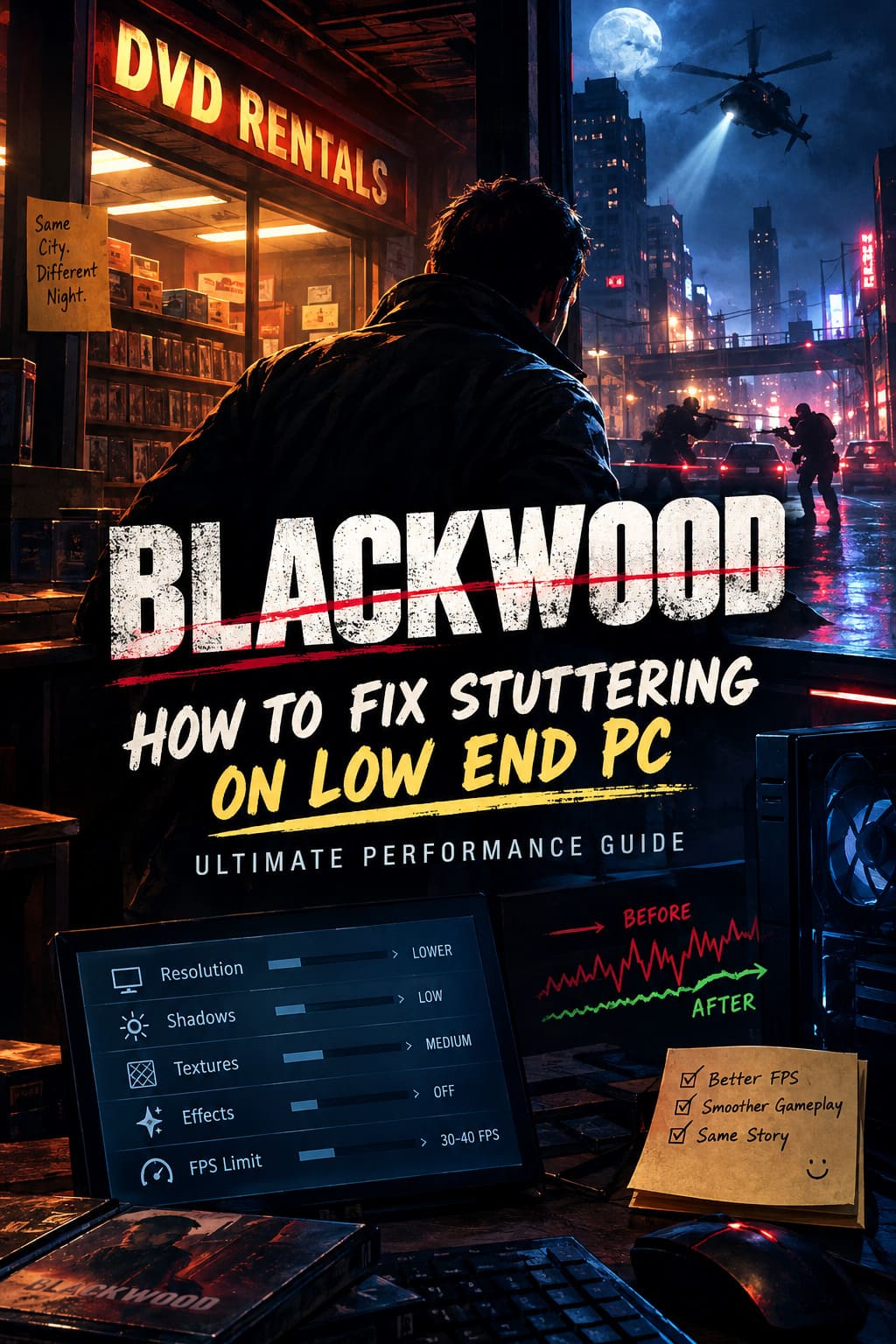
My Recommended Low-End BLACKWOOD Settings
If I were trying to get BLACKWOOD running on a PC close to the minimum specification, this is the configuration I would start with. I would then increase individual settings one at a time rather than changing everything simultaneously.
| Setting | Recommended Starting Point |
|---|---|
| Display Mode | Fullscreen |
| Resolution | 1600×900 or 1280×720 if necessary |
| Textures | Medium |
| Shadows | Low |
| Reflections | Low or Off |
| Ambient Occlusion | Low or Off |
| Volumetric Effects | Low |
| Motion Blur | Off |
| Depth of Field | Off |
| FPS Limit | 30–40 FPS depending on hardware |
Final Thoughts: Smooth Gameplay Beats Pretty Settings
Getting BLACKWOOD to run well on a low-end PC is going to be less about discovering one magical optimization and more about eliminating several small performance problems. Start with the game’s resolution and shadows, then work on textures and expensive effects. After that, focus on frame pacing, shader caching, storage speed, background applications, and finally drivers if the problem persists.
From my experience with demanding PC games, the most important thing is to stop chasing benchmark numbers and start chasing consistency. A stable 30 or 40 FPS can make a game surprisingly enjoyable, while an unstable 60 FPS can feel terrible. BLACKWOOD’s atmospheric presentation and action-heavy combat deserve a system configuration that prioritizes responsiveness rather than simply making every graphical option look impressive.
If your PC is below the official minimum requirements, there is naturally a limit to what software tweaks can accomplish. At some point, reducing settings further will only make the game look worse without completely eliminating stutters. But before spending money on new hardware, these optimizations are worth trying—you may find that your existing system has more life left in it than you expected.