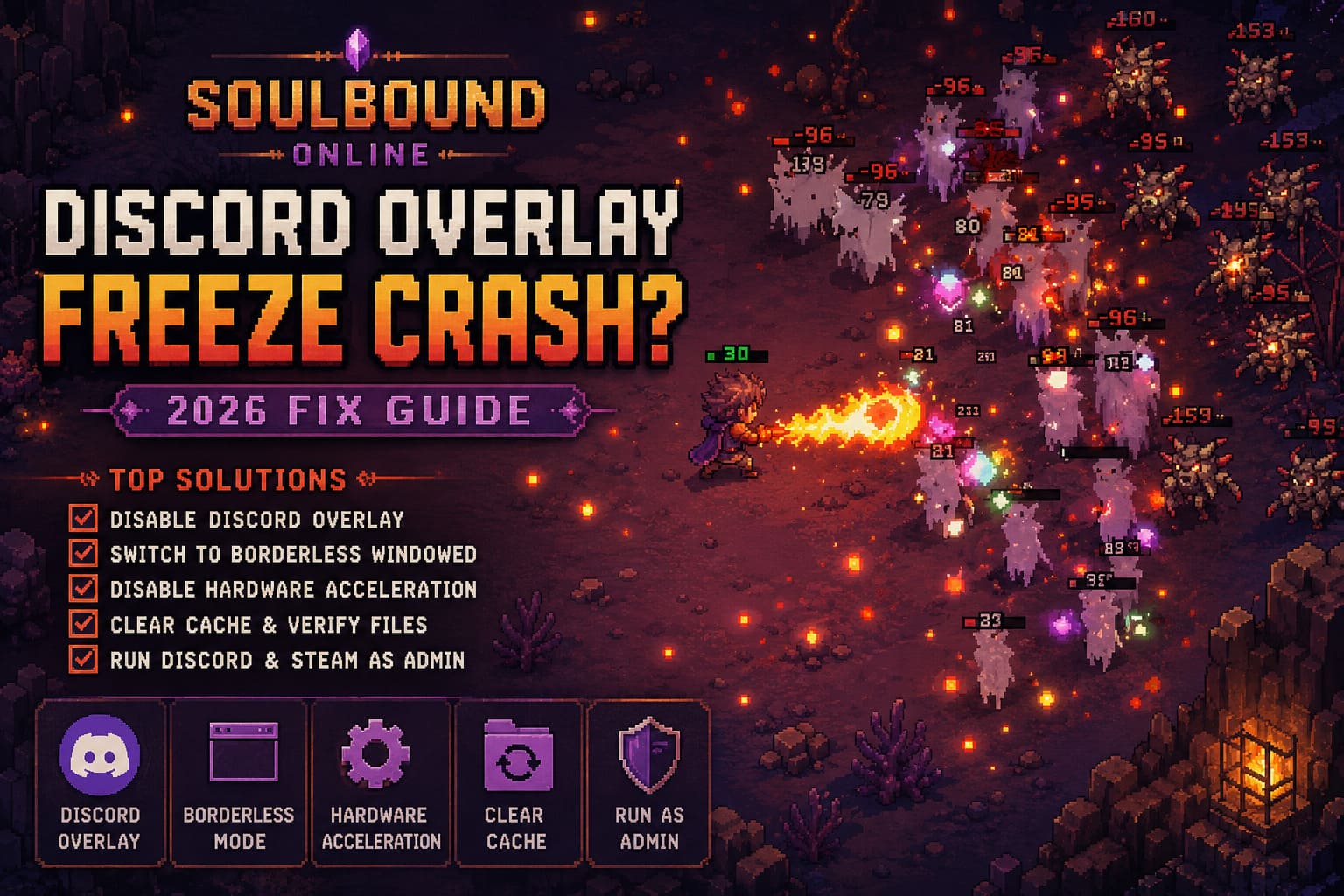
How to Fix Soulbound Online Discord Overlay Freeze Crash (2026 Guide)
After spending a lot of time with early access games, I have learned one frustrating truth: the most exciting launches are often followed by the strangest technical problems. Soulbound Online is a great example. The pixel-art MMORPG has a lot going for it — fast combat, roguelite dungeon runs, deep character customization, and a surprisingly active player economy. But like many ambitious early access titles, it is not completely free from PC issues.
One of the most annoying problems currently affecting players is the Soulbound Online Discord Overlay freeze crash. Many players have reported that the game suddenly freezes, starts heavily stuttering, turns into a black or green screen, or completely crashes to desktop when the Discord overlay appears.
I have tested plenty of games with Discord overlay problems over the years, from competitive shooters to indie survival games, and this issue feels very familiar. The combination of an active overlay, GPU acceleration, and a game still being optimized can easily create conflicts. The good news is that this crash usually does not require complicated fixes or reinstalling everything.
Below are the most effective solutions to stop Soulbound Online from freezing when using Discord overlay.
Soulbound Online Clan Raids: The Ultimate Rare Loot & Strategy Guide (2026)
Why Does Discord Overlay Crash Soulbound Online?
The main reason behind this problem is the way Discord interacts with the game engine. The Discord overlay works by injecting itself into the game process, allowing notifications, chat windows, and other interface elements to appear while you are playing.
Normally, this works without problems. However, Soulbound Online is still in early access, meaning its rendering system and optimization are constantly changing. During intense situations like dungeon battles, boss encounters, or areas filled with particle effects, the game may struggle to communicate correctly with the Discord overlay.
The crash usually happens because of a conflict between several different systems running at the same time.
| Possible Cause | How It Creates Problems |
|---|---|
| Discord Overlay Hook | The overlay injection can conflict with the game’s rendering process. |
| Hardware Acceleration | Discord and Soulbound Online may compete for GPU resources. |
| Fullscreen Mode | Exclusive fullscreen can block overlay compatibility. |
| Corrupted Cache Files | Old temporary files may interfere after updates. |
| Permission Conflicts | Different administrator settings can break background processes. |
From my experience with PC gaming, overlay-related crashes are rarely caused by one single thing. Usually, it is a combination of background software fighting for control of the graphics pipeline.
Disable Discord Overlay for Soulbound Online
The easiest and most effective solution is simply turning off the Discord overlay. This is the fix that solves the problem for most players.
You do not need to completely stop using Discord. You can disable the overlay only for Soulbound Online while keeping it active for other games.
Steps to Disable Discord Overlay Completely
- Close Soulbound Online completely.
- Open Discord on your PC.
- Click the Settings gear icon near your username.
- Go to Activity Settings.
- Select Game Overlay.
- Turn off Enable in-game overlay.
- Completely restart Discord from the Windows system tray.
- Launch Soulbound Online again.
If you only want to disable it for this specific game, follow these steps:
- Open Discord Settings.
- Select Registered Games.
- Find Soulbound Online.
- Click the monitor icon next to the game.
- Disable the overlay only for this title.
This is the solution I would try first because it takes less than a minute and immediately removes the most common source of crashes.
Switch Soulbound Online to Borderless Windowed Mode
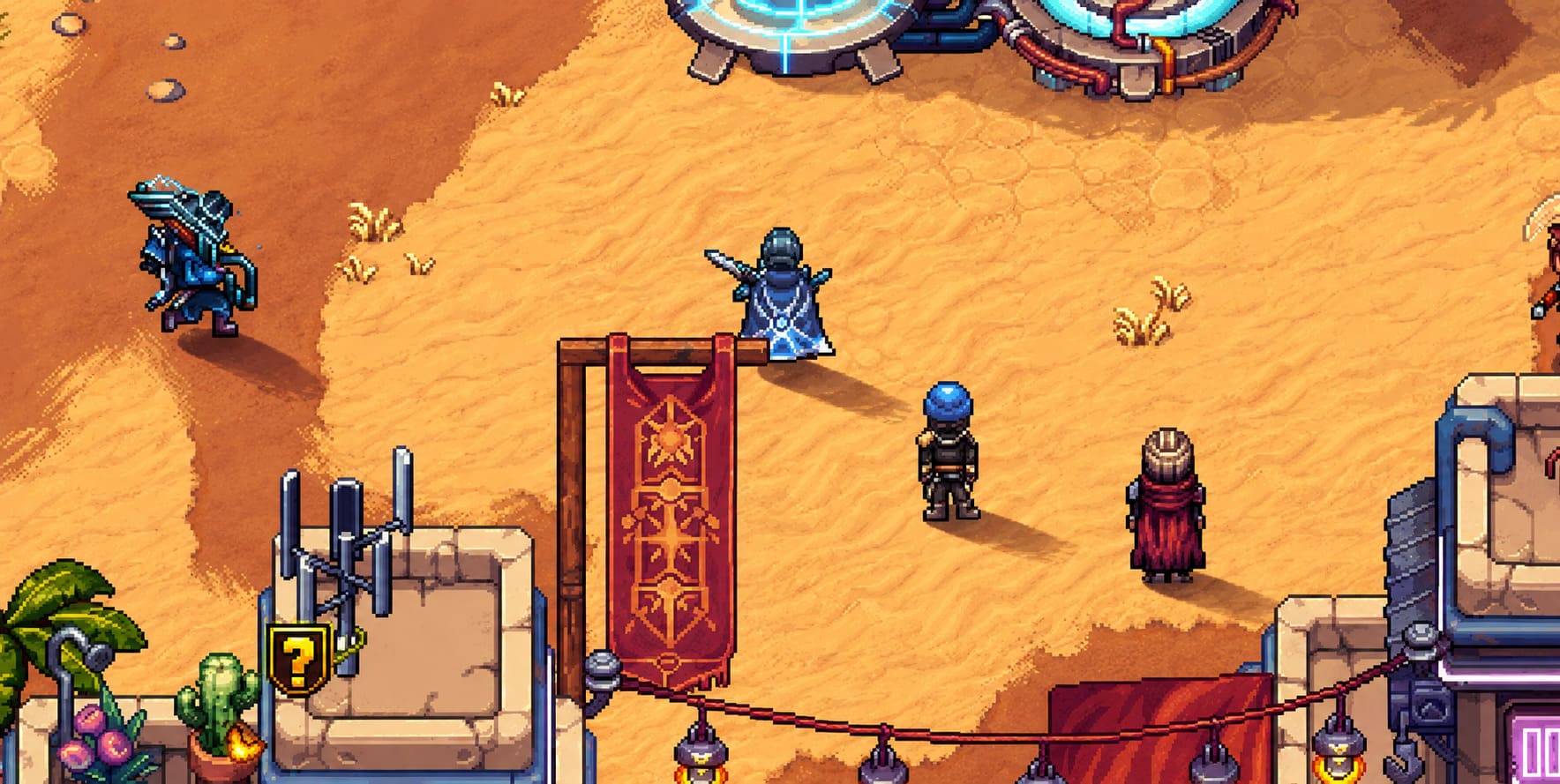
Fullscreen mode is another common reason why overlays break. Many modern games handle exclusive fullscreen differently, and third-party software can sometimes fail when trying to display information over the game.
Switching to borderless windowed mode creates a smoother connection between the game and Windows desktop system. It is a simple change, but it often fixes random freezes caused by overlay conflicts.
How to Change Display Mode
- Open Soulbound Online.
- Enter the Settings menu.
- Open the Graphics or Video section.
- Change Display Mode from Fullscreen to Borderless Windowed.
- Save your changes and restart the game.
Personally, I prefer borderless mode in most multiplayer games anyway. The performance difference is usually tiny, while stability is often much better, especially when using programs like Discord, Steam, or recording software.
Disable Discord Hardware Acceleration
Discord uses your GPU to improve performance through hardware acceleration. Usually, this is helpful, but when a demanding game is running at the same time, it can create unnecessary conflicts.
Soulbound Online already needs your graphics card for combat effects, animations, dungeon environments, and player activity. Giving Discord additional GPU access can sometimes create instability during heavy gameplay moments.
Steps to Turn Off Hardware Acceleration
- Open Discord Settings.
- Scroll down to Advanced.
- Find Hardware Acceleration.
- Turn the option OFF.
- Restart Discord.
After disabling this setting, test the game during a long dungeon run. Short testing sessions may not reveal the problem because crashes often appear during heavy combat situations with lots of effects happening on screen.
Run Discord and Steam as Administrator
Sometimes Windows permissions create strange issues between applications. If Steam or Soulbound Online has administrator privileges but Discord does not, the overlay may fail when trying to connect with the game process.
Running both applications with the same permission level can remove these conflicts.
Administrator Mode Setup
- Close Steam, Discord, and Soulbound Online.
- Right-click the Discord shortcut.
- Open Properties.
- Select the Compatibility tab.
- Enable Run this program as administrator.
- Apply the changes.
- Repeat the same process for Steam.
- Launch everything again.
This is not always necessary, but it can fix overlay crashes caused by permission conflicts between different programs running in the background.
Disable Discord Screen Capture Features
Discord includes several background technologies designed for streaming and screen sharing. Even if you never stream your gameplay, some of these features can still interact with games.
In some cases, Discord’s capture system can create freezing problems, especially after major game updates or when developers change rendering settings.
Disable Advanced Capture Options
- Open Discord Settings.
- Go to Voice & Video.
- Find the Screen Share section.
- Disable Use our latest technology to capture your screen.
- Turn off advanced audio capture options.
I have seen similar problems in other games where Discord’s capture system caused random freezing, especially during demanding gameplay moments. It is not the first option I would try, but it is worth changing if the basic fixes do not help.
Clear Discord Cache and Verify Soulbound Online Files
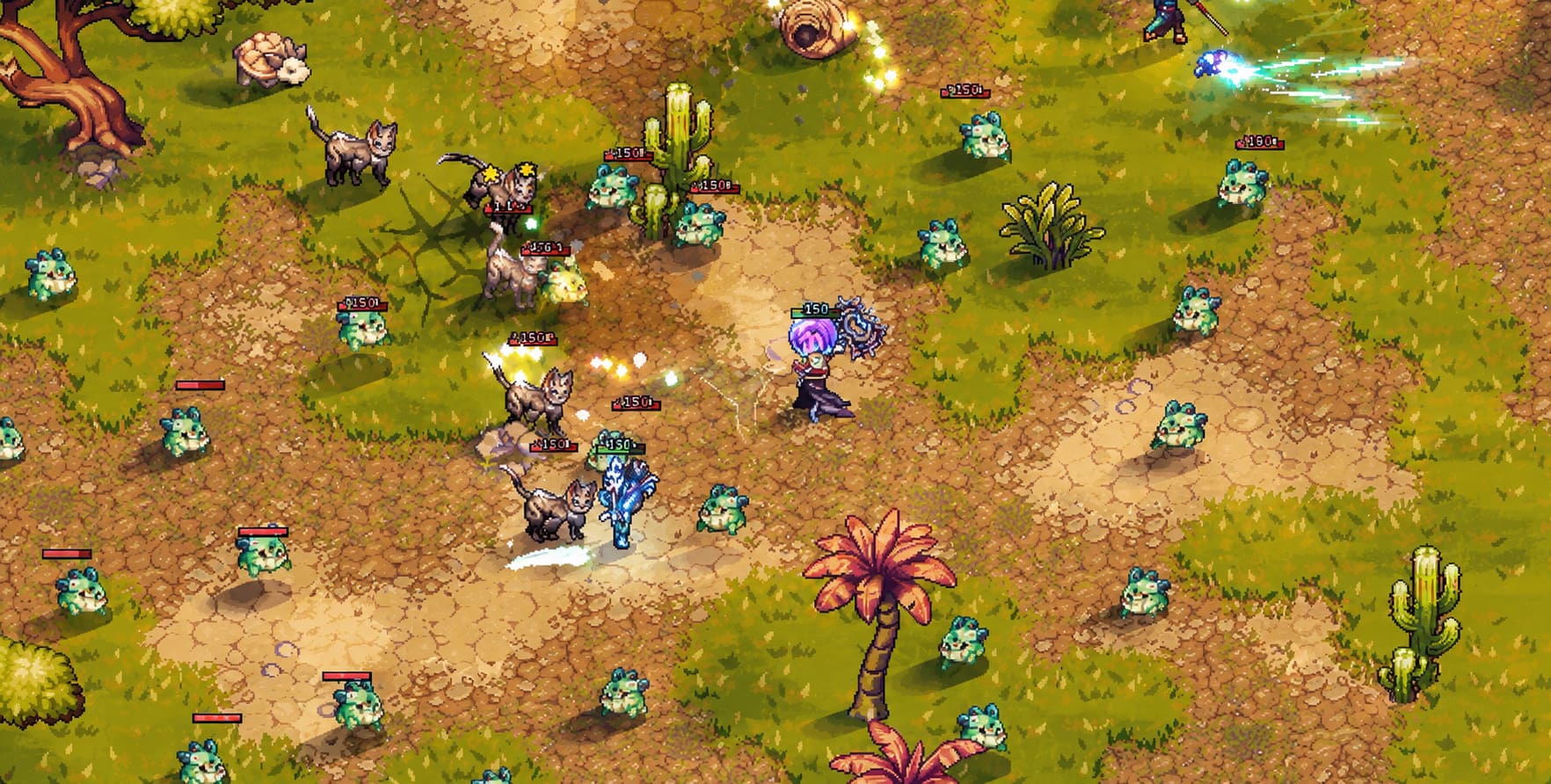
Early access games receive frequent updates, and sometimes old cache files create unexpected problems. Discord also stores temporary data that can become corrupted after updates.
Clear Discord Cache Files
- Press Windows Key + R.
- Type %appdata%.
- Open the Discord folder.
- Delete the Cache folder.
- Open Run again.
- Type %localappdata%.
- Remove temporary Discord files.
Verify Soulbound Online Game Files
- Open Steam Library.
- Right-click Soulbound Online.
- Select Properties.
- Open Installed Files.
- Click Verify integrity of game files.
This process checks whether damaged or missing files are contributing to crashes and restores anything that Steam finds incorrect.
Best Fix Order for Soulbound Online Overlay Crashes
| Priority | Fix | Expected Result |
|---|---|---|
| 1 | Disable Discord Overlay | Highest chance of instantly fixing crashes. |
| 2 | Switch to Borderless Windowed Mode | Improves overlay compatibility. |
| 3 | Disable Hardware Acceleration | Reduces GPU conflicts. |
| 4 | Clear Cache Files | Fixes corrupted temporary data. |
| 5 | Run Apps as Administrator | Solves permission problems. |
Final Thoughts
The Soulbound Online Discord Overlay freeze crash is annoying, but it is not a permanent problem. Early access games often experience compatibility issues with popular background applications, and Discord overlay conflicts are among the most common problems on PC.
In my experience, the fastest solution is disabling the overlay completely, followed by turning off Discord hardware acceleration if the crashes continue. These two changes solve the issue for most players without sacrificing game performance.
As SpiderWare continues improving Soulbound Online, future patches will likely reduce these crashes even further. Until then, these fixes should help you return to dungeon grinding, boss fights, and progression without random freezes ruining your runs.