How to Fix GRIT Crashing on Launch in Epic Games Store: Ultimate 2026 Guide
There is nothing more frustrating than finally having some time to play GRIT, only to watch the game disappear before you even reach the main menu. I have dealt with plenty of PC games that crash, freeze, hang on a black screen, or throw completely useless error messages, and GRIT can be especially annoying when it refuses to launch through the Epic Games Store. Sometimes you get a quick splash screen and then a desktop. Sometimes there is nothing at all. Other times the game appears to start, sits on a black screen for a few seconds, and closes.
The good news is that an immediate GRIT crash does not automatically mean your PC is too weak or that the installation is permanently broken. In my experience with Unreal Engine games, launch crashes are often caused by something much less dramatic: damaged game files, a broken launcher cache, graphics-driver conflicts, DirectX problems, Windows permissions, or even an audio device that the game does not initialize correctly. GRIT has several moving parts behind the scenes, so finding the exact problem can take a little patience.
I would not recommend jumping straight into complicated Windows tweaks, either. Start with the simple fixes and work downward. The first few solutions take only a couple of minutes and can save you from reinstalling the entire game for no reason.
Best Graphics Settings for GRIT on GTX 1660 Super (Max FPS Guide)
Why Does GRIT Crash When Starting Through Epic Games Store?
Before changing anything, it helps to understand what is actually happening. When you launch GRIT from the Epic Games Store, Windows, the Epic Games Launcher, the game executable, Unreal Engine components, graphics drivers, system runtimes, and various background services all have to cooperate. If one of those pieces fails during initialization, the game can close before it has a chance to display a useful error.
This is why launch crashes can be misleading. A problem with the graphics driver may look like a corrupted installation, while a launcher cache problem can look like a GPU failure. I have seen this kind of behavior in plenty of PC games, and the fastest solution is usually a methodical troubleshooting process rather than randomly changing ten settings at once.
Common GRIT Launch Crash Symptoms
- Opens briefly and immediately returns to the desktop.
- Shows the GRIT splash screen and then crashes.
- Freezes on a black screen.
- Closes without displaying an error message.
- Starts from Epic Games Store but never reaches the main menu.
- Crashes after a recent game, Windows, or graphics-driver update.
If your problem looks like one of these, start with the following fixes.
1. Verify GRIT Game Files in Epic Games Store
This is always the first thing I would try. A damaged or missing file is one of the easiest causes of an immediate crash, particularly if the game recently received an update or your previous download was interrupted.
Epic Games Store includes its own file verification system, so you do not need to manually search through the installation directory.
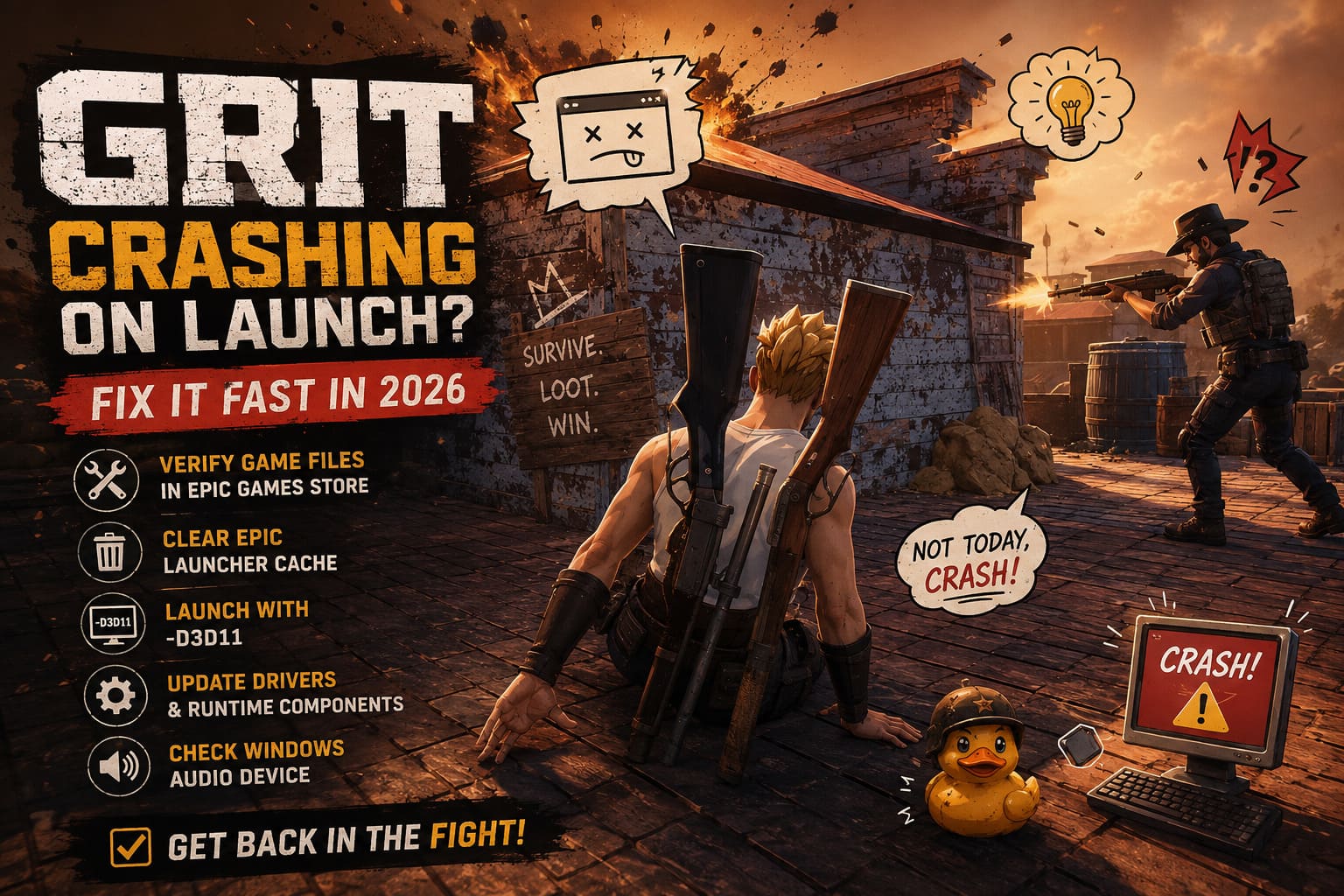
Open the Epic Games Launcher, go to your Library, find GRIT, and click the three-dot menu below the game. Select Manage, then choose Verify. Let the launcher complete the entire process, even if it appears to stop for a while.
If Epic finds corrupted or missing data, it should replace the affected files automatically. Once the verification reaches 100%, restart the launcher and try GRIT again.
My advice: don’t skip this step just because the game was installed successfully. A game can launch perfectly one day and then fail after an update because only a handful of files were damaged.
2. Clear the Epic Games Launcher Webcache
The Epic Games Launcher depends heavily on cached web content and temporary data. When that cache becomes corrupted, strange behavior can appear, including games refusing to launch correctly.
First, completely close Epic Games Launcher. Do not simply click the X and assume everything has stopped. Open Task Manager with Ctrl + Shift + Esc and check that processes such as EpicGamesLauncher and EpicWebHelper are no longer running.
Press Windows + R, enter %localappdata%, and press Enter. Navigate to:
EpicGamesLauncher\Saved
Inside that folder, look for webcache and similarly named cache folders such as webcache_4147. Delete those cache folders, restart Windows, and then open Epic Games Launcher again.
The launcher will rebuild the required cache automatically. This is one of those boring fixes that does not look impressive, but it can solve surprisingly stubborn startup problems.
3. Try Launching GRIT With DirectX 11
If file verification and cache cleanup did nothing, I would move on to the rendering API.
GRIT uses Unreal Engine technology, and DirectX 12 can occasionally create startup conflicts depending on your GPU, driver version, Windows configuration, or other software running in the background. If the crash happens before you see the actual game, testing DirectX 11 is a sensible diagnostic step.
In Epic Games Launcher, open your account settings and scroll down to the Manage Games section. Expand GRIT and enable Additional Command Line Arguments.
Enter:
-d3d11
Launch the game normally.
This does not permanently mean DirectX 11 is better. Think of it as a troubleshooting test. If GRIT suddenly starts working, you have strong evidence that the original crash is connected to the DirectX 12 rendering path or its interaction with your current driver configuration.
4. Run Epic Games Launcher and GRIT as Administrator
Windows permissions can sometimes interfere with games that need to create or modify files during startup. It is not the first thing I would blame, but it is easy enough to test.
Right-click your Epic Games Launcher shortcut and select Properties. Open the Compatibility tab and enable Run this program as an administrator, then apply the change.
You can also locate the GRIT executable in its installation directory, usually somewhere under an Epic Games folder and a Binaries\Win64 directory. Right-click the executable, open Properties, and check the compatibility settings.
I would test Run this program as an administrator first. You can also test Disable fullscreen optimizations if the game is crashing during the transition into fullscreen.
Don’t permanently change every compatibility option you can find. More settings do not automatically mean more stability.
5. Perform a Clean GPU Driver Installation
Graphics drivers are one of the biggest suspects whenever an Unreal Engine game crashes immediately after launch. A normal driver update usually works fine, but sometimes an older installation leaves behind a configuration or component that does not play nicely with the new version.
First determine whether you are using an NVIDIA or AMD graphics card. Download the latest driver intended specifically for your GPU from the manufacturer’s official website.
During installation, choose the available clean installation or equivalent option if your driver package provides one. Once the installation finishes, restart your PC.
I would especially consider this step if GRIT stopped launching immediately after a graphics-driver update. That timing is a pretty strong clue.
6. Check Your Windows Audio Device
This is probably the strangest suggestion on the list, but it is worth testing.
Some PC games can behave badly when Windows has multiple audio outputs fighting for priority. Bluetooth headphones, HDMI audio from a monitor, virtual audio cables, VR headsets, USB DACs, and software-based audio devices can all complicate initialization.
Before launching GRIT, select the audio device you actually want to use as your primary Windows output. If you have several unnecessary audio devices connected, temporarily disconnect them.
For example, if you normally use wired headphones, make those the default output instead of allowing Windows to switch between a monitor, Bluetooth headset, and virtual device.
It sounds unrelated to graphics or game files, but PC troubleshooting is full of these odd little dependencies.

7. Repair Microsoft Visual C++ and DirectX Components
GRIT does not operate in isolation. Unreal Engine games depend on Windows components and runtime libraries that may already be installed on your computer.
If one of these components is damaged or missing, the game can fail before reaching the menu.
Check your installed Microsoft Visual C++ Redistributable packages and repair or reinstall the required versions. Having both x86 and x64 packages available can be useful because different applications may depend on different architectures.
It is also worth making sure your DirectX runtime components are intact. After repairing or installing the necessary Microsoft components, restart Windows before testing GRIT again.
GRIT Launch Troubleshooting Checklist
| Problem | What I Would Try First | Difficulty |
|---|---|---|
| Instant crash to desktop | Verify game files | Easy |
| Black screen at startup | Clear Epic webcache | Easy |
| Crash during graphics initialization | Try -d3d11 | Easy |
| Permission-related startup failure | Run launcher/game as administrator | Easy |
| Crash after GPU driver update | Clean driver installation | Medium |
| Game closes during initialization | Check Windows audio output | Easy |
| Missing runtime components | Repair Visual C++ and DirectX | Medium |
What If GRIT Still Crashes After All These Fixes?
If you have gone through every step and GRIT still refuses to launch, I would stop changing random Windows settings. At that point, you need to identify when the crash occurs and what changed before it started.
Think about the timing. Did the problem begin after a GRIT update? Did you install a new GPU driver? Did Windows update overnight? Did you add an overlay, recording application, RGB utility, VPN, antivirus rule, or new audio device?
Third-party overlays are another thing I would temporarily disable. Discord overlays, GPU overlays, performance monitors, recording software, and other applications that hook into games can occasionally interfere with Unreal Engine titles. Close them completely and test GRIT with as clean a background environment as possible.
If GRIT works after disabling one application, you have found a much more useful clue than simply reinstalling everything.
Should You Reinstall GRIT?
A complete reinstall should be one of the last steps, not the first.
If verification finds no problems, clearing the Epic cache changes nothing, DirectX 11 does not help, and your drivers and runtimes are healthy, then a clean reinstall becomes reasonable. Before doing it, make sure you have enough free storage and allow Epic Games Launcher to finish the installation without interruption.
I have reinstalled games before only to discover that the actual problem was a graphics driver or launcher cache. It is a frustrating waste of time, especially with larger games, so I would exhaust the simpler fixes first.
My Recommended Order for Fixing GRIT Crashes
If you don’t want to work through the entire article randomly, this is the order I would personally follow:
- Verify GRIT’s files through Epic Games Store.
- Clear the Epic Games Launcher webcache.
- Restart Windows.
- Try GRIT with
-d3d11. - Disable unnecessary overlays and background software.
- Check the active Windows audio output.
- Clean-install the latest GPU driver.
- Repair Visual C++ and DirectX components.
- Test administrator permissions and fullscreen compatibility settings.
- Only then consider reinstalling GRIT.
The reason I prefer this order is simple: the first solutions are low-risk and easy to reverse. There is no reason to start tearing apart your Windows installation when a corrupted cache might be the entire problem.
Final Thoughts
GRIT crashing on launch through Epic Games Store is the kind of PC problem that can make you think something is seriously wrong with your hardware. In reality, the cause can be surprisingly ordinary. A broken game file, stale launcher cache, DirectX conflict, driver problem, Windows runtime issue, or even an awkward audio configuration can prevent the game from reaching the main menu.
After dealing with enough PC games, I’ve learned that patience and a logical troubleshooting order are much more useful than constantly installing and uninstalling things. Start with file verification and the Epic cache, then move toward graphics and Windows-level fixes if necessary. If forcing DirectX 11 suddenly gets GRIT running, that is particularly valuable because it points toward a rendering or driver conflict rather than a completely broken installation.
Hopefully, one of these fixes gets you past the desktop and back into the saddle without another unnecessary reinstall. And if GRIT continues to crash after everything here, the next step is not to randomly change more settings — it is to identify the exact crash point and investigate the specific error from Windows or the game’s logs.