Hell Let Loose Vietnam Low FPS Fix: Best Jungle Optimization Config & Settings Guide (2026)
There are few things more frustrating in a tactical shooter than hearing gunfire somewhere in the jungle, lining up a perfect shot, and then watching your frame rate suddenly collapse because a wall of vegetation loaded in front of you.
That has been my biggest problem with Hell Let Loose Vietnam.
The game looks incredible when everything comes together. The jungle feels dense, dangerous, and genuinely alive. Helicopters cut through the canopy, artillery turns the landscape into smoke and fire, and large-scale 50v50 battles can look absolutely spectacular. But all that detail comes at a price.
And if your PC is struggling, the jungle is where it becomes painfully obvious.
After spending far too much time changing graphics options, testing different combinations, clearing caches, and comparing how the game behaves during quiet moments versus full-scale firefights, I’ve come to one conclusion: don’t just slam every setting onto Low and expect miracles.
That can actually make the experience feel worse.
The better approach is to target the settings that are genuinely expensive while keeping the options that help visibility and image quality at sensible levels.
Here is the Hell Let Loose Vietnam FPS fix and optimization setup I’d personally start with in 2026.
Why the Vietnam Jungle Hits Performance So Hard
The biggest difference between this game and older entries in the franchise is the environment.
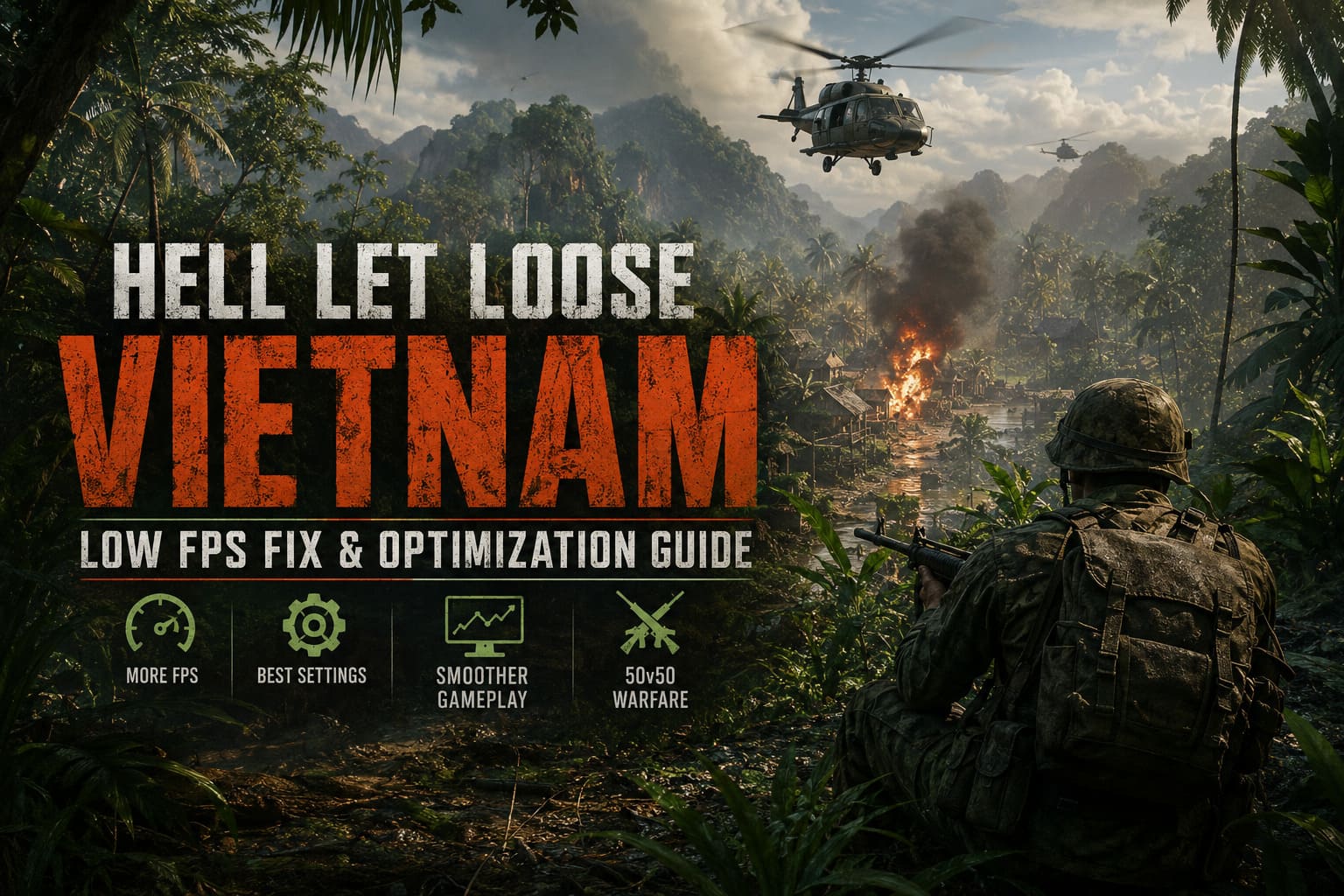
European battlefields already had plenty of geometry, smoke, explosions, vehicles, and players. Vietnam adds another layer of complexity because you’re constantly surrounded by vegetation.
We’re talking about grass, leaves, branches, vines, trees, shadows, terrain detail, smoke, lighting effects, and countless small objects being rendered simultaneously.
That’s a nasty workload.
Unreal Engine 5 also brings modern rendering technologies that can make environments look fantastic while putting considerable pressure on both the GPU and CPU. During a quiet patrol, your system might appear perfectly healthy. Then you walk into a dense jungle fight with dozens of players, artillery explosions, smoke and helicopters overhead, and suddenly your nice 90 FPS turns into 48.
I’ve seen this kind of behavior far too often to recommend judging performance from an empty area.
The only benchmark that really matters is a chaotic match.
My Recommended Hell Let Loose Vietnam Settings
If I were setting up the game on a new PC today, this is the configuration I’d try first.
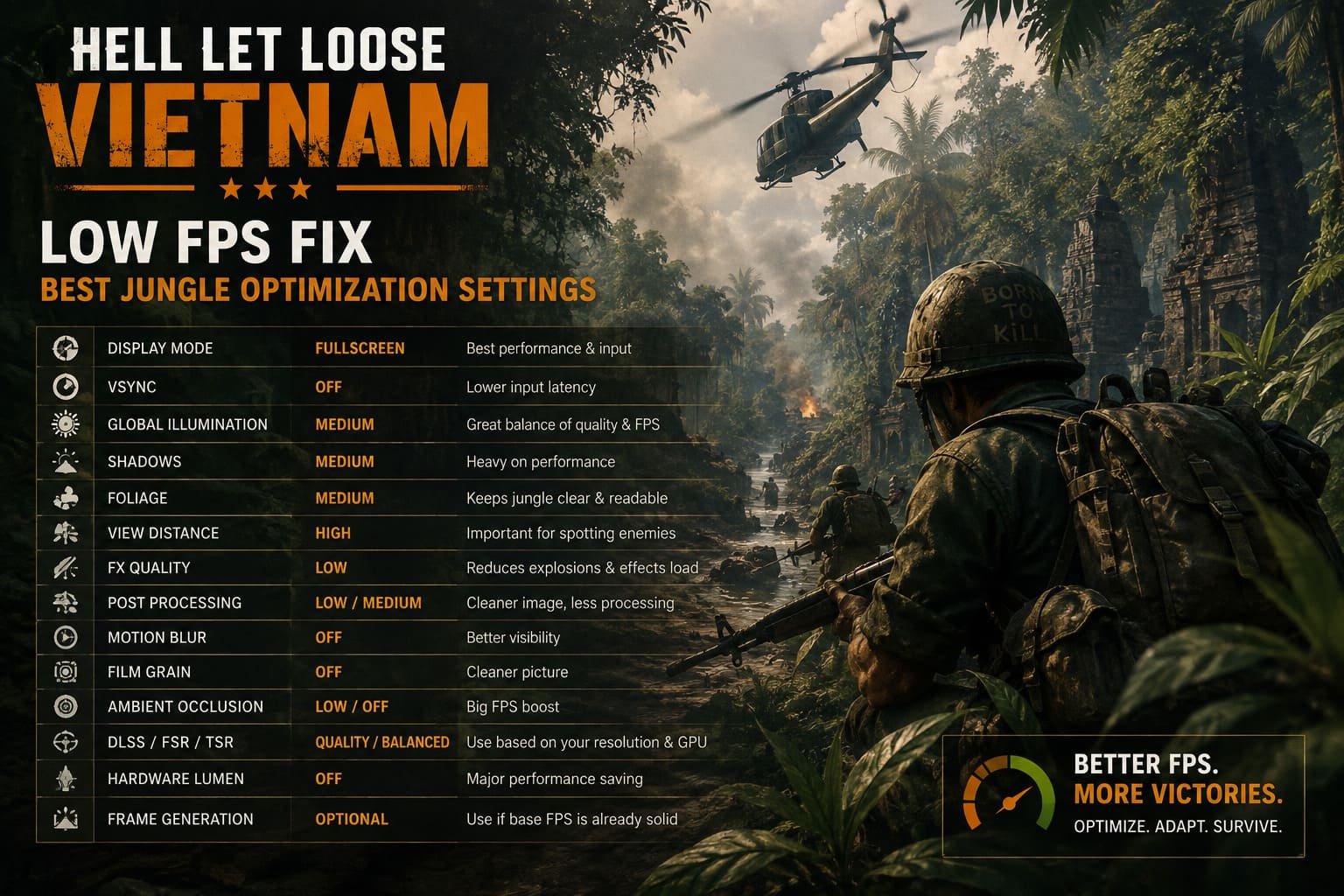
| Setting | My Recommendation | Why |
|---|---|---|
| Display Mode | Fullscreen | Reliable performance and input behavior |
| V-Sync | Off | Lower input latency |
| Global Illumination | Medium | Excellent performance-to-quality balance |
| Shadows | Medium | One of the easiest heavy settings to reduce |
| Foliage | Medium | Keeps the jungle readable without excessive clutter |
| View Distance | High | Important for spotting enemies |
| FX Quality | Low | Helps during explosions and artillery |
| Post Processing | Low/Medium | Cleaner image and less unnecessary processing |
| Motion Blur | Off | Better visibility |
| Film Grain | Off | Cleaner picture |
| Ambient Occlusion | Low/Off | Useful FPS savings |
| DLSS/FSR/TSR | Quality/Balanced | Depends on resolution and GPU |
| Hardware Lumen | Off | Major performance saving |
| Frame Generation | Optional | Useful when base FPS is already reasonable |
The important thing here is that I wouldn’t automatically lower everything.
For example, I would happily keep View Distance high while reducing effects quality. Seeing an enemy 150 meters away is considerably more valuable to me than having slightly prettier explosion particles.
That’s especially true in a game where one missed silhouette can mean spending the next five minutes staring at a respawn screen.
The Settings I Would Change First
If you’re currently running the default preset and getting poor performance, don’t waste an hour changing every individual option.
Start with the biggest offenders.
1. Global Illumination
This is one of the first things I’d lower.
High-end lighting effects can look beautiful in screenshots, but during an actual match I don’t care nearly as much about perfectly simulated jungle illumination as I do about stable frame times.
Medium is my sweet spot.
If you’re still struggling, try Low.
2. Shadows
Shadows can become surprisingly expensive in a jungle environment.
There are simply so many objects capable of producing them. Trees, grass, structures and other environmental elements can create a massive amount of shadow information for the engine to process.
I recommend Medium initially.
If you’re using older hardware, Low is completely reasonable.
You probably won’t notice the difference while sprinting through a firefight anyway.
3. Foliage
This is where things get interesting.
My instinct when troubleshooting a jungle game was obviously to turn foliage all the way down. But I wasn’t happy with how aggressively the environment changed.
Medium gives me a much better compromise.
You retain enough environmental detail for the world to look convincing, while reducing some of the excessive rendering load.
And there is another benefit: lowering foliage can make the battlefield easier to read.
I’m not suggesting deliberately turning the game into a competitive visibility exploit. But if you’re struggling to distinguish an enemy from several layers of leaves and grass, reducing unnecessary visual clutter can make a legitimate difference.
Don’t Sacrifice View Distance
This is probably the setting I’d protect the most.
A low View Distance setting might give you additional performance, but the trade-off is brutal in a tactical shooter.
Vietnam has plenty of situations where you’re watching a road, riverbank, tree line, village or distant hill.
You don’t want important objects appearing several seconds after everything else.
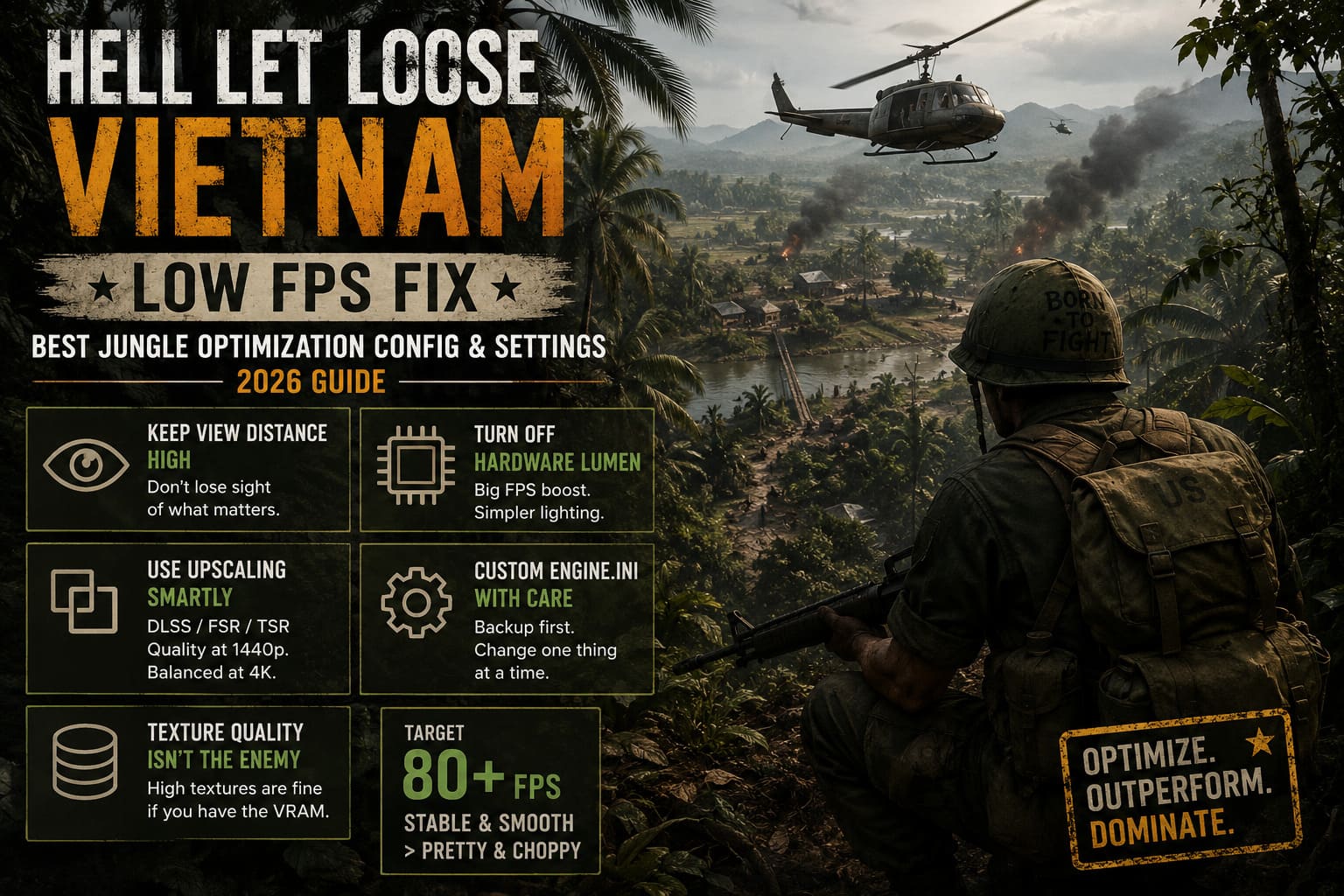
I’d rather sacrifice some shadow quality and particle effects than reduce View Distance.
Keep it High unless your hardware absolutely cannot cope.
DLSS, FSR and TSR: Use Them Intelligently
Upscaling can be a lifesaver.
If you’re playing at 1440p, I would start with Quality. If performance is still poor, move to Balanced.
At 4K, Balanced can make considerably more sense.
What I wouldn’t recommend is immediately jumping to Performance mode at 1080p.
The jungle is full of thin visual details. Leaves, branches, wires, grass and distant silhouettes are exactly the kind of content that can expose reconstruction artifacts.
The result can technically be a higher FPS number while looking like someone smeared Vaseline across the screen.
That’s not a win.
Hardware Lumen Is the First Thing I’d Sacrifice
If your goal is maximum FPS, turn Hardware Lumen off.
This is one of those settings where I think enthusiasts sometimes get trapped by the idea that every expensive graphical feature has to remain enabled because the GPU is powerful.
Nope.
A tactical shooter doesn’t suddenly become better because every puddle has gorgeous lighting.
If you’re running a high-end GPU and have plenty of performance to spare, turn it back on. Otherwise, I’d rather have stable frame pacing with simplified lighting.
Consistent 80 FPS beats unstable 55 FPS with prettier shadows every time.
Engine.ini: Should You Actually Touch It?
This is where I’d be more cautious than many PC optimization guides.
There are countless supposed “secret Unreal Engine tweaks” floating around Reddit, YouTube and gaming forums. Some genuinely help in specific circumstances. Others are outdated, ignored by modern Unreal Engine versions, or can actually make things worse.
If you’re comfortable editing configuration files, you can experiment with your game’s Engine.ini, but make a backup before changing anything.
The general goal should be reducing unnecessary rendering overhead, controlling streaming behavior and avoiding excessive effects.
I wouldn’t blindly copy a giant collection of console commands from a random optimization video.
That’s how you end up spending three hours troubleshooting a problem that didn’t exist before you started “optimizing.”
If you do experiment, change one group of settings at a time and test it in an actual 50v50 match.
Texture Quality Is Not Your Main Enemy
This is another common mistake.
People see low FPS and immediately drop texture quality.
That’s not necessarily the best move.
Texture quality primarily affects VRAM consumption rather than raw rendering performance. If your graphics card has enough VRAM, High textures can often be perfectly reasonable.
For a card with around 8GB of VRAM, I’d start around High and monitor usage.
If you’re working with less VRAM, Medium is safer.
But I wouldn’t lower textures before tackling shadows, lighting, foliage and effects.
Turn Off the Visual Noise
Some settings cost relatively little but make the game look worse to me.
Motion Blur is the obvious one.
Off.
Film Grain?
Off.
I want to see movement in the jungle clearly. When I’m trying to identify a tiny helmet-shaped silhouette behind vegetation, I don’t need an artificial layer of cinematic noise on top of it.
Post-processing can also be reduced to Low or Medium.
The result is a cleaner image and, depending on your hardware, a little extra breathing room.
Shader Compilation and Stuttering
Low average FPS isn’t the only issue players experience.
Sometimes the FPS counter looks fine, but the game still feels awful.
That’s usually when frame-time spikes enter the picture.
Shader compilation and asset streaming can cause those nasty little freezes where the game pauses for a fraction of a second as something new enters the scene.
I’ve found that shader cache management is worth checking before blaming the GPU.
Make sure your graphics driver is current, avoid constantly deleting shader caches, and give the game time to build whatever caches it needs after major updates.
The first match after an update can sometimes feel considerably worse than subsequent sessions.
Install the Game on an SSD
This isn’t glamorous advice, but it’s important.
If you’re still running a modern Unreal Engine 5 game from an old mechanical hard drive, you’re making life unnecessarily difficult for the streaming system.
An SSD is the way to go.
An NVMe drive is even better for overall system responsiveness, but you don’t necessarily need the most expensive drive on the market.
The main thing is to get the game off an HDD.
Jungle environments contain huge amounts of data that need to be streamed as you move around the map. Slow storage can contribute to asset-loading delays, pop-in and general hitching.
Hell Let Loose Vietnam Out of Video Memory on RTX 4080 Fix Guide
Don’t Forget Background Applications
Before blaming the game, take a quick look at what’s running.
Browsers with dozens of tabs, Discord, recording software, RGB utilities, hardware monitoring programs and overlays can all consume resources or interfere with frame pacing.
I don’t recommend turning off every Windows service you find in some questionable “FPS boost” video.
Just use common sense.
Close what you don’t need.
Then test again.
Hell Let Loose Vietnam High Ping Fix: How to Stop Server Lag, Stuttering, and Rubber-Banding
My Final Performance Formula
After all the experimentation, my approach to Hell Let Loose Vietnam PC optimization is pretty simple.
I want the game to remain visually readable first and beautiful second.
That means keeping View Distance High, using Medium Foliage, reducing Shadows and Global Illumination, disabling Hardware Lumen when necessary, and using DLSS/FSR/TSR rather than destroying the resolution.
Here’s the order I’d follow if my FPS was bad:
- Disable Hardware Lumen.
- Lower Global Illumination and Shadows.
- Set Foliage to Medium.
- Lower FX Quality for large battles.
- Use DLSS/FSR/TSR Quality or Balanced.
- Keep View Distance High.
- Disable Motion Blur and Film Grain.
- Move the game to an SSD if necessary.
- Check shader cache and graphics drivers.
- Test everything in a real 50v50 battle.
That last point matters more than people think.
Don’t spend an evening testing your settings while standing alone in a quiet corner of the map. That’s not representative of what happens when 100 players, vehicles, explosions, smoke and artillery are all competing for your hardware’s attention.
Find the busiest server you can.
Play through a genuinely chaotic push.
That’s where you’ll discover whether your settings actually work.
The Bottom Line
Hell Let Loose Vietnam doesn’t need to look bad to run well.
That’s the biggest takeaway from my own optimization experiments.
You don’t need to destroy texture quality, reduce the resolution to something ridiculous, or blindly paste fifty Unreal Engine commands into an .ini file.
Target the expensive settings.
Protect visibility.
Use sensible upscaling.
And most importantly, optimize for frame-time consistency rather than the biggest FPS number you can screenshot.
I’d take a stable 70 FPS over a wildly fluctuating 100 FPS any day, especially in a tactical shooter where a sudden hitch at the wrong moment can cost an entire squad.
The jungle is already trying to kill you.
Your graphics settings shouldn’t be helping it.