How to Fix Bodycam Black Screen on Launch: 2026 Troubleshooting Guide
Bodycam is one of those shooters that can make your PC sweat before you even fire a single round. The game’s brutally realistic presentation, first-person bodycam aesthetic, heavy lighting, reflections, shadows, and Unreal Engine 5 technology create an atmosphere that few multiplayer shooters can match. When everything works, it looks fantastic. When something goes wrong during startup, though, you can end up staring at nothing but a black screen while the game’s audio happily continues in the background.
That particular problem is incredibly annoying. You click Play in Steam, hear menu music or ambient sounds, maybe even hear your mouse clicks registering, but the display remains completely black. It can feel as if Bodycam has frozen, even though the game itself may actually be running behind the scenes.
I’ve dealt with enough Unreal Engine PC weirdness to know that these problems are rarely solved by blindly reinstalling the entire game. A black screen can come from a bad resolution setting, a corrupted configuration file, a graphics driver conflict, an overlay hooking into the renderer, or Windows simply choosing the wrong GPU.
The good news is that you have plenty of things to try before reaching for the nuclear option.
This 2026 Bodycam black screen troubleshooting guide walks through the fixes I’d try first, starting with the quick solutions and moving toward deeper system-level troubleshooting.
1. Force Bodycam to Start in Windowed Mode or Another DirectX Mode
This is the first thing I’d try because it takes less than a minute and can immediately expose a fullscreen or rendering API problem.
Bodycam uses Unreal Engine 5, and fullscreen initialization can occasionally go sideways when the saved resolution, monitor configuration, HDR settings, or graphics driver doesn’t agree with the game’s startup profile.
Try These Steam Launch Options
Open your Steam Library, right-click Bodycam, select Properties, and stay on the General tab. Find the Launch Options field and enter one parameter at a time.
-windowed— Starts Bodycam in windowed mode instead of fullscreen.-dx11or-d3d11— Attempts to start the game using DirectX 11.-dx12— Forces DirectX 12 if automatic API detection is causing problems.-ngxdisable— Can help test whether certain NVIDIA-related integrations are interfering with initialization.
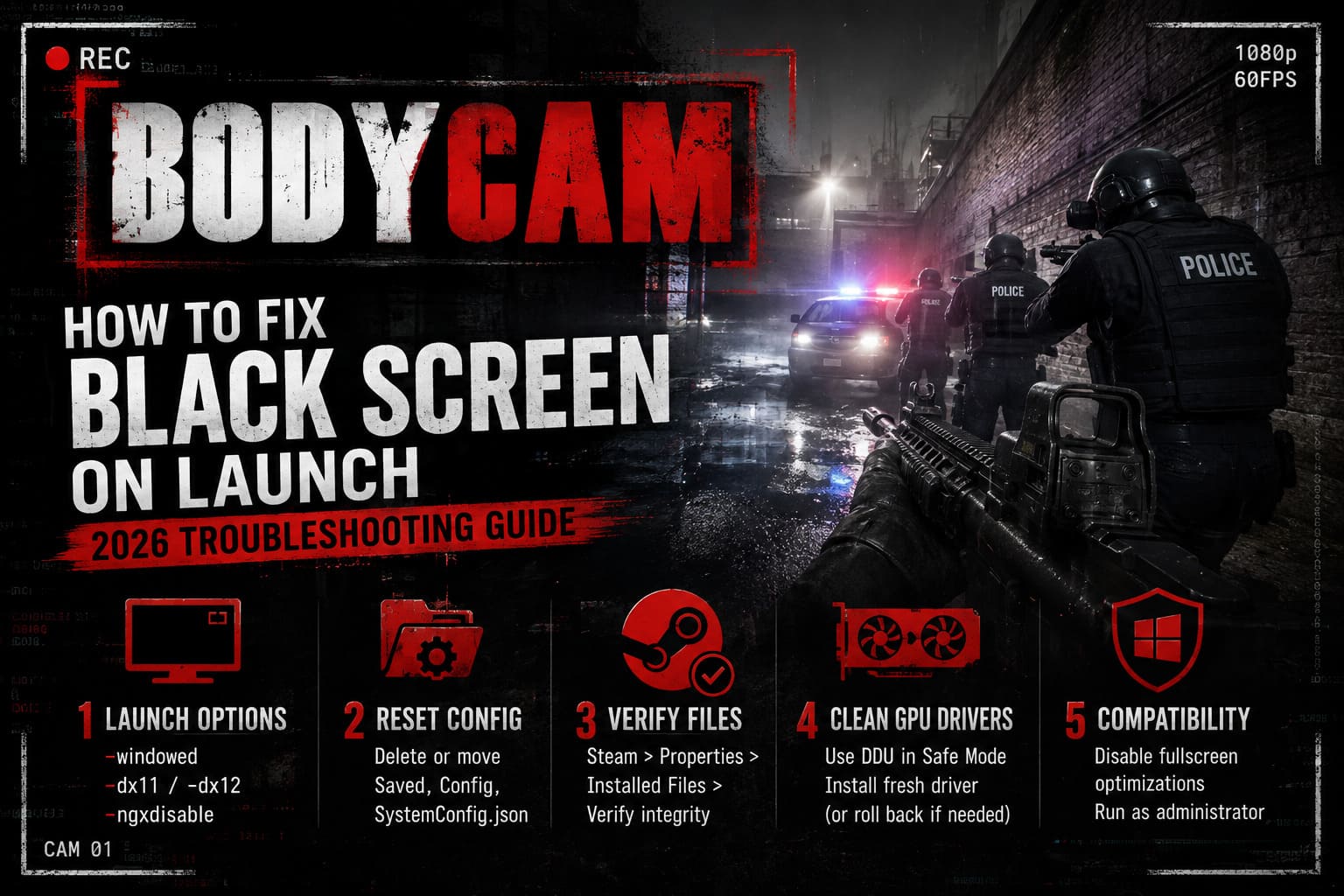
Don’t throw all four commands into the box at once. Test them individually. That’s important because we’re troubleshooting, not playing command-line roulette.
If -windowed gets you into the menu, immediately open the game’s graphics settings and choose your preferred resolution and display mode. The original fullscreen configuration may have been the culprit.
2. Delete Bodycam’s Local Configuration and Cache Files
If Bodycam suddenly developed a black screen after changing graphics settings, this method jumps way up my personal troubleshooting list.
Unreal Engine games store local configuration files that control things such as resolution, graphics quality, display mode, and other settings. If one of those values becomes corrupted or simply isn’t compatible with your current setup, the game can repeatedly load the same broken configuration every time you launch it.
Reset the Configuration
- Press Windows Key + R.
- Enter
%localappdata%and press Enter. - Look for the folder associated with Bodycam or its developer.
- Search for Saved and Config folders.
- If you find a
SystemConfig.jsonfile, remove it or move it somewhere else as a backup. - If necessary, clear the relevant configuration folder.
- Launch Bodycam again.
I’d personally move the configuration files to your desktop instead of permanently deleting them on the first attempt. That gives you an easy way to restore them if necessary.
Your online multiplayer progression shouldn’t be erased by resetting local graphics configuration, but you will generally have to configure your settings again.
3. Verify Bodycam’s Game Files Through Steam
Steam updates aren’t always as clean as we’d like to believe. A download can be interrupted, an update can replace an asset incorrectly, or a file can become damaged without producing an obvious error.
With a large Unreal Engine game like Bodycam, one damaged asset or missing runtime file can be enough to prevent the renderer from initializing correctly.
Verify the Installation
- Open Steam.
- Go to your Library.
- Right-click Bodycam.
- Select Properties.
- Open Installed Files.
- Select Verify integrity of game files.
- Wait for Steam to finish scanning.
If Steam discovers damaged or missing files, it should automatically download replacements.
This is one of those boring fixes that doesn’t look impressive, but I’ve seen file verification rescue games that appeared completely dead. It is absolutely worth doing before reinstalling several dozen gigabytes.
4. Perform a Clean GPU Driver Installation With DDU
If Bodycam suddenly started displaying a black screen after a graphics driver update, or if you’ve installed and removed several different driver versions recently, I’d start looking at the GPU driver.
A normal driver update doesn’t necessarily remove every piece of the previous installation. Old profiles, components, and driver remnants can occasionally create ugly conflicts.
For serious troubleshooting, Display Driver Uninstaller (DDU) is the cleaner approach.
Recommended Process
- Download the latest official driver for your NVIDIA, AMD, or Intel GPU.
- Download and prepare Display Driver Uninstaller.
- Boot Windows into Safe Mode.
- Run DDU and remove the existing display driver.
- Restart the PC.
- Install the fresh graphics driver.
- Restart Windows once more.
- Launch Bodycam without additional GPU tweaking software running.
When installing the driver, choose the Custom/Advanced installation option when available and use the clean installation option if your driver package provides it.
If your black screen problem started immediately after a driver update, don’t overlook the possibility that the newest driver itself is the problem. Sometimes rolling back to a known-stable driver is smarter than assuming “newer” automatically means “better.”
5. Disable Fullscreen Optimizations and Run Bodycam as Administrator
Windows has a habit of adding its own layer of display management to applications. Most of the time, you never notice it. With a demanding Unreal Engine title, however, a fullscreen optimization conflict can sometimes produce strange startup behavior.
Find the game’s executable by opening:
Steam → Bodycam → Properties → Installed Files → Browse
Look for the main executable, often located inside a Binaries\Win64 directory.
Right-click the .exe, choose Properties, and open the Compatibility tab.
Enable:
- Disable fullscreen optimizations
- Run this program as an administrator
Click Apply, then OK, and test the game.
If this changes nothing, you can always revert the settings later. Don’t permanently pile compatibility options onto a modern game without testing each change individually.
6. Force Bodycam to Use Your Dedicated GPU
This one is particularly important for gaming laptops and systems that have both integrated and dedicated graphics.
Modern CPUs often include an integrated GPU, while the system also contains a much more powerful NVIDIA GeForce or AMD Radeon card. Windows normally handles GPU selection automatically, but occasionally an application gets assigned to the wrong graphics processor.
And Bodycam is absolutely not the kind of game where you want Windows making a bad guess.
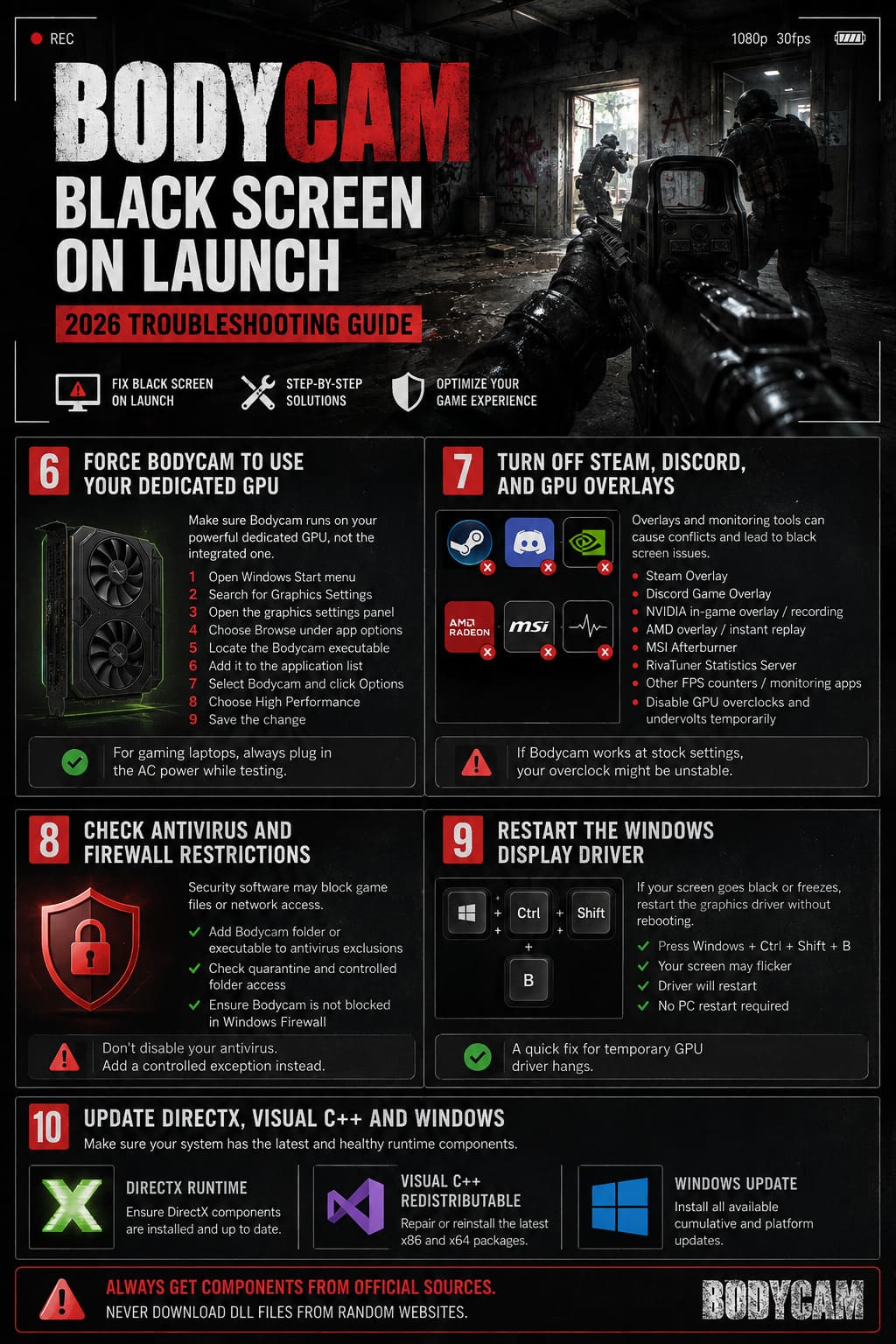
Set High-Performance GPU Mode
- Open the Windows Start menu.
- Search for Graphics Settings.
- Open the graphics settings panel.
- Choose Browse under the app options.
- Locate the Bodycam executable.
- Add it to the application list.
- Select Bodycam and click Options.
- Choose High Performance.
- Save the change.
This forces Windows to prioritize your dedicated graphics card instead of the integrated GPU.
If you’re gaming on a laptop, also make sure the laptop is connected to AC power during testing. Aggressive battery-saving profiles can sometimes introduce another layer of GPU power-management weirdness.
7. Turn Off Steam, Discord, and GPU Overlays
Overlays are incredibly useful until they aren’t.
Steam Overlay, Discord Overlay, NVIDIA recording tools, AMD overlays, MSI Afterburner, RivaTuner Statistics Server, and similar utilities can inject themselves into the rendering pipeline. Usually this works perfectly. Occasionally, two pieces of software decide they both want control of the same rendering hook, and the result is a black screen.
For troubleshooting, strip the system down.
Temporarily Disable
- Steam Overlay
- Discord Game Overlay
- NVIDIA in-game overlay or recording features
- AMD overlay and instant replay
- MSI Afterburner
- RivaTuner Statistics Server
- Other FPS counters or monitoring applications
Also disable GPU overclocks and undervolts temporarily.
If your GPU or CPU is running custom clocks, return everything to stock settings while testing Bodycam. Unreal Engine games can be surprisingly good at exposing marginal overclocks that appear perfectly stable in lighter games.
If Bodycam works perfectly at stock clocks, you’ve probably found your real problem.
8. Check Antivirus and Firewall Restrictions
Security software can occasionally interfere with a game’s executable or supporting files. This isn’t the first thing I’d blame for a black screen, but if you’ve already eliminated graphics and configuration problems, it’s worth checking.
Open Windows Security or your third-party antivirus software and inspect its quarantine, exclusions, and controlled folder access settings.
You can test by adding the Bodycam installation folder or primary executable to your security software’s exception list.
Also check the Windows Firewall rules to make sure Bodycam isn’t being unnecessarily blocked from network access.
Don’t permanently disable your antivirus just to launch a game. That’s an unnecessarily risky workaround. If you’re testing a security conflict, create a controlled exception and remove it afterward if it doesn’t solve the problem.
9. Restart the Windows Display Driver Without Rebooting
Here’s a quick trick every PC gamer should know.
If Bodycam goes black and the entire display appears to have stopped responding, press:
Windows Key + Ctrl + Shift + B
Windows will restart the graphics driver. Your monitor may briefly flicker, and you may hear a notification beep.
This doesn’t restart the PC. It simply refreshes the display driver.
If the black screen was caused by a temporary GPU driver hang rather than a deeper Bodycam configuration problem, the image can return immediately.
It’s a tiny shortcut, but when you’re sitting there wondering whether you need to hard-reset the machine, it can save you the hassle.
10. Update DirectX, Visual C++ and Windows
Finally, make sure the underlying Windows software environment isn’t the problem.
Bodycam depends on a modern Windows gaming stack, and missing or damaged runtime components can cause applications to fail before they even produce a proper visible error.
Check these three areas:
| Component | What To Do |
|---|---|
| DirectX Runtime | Make sure the required DirectX components are installed and healthy. |
| Microsoft Visual C++ Redistributable | Repair or reinstall the current x86 and x64 packages. |
| Windows Update | Install available cumulative and platform updates. |
I recommend getting these components from official Microsoft distribution channels rather than downloading random DLL files from third-party websites. Never fix a missing DLL error by grabbing an isolated DLL from some sketchy download page. That’s how a simple game problem turns into a much bigger Windows problem.
How to Fix Bodycam Audio Reverb and Sound Propagation Issues After Patch v0.8
Bodycam Black Screen Quick-Fix Checklist
| Problem | Recommended Fix |
|---|---|
| Fullscreen or resolution conflict | Try -windowed in Steam Launch Options |
| DirectX startup issue | Test -dx11, -d3d11, or -dx12 |
| Corrupted local settings | Reset Bodycam configuration files |
| Damaged game installation | Verify Steam game files |
| Driver corruption | Clean-install GPU drivers with DDU |
| Wrong graphics processor | Force Bodycam to High Performance GPU |
| Overlay conflict | Disable Steam, Discord, NVIDIA/AMD and monitoring overlays |
| Unstable overclock | Return GPU and CPU to stock settings |
| Security interference | Check antivirus exclusions and firewall permissions |
| Display driver freeze | Press Windows + Ctrl + Shift + B |
| Missing system dependencies | Update DirectX, Visual C++ and Windows |
Bodycam Game 2026: Guide to Explosive FPV Drones and RC Vehicles
Final Thoughts
A Bodycam black screen on launch looks dramatic because the game often gives you almost no useful feedback. You can hear the menu, the music keeps playing, and yet your monitor looks like it has completely given up.
Don’t immediately assume the installation is ruined.
Start with the low-risk fixes: try windowed mode, reset the local configuration, verify Steam files, and disable overlays. If that doesn’t work, move toward the deeper solutions with a clean GPU driver installation, dedicated GPU selection, compatibility settings, and system dependency repairs.
The most important thing is to change one variable at a time. If you simultaneously delete your configuration, reinstall the GPU driver, change DirectX, disable every overlay, and alter Windows settings, you won’t know which fix actually solved the problem.
Bodycam is demanding, and its Unreal Engine 5 presentation can expose weaknesses that other games happily ignore. But a black screen doesn’t necessarily mean your hardware is cooked. In most cases, there’s a specific software, configuration, driver, or rendering conflict sitting between the game and your display.
Work through the checklist patiently, keep your GPU drivers clean, remove unstable overclocks while troubleshooting, and give Bodycam a clean environment to initialize. Once you’re finally staring at that gritty bodycam feed instead of a black rectangle, you’ll know the extra few minutes were worth it.