How to Fix Twisted Tower Black Screen on Startup: Full PC Guide (2026)
There are few things more annoying than launching a horror game and getting scared by… absolutely nothing.
That is exactly what can happen with Twisted Tower on PC. You hit Play on Steam, expect the creepy atmosphere and twisted shooter action to kick in, and instead you’re staring at a completely black screen. Sometimes the intro audio continues playing in the background. Sometimes you can hear music while the display refuses to cooperate. In the nastier cases, the entire system can hang hard enough to force a reboot.
I’ve dealt with enough PC game launch disasters to know that the first instinct is usually the wrong one. Don’t immediately delete the game, reinstall Windows, or start blaming your GPU. A black screen at startup can come from several different layers of the PC setup: fullscreen behavior, display configuration, drivers, corrupted files, shader caches, or missing Microsoft runtimes.
This Twisted Tower black screen fix guide goes from the quick fixes to the deeper ones. You don’t need to throw every solution at the problem at once. Start at the top, test the game, and move down the list if the screen is still dead.
Quick Fix Overview

| Fix | Best For | Difficulty |
|---|---|---|
| Force Windowed Mode | Fullscreen and resolution conflicts | Easy |
| Disable Fullscreen Optimizations | Windows display conflicts | Easy |
| Reinstall or Roll Back GPU Drivers | Driver-related crashes | Medium |
| Simplify Your Display Setup | Ultrawide and multi-monitor issues | Easy |
| Verify Steam Files | Corrupted or missing game files | Easy |
| Repair Visual C++ Components | Missing system dependencies | Easy |
| Clear DirectX Shader Cache | Persistent rendering problems | Easy |
1. Force Twisted Tower Into Windowed Mode
If Twisted Tower launches to a black screen but you can still hear sound, this is one of the first things I’d try.
Fullscreen mode can be surprisingly fragile during the first moments of a PC game’s launch. High refresh rates, unusual resolutions, ultrawide displays, HDR configurations, and multiple monitors can all make the initial display handshake more complicated than it needs to be.
The game may technically be running. Your monitor simply isn’t getting a usable image.
The easiest workaround is to force the game into windowed mode through Steam.
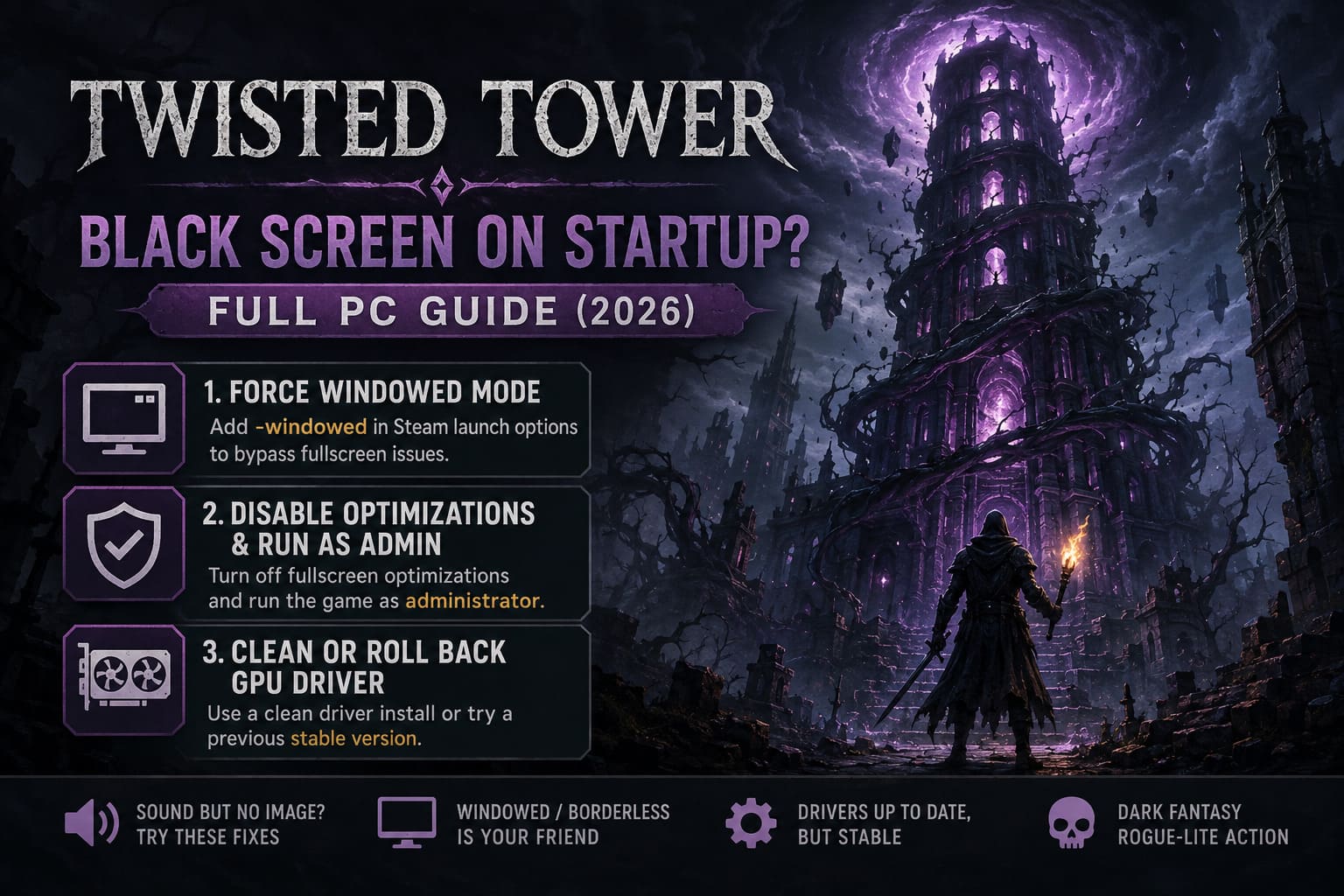
How to force windowed mode
- Open Steam and go to your Library.
- Right-click Twisted Tower.
- Select Properties.
- Stay on the General tab.
- Find the Launch Options field.
- Enter:
-windowed - Close the Properties window.
- Launch Twisted Tower again.
If the game suddenly appears, you’ve learned something useful: the problem is probably connected to the way the game is initializing fullscreen output.
Once you’re inside the main menu, open the display settings. Set the game to your monitor’s native resolution and experiment with Borderless Windowed or Fullscreen.
Personally, I’d try Borderless first. It isn’t always the fastest option, but it tends to be much less dramatic when Windows and a game disagree about who controls the display.
2. Disable Fullscreen Optimizations and Run the Game as Administrator
Windows has several compatibility features designed to make fullscreen games behave better. The annoying part is that compatibility features can sometimes become the thing causing the problem.
If Twisted Tower consistently goes black during startup, disabling Fullscreen Optimizations is worth testing.
You can also enable administrator privileges at the same time. This isn’t a magic performance boost, but it can help if the game is struggling to create or modify local cache and configuration files.
Here’s what to do:
- Open Steam.
- Go to your Library.
- Right-click Twisted Tower.
- Select Manage.
- Click Browse local files.
- Find the game’s main
.exefile. - Right-click it and choose Properties.
- Open the Compatibility tab.
- Enable Disable fullscreen optimizations.
- Enable Run this program as an administrator.
- Click Apply, then OK.
- Launch the game through Steam.
Don’t assume this is only useful on older PCs. Modern Windows installations can still produce weird interactions between fullscreen handling, overlays, GPU drivers, and individual game engines.
If the game was previously getting stuck immediately after its opening sequence, this is a particularly sensible test.
3. Clean Install or Roll Back Your Graphics Driver
This is the fix I’d take seriously if the black screen is accompanied by GPU instability, severe stuttering, driver crashes, or an entire PC reboot.
A simple game crash is one thing. When the display disappears and the machine locks up, the graphics driver deserves investigation.
I’ve seen plenty of PC games behave perfectly on one driver version and turn into absolute chaos after an update. New drivers are usually intended to improve compatibility, but that doesn’t mean every game benefits immediately.
If Twisted Tower started misbehaving immediately after a GPU driver update, rolling back is a very reasonable experiment.
Nvidia users
If you’re running an Nvidia RTX card and the problem appeared after a driver update, consider performing a clean driver installation.
For particularly stubborn cases, advanced users can use Display Driver Uninstaller (DDU) from Windows Safe Mode to remove the existing display-driver components before installing a known-stable driver package.
The basic idea is simple:
- Remove the problematic driver environment.
- Restart Windows.
- Install a stable official driver.
- Test Twisted Tower before adding extra tweaks.
Don’t blindly chase the newest driver just because it has the highest version number. Stable beats new when you’re trying to get a game to launch.
AMD and Intel users
Make sure your graphics driver comes directly from the GPU manufacturer’s official support channel rather than relying exclusively on Windows Update.
Gaming-focused driver packages can contain fixes that generic Windows drivers simply don’t have.
If the black screen began immediately after an update, testing the previous stable driver is also worth considering.
4. Simplify Your Monitor and Resolution Setup
Here’s another fix that sounds ridiculous until it works.
Disconnect the extra screens.
If you’re running a 21:9 or 32:9 ultrawide, multiple monitors, a TV, or a VR headset, you’re giving the game considerably more display hardware to negotiate during startup.
That can become a problem if the game attempts to initialize an unsupported resolution, refresh rate, aspect ratio, or display target.
For troubleshooting purposes, make the setup as boring as possible.
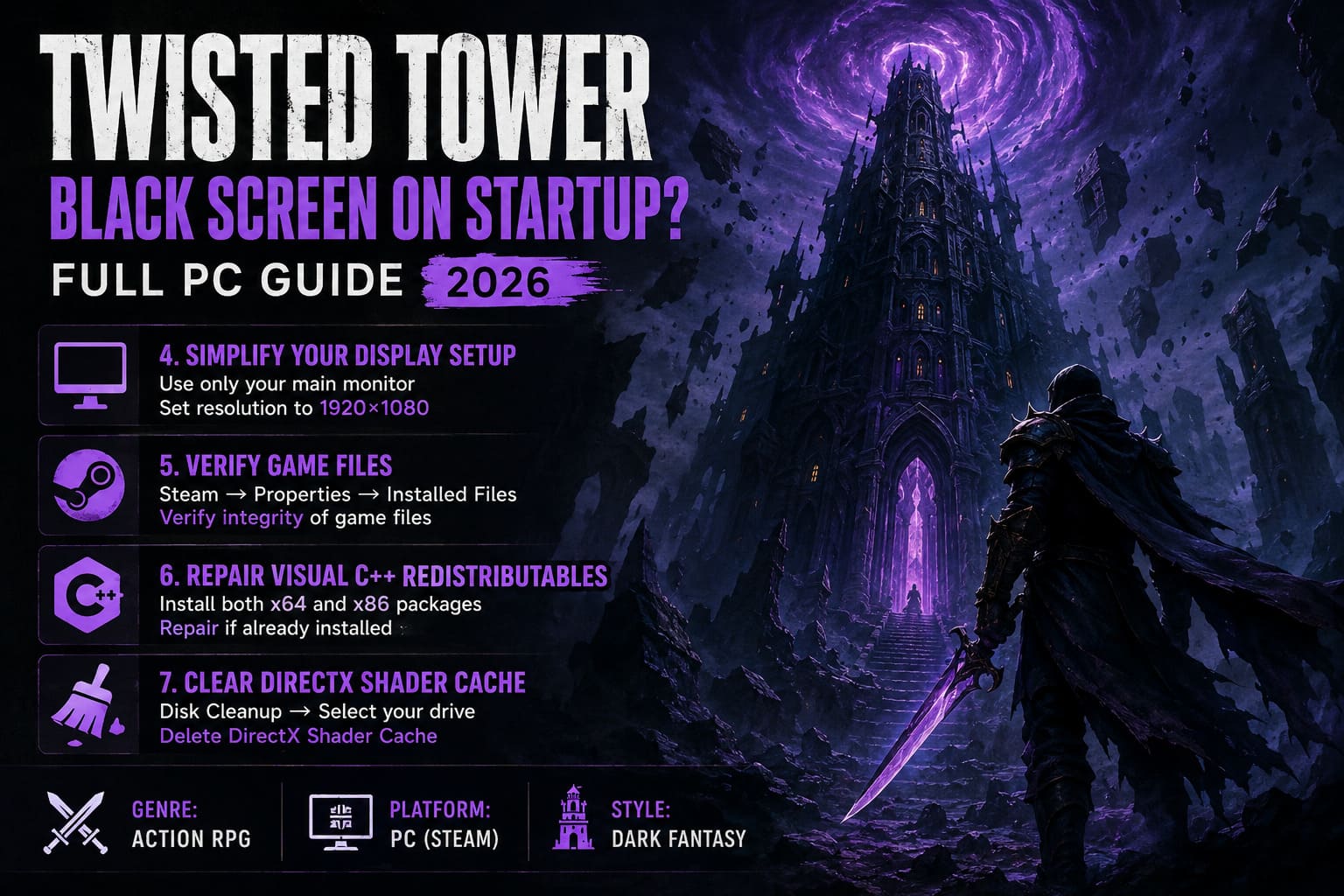
Try this:
- Shut down Twisted Tower.
- Disconnect secondary monitors.
- Disconnect VR headsets or additional display devices.
- Leave only your primary monitor connected.
- Open Windows Display Settings.
- Temporarily switch to 1920×1080.
- Launch Twisted Tower.
If the game finally reaches the menu, don’t panic. Your expensive ultrawide monitor hasn’t suddenly become useless.
Instead, enter the game’s graphics settings and gradually restore your preferred resolution and display mode. Save the configuration, exit the game, restore your Windows desktop resolution, and test again.
This is especially useful when a game works at 1080p but refuses to display anything at a more unusual resolution.
5. Verify Twisted Tower’s Steam Files
Never underestimate the boring Steam fixes.
A damaged executable, incomplete download, corrupted cinematic, or missing game asset can leave a game stuck before the main menu. If the black screen appears around the publisher logo, developer intro, or initial loading transition, corrupted local files are absolutely worth checking.
Steam already has a tool for this.
Verify the installation:
- Open your Steam Library.
- Right-click Twisted Tower.
- Select Properties.
- Open Installed Files.
- Click Verify integrity of game files.
- Wait for Steam to finish scanning.
Steam compares your local installation against its available file manifest. If something is missing or damaged, Steam can download the replacement files.
This process can take a while, especially on a slower drive, so don’t assume Steam has frozen just because the verification isn’t instantaneous.
Once it finishes, restart Steam and launch the game again.
If the black screen was caused by a damaged installation, this is often enough to get everything moving again.
6. Repair Microsoft Visual C++ Redistributables
Games don’t operate in isolation. They depend on a pile of Windows components that most players never think about until something breaks.
Microsoft Visual C++ Redistributables are among those dependencies.
A missing, damaged, or mismatched runtime can cause a game to crash before it properly initializes its graphics pipeline. Depending on the game and system configuration, the result may look like a conventional crash, a silent exit, or simply a black screen.
For Twisted Tower troubleshooting, make sure the current Microsoft Visual C++ Redistributable packages are installed correctly.
Recommended approach
- Download the latest supported Visual C++ Redistributable packages from Microsoft’s official support resources.
- Install the x64 package.
- Install the x86 package as well.
- If Windows reports that the package is already installed, use the Repair option when available.
- Restart your PC.
- Launch Twisted Tower again.
Installing both architectures is useful even on a 64-bit version of Windows because individual applications can rely on different runtime components.
A reboot afterward is not optional in my book. If you’ve just repaired system libraries, give Windows a clean restart before judging whether the fix worked.
7. Clear the DirectX Shader Cache
Shader compilation is one of those invisible parts of PC gaming that you usually never notice.
Until it breaks.
A corrupted or outdated shader cache can cause graphical glitches, stuttering, crashes, or problems during the first stages of loading. If you’ve already tried the display and driver fixes and Twisted Tower still refuses to produce an image, clearing the DirectX Shader Cache is a low-risk step.
Clear it through Windows Disk Cleanup
- Press the Windows key.
- Search for Disk Cleanup.
- Open the utility.
- Select your main Windows drive, usually C:.
- Click OK.
- Find DirectX Shader Cache in the cleanup list.
- Leave that option selected.
- Click OK.
- Confirm the deletion.
Windows will rebuild the necessary shader cache as you launch games again.
The first startup after clearing it may take slightly longer while shaders are recreated. That’s normal. Don’t immediately assume you’ve made things worse because the first load isn’t instant.
Twisted Tower Weapon Upgrade Tier List 2026: Best Weapons Ranked
What I’d Try First
If this were my own PC and Twisted Tower suddenly decided to become a black rectangle, I wouldn’t start by reinstalling everything.
I’d go in this order:
- Force
-windowedmode. - Disconnect extra monitors and test at 1920×1080.
- Disable Fullscreen Optimizations.
- Verify the Steam installation.
- Clear the DirectX Shader Cache.
- Repair Visual C++ Redistributables.
- Investigate the GPU driver if crashes or full system reboots continue.
That order matters because the first few fixes are quick, reversible, and don’t involve messing with your entire Windows installation.
Is Twisted Tower Coming to Xbox Series X and PS5? Release Date and Console Port Expectations
Final Thoughts
The Twisted Tower black screen on startup problem is the kind of PC issue that can make a perfectly good game look completely broken. The important clue is what happens around the black screen.
If you still hear music, display configuration and fullscreen behavior should be high on your list. If the entire PC locks up or reboots, shift your attention toward the GPU driver and system-level stability. If the game dies during an intro or loading transition, check the Steam installation and runtime dependencies.
PC troubleshooting isn’t glamorous. Nobody boots up a horror shooter hoping to spend twenty minutes checking Windows settings. But most of these fixes take only a few minutes, and they’re far less painful than reinstalling the entire game for no reason.
Start with windowed mode. Strip the display setup back to one monitor. Verify the files. Then move toward drivers and system components if the problem survives.
And when Twisted Tower finally reaches the menu instead of serving you a perfectly black screen, save that working configuration. Trust me, you’ll be glad you did.