Control Resonant Crashes on Startup Epic Games Store: 9 Ways to Fix the Remedy Game Launching Issues
If there is one thing that can ruin the excitement of launching a new Remedy game, it is watching it disappear before you even reach the main menu. Control Resonant has plenty going for it: strange environments, aggressive combat, reality-bending set pieces, and the kind of atmosphere Remedy has become known for. Unfortunately, some PC players using the Epic Games Store are running into a much less entertaining part of the experience — Control Resonant crashes on startup.
I have played enough PC games over the years to know that launch crashes are rarely caused by one magical setting. Sometimes the problem is a broken driver, sometimes it is an overlay quietly interfering with DirectX 12, and sometimes the Epic launcher itself decides that today is the perfect day to stop cooperating. The good news is that most of these problems can be diagnosed without immediately deleting a massive AAA installation.
How to Fix Twisted Tower Black Screen on Startup: Full PC Guide (2026)
Why Control Resonant May Crash Before Reaching the Main Menu
Control Resonant is not exactly a lightweight game. Remedy’s Northlight technology is built around demanding rendering, streaming, physics, lighting, and environmental effects, which means the game needs a surprisingly clean relationship between Windows, your graphics driver, the launcher, and the hardware underneath.
A crash that happens immediately after pressing Play usually points toward an initialization problem rather than ordinary in-game instability. If the game reaches the splash screen and then closes, the cause can be different from a crash that happens after several minutes of gameplay.
The most common suspects include:
- Outdated or corrupted GPU drivers that fail during DirectX 12 initialization.
- Epic Games Launcher cache or authentication problems that prevent the game from starting correctly.
- Overlay and monitoring applications injecting themselves into the rendering process.
- Corrupted game files left behind after an update or interrupted download.
- Missing or damaged Microsoft runtime components required by the game.
- Cloud synchronization conflicts that leave the launcher stuck before the game fully starts.
I would not try all nine fixes randomly. Start with the easy stuff, test the game after every major change, and only move toward more invasive solutions when the simpler ones fail.
1. Run Epic Games Launcher and Control Resonant as Administrator
This is one of those fixes that sounds almost too basic, but Windows permissions can cause surprisingly strange behavior with modern PC games. If Epic Games Launcher cannot properly communicate with the installed game or write temporary files, Control Resonant may close without giving you a useful error message.
First, completely exit Epic Games Launcher. I recommend opening Task Manager afterward and making sure there are no Epic Games processes still running in the background.
Right-click the Epic Games Launcher shortcut and choose Run as administrator. Launch Control Resonant again and see whether you can reach the main menu.
If that works but you do not want to manually launch Epic as administrator every time, you can also right-click the game’s executable, open Properties → Compatibility, enable Run this program as an administrator, and apply the change.
2. Try Epic Games Command-Line Arguments
If Control Resonant crashes immediately after its splash screen appears, the launcher layer itself could be getting in the way. This is especially worth testing when the game worked previously but suddenly stopped launching after an Epic Games Launcher update.
Open Epic Games Launcher and go to Settings. Find Control Resonant in the list of installed or managed games and enable the option for Additional Command Line Arguments if it is available.
Try:
-skip_launcher
If that does not help, remove it and test:
-epicportal
Do not throw several arguments into the box at once. Testing them separately makes it much easier to figure out whether one of them actually changes the behavior.
3. Verify the Control Resonant Game Files
This is probably the first thing I would personally do before spending an hour changing Windows settings. Large PC games are constantly patched, and one damaged file can be enough to stop an engine from completing its startup sequence.
Open your Epic Games Store library, find Control Resonant, click the three-dot menu, choose Manage, and select Verify.
Epic will compare your installed files against the current version available on its servers. If something is missing or corrupted, the launcher should download a replacement.
It can take a while with a game this large, particularly on a slower drive, so don’t assume the process has frozen just because the percentage does not move quickly. Let it finish completely before testing the game again.
4. Update Your GPU Driver and Windows
A new Remedy release is exactly the sort of game where graphics-driver support matters. NVIDIA, AMD, and Intel regularly publish driver updates around major releases because new rendering features and bug fixes can directly affect whether a game launches correctly.
Check for the latest driver through your GPU manufacturer’s software or official driver page. If you have recently upgraded drivers several times without performing a clean installation, a clean driver installation can also be worth trying.
Windows itself should be updated as well. Press the Windows key, search for Check for updates, and install pending updates before testing Control Resonant again.
I would especially prioritize this step if the game crashes before displaying its first proper scene. A broken or outdated DirectX-related component can fail long before you ever get an opportunity to change graphics settings inside the game.
5. Clear the Epic Games Launcher Cache
Epic’s cache is another potential troublemaker. The launcher stores temporary web and interface data locally, and corruption in that cache can lead to login problems, synchronization loops, or games refusing to start correctly.
Press Windows + R, enter:
%localappdata%
Open the EpicGamesLauncher folder, then go into Saved. Look for the webcache folder and remove it.
This does not uninstall your games. After restarting Epic Games Launcher, the required cache files will be recreated.
If your particular installation contains multiple webcache folders, clearing the relevant Epic launcher cache folders can also be useful. The important part is to close the launcher first so it is not actively using those files.
6. Turn Off Overlays and Monitoring Software
This is one of my favorite troubleshooting steps because it is easy to test and can solve problems that otherwise make absolutely no sense.
Discord, GPU overlays, FPS counters, recording utilities, RGB applications, MSI Afterburner, RivaTuner Statistics Server, and similar programs can hook into a game’s rendering process. Most of the time they work perfectly, but DirectX 12 games can occasionally expose compatibility problems.
For testing, shut down unnecessary background applications completely. Disable the Epic overlay if possible, along with Discord’s overlay and GPU recording or performance overlays.
You do not necessarily have to live without these tools forever. If Control Resonant launches normally with everything disabled, start turning them back on one at a time. That will usually reveal which application is responsible.
7. Repair Microsoft Visual C++ and DirectX Components
When a game closes instantly without producing a meaningful error, missing system dependencies are easy to overlook. Control Resonant depends on Windows components that are not always obvious to the player.
Install or repair the current Microsoft Visual C++ Redistributable packages, including the x64 and x86 versions when appropriate. If an installer offers Repair, use it rather than immediately uninstalling everything.
It is also worth making sure the legacy DirectX runtime components are installed correctly. New games primarily use modern DirectX technologies, but some titles still depend on older supporting libraries that are not automatically present on every Windows installation.
I would treat this as a targeted repair rather than downloading random DLL files from third-party websites. Those DLL sites tend to create more problems than they solve.
8. Test Control Resonant Without Cloud Saves
Cloud synchronization is convenient right up until it becomes the reason a game refuses to start. If Epic gets stuck while synchronizing configuration or save data, the game process may never complete its initialization.
Close Epic Games Launcher completely, restart it with administrator privileges, and temporarily disable Cloud Saves in the launcher settings. Then try launching Control Resonant again.
If the game suddenly works, you have narrowed the problem down considerably. At that point, you can make a local save, close the game normally, and experiment with re-enabling cloud synchronization afterward.
This is also a useful test when the launcher appears to be looping rather than producing a conventional crash message.
9. Move the Game to an SSD
This is the fix I would leave toward the end because moving a huge game installation is not exactly a five-minute experiment. However, storage can matter enormously in modern games that stream large amounts of data while the world is being built around the player.
If Control Resonant is installed on an old mechanical HDD, moving it to an SSD can eliminate storage-related bottlenecks. An NVMe drive is ideal, although a decent SATA SSD can still provide a major improvement compared with a traditional hard drive.
Keep in mind that an SSD will not magically repair a bad driver or corrupted game file. The point is that if the game is struggling to load and process assets during startup, a faster storage device can remove one more potential bottleneck.
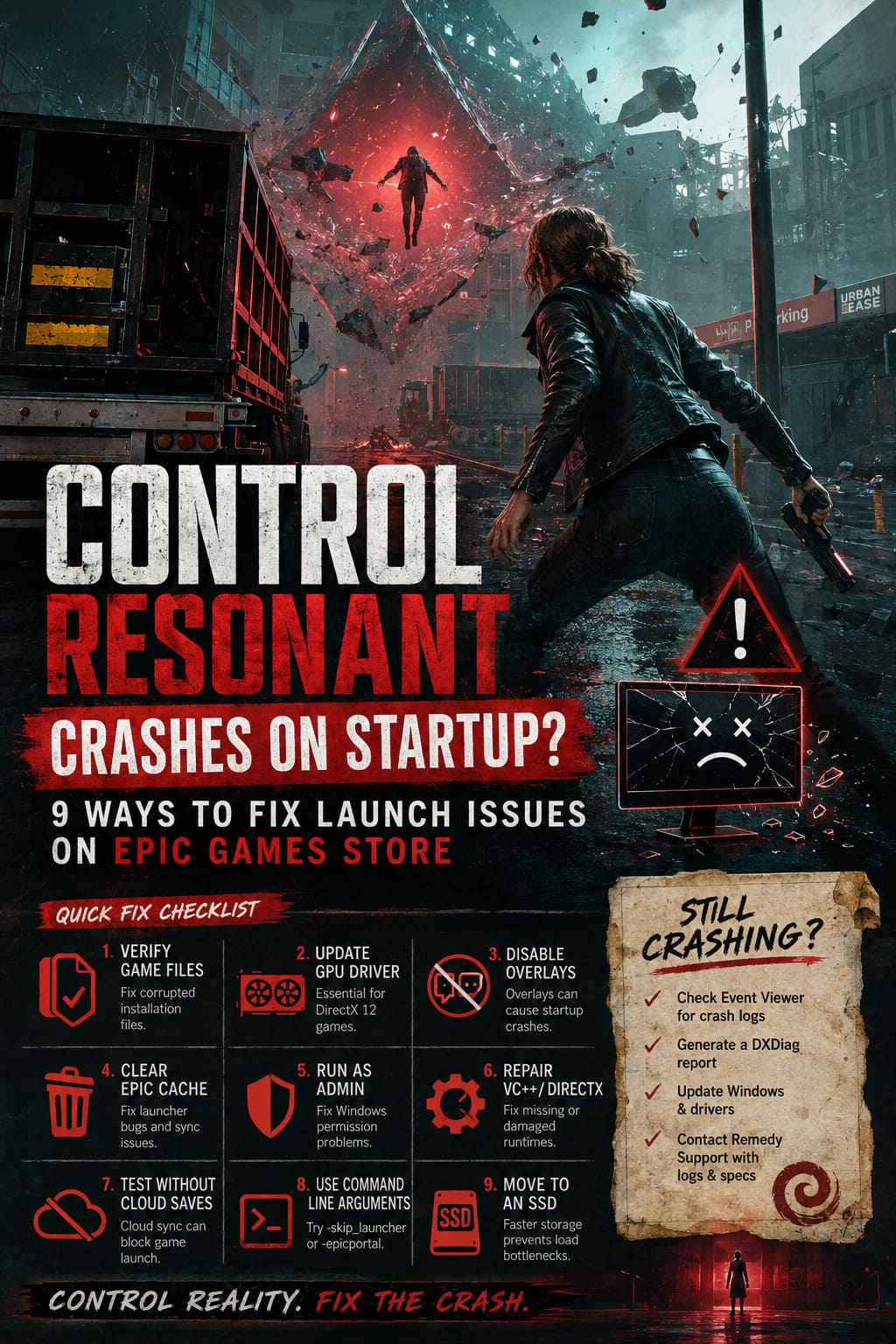
Quick Fix Order I Would Use
Rather than jumping around this guide, here is the order I would personally follow on a troublesome PC:
| Priority | Fix | Why Try It |
|---|---|---|
| 1 | Verify Game Files | Fast way to eliminate corrupted installation files. |
| 2 | Update GPU Driver | Important for a new DirectX 12 release. |
| 3 | Disable Overlays | Easy test for software injection conflicts. |
| 4 | Clear Epic Cache | Useful when the launcher behaves strangely. |
| 5 | Run as Administrator | Can resolve Windows permission problems. |
| 6 | Repair Visual C++ / DirectX | Helps with missing or damaged dependencies. |
| 7 | Test Without Cloud Saves | Useful when synchronization hangs. |
| 8 | Command-Line Arguments | Can bypass launcher-related startup conflicts. |
| 9 | Move to SSD | Worth considering when storage is the weak point. |
What If Control Resonant Still Crashes?
If you have gone through every fix and the game still closes before reaching the menu, I would stop changing random settings. At that point, the useful information is not another graphics tweak — it is the crash data.
Check Windows Event Viewer for an application error associated with Control Resonant. A crash log can sometimes identify whether the failure is connected to the executable, a graphics driver, DirectX, or another system component.
You should also prepare a DXDiag report and any crash logs generated by the game before contacting support. Include your GPU model, CPU, amount of RAM, Windows version, driver version, whether the game is installed on an SSD or HDD, and exactly when the crash occurs.
That information is far more useful than simply saying, ‘The game doesn’t work.’
My Take on PC Launch Troubleshooting
The frustrating part about launch crashes is that they make an expensive game feel completely broken when the actual cause can be something incredibly small. I’ve spent enough time troubleshooting PC games to know that the biggest mistake is changing ten things simultaneously. If the game suddenly launches afterward, you have no idea what fixed it, and the same problem can come back after the next driver or launcher update.
For Control Resonant crashes on startup on the Epic Games Store, I would begin with file verification, graphics drivers, overlays, and the Epic cache. Those are relatively low-risk fixes and cover a surprisingly large percentage of launch problems. After that, move toward runtime repairs, cloud synchronization, command-line arguments, and finally storage-related troubleshooting.
And if none of it works, don’t immediately assume your PC is too weak. A launch crash is not the same thing as poor performance. A machine can run demanding games at high settings and still fail to launch one particular title because of a driver conflict, corrupted dependency, or launcher problem.